User-Manual-of-NeoDen4-PNP-machine.pdf - 第22页
17 File Mounti ng : Figure 4. 16 1.Method to mount one file: First selec t one file , c lick “mou nt”, th en you will enter into one m ounting p age, above picture is an example of one file in moun ting. See the Figure 4…
16
4.3.3 Tray feeder information (available for feeder 54-98)
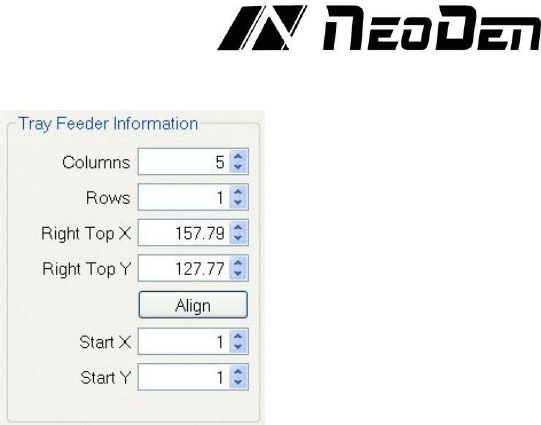
Figure 4.15
Function: Use to set the components’ information from tray and tube packages, complete picking up
operation for special feeders by changing the values, see the Figure 4.15.
(1) Column: Quantity of components on each column
(2) Row: Quantity of components on each row
(3) Right top X/Y: Find the position of right top component, this component is usually the last
component in IC tray, and left bottom side is the first component in IC tray.
(4) Start X/Y: This setting is used to define the position of 1st component, its default setting is X1,
Y1 (in 1st column, 1st row). If the 1st component is on 2nd column, 1st row, you can enter X2, Y1.
After finish setting of all above feeders’ information, then click “assign feeder and nozzle to Chip
list”, the NeoDen4 will automatically select the appropriate feeder and nozzle for each component
in the Component List.
4.4
Running the program
On the P&P Programming page, select the program you wish to run and press “Mount”.
If the vibration feeders are needed, activate them with the checkbox.
Place a PCB on the magnetic fixtures or load one into the rail system so that the PCB is in snug
contact with the guide belts.
There are two ways to run a program: Step Mode and Continuous Mode. Pressing step will cause
the NeoDen4 to execute the program one move at a time. This can be helpful in troubleshooting or
double- checking the integrity of a program before letting the machine run free. Pressing
Continuous will cause the program to run on its own. The NeoDen4 will first check each nozzle
called for by the program. It will the locate the fiducials on the board and begin placement
operations.
17
File Mounting
:
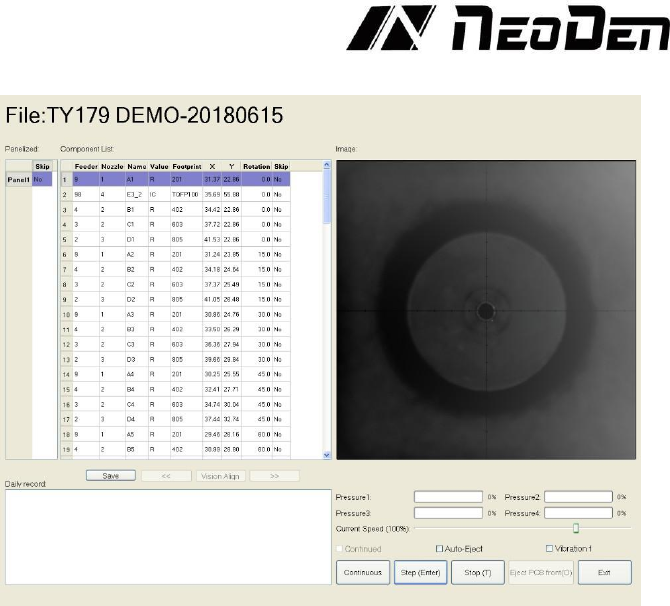
Figure 4.16
1.Method to mount one file:
First select one file, click “mount”, then you will enter into one mounting page, above picture is an
example of one file in mounting. See the Figure 4.16
(1) On the top-left corner shows mounting process, chip list---by the variation of blue line, you can
track process of mounting constantly.
(2) On the bottom-left corner shows some feedback during mounting process.
(3) On the top-right corner shows the status of picking and picking alignment
(4) On the bottom-right corner shows some control information
a. Air pressure of 4 nozzles
b. Placement speed, can be changed by manual during mounting
c. Non-stop mount, this is used in one-stop SMT production line, add conveyors in front and
behind,
d. Auto-eject PCB once finished, when select this option, after finished mounting task, PCB will
eject its working area automatically
e. Another control information, Continuous/Step/Pause/Eject PCB front-side manually/Stop
Continuous, the machine will obey its order and work constantly
f. Step, the machine will work one single step Pause, the machine will stop its work instantly
g. Eject PCB front-side manually, in order to catch the PCB, after PCB assembly, click this
option, PCB will eject from its feeding position. Kindly notice: After pause the machine then you
can carry out this order.
h. Stop, before click this option, you need to click “pause” first
i. Vibration Feeder: Tick this item and then the vibration motor will be on.
4.5
Manual Test
The second tab at the top of the interface opens the manual test screen. This screen contains a
convenient selection of tools to verify the operational status of most components of the NeoDen4.
Most functions of the manual test screen can also be accessed from other areas of the interface.
18
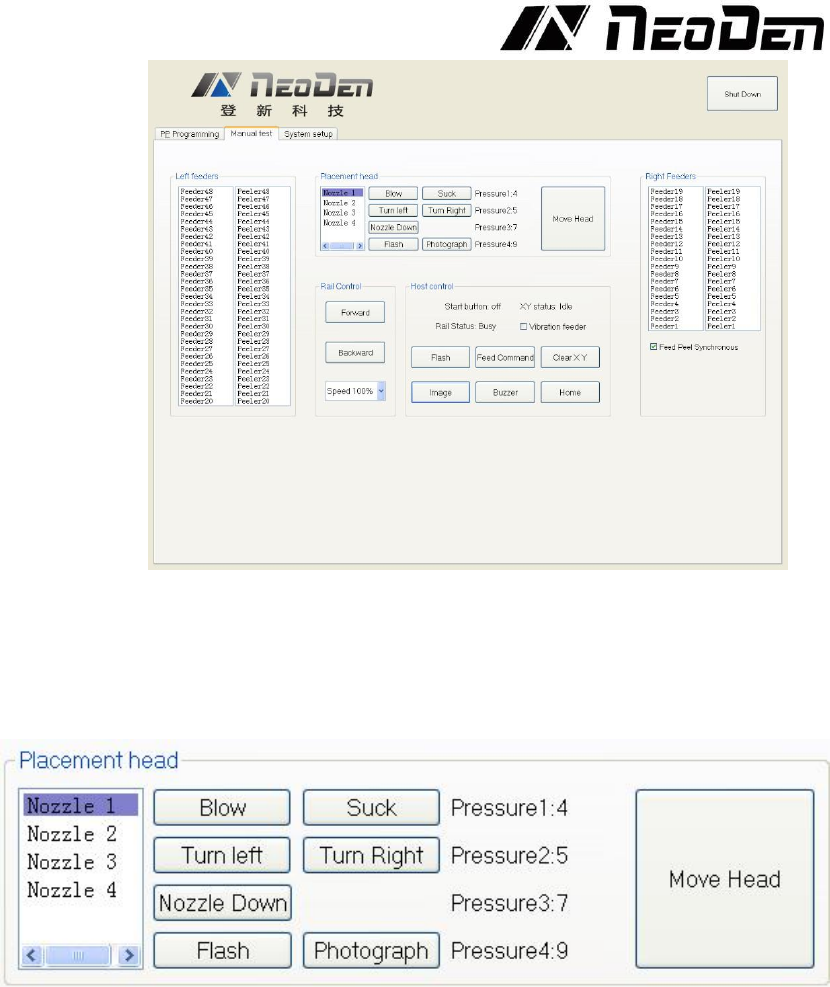
Figure 4.17
Function: Used for testing the basic functions, connection between software and hardware is the
mainly function, details about testing as below, see the Figure 4.17.
4.5.1 Placement head
Figure 4.18
Choose nozzle 1, nozzle 2, nozzle 3, nozzle 4 to test separately, see the Figure 4.18.
(1) The “Blow” button will release a brief jet of air from the selected nozzle. Place a finger under
the nozzle to verify operation. A small increase in positive value should appear on the screen.
(2) The “Suck” button will engage vacuum for the selected nozzle. Place a finger over the nozzle to
block airflow, and press the button. If the unit is operating correctly, you will feel the vacuum, and
the “pressure” indicator will change from a positive to a significant negative value while vacuum is
present.
(3) The “Turn left” and “Turn right” buttons activate the rotational axis of the selected nozzle.
Because rotation of the smooth black nozzles is difficult to observe, it is easiest to verify function
by watching the motion of the vacuum tubes at the top of the head.
(4) Down, after click this option, selected nozzle will descend slowly. Releasing the button causes
the nozzle to return to its upper position.
(5) The “Flash” button activates the lighting for the downward-looking •camera. Press once for the
inner lights, again for the outer lights, again for both, and a fourth press will turn the lights off.
(6) The “Photograph” button verifies operation of the downward- looking camera by moving the
head back and displaying a photograph of the table.