TR7007M_SII_Hardware_en_v1-0-1.pdf - 第30页
Test Research, Inc. 20 TR7007 M SII User Guide – Hardware INLINE: Por t1 and Port2 can be used to perform a self - diagnostic check. Connect the Port1 and Port2 connectors that have the same color and at Figure 55 pres…
Test Research, Inc.
TR7007M SII User Guide – Hardware 19
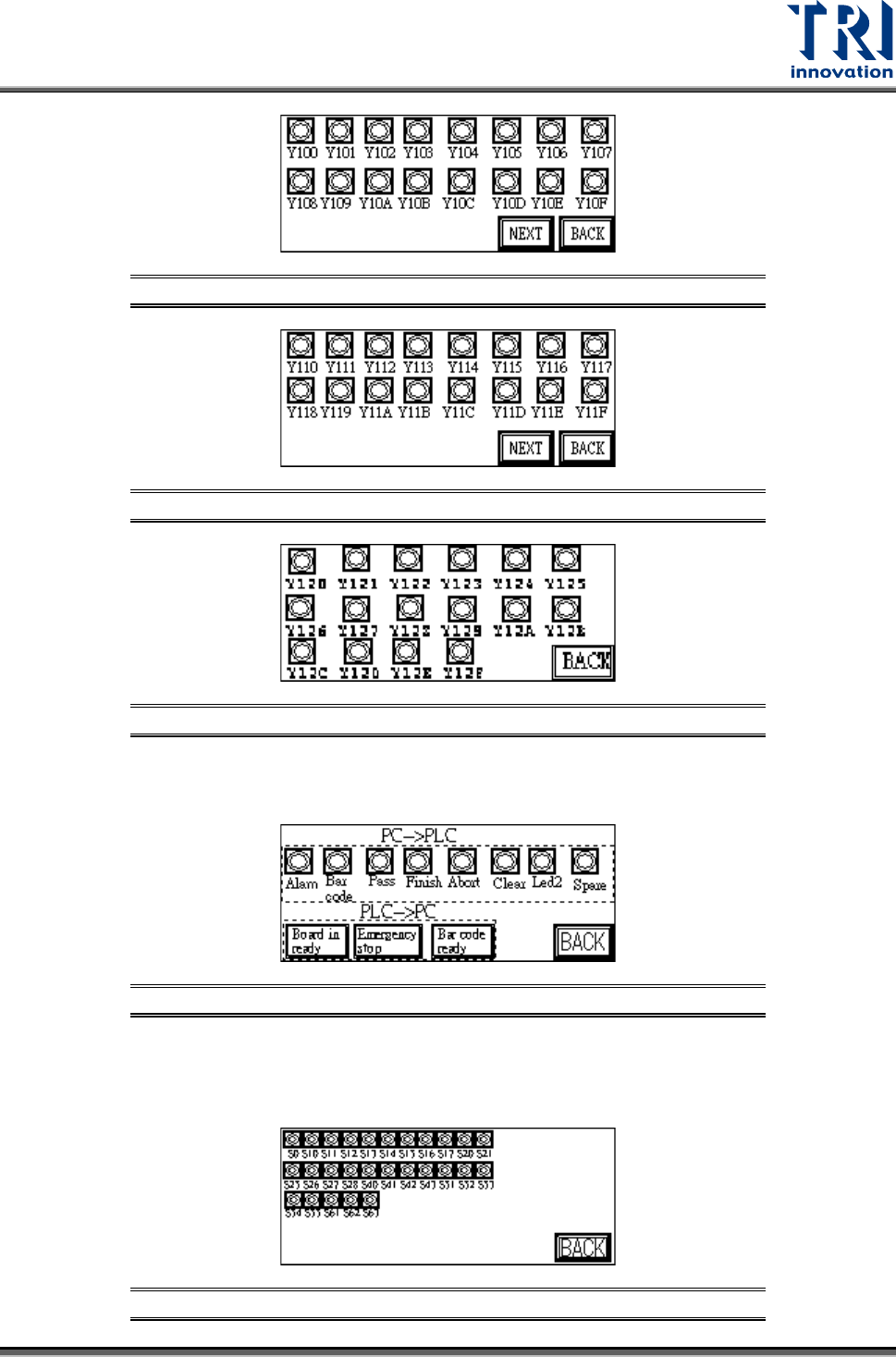
Figure 50: Output(Y) Values Y100-Y10F
Figure 51: Output(Y) Values Y110-Y11F
Figure 52: Output(Y) Values Y120-Y12F
PC & PLC I/O: Use this function in coordination with the I/O testing function in the main
program to review the Input and Output signals.
Figure 53: PC & PLC I/O
STEP(S): When step by step operation is selected, the step at which the system’s
operation experiences a problem can be identified; this is shown during system Reset,
Bypass and normal operations.
Figure 54: Stepping
Test Research, Inc.
20 TR7007M SII User Guide – Hardware
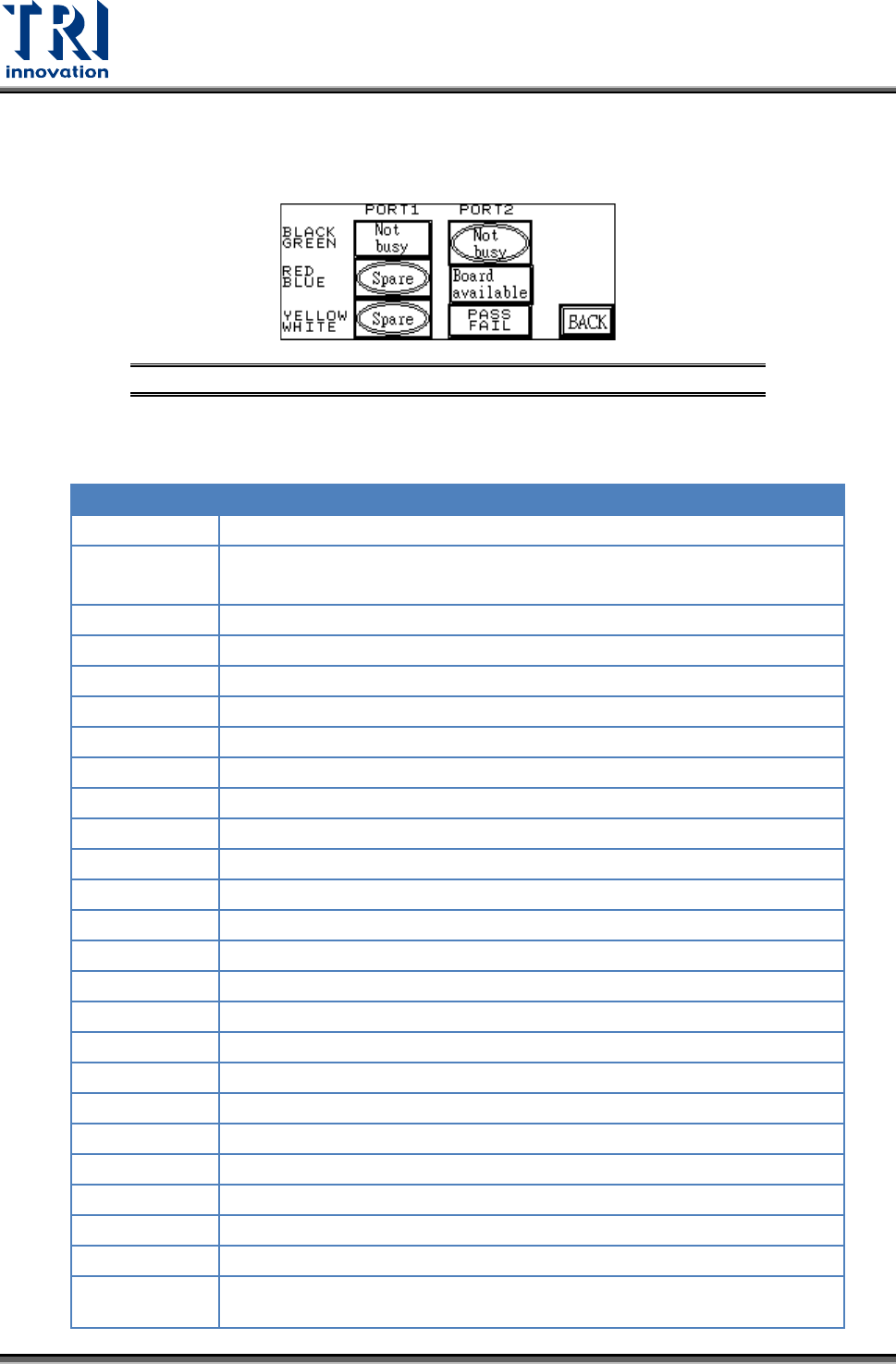
INLINE: Port1 and Port2 can be used to perform a self-diagnostic check. Connect the
Port1 and Port2 connectors that have the same color and at Figure 55 press [Not busy],
[Board available] or [PASS FAIL] to see if the corresponding input is shown.
Figure 55: I/O Display – INLINE Option
The following table lists the Input/Output signals for the X-Y table
PIN NUMBER
PIN DIFN.
X80(IN)
EMS
X87(IN)
DRCH RESET DONE(used by TR7100)
X8A(IN)
Loader board ready signal for barcode pre-read function
X90(IN)
SENSOR1
X91(IN)
SENSOR2
X92(IN)
SENSOR3
X93(IN)
SENSOR4
X94(IN)
SENSOR5
X95(IN)
SENSOR6
X98(IN)
UNLOADER READY (from load - port2 Black-Green)
X9A(IN)
TEST OK (from pc)
X9B(IN)
PC TEST COMPLETE (from pc)
X9C(IN)
PC ABORT (from pc)
X9D(IN)
CLEAR NOTIFY PC TEST (from pc)
X9E(IN)
2D LED2(from PC, used by the TR7006/L)
X9F(IN)
LASER ON(from PC, used by the TR7006/L)
Y100(OUT)
RED LIGHT
Y101(OUT)
YELLOW LIGHT
Y102(OUT)
GREEN LIGHT
Y103(OUT)
BUZZER
Y104(OUT)
REQUEST BOARD FROM LOADER (to unload – Port1 Black-Green)
Y105(OUT)
TEST OK (to unload - port1 Yellow-White)
Y109(OUT)
BARCODE START
Y110(OUT)
START CONVEYOR MOTOR (used by TR7100)
Y111(OUT)
STOP CONVEYOR MOTOR (used by TR7100)
Y112(OUT)
SLOW CONVEYOR MOTOR (used by TR7100),
2D LED2 (used by TR7600/L)
Test Research, Inc.
TR7007M SII User Guide – Hardware 21
Y113(OUT)
REVERSE CONVEYOR MOTOR (used by TR7100),
2D LED1 (used by TR7600/L)
Y114(OUT)
DRCH POWER (used by TR7100/ TR7100EP)
Y115(OUT)
DOS PC POWER(used by TR7100/ TR7100EP)
Y116(OUT)
BRAKE CONVEYOR WIDTH
Y117(OUT)
NOTIFY PC TEST (used by TR7100EP/TR7600)
Y118(OUT)
NOTIFY PC EMERGENCY STOP
(used by TR7100EP/TR7600)
Y119(OUT)
NOTIFY PC READ BARCODE
(used by TR7100EP/TR7600)
Figure 56: X-Y Table I/O Signals
3.2.5 Board Holder
Press [BOARD LOCK] or [BOARD UNLOCK] to test if the Board Holder is working
normally; press [BACK] to return to Figure 43: DEBUG Display.
Figure 57: Board Holder Display
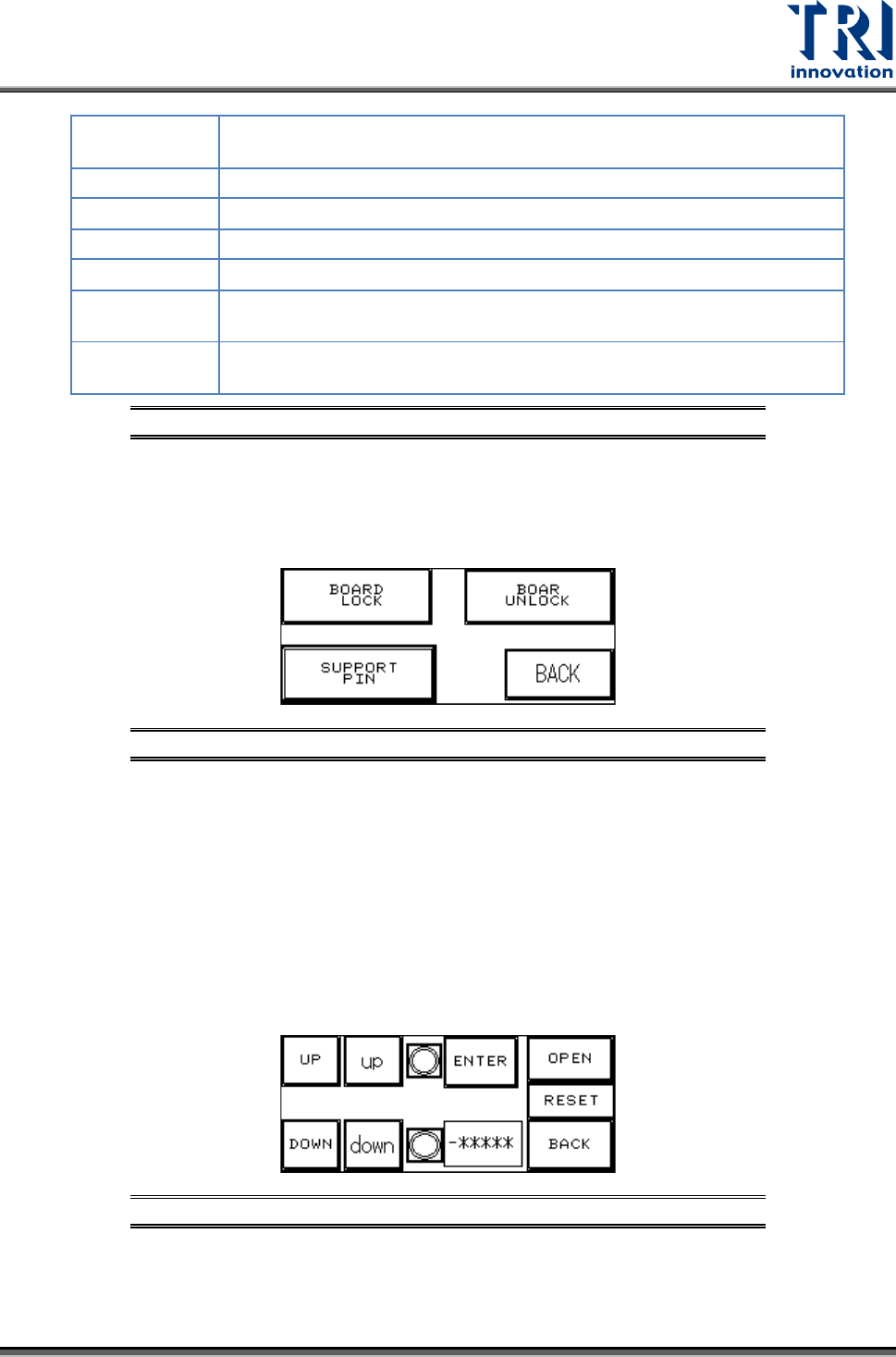
SUPPORT PIN: Place the candidate board at the loading Sensor and press ENTER. Wait
until the Support Pin is in position then press the [UP/DOWN] button to gradually adjust it
up and down. First it needs to be moved to the lowest position (the lower limit indicator
light will be lit) and then press [RESET]. Now press [UP] to adjust it to the location to
support the candidate board. The setting value will be shown at [-******]. When setting is
complete press [BACK]. If this accessory was not purchased or not in use, please make
sure that you press [OPEN] and then choose [NO] (or it cannot be reset). To the right of
the [UP/DOWN] buttons are their respective upper and lower elevation limit Sensor
indicator lights. If the indicator light is lit, it means the limit has been reached. The smaller
[up] and [down] mean to fine tune the position. Press once means to move 100pps.
Figure 58: Support Pin Setting