TR7007M_SII_Hardware_en_v1-0-1.pdf - 第60页
Test Research, Inc. 50 TR7007 M SII User Guide – Hardware Figure 96 : Chec k Port Status in Device M anager
Test Research, Inc.
TR7007M SII User Guide – Hardware 49
9.1.3 Testing Method
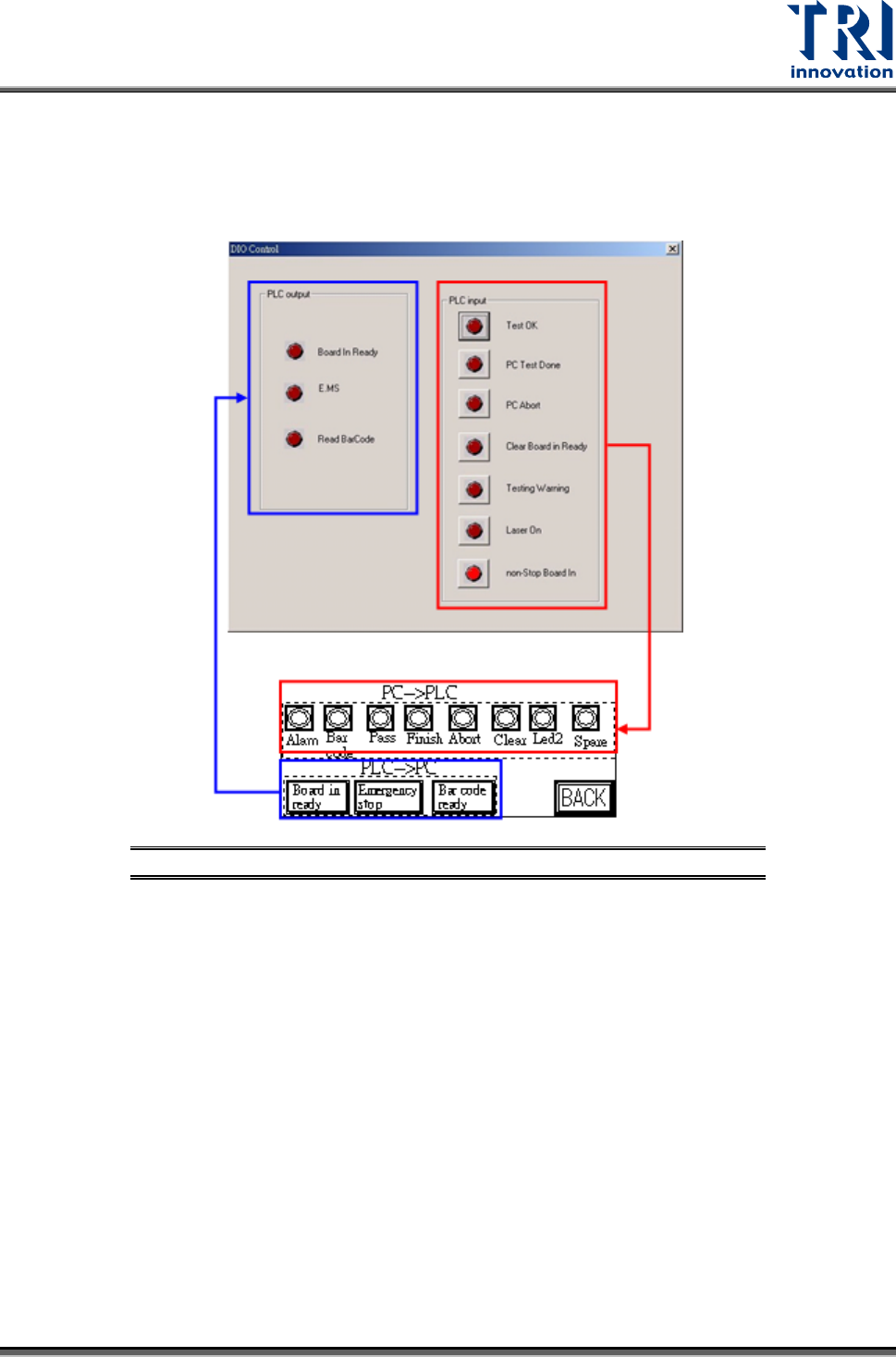
After opening the PC and PLC I/O Testing display, tick the PC output to see if there is a
response from PLC input. Press on PLC output to see if there is a response at PLC input.
Figure 95: Test PC & PLC Output
9.1.4 System Configuration:
Check [C
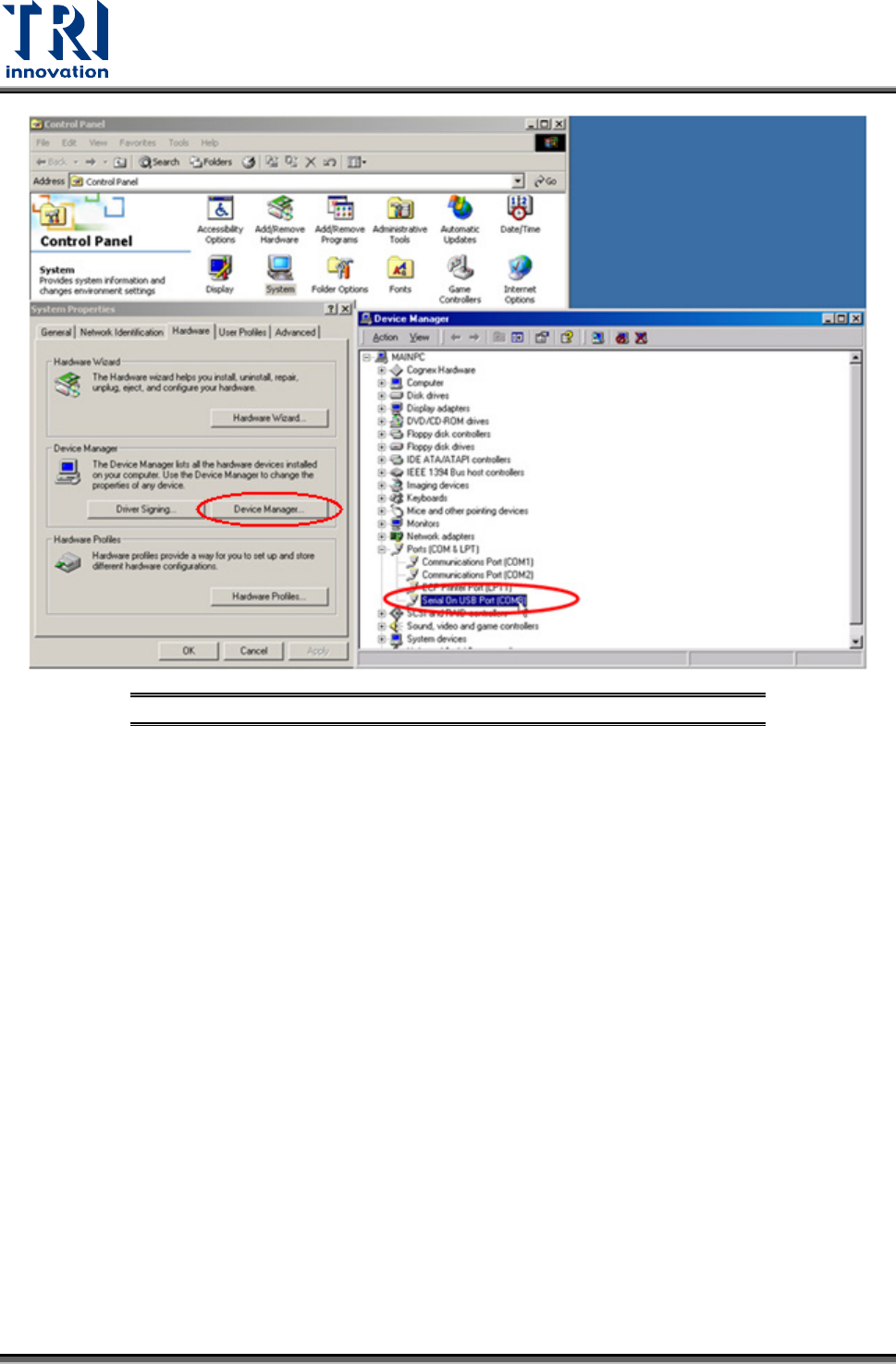
ONTROL PANEL > SYSTEM > HARDWARE > DEVICE MANAGER > PORT] to check if the
USB to RS-232 (COM8) device is operating normally.
Test Research, Inc.
50 TR7007M SII User Guide – Hardware
Figure 96: Check Port Status in Device Manager
Test Research, Inc.
TR7007M SII User Guide – Hardware 51
9.2 Automatic Conveyor Width
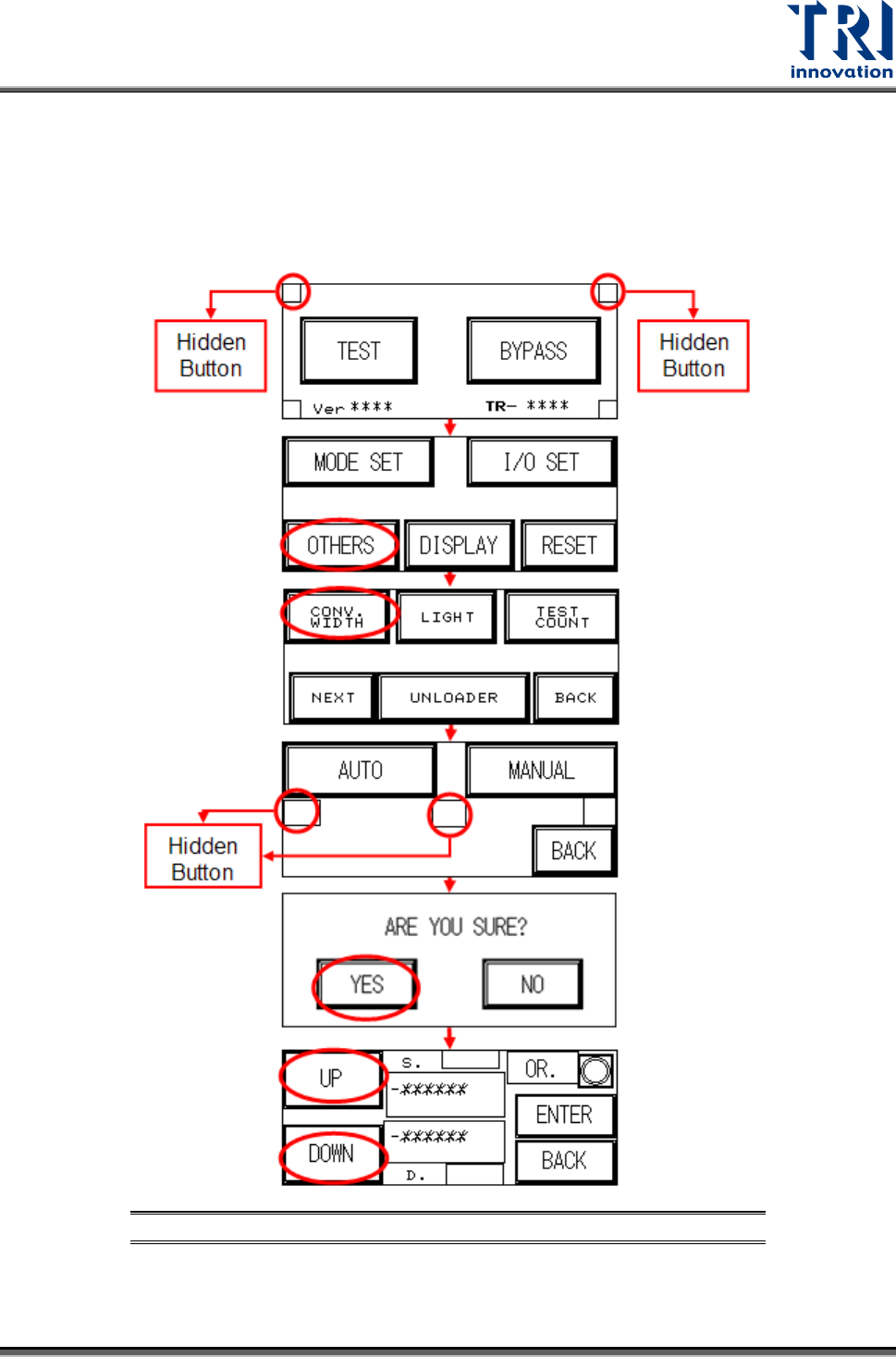
First perform a test manually (the two hidden buttons must be pressed simultaneously, the
setting procedure is as shown in the figures below) and depending on the results, refer to the
table below and troubleshoot.
Figure 97: Automatic Conveyor Width Troubleshooting Process