TR7007M_SII_Hardware_en_v1-0-1.pdf - 第36页
Test Research, Inc. 26 TR7007 M SII User Guide – Hardware 3.4 HCI & PLC Pro gram Replac ement 1) First connect the PLC - P C dat a cable properly, with t he PS2 connector connected to t he rear of the PCI, and the RS…
Test Research, Inc.
TR7007M SII User Guide – Hardware 25
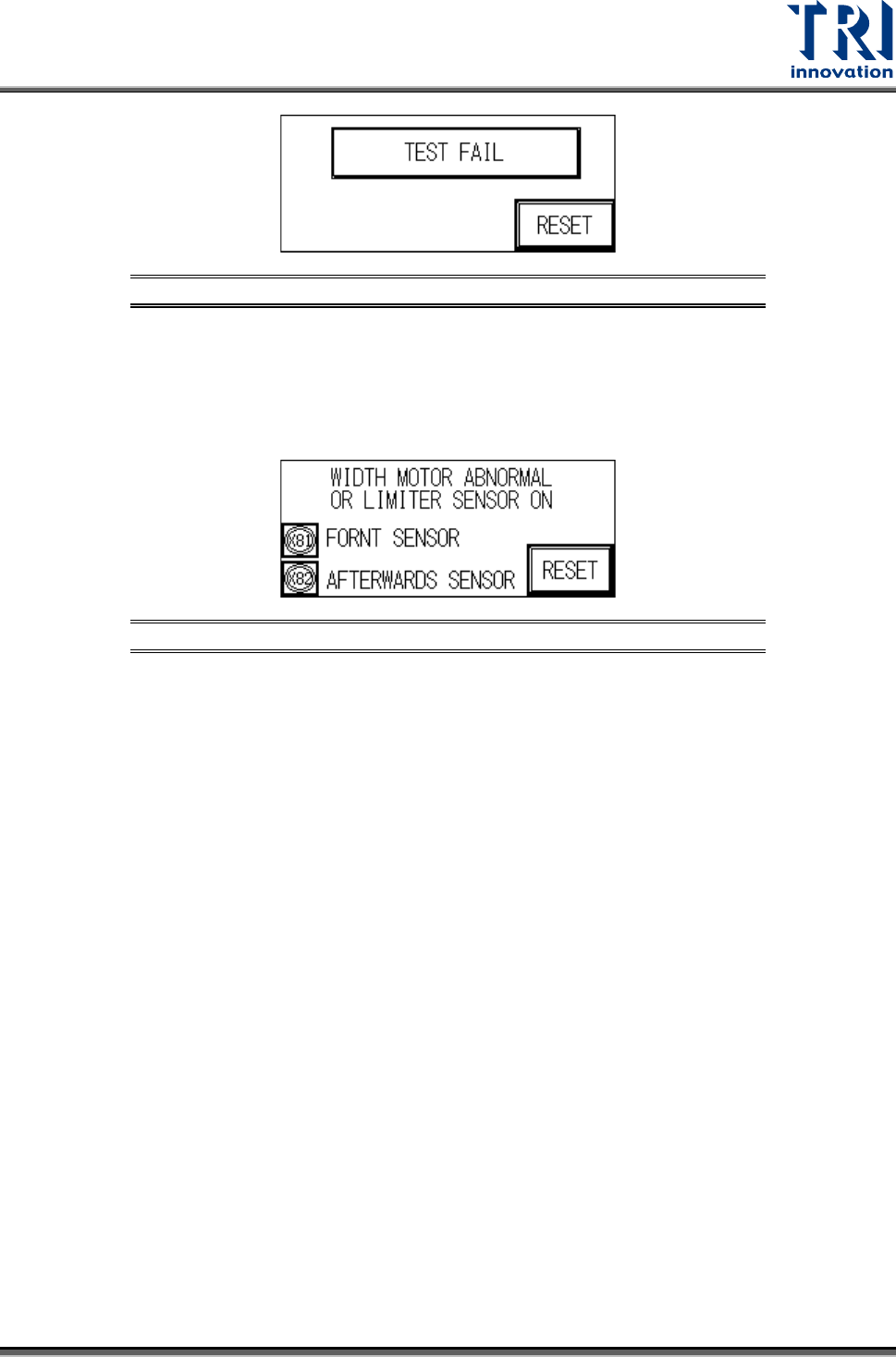
Figure 68: Board Test Fail
3.3.8 Width Motor Abnormal or Limiter Sensor On
The limit of the width of the auto conveyor for TR7500L or TR7006LL is 110000pps. These
two systems are equipped with the new limit sensors X81 and X82. When the limit sensor is
triggered, the system will display the following screen.
Figure 69: Width Motor Abnormal or Limiter Sensor On
Test Research, Inc.
26 TR7007M SII User Guide – Hardware
3.4 HCI & PLC Program Replacement
1) First connect the PLC-PC data cable properly, with the PS2 connector connected to the
rear of the PCI, and the RS232 connected to Main PC COM1.
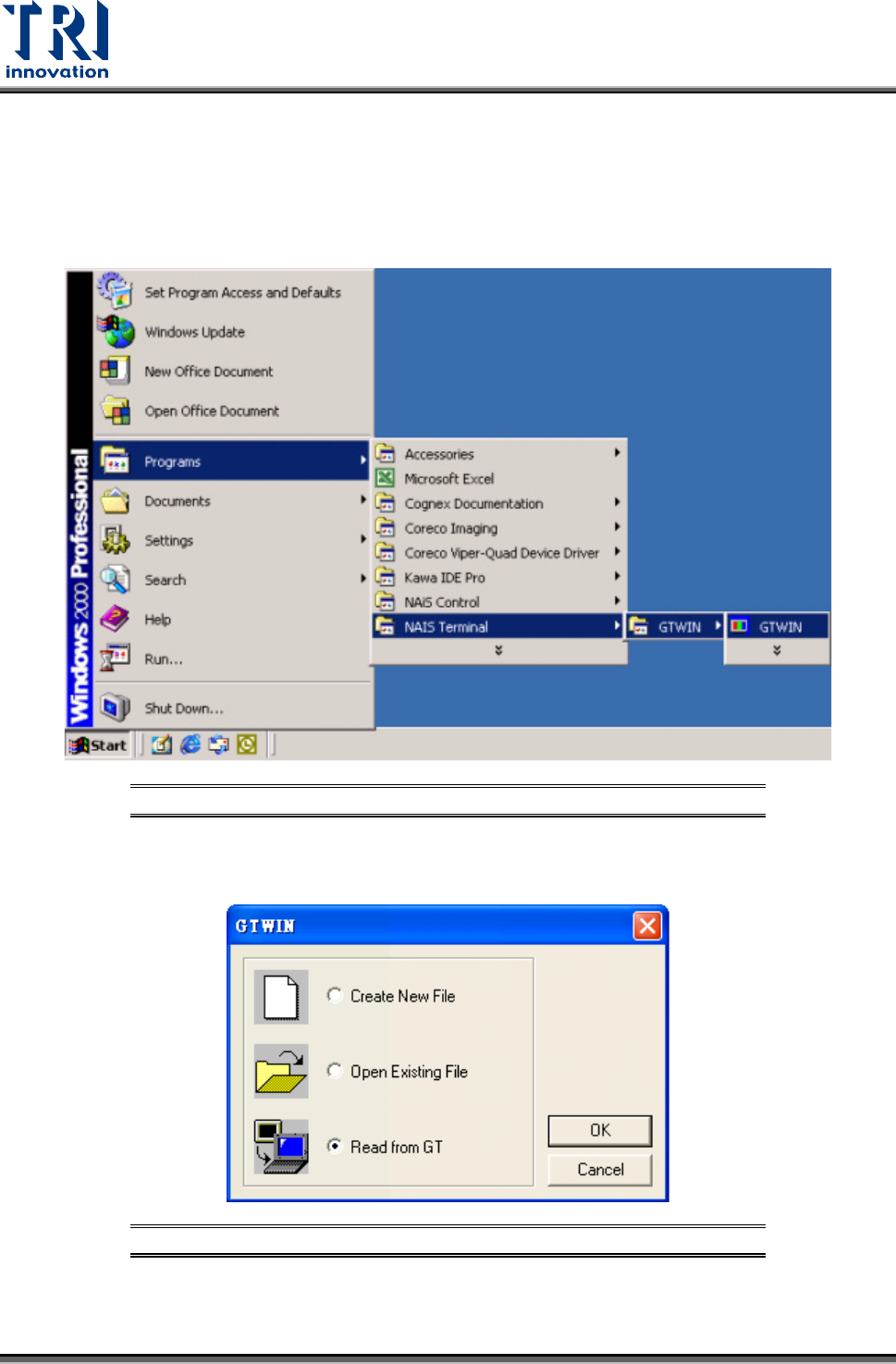
2) Open the Program Files’ GTWIN (as shown in the figure below)
Figure 70: Open GTWIN Program
3) Enter the GTWIN software program and as shown in the figure below, select [Read from
GT] (Read HCI data).
Figure 71: GTWIN -- Select Read from GT
4) After loading (this takes some time, please be patient), click on [File] and select [Save] to
make a backup of the original files as shown in the picture below.
Test Research, Inc.
TR7007M SII User Guide – Hardware 27
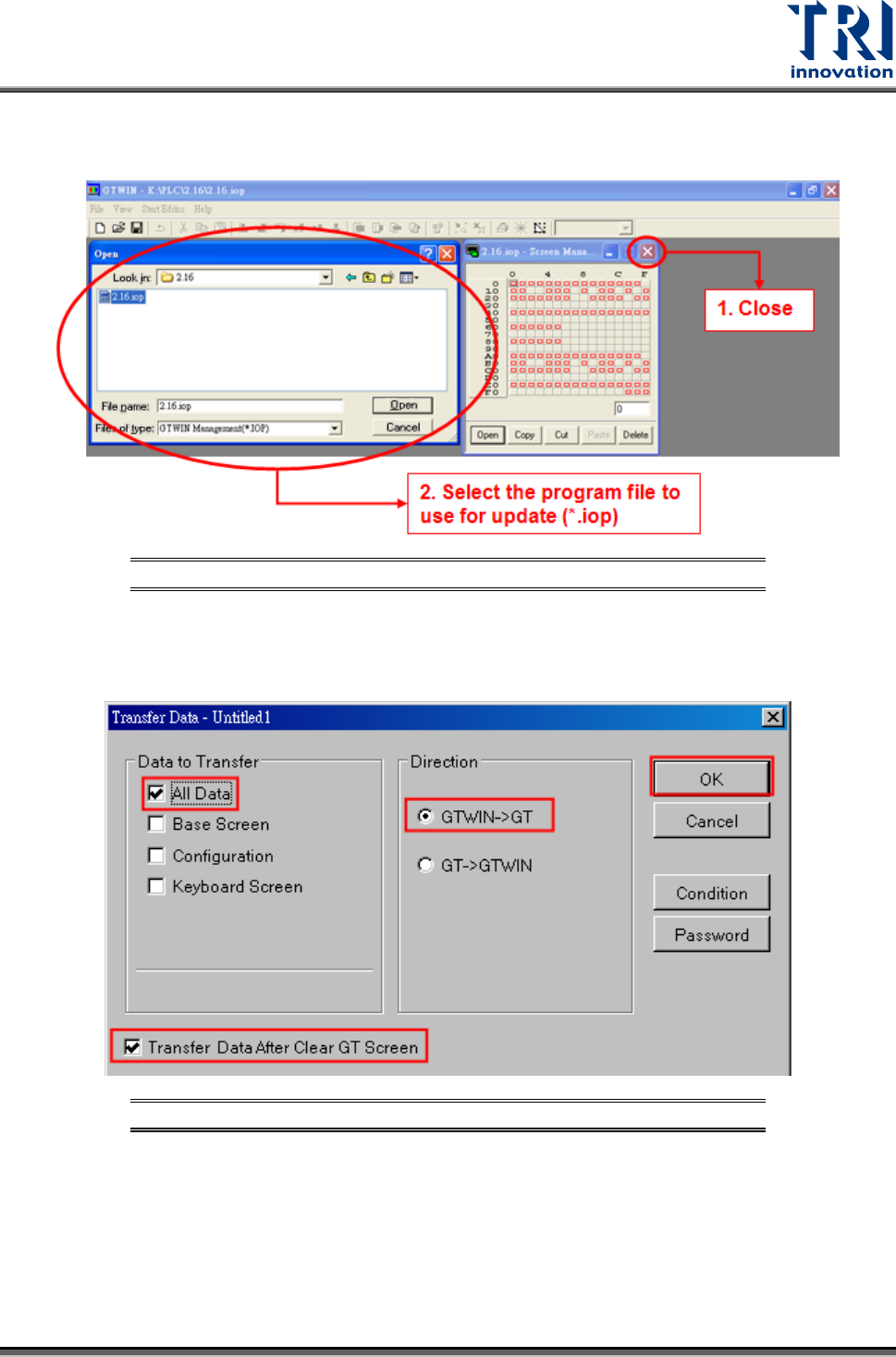
5) After backup, close the original HCI interface software. Then click on [File] to open the
HCI interface program (*.iop) to be updated as shown in the figure below.
Figure 72: Open HCI Interface Program
6) Click on the File and select Transfer. In the [Transfer Data] dialog, select [All Data],
[Transfer Data After Clear GT Screen] and [GTWIN->GT]. Click [OK] as shown in the
figure below.
Figure 73: Transfer Data Options
7) Wait for the PC to transfer the data to the HCI (this may take some time, please wait
patiently), and the program will be updated.