TR7007M_SII_Hardware_en_v1-0-1.pdf - 第57页
Test Research, Inc. TR7007M SII User Guide – Hardware 47 9 S ERVICE 9.1 PC/PLC Connecti on First confirm th at the main program has begun testing. If not running, start the program and repeat a test of the PLC. If there …
Test Research, Inc.
TR7007M SII User Guide – Hardware 47
9 SERVICE
9.1 PC/PLC Connection
First confirm that the main program has begun testing. If not running, start the program and
repeat a test of the PLC. If there is still a problem, launch the main program and the PLC I/O
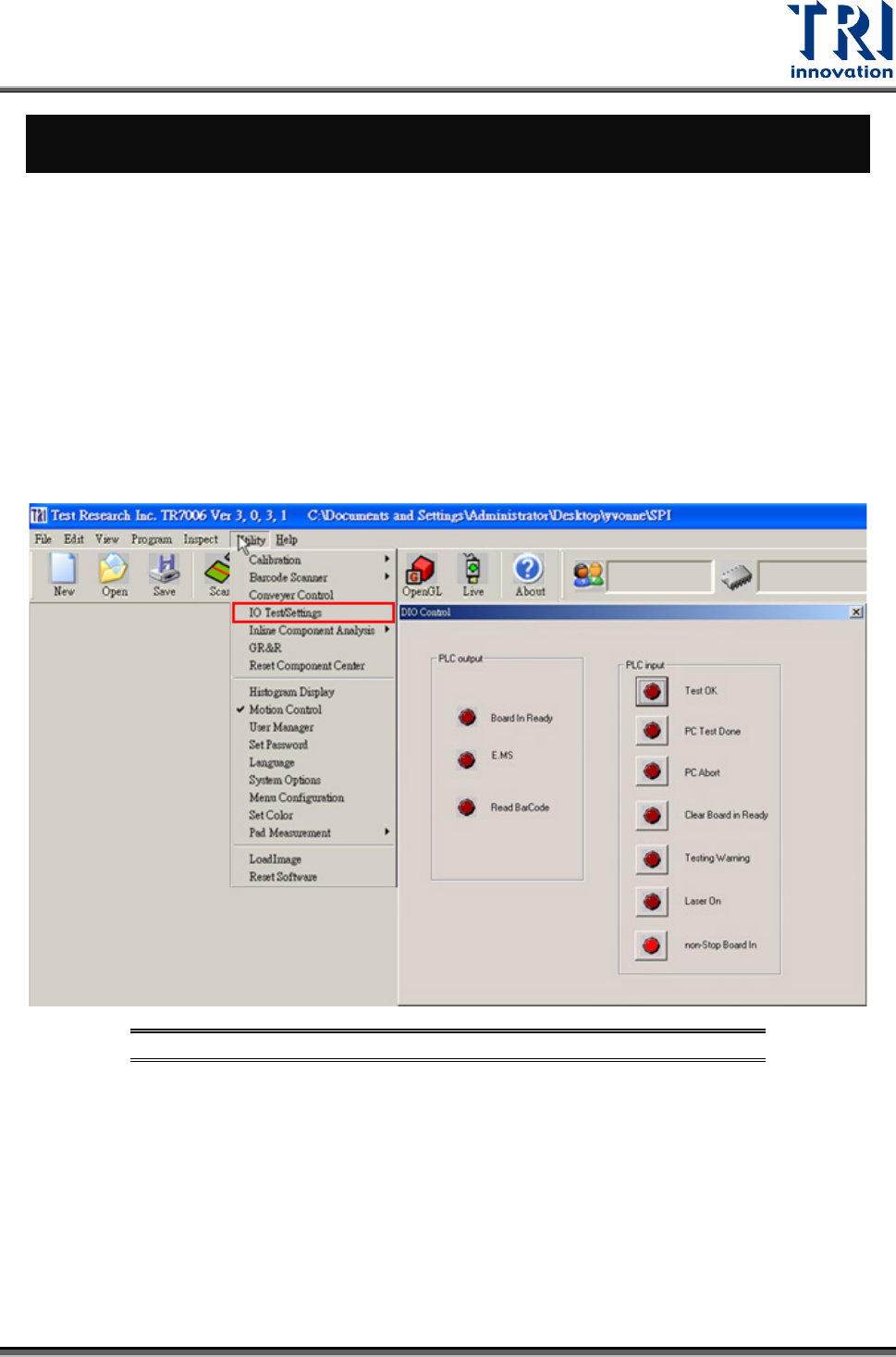
TEST to test the system manually and see if the I/O is operating normally (the settings and
procedure are as the figures below). If there is still no response, carry out Step 2 and Step 3
to examine the wiring and system. If manual testing shows that everything is normal, check
the program version or contact support personnel for assistance.
9.1.1 Open the PC I/O Testing Display
Click on [D
IAGNOSTIC > MACHINE I/O TEST] to start the I/O testing process (refer to the
following figure).
Figure 93: Selecting Machine I/O Test
Test Research, Inc.
48 TR7007M SII User Guide – Hardware
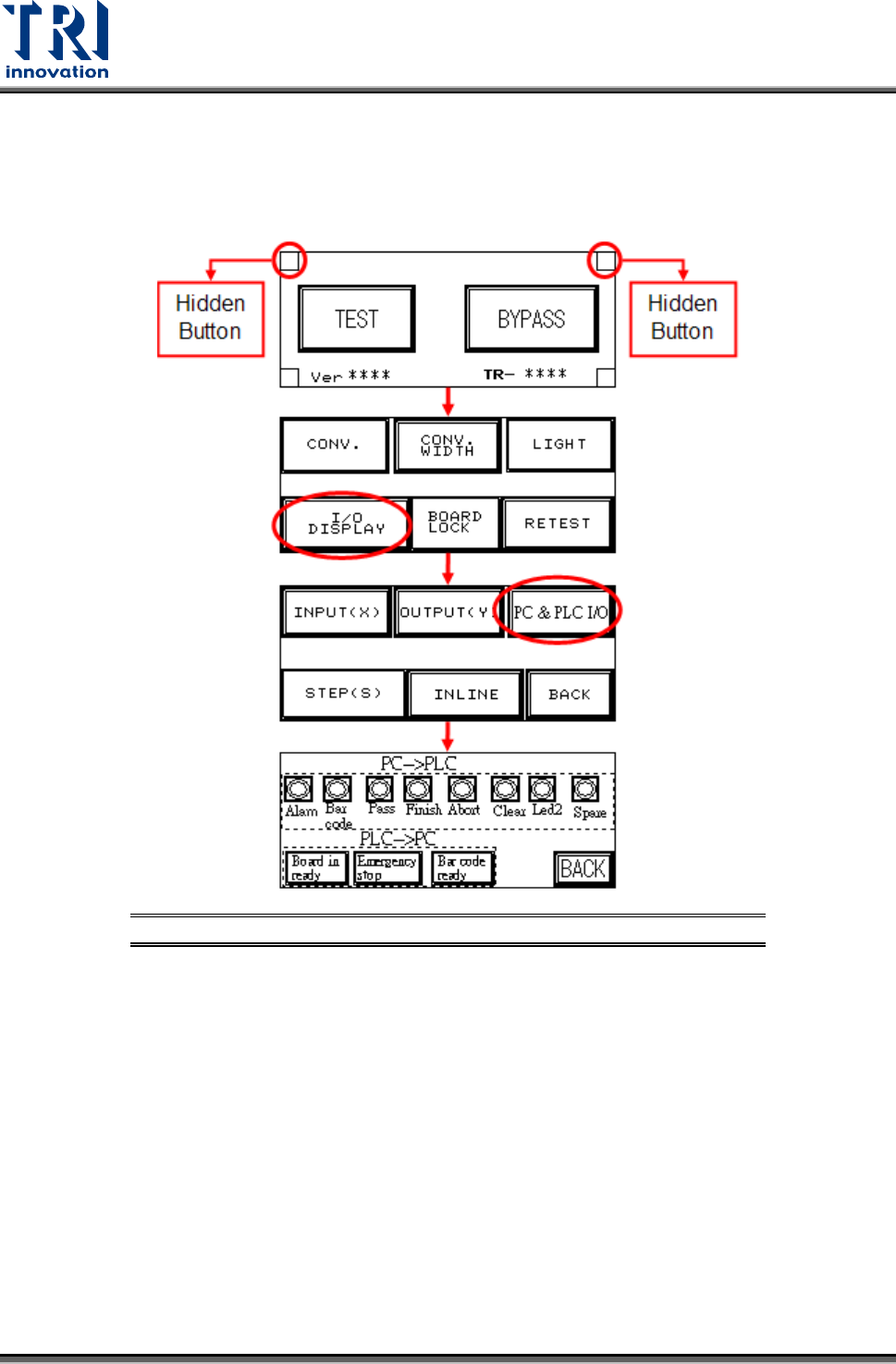
9.1.2 Open the PLC I/O Testing Display.
Follow the procedure below to open the PLC I/O Testing display. Both hidden buttons must
be pressed simultaneously.
Figure 94: Open PLC I/O Test Display