00191332-01.pdf - 第102页
2 Functions for the Adjustment of the Machine User Manual Test Program SITEST 2.5 Conveyor Functions Software Version 405.xx Issue 01/99 2 - 30 NOTE Concer ning all functio ns of the width adjustment opti on, the lifting…
User Manual Test Program SITEST 2 Functions for the Adjustment of the Machine
Software Version 405.xx Issue 01/99 2.5 Conveyor Functions
2 - 29
2.5.1 Width Adjustment
● If you wish to test the width adjustment functions or to calibrate the conveyor width, click on the
icon in the "Conveyor functions" display (see Fig. 2.5.1) to switch to the "Conveyor width" display.
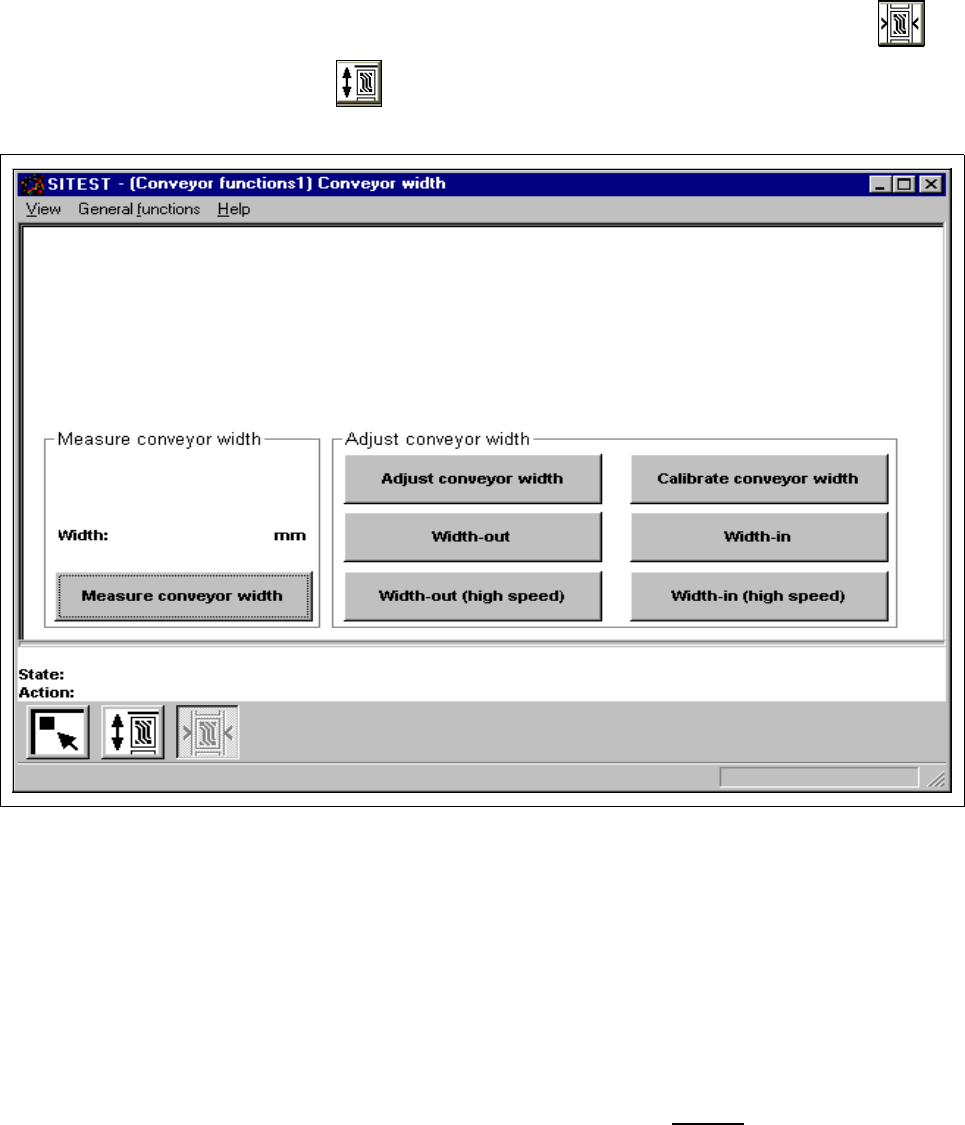
Fig. 2.5.2 "Conveyor width" Display
The following functions are available in this display:
– Measure conveyor width to measure the current conveyor width
(the width measured is displayed above the
"Measure conveyor width" button)
– Adjust conveyor width to adjust the width to the value entered
– Calibrate conveyor width to determine the gantry position for a 100 mm
-wide PCB
– Width-out to increase the conveyor width
– Width-in to decrease the conveyor width
– Width-out (high speed) to increase the conveyor width in large steps
– Width-in (high speed) to decrease the conveyor width in large steps

2 Functions for the Adjustment of the Machine User Manual Test Program SITEST
2.5 Conveyor Functions Software Version 405.xx Issue 01/99
2 - 30
NOTE
Concerning all functions of the width adjustment option, the lifting table must automatically move
down
!
2
● If you wish to calibrate the conveyor width, adjust the width of the currently active conveyor to 100 mm
using the
Adjust conveyor width
function, prior to the calibration procedure.
● Check that a 100 mm-wide PCB can be transported through the entire conveyor system without any
problem.
● Click on the
Calibrate conveyor width
button and acknowledge the dialog box displayed by clicking on
OK
. The function will be performed on the selected conveyor.
● If you wish to carry out further width adjustment functions, click on the corresponding button for the
desired function.
User Manual Test Program SITEST 2 Functions for the Adjustment of the Machine
Software Version 405.xx Issue 01/99 2.6 Component Table Functions
2 - 31
2.6 Component Table Functions
● If you wish to test the functions of the component table, click - in the main view - on the icon for
"Table left" or on the icon for "Table right" and subsequently (if required) on the icon to
switch to the "Table functions" display.
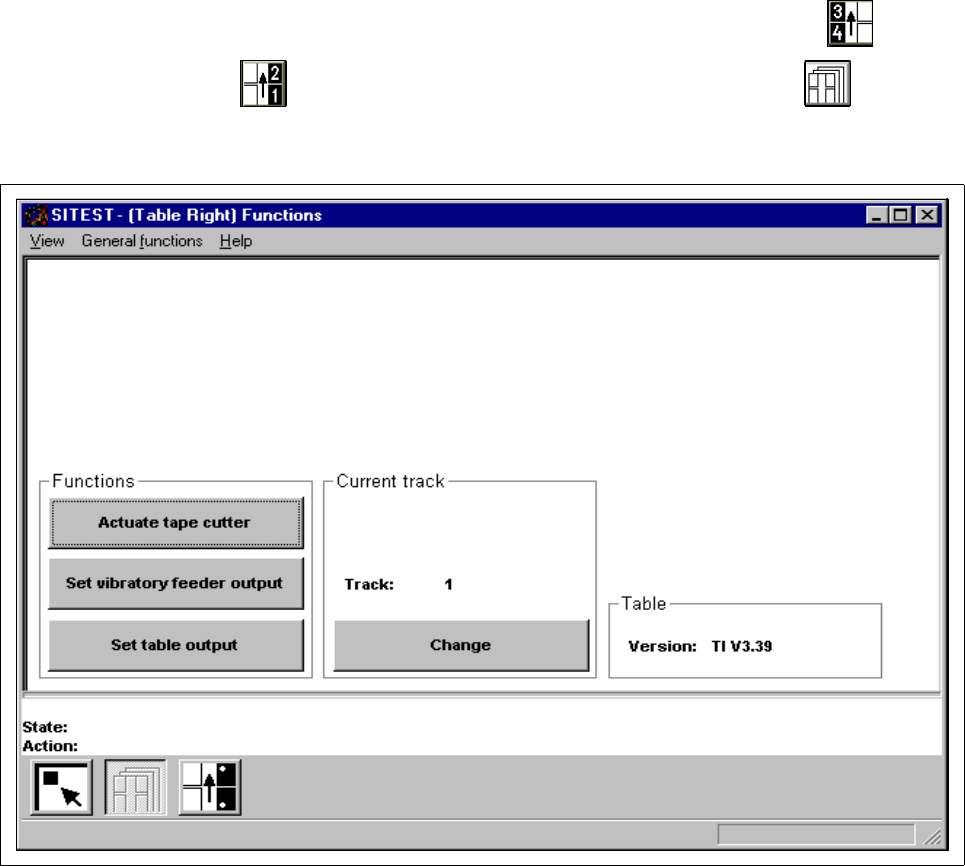
Fig. 2.6.1 "Table functions" Display
The following functions are available in this display:
– Actuate tape cutter to actuate the tape cutting unit
– Set vibratory feeder output to activate the linear feeder
– Set table output to set the output
– Change to enter the track number
● Click on the Change button in the "Current track" field.
The "Track" input box opens.
● If you wish to test, for example, a specific linear feeder, enter the number of the track on which the
feeder is set up and confirm your entry by clicking on Accept
.