00191332-01.pdf - 第68页
1 General Functions User Manual Test Program SITEST 1.9 In-/Output Functions Software Version 405.xx Issue 01/99 1 - 26 NOTE Pleas e note that a waiting ti me needs to be entered prior t o the executi on of the c ontinuo…
User Manual Test Program SITEST 1 General Functions
Software Version 405.xx Issue 01/99 1.9 In-/Output Functions
1 - 25
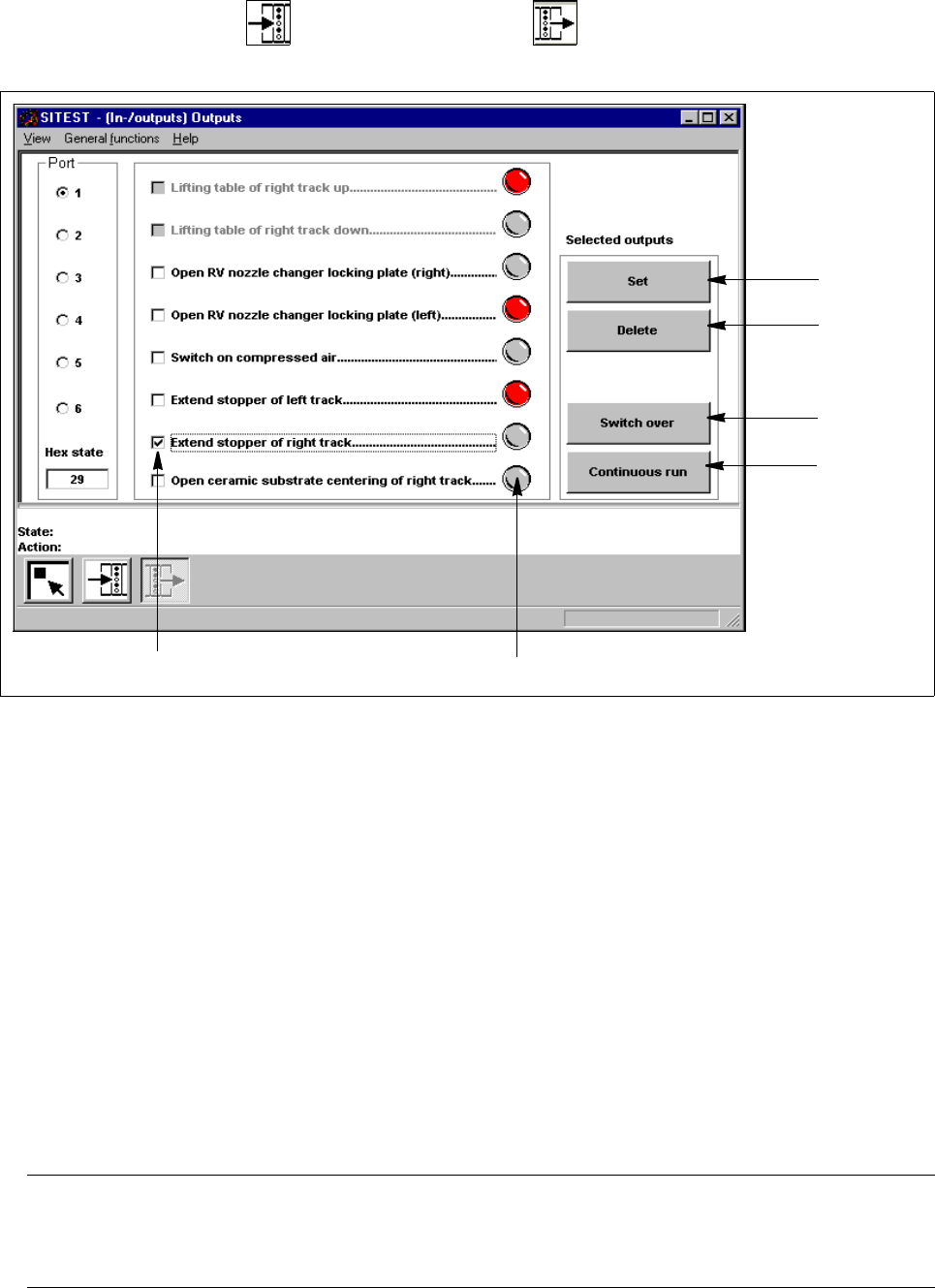
1.9.2 Outputs
● In the "Inputs" display (see Fig. 1.9.1) click on the icon to switch to the "Outputs" display.
Fig. 1.9.3 "Outputs" Display
Legend pertaining to Fig. 1.9.3
➀
to set the selected bits
➁
to reset the selected bits
➂
to invert the current state
➃
to convert the state of the selected bits in the continuous run
➄
selected bit (output)
➅
LED symbol
● Activate the appropriate radio button of the port containing the output group you wish to test.
● Click on the check boxes next to the function descriptions of the outputs you wish to test, or click directly
on the function descriptions.
● Click on the button indicating the desired function. The selected function will be carried out.
NOTE
The current state of a bit can also be inverted if the corresponding LED symbol is selected by double-click-
ing on it. 1
➀
➁
➂
➃
➄
➅

1 General Functions User Manual Test Program SITEST
1.9 In-/Output Functions Software Version 405.xx Issue 01/99
1 - 26
NOTE
Please note that a waiting time needs to be entered prior to the execution of the continuous run.
1
● Click on the
Continuous run
button.
A dialog box for entering the waiting time opens.
● Enter the desired waiting time and then start the continuous run by clicking on the
Start
button.
● Terminate the continuous run by clicking on the
Cancel
button in the "Continuous run" dialog box.
User Manual Test Program SITEST 1 General Functions
Software Version 405.xx Issue 01/99 1.10 Displaying Errors
1 - 27
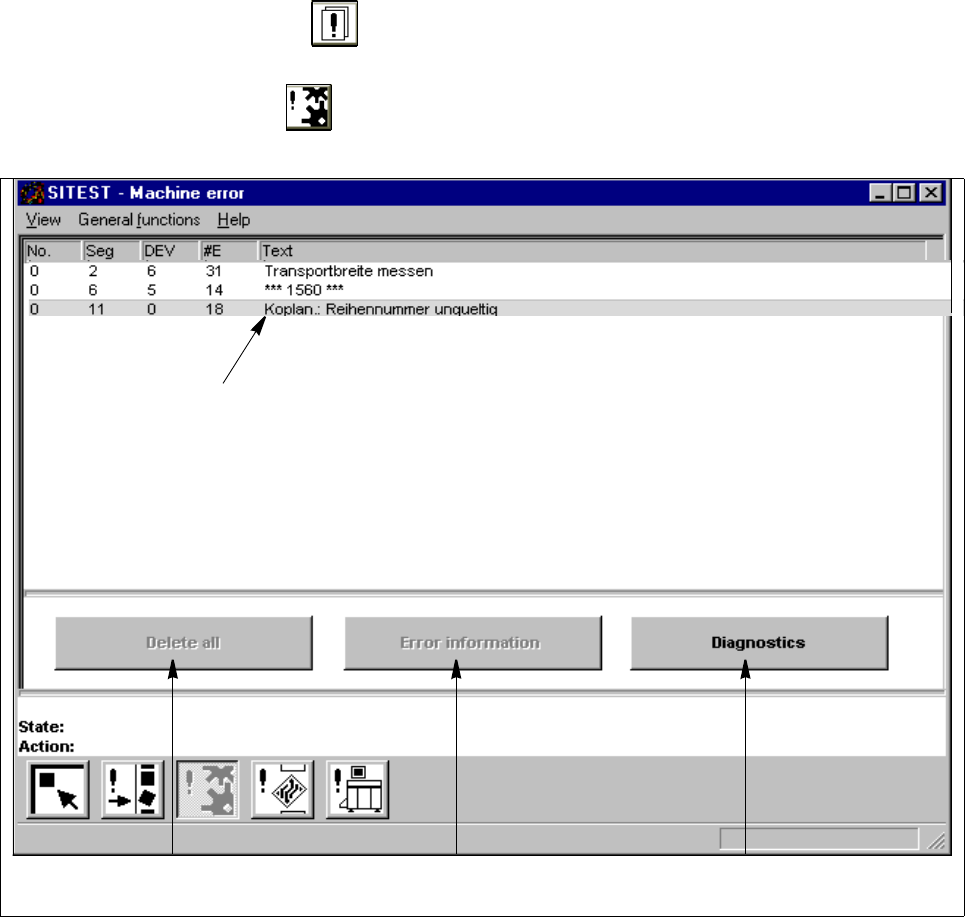
1.10 Displaying Errors
● In the main view click on the icon to switch to the "Error" display (see Fig. 0.3.3).
● Click, for example, on the icon to obtain a listing of the machine errors that have occurred.
Fig. 1.10.1 "Machine errors" Display
Legend pertaining to Fig. 1.10.1
➀
Deletes all error messages from the current error display
➁ Starts the help system containing information on the cause and correction of the error currently selected
➂ Starts the system for diagnosing the error currently selected
➃ Selected error
● Select an error by clicking on the appropriate line.
● Click, for example, on the Error information button.
The user interface of the SIPLACE Information and Help System opens.
A help window displays the error description and correction instructions relating to the selected error.
● More details on how to use the Information and Help System are contained in chap. 19 of the SIPLACE
80S-20/S-23/F
4
User’s Manual.
➀
➁➂
➃