00198374-04_UG_OSC_Package_R19-2_DE_EN.pdf - 第53页
4 Working with the OSC Features 4.1 Features Introduced with R16-2 Bedienungsanleitung OSC Package User Guide OSC-Paket 11/2019 53 4 Working with the OSC Features This chapter describes how to work with the single OSC fe…

3 Prerequisites
3.2 Hardware Requirements
52 Bedienungsanleitung OSC Package User Guide OSC-Paket 11/2019
Function Hardware
Automatic illumination optimization for
Non‑standard and Connector component
types
Placement heads: All
Placement of an exceptionally high compo-
nent (1 use case)
Placement machine: SIPLACESXV2
Single conveyor
Placement head: only TwinVHF or
combination of TwinVHF and TwinVHF or
combination of TwinVHF and CPP in higher posi-
tion
One component of type SMT;
Height: max. 46mm
or
One component of type THT (e.g. Connector or In-
ductance);
Height: max. 46mm without protruding elements
which disappear into the board after placement
(e.g. centering pins), 50mm with protruding ele-
ments
Increased placement force on TwinHead
placement head to 30N (as for THHF)
Placement head: TH
Smart Pin Support is recommended
The following hardware requirements must be met for the released features of R19-1:
Function Hardware
Improved placement of exceptionally high
components with TwinVHF placement head
See hardware requirements for the released fea-
ture of R18-2 "Placement of an exceptionally high
component"
Improved placement of exceptionally high
components with CPP placement head
Placement head: CPP in high position
Maximum component height: 15.5mm
Component Chipping Inspection Component type: BareDie, BGA, CCGA, Chip,
Moulded, or Nonstandard
The following hardware requirements must be met for the released feature of R19-2:
Function Hardware
Increased component weight that can be
placed with TwinVHF placement
Placement head: TwinVHF Maximum
component weight: 240g Nozzle adapter
for Twin VHF, item no. [03149670‑xx]
4 Working with the OSC Features
4.1 Features Introduced with R16-2
Bedienungsanleitung OSC Package User Guide OSC-Paket 11/2019 53
4 Working with the OSC Features
This chapter describes how to work with the single OSC features. There is a designated chapter for
each release. Each of these designated chapters contains all features and options that have been
introduced with the respective release, as well as improvements and changes to previously re-
leased features.
► Make use of the information provided in the Online Help files for SIPLACE Pro and the station
software. These files contain additional, detailed information about the OSC features.
4.1 Features Introduced with R16-2
In this chapter all features that have been introduced with R16-2 are listed. To see if there are up-
dates for one of the features listed here, please check the segments of later releases.
4.1.1 Placement of Snap-In Components
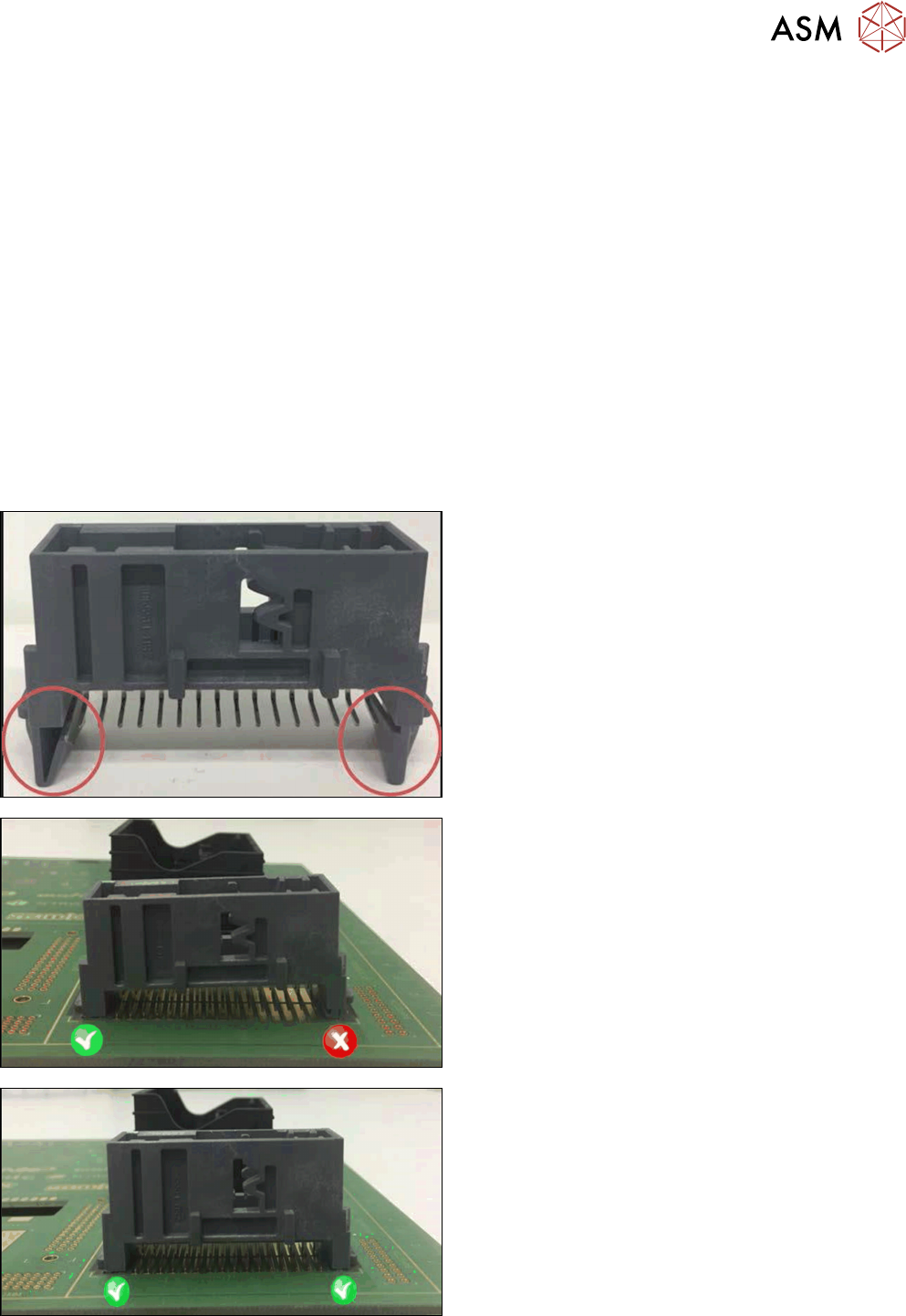
When placing snap-in components, it must be ensured that the components lock correctly into the
board. The system can verify this by an improved method.
Example
Snap-in component
Snap-in component – not placed correctly
Snap-in component – placed correctly
The actual Z-axis position of every snap-in placement will be compared with its corresponding
height reference value during the verification. These values must match each other.
4 Working with the OSC Features
4.1 Features Introduced with R16-2
54 Bedienungsanleitung OSC Package User Guide OSC-Paket 11/2019
The snap-in placement process has to be enabled for the component shape in SIPLACE Pro. Addi-
tionally, the snap-in threshold that shall be used for comparing the two values has to be specified.
After the first board has been completely produced, it will be transferred to the output section or the
configured inspection station and marked for manual inspection. The operator has to inspect every
snap-in placement position and confirm whether the placement is correct or not. If correct, the cor-
responding Z-axis position will be stored as reference position and used as placement position for
all subsequent boards. If not correct, the measured height will be ignored and the operator must
confirm it again for the next board. The snap-in check is active now. If the Z-axis position deviates
more than the snap-in threshold value from the reference position in a subsequent placement, an
error is reported.
The height reference values are not uploaded to SIPLACE Pro. When the job is changed at the
placement machine or the machine is shut down, the height reference values need to be taught
again.
NOTICE
Using SIPLACE Smart Pin Support
For reliable snap-in detection it is recommended to set support pins close to the snap-in
placement positions. Detailed information on Smart Pin Support can be found in the
SIPLACE Smart Pin Support Operation and Configuration User Manual, item no.
[00197001-xx].
4.1.1.1 Procedure
The following overview lists the single work steps that have to be performed in the specified order
to place snap-in components.
Placement of Snap-In Components
Step Action SIPLACE program
1) Enabling OSC package SIPLACE Pro
2) Selecting the snap-in placement process for the component
shape
SIPLACE Pro
3) Enabling the snap-in detection SIPLACE Pro
4) Setting Z-threshold (Default: 0.500 mm) SIPLACE Pro
5) If necessary, configuring the inspection station (Default:
Output section)
Station Software
6) Verifying and confirming all placement positions at the inspec-
tion station
Station Software
4.1.1.2 Application Example
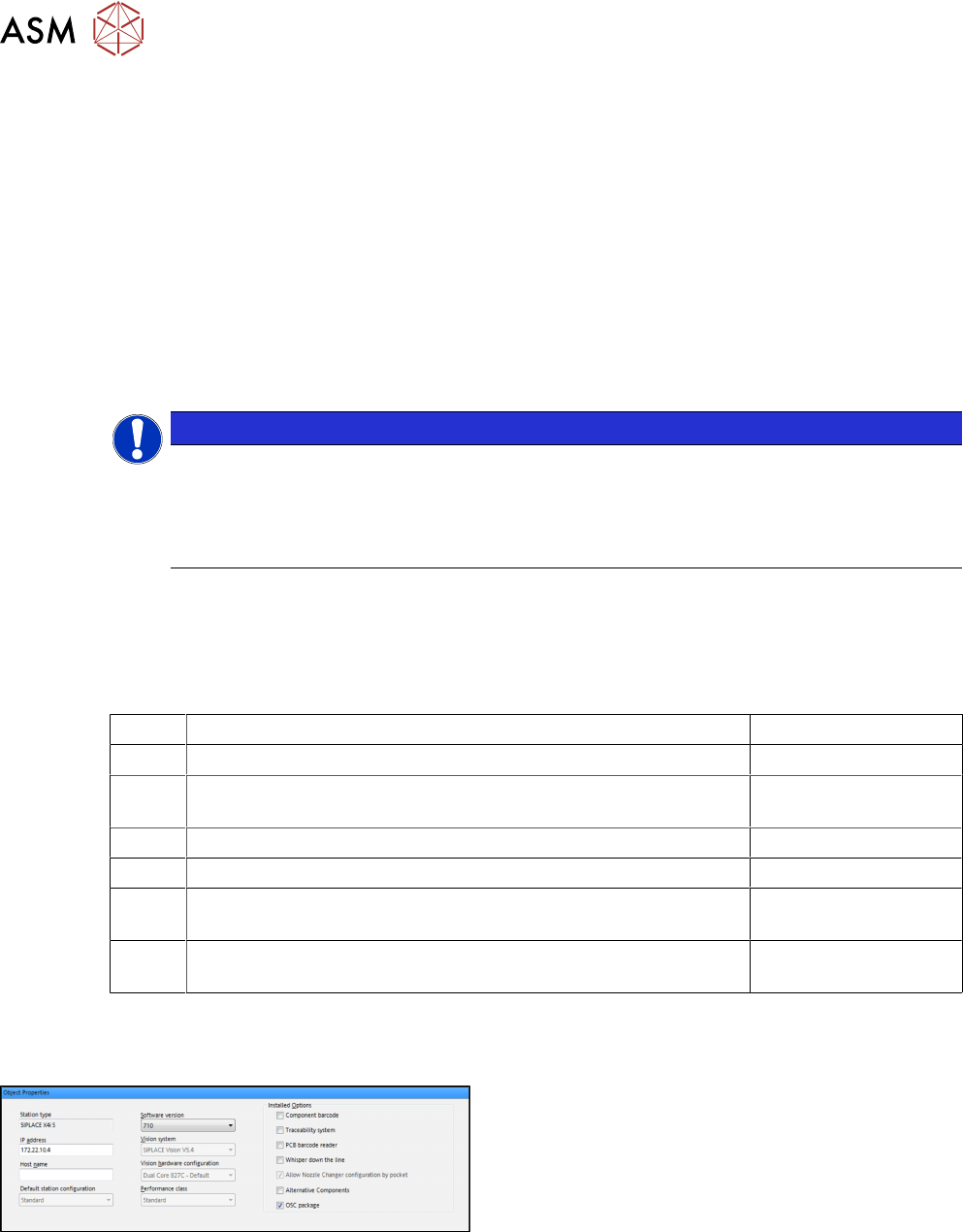
Step 1: SIPLACE Pro
► In the Station Editor under Placement Station,
enable the OSC Package option under Installed
options.