00198374-04_UG_OSC_Package_R19-2_DE_EN.pdf - 第75页
4 Working with the OSC Features 4.2 New Features and Changes with R18-2 Bedienungsanleitung OSC Package User Guide OSC-Paket 11/2019 75 Step 6: Station software ► Check all placement positions at the inspection station. …
4 Working with the OSC Features
4.2 New Features and Changes with R18-2
74 Bedienungsanleitung OSC Package User Guide OSC-Paket 11/2019
Setting Z-threshold value
The Z-threshold value is used to evaluate whether the component with centering pins fits or not.
The current Z-axis position of every Pin in Paste placement will be compared with its corresponding
height reference position. If the difference between the two values is ≤ the set Z-threshold value in
SIPLACE Pro, the component with centering pins is considered to fit. If the difference is greater,
the component with centering pins is considered not to fit and an error message is displayed.
If the Z-value is too large, the machine cannot detect an erroneous fitting. If the Z-threshold value is
too small, the machine may stop often.
Depending on the component, you can start with the default value of 0.500 mm for the Z-threshold
and change this value successively in small steps.
Step 5: Station software
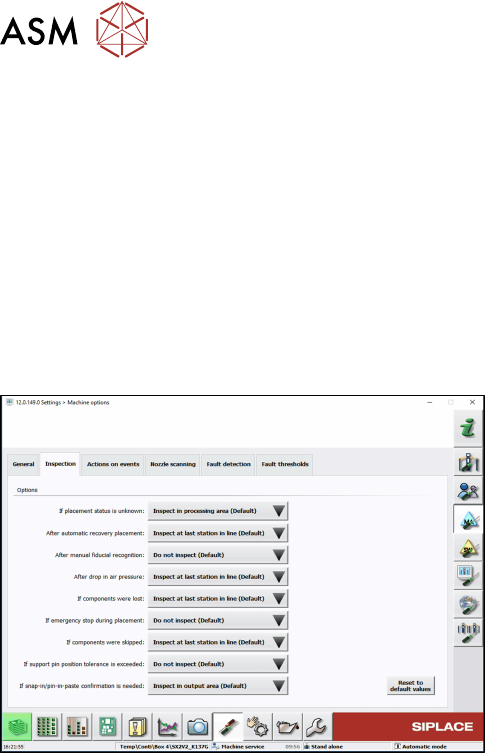
► If necessary, configure the inspection station
under Machine options – Inspection – If snap-in/
pin-in-paste confirmation is needed.
(Default: Inspect in output area)
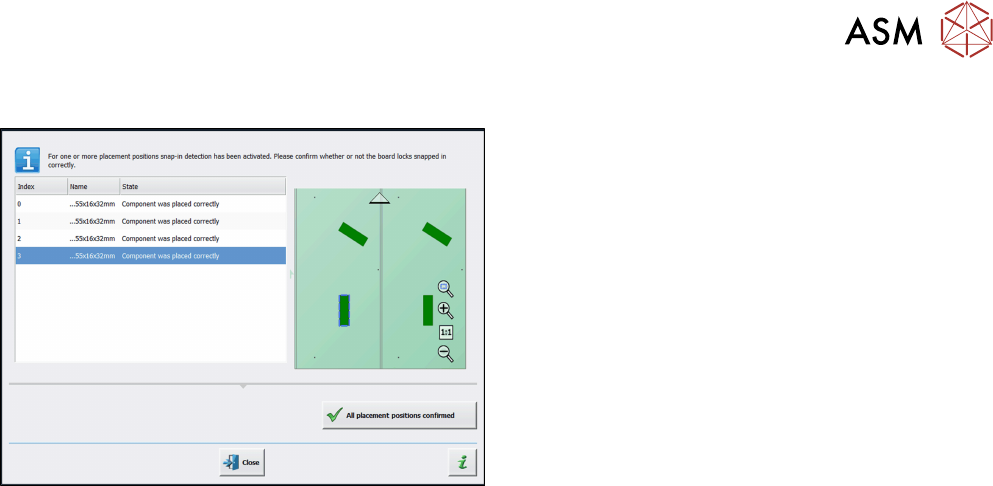
When the board enters the output section, a detailed message is displayed.
The message contains:
●
The position of the board in the machine.
●
A list including all placement positions on the board which have to be confirmed.
●
A graphical board overview in which the selected items in the list are highlighted.
There are two options for each row in the list:
●
Component was placed correctly
The Z-height will be set as good for the Pin in Paste height check.
●
Repeat measurement
The measured height will be ignored and the user has to confirm the height whenever the next
component is placed. The board keeps marked for inspection.
After setting the results for all placement positions, the settings have to be confirmed.
4 Working with the OSC Features
4.2 New Features and Changes with R18-2
Bedienungsanleitung OSC Package User Guide OSC-Paket 11/2019 75
Step 6: Station software
► Check all placement positions at the inspection
station.
► Confirm all placement positions with the All
placement positions confirmed button.
After that, the placement will continue automatically.
4.2.5 Automatic Illumination Optimization
If a component of type Non-standard or Connector cannot be sufficiently recognized during teach-
ing at the station or Vision Teach Station, the illumination can be adjusted automatically.
Prerequisites
●
The measurement is performed with a component camera (stationary or head camera).
●
The relevant features must have been described and the component shape specified in
SIPLACE Pro.
●
The geometry of the component must be described correctly. If the component has not been
described correctly (e.g. connectors are programmed smaller than they are), the illumination
optimization will try to compensate for that.
●
The position of the component in the image must be known (as result of the component
measurement or specified manually). If the position of the component in the image was spe-
cified manually, all features of the component shape should at least overlap with the visible
features in the image, otherwise inappropriate illumination settings can be calculated.
Restrictions
●
The illumination is always optimized for the currently available component and then used for
all components with this component shape. Therefore, if the brightness of the components dif-
fers greatly, the calculated setting may be less robust than the default values for other pack-
aging units or manufacturers.
●
The illumination optimization cannot recognize if a defective component is being used.
●
Generally, after performing the illumination optimization, the robustness of the measurement
is increased (= fewer rejections), as it is attempted to achieve maximum contrast between the
connectors and the background. Eventually, fewer defects will then be detected, e.g. if a
connector is dirty.
●
Since the found position may change slightly after performing the illumination optimization, a
new illumination optimization may provide slightly different settings. I.e., it may happen that
the settings of the illumination optimization do not match even with repeated use. This applies
especially when different illumination planes produce very similar brightness values.
4 Working with the OSC Features
4.2 New Features and Changes with R18-2
76 Bedienungsanleitung OSC Package User Guide OSC-Paket 11/2019
4.2.5.1 Application Example
The preceding steps in SIPLACE Pro, station software and SIPLACE Vision are assumed.
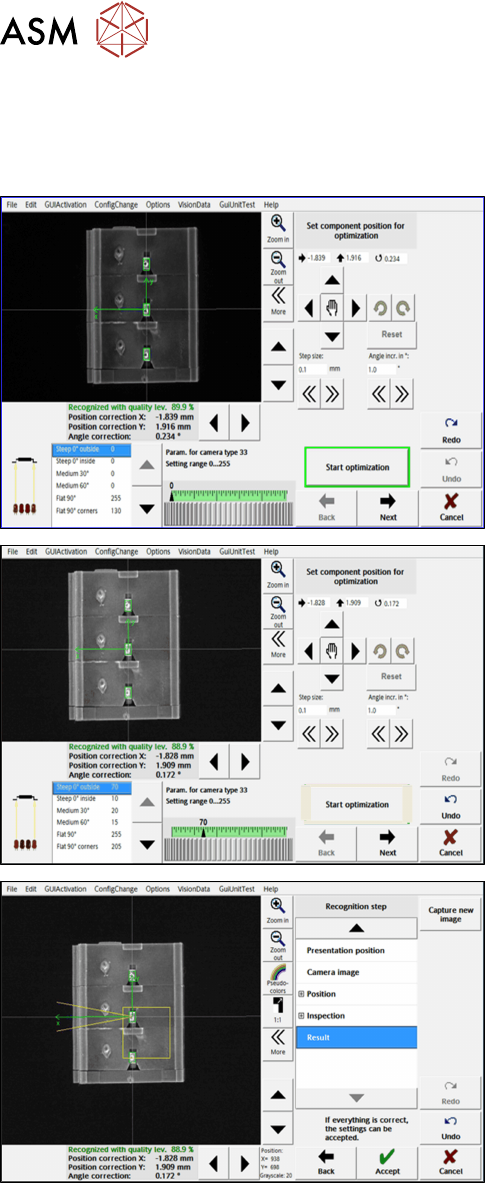
Step 1: SIPLACE Vision
► Important: If the component position could not
be recognized automatically, you must first
manually adjust the position using the arrow and
rotation buttons on the top right.
► Click on the Start optimization button in the Set
component position for optimization dialog.
► In the next dialog, click on Next.
► In the next dialog, click on Accept to accept the
result.
During the optimization, the different illumination planes are simulated and images are displayed
continuously with the current best setting. At the end of the optimization, the measurement is per-
formed with the best illumination setting.
4.2.6 Placement of An Exceptionally High Component
In a special use case, an exceptionally high component can be placed with automatic crash avoid-
ance provided by the software. In this case, the gantry and the placement head are moved around
this component. The component must be feeded by a third party feeder module.
Components are considered "exceptionally high" if they are higher than 40mm, not counting pro-
truding elements that disappear into the board after placement (e.g. centering pins).