00198374-04_UG_OSC_Package_R19-2_DE_EN.pdf - 第79页
4 Working with the OSC Features 4.3 New Features and Changes with R19-1 Bedienungsanleitung OSC Package User Guide OSC-Paket 11/2019 79 4.3 New Features and Changes with R19-1 In this chapter all features are listed that…
4 Working with the OSC Features
4.2 New Features and Changes with R18-2
78 Bedienungsanleitung OSC Package User Guide OSC-Paket 11/2019
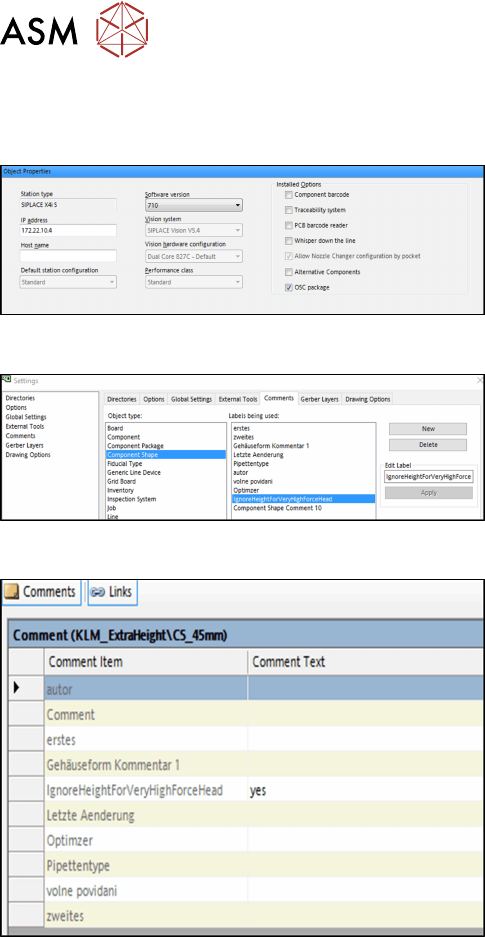
4.2.6.2 Application Example
Step 1: SIPLACE Pro
► In the Station Editor under Placement Station,
enable the OSC Package option under Installed
options.
Step 2: SIPLACE Pro
► In the Settings in SIPLACE Pro Desk under
Comments, select the Component Shape object
type and the IgnoreHeightForVeryHighForce-
Head label.
► Click on New to create the comment.
Step 3: SIPLACE Pro
In the Component Shape Editor, you must confirm the
comment for the component shape.
► Under Comments, enter "yes" as comment text
for the IgnoreHeightForVeryHighForceHead com-
ment item.
No height check will be performed for the component. The optimizer ensures that the component is
placed in the last placement area of the line and that the placement positions of this component are
the last ones to be placed.
4.2.7 Increased Placement Force for TwinHead Placement Head
From R18-2, an increased placement force up to 30 N is supported for the TH placement head.
Prerequisites
●
At least one station in the line is equipped with a TH placement head.
●
On this station/these stations, station software version 712.0 must have been installed.
●
This station/these stations must have been configured for the OSC package (OSC license
assigned, OSC package enabled in the Station Editor in SIPLACE Pro).
●
At least one component is assigned to a component shape for which the placement process
requires a placement force from >15 N to 30 N. Placement process and placement force must
have been set in the Component Shape Editor in the Handling tab.
When a job containing such a component is optimized, the component will be assigned to a station
that meets the prerequisites mentioned.
Restrictions
●
The increased placement force is not supported on SIPLACE X-Series placement machines.
4 Working with the OSC Features
4.3 New Features and Changes with R19-1
Bedienungsanleitung OSC Package User Guide OSC-Paket 11/2019 79
4.3 New Features and Changes with R19-1
In this chapter all features are listed that have either been newly introduced or have been updated
with R19‑1.
4.3.1 Placement of Exceptionally High Components
From R19-1, there has been an update to the placement of exceptionally high components feature
introduced in R18-2 (please refer to 4.2.6 "Placement of An Exceptionally High Component" [}76]).
Besides the TwinVHF placement head, it is now possible to place exceptionally high components
with a CPP placement head as well. In both cases the software provides automatic crash avoid-
ance and the gantry and the placement head are moved around the exceptionally high components
that are being placed. Furthermore, the placement sequence has been optimized so that more than
one exceptionally high component can be placed with the Twin VHF placement head.
WARNING
Description of the component height
It is essential that the description of the component height in SIPLACE Pro is correct.
Otherwise, the hardware (machine, board camera etc.) could be damaged.
The described component height is used in the station software to decide whether the
placement head and the board camera are allowed to be moved over an already placed
component. If this is not possible without collision, they are moved around this component.
Prerequisites
The prerequisites for the Twin VHF and the CPP placement head differ in the following details:
Prerequisites Twin VHF CPP
Maximum component height 46mm without centering pins
50mm with centering pins
(46mm body height + 4mm
centering pin height)
15.5mm
Placement head Twin VHF placement head, as
the only placement head in the
station or in combination with
either another Twin VHF or a
CPP mounted in high position
CPP placement head mounted
in high position on last place-
ment area of the line
No TwinHead or Twin VHF
placement head must be used
in the same placement area.
Placement machine SIPLACE SX V2 No restrictions
Conveyor Single conveyor No restrictions
The following prerequisites apply to both placement heads:
●
Exceptionally high components are placed in the last station of the line.
●
The minimum horizontal safety distance for moving components around other already placed
components is 5mm.
●
The highest of the previously placed components defines the minimum flying altitude for all
components placed by the last station.
4 Working with the OSC Features
4.3 New Features and Changes with R19-1
80 Bedienungsanleitung OSC Package User Guide OSC-Paket 11/2019
CAUTION
Set behavior for machine stop to "Cycle Stop"
When placing high components, it is recommended to set the behavior for a manual
machine stop to "Cycle Stop". This can be done in the Line Control GUI under Manual Op-
erations > Entire Machine > Hardware stop button behavior. By doing so, after the stop
button is pressed, the placement cycle is continued for a specific time to complete the
placement cycle before the machine stops and the cover lock is released. This way, when
the user moves the gantry while the cover is open, collisions of high components still on the
placement head with already placed components can be avoided. The behavior is active
even after the machine is restarted.
In some cases it is possible that the placement cycle is not finished after the stop button is
pressed. In these instances it is possible that components are still at the placement head
which can collide with other already placed components if the user moves the gantry while
the cover is open.
CAUTION
Risk of collisions when manually moving the gantry
When the user moves the gantry of the CPP placement head while the machine is stopped,
there is a collision risk when moving the CPP placement head over already placed high
components, e.g. components placed by a Twin VHF placement head.
4.3.2 Component Chipping Inspection
The component chipping inspection functionality checks whether the edge of a component has lar-
ger deviations than defined, which might indicate that the edges of a component have been
chipped off. The chipping inspection is an additional measurement step and takes places after
position measurement.
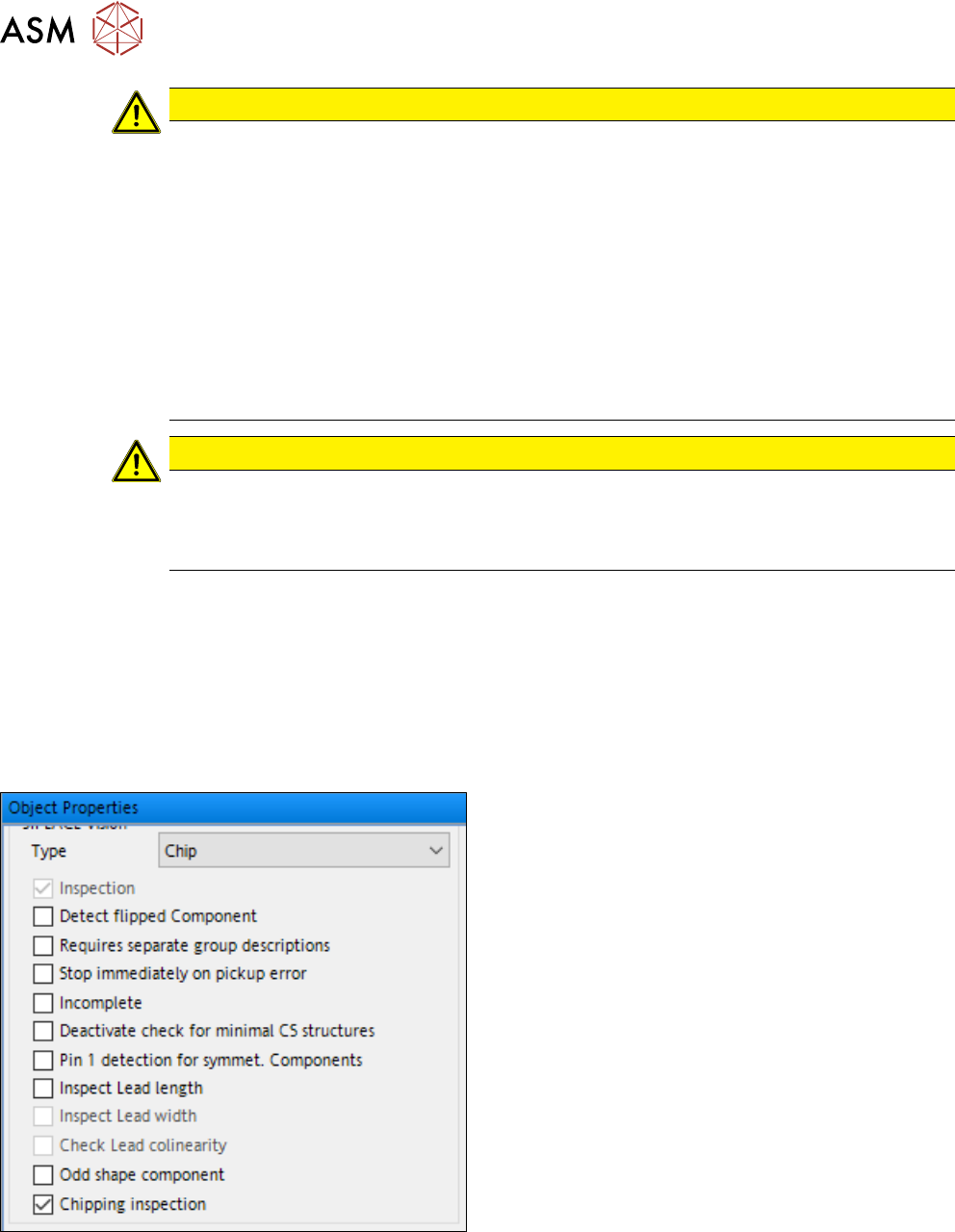
There are two ways to activate the component chipping inspection:
Activation via SIPLACE Pro
► In the Vision Inspection tab of the Component
Shape Editor, activate the Chipping inspection
checkbox.