00198374-04_UG_OSC_Package_R19-2_DE_EN.pdf - 第81页
4 Working with the OSC Features 4.4 New Features and Changes with R19-2 Bedienungsanleitung OSC Package User Guide OSC-Paket 11/2019 81 Activation via SIPLACE Vision ► In SIPLACE Vision, change the value of the Chip- pin…
4 Working with the OSC Features
4.3 New Features and Changes with R19-1
80 Bedienungsanleitung OSC Package User Guide OSC-Paket 11/2019
CAUTION
Set behavior for machine stop to "Cycle Stop"
When placing high components, it is recommended to set the behavior for a manual
machine stop to "Cycle Stop". This can be done in the Line Control GUI under Manual Op-
erations > Entire Machine > Hardware stop button behavior. By doing so, after the stop
button is pressed, the placement cycle is continued for a specific time to complete the
placement cycle before the machine stops and the cover lock is released. This way, when
the user moves the gantry while the cover is open, collisions of high components still on the
placement head with already placed components can be avoided. The behavior is active
even after the machine is restarted.
In some cases it is possible that the placement cycle is not finished after the stop button is
pressed. In these instances it is possible that components are still at the placement head
which can collide with other already placed components if the user moves the gantry while
the cover is open.
CAUTION
Risk of collisions when manually moving the gantry
When the user moves the gantry of the CPP placement head while the machine is stopped,
there is a collision risk when moving the CPP placement head over already placed high
components, e.g. components placed by a Twin VHF placement head.
4.3.2 Component Chipping Inspection
The component chipping inspection functionality checks whether the edge of a component has lar-
ger deviations than defined, which might indicate that the edges of a component have been
chipped off. The chipping inspection is an additional measurement step and takes places after
position measurement.
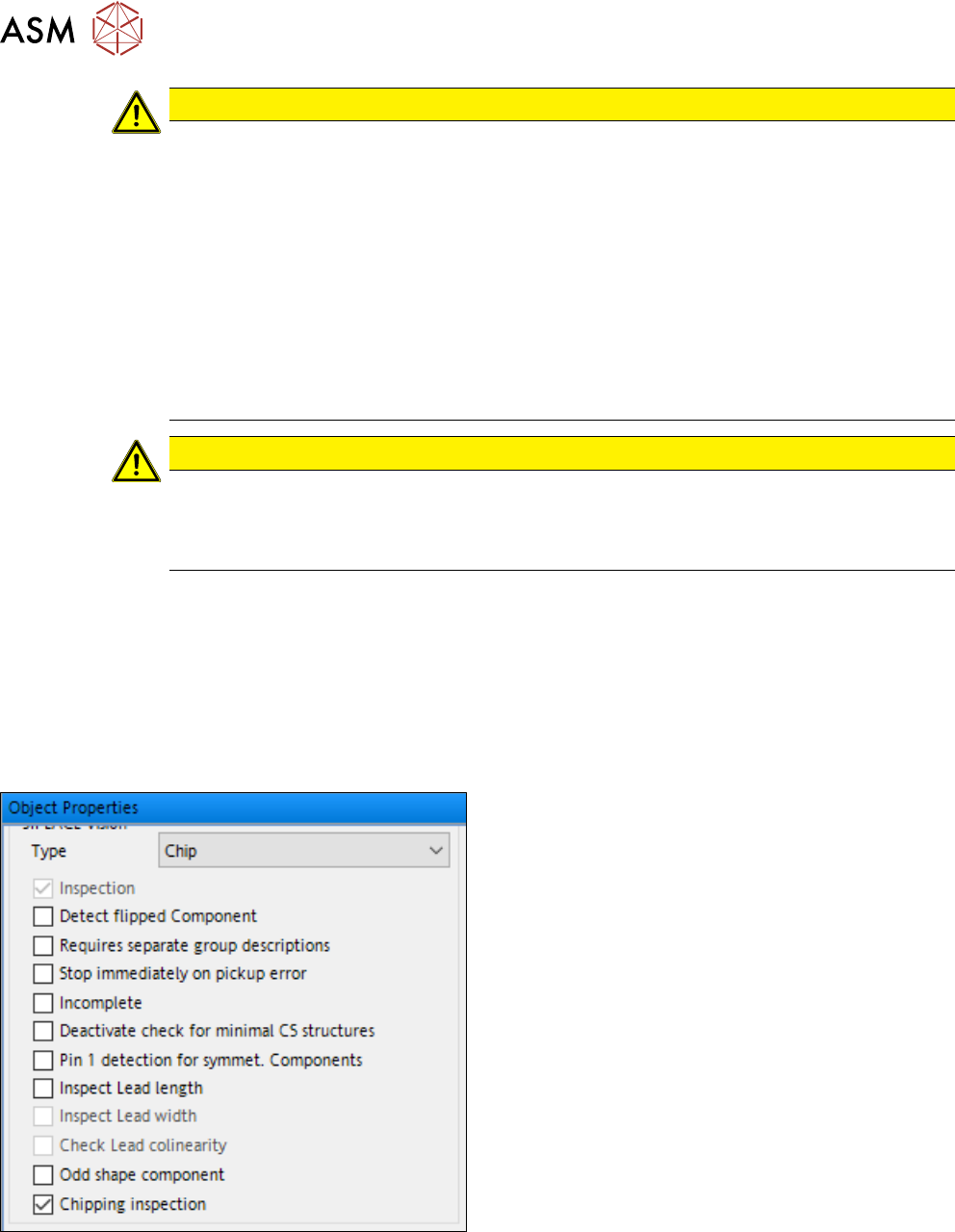
There are two ways to activate the component chipping inspection:
Activation via SIPLACE Pro
► In the Vision Inspection tab of the Component
Shape Editor, activate the Chipping inspection
checkbox.
4 Working with the OSC Features
4.4 New Features and Changes with R19-2
Bedienungsanleitung OSC Package User Guide OSC-Paket 11/2019 81
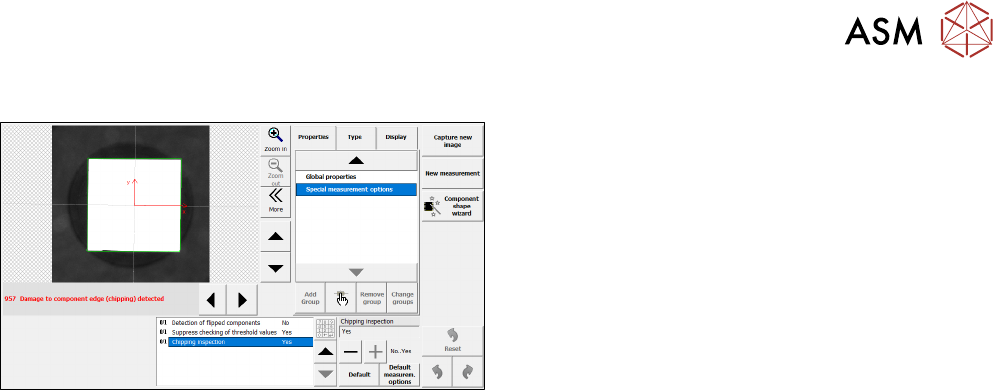
Activation via SIPLACE Vision
► In SIPLACE Vision, change the value of the Chip-
ping inspection option to Yes.
In order to exactly determine if a component has chipped edges, the measurement for the chipping
inspection can be further fine-tuned in SIPLACE Vision, e.g. the tolerances used can be changed,
or the illumination can be adjusted.
If it was determined that a component has chipped edges, the component will be rejected.
Restrictions
●
Only supported for component shapes of type BareDie, BGA, CCGA, Chip, Moulded, and
Nonstandard.
4.3.3
4.4
4.4.1
Placement of Snap-in Components – Improved Teaching
With R19-1, there has been an update for the placement of snap-in components feature introduced
in R16-2 (please refer to 4.1.1 "Placement of Snap-In Components" [}53]) and to the improved
teaching procedure introduced in R18-2 (please refer to 4.2.1 "Placement of Snap-in Components –
Improved Teaching" [}70]).
Up to R18-2, the height reference values were not uploaded to SIPLACE Pro and had to be taught
again when the job was changed at the placement machine or the machine was shut down. From
R19-1 they are stored locally on the machine and do not need to be taught again.
New Features and Changes with R19-2
In this chapter all features are listed that have either been newly introduced or have been updated
with R19‑2.
Placement of Heavy Components with TwinHead Placement Heads
For R19-2, the maximum component weight that can be placed has increased.
SIPLACE Pro Settings:
To place components with a weight of more than 100g, reduced accelerations must be used.
Up to R19-2, the accelerations could be reduced to 100%, 75%, 50%, 25% and 10% in SIPLACE
Pro. With R19-2, additional reductions to 5%, 4%, 3%, 2%, and 1% are available for components
heavier than 100g.
Station:
Components with a weight of up to 160 g can be placed by all TwinHead variants. Components
with a weight between 160g and 240g can only be placed with a Twin VHF. Additionally, a new
nozzle adapter for Twin VHF, item no. [03149670-xx] has been introduced. With this new nozzle
adapter higher accelerations are possible. To determine the highest possible acceleration for heavy
components, the acceleration test (see4.1.5 "Finding Best Acceleration" [}66]) can be used.
4 Working with the OSC Features
4.4 New Features and Changes with R19-2
82 Bedienungsanleitung OSC Package User Guide OSC-Paket 11/2019
CAUTION
Using nozzle adapter with wrong placement head
The nozzle adapter, item no. [03149670-xx] must only be used with the Twin VHF place-
ment head. Otherwise, damages may be caused on the nozzle adapter, force sensor, or
Z-or DP-axis.
Prerequisites
●
The lower acceleration reduction options are only available in SIPLACEPro version 17.0 and
higher.
●
Station software version 713.0 and higher is needed.