00198374-04_UG_OSC_Package_R19-2_DE_EN.pdf - 第56页
4 Working with the OSC Features 4.1 Features Introduced with R16-2 56 Bedienungsanleitung OSC Package User Guide OSC-Paket 11/2019 Step 5: Station software ► If necessary, configure the inspection station under Machine o…
4 Working with the OSC Features
4.1 Features Introduced with R16-2
Bedienungsanleitung OSC Package User Guide OSC-Paket 11/2019 55
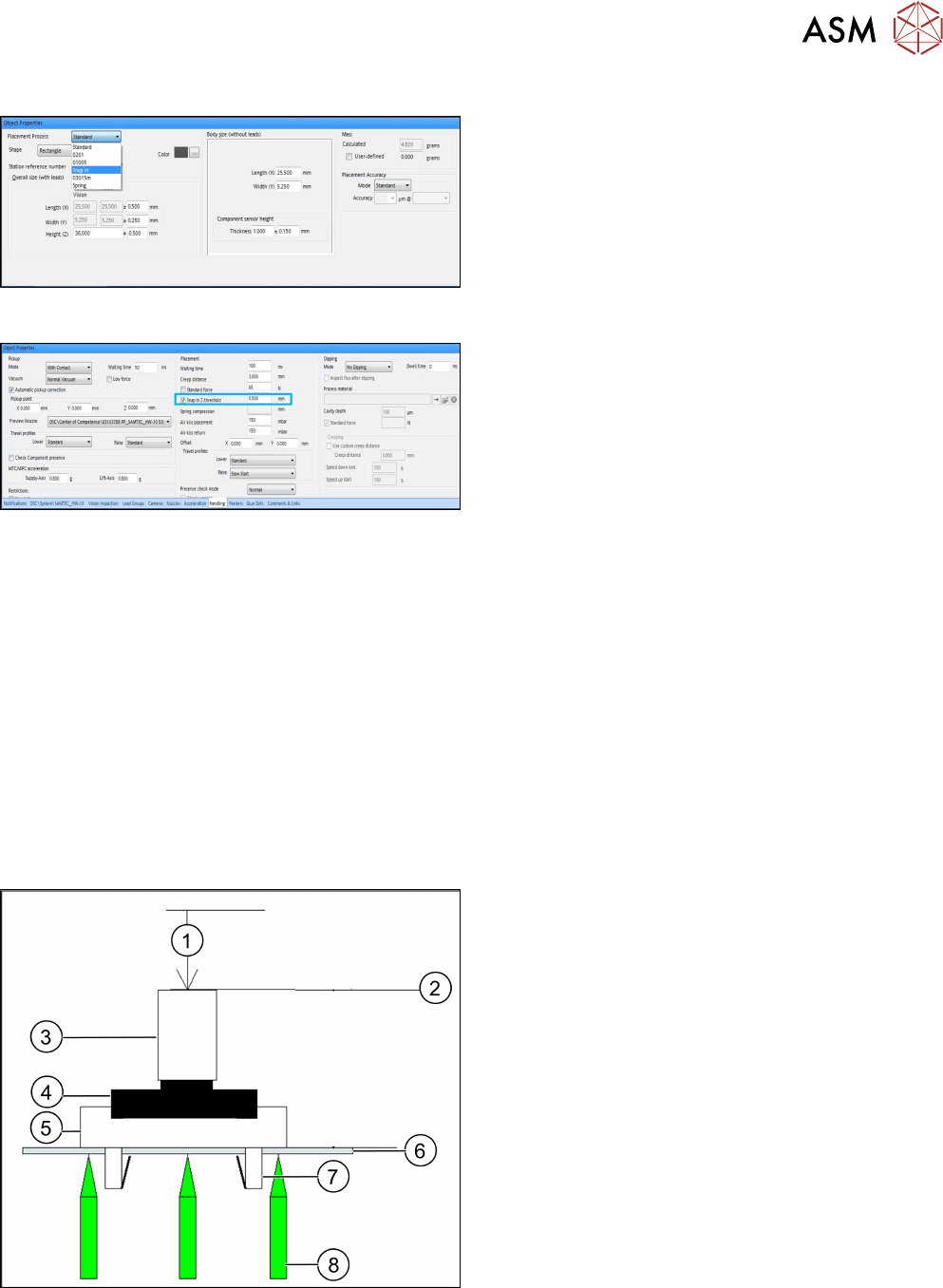
Step 2: SIPLACE Pro
► In the Component Shape Editor, select the Snap
In feature as placement process for the compo-
nent shape.
Step 3 and Step 4: SIPLACE Pro
► In the Handling tab, enable the Snap In Z-
threshold option in the Placement group for the
component shape.
► Define a Z-threshold value in mm.
The threshold value must be > 0.
Default value: 0.500 mm
The first board has to be inspected and confirmed as described in Step 5 and Step 6 below. After
this, the machine uses the Z-threshold value to determine whether the snap-in component is com-
pletely locked in the subsequent boards or not.
Setting Z-threshold value
The Z-threshold value is used to evaluate whether the snap-in component is locked or not. The cur-
rent Z-axis position of every snap-in placement will be compared with its corresponding height ref-
erence position. If the difference between the two values is ≤ the set Z-threshold value in SIPLACE
Pro, the snap-in component is considered to be locked. If the difference is greater, the snap-in
component is considered not to be locked and an error message is displayed.
If the Z-value is too large, the machine can not detect an erroneous locking. If the Z-threshold value
is too small, the machine may stop often.
Depending on the component, you can start with the default value of 0.500 mm for the Z-threshold
and change this value successively in small steps.
Correct locking after a correct Z-threshold value has been set
1. Z-axis position = 0
2. Z-axis = reference position
3. Segment
4. Gripper
5. Snap-in component
6. Board
7. Locking mechanism
8. Support pin
4 Working with the OSC Features
4.1 Features Introduced with R16-2
56 Bedienungsanleitung OSC Package User Guide OSC-Paket 11/2019
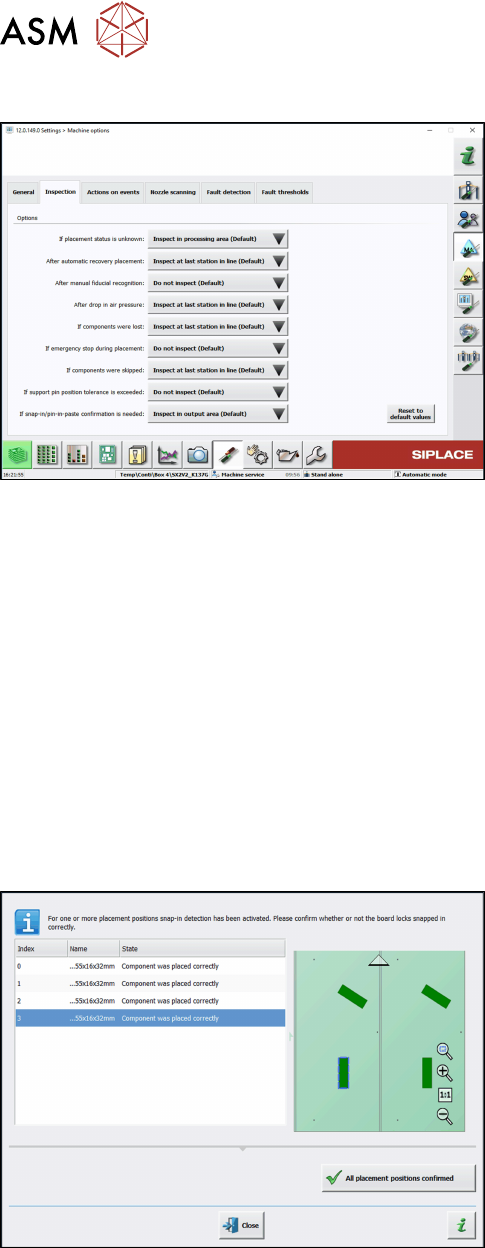
Step 5: Station software
► If necessary, configure the inspection station
under Machine options – Inspection – If snap-in/
pin-in-paste confirmation is needed.
(Default: Inspect in output area.)
When the board enters the output section, a detailed message is displayed.
The message contains:
●
The position of the board in the machine.
●
A list including all placement positions on the board which have to be confirmed.
●
A graphical board overview in which the selected items in the list are highlighted.
There are two options for each row in the list:
●
Component was placed correctly
The Z-height will be set as good for the snap-in detection.
●
Repeat measurement
The measured height will be ignored and the user has to confirm the height whenever the next
component is placed. The board keeps marked for inspection.
After setting the results for all placement positions, the settings have to be confirmed.
Step 6: Station software
► Check all placement positions at the inspection
station.
► Confirm all placement positions with the All
placement positions confirmed button.
After that, the placement will continue automatically.
4 Working with the OSC Features
4.1 Features Introduced with R16-2
Bedienungsanleitung OSC Package User Guide OSC-Paket 11/2019 57
4.1.2 Stereo Measurement for THT Pins
For correct placement of components with THT pins (Through Hole Technology) it is important to
detect and measure the position of the tip of each pin to fit the pins into the holes on the board.
Since the pins often have different shapes and lengths, it is very difficult or impossible to accurately
locate the center of each tip with conventional 2D measurements. In addition, reflections and other
structures of the component could interfere with the image of the tip and restrain the camera from
determining the THT pin position exactly during a 2D measurement.
Therefore, the Stereo Measurement for THT pinsprocess has been introduced to measure THT
pins exactly and robustly. The stereo measurement can be used for all components with the THT
round pin and THT square pin pin types.
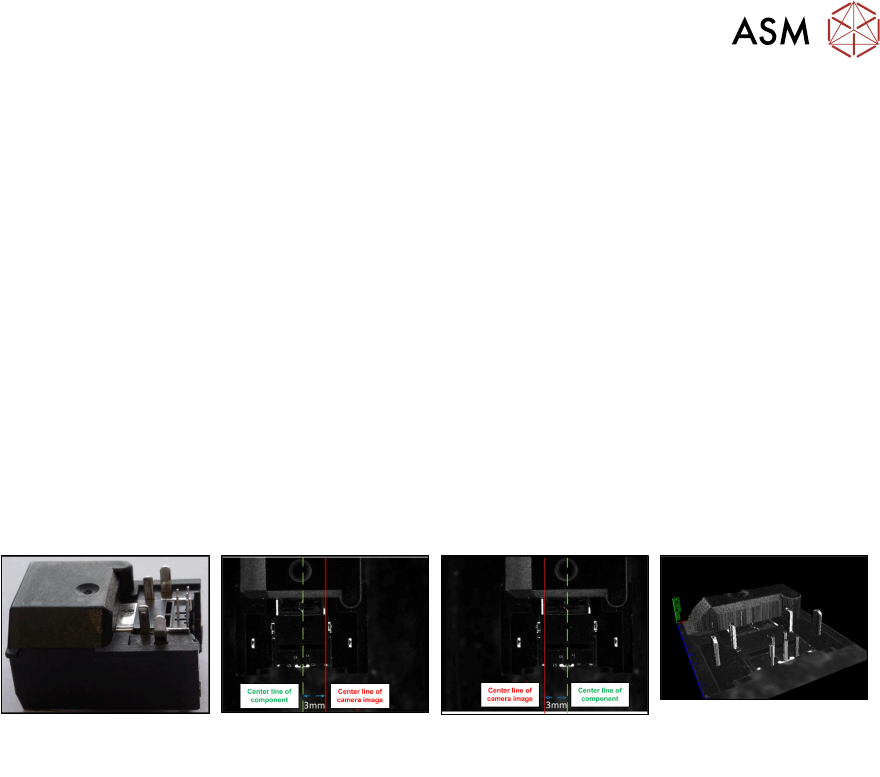
When using the stereo measurement, at least two images are captured per component. Between
capturing the two images the component is moved in x-direction to obtain images of the component
from two different perspectives. Out of the two images a height image is calculated and a 3D image
created showing the component structures very detailed. Depending on the distance to the camera,
an object pixel is displayed at different points on the x-axis in the stereo images. Based on the
position of an object pixel in the respective stereo image, its distance to the camera can then be
calculated. If necessary, the traverse path can be changed.
Example
Original component Left image capture Right image capture 3D image as result of
the two measurements
Prerequisites
●
The measurability of the features depends on feature size, feature appearance and back-
ground interference.
●
THT round pins and THT square pins are allowed for stereo measurement.
●
Stationary camera types 25 or 33 are required.
●
Minimum features size 145 µ = 9 Pixel:
Camera type 25 = 145 µ
Camera type 33 = 360 µ
●
Minimum feature height: minimum distance between pin top and background:
Camera type 25: 1.0 mm
Camera type 33: 2.0 mm
Recommendation: lead height ≥ (3 * <height resolution>)
The height resolution depends on the traverse path between the left and right images.
For the default traverse path, the following (pixel) height resolutions are valid:
Camera type 25: 0.49 mm
Camera type 33: 0.9 mm
●
Maximum component size: the rules for the normal 2D measurement minus the traverse path
are applied. The result for the default traverse path
(8 mm for camera type 25, 18 mm for camera type 33) is:
Camera type 25: maximum 55 mm – 8 mm = 47 mm edge length
Camera type 33: maximum 85 mm – 18 mm = 67 mm edge length (or (200 mm – 18 mm) x
(125 mm – 18 mm) = 182 mm x 107 mm with restrictions)
These values refer to the multiple measurement.
●
Supported placement heads:
Twin Head (all high force variants included)
CPP (in Pick&Place mode, if equipped with stationary camera)