00198374-04_UG_OSC_Package_R19-2_DE_EN.pdf - 第72页
4 Working with the OSC Features 4.2 New Features and Changes with R18-2 72 Bedienungsanleitung OSC Package User Guide OSC-Paket 11/2019 ► If necessary, check the result of the stereo measurement under Stereo: Fine Height…
4 Working with the OSC Features
4.2 New Features and Changes with R18-2
Bedienungsanleitung OSC Package User Guide OSC-Paket 11/2019 71
4.2.3 Stereo Measurement – Measurement Parameter 4x Image Capture
With R18-2, there has been an update to the stereo measurement feature introduced in R16-2
(please refer to Stereo Measurement for THT Pins (from R16-2)).
From R18-2, the 4x image capture measurement parameter can be used in the stereo measure-
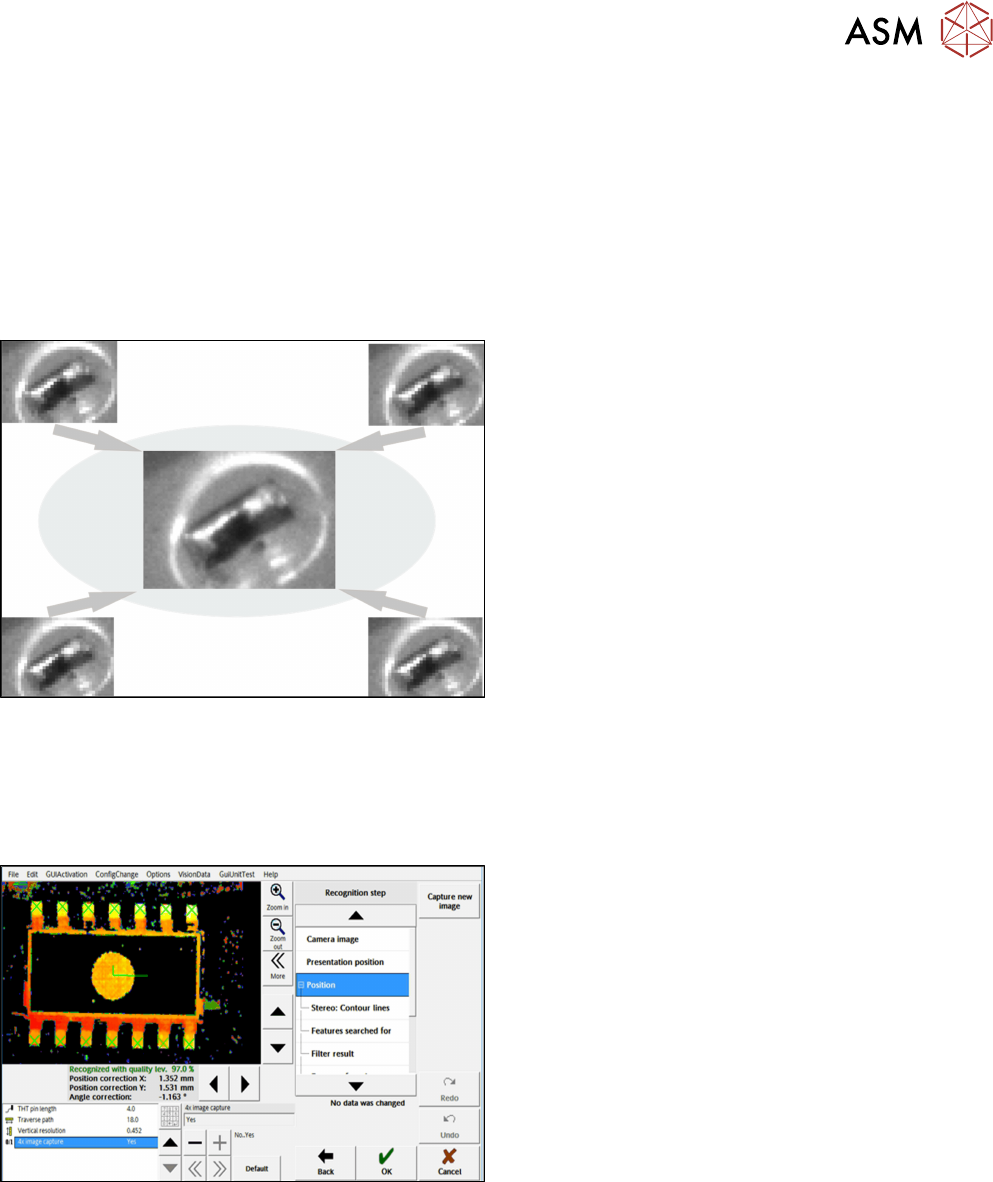
ment. At each position four images are taken, each offset in the X and Y directions by a half pixel to
each other. As a result, features which are smaller than the specified minimum size can be recog-
nized. The height measuring range is halved with the 4x image capture: with the SST 33, only the
height range from 1.8 mm to -3.6 mm is measured.
Example
4x image capture
Additionally, the traverse path can be shortened to reduce the lighting differences of the images.
Please also refer to section 4.1.2.3 "Tips and Tricks" [}60].
► Follow the work steps that are described in section 4.1.2 "Stereo Measurement for THT
Pins" [}57] with the following exceptions:
Step 4: SIPLACE Vision
► First, enable the stereo measurement as de-
scribed for the THT pins.
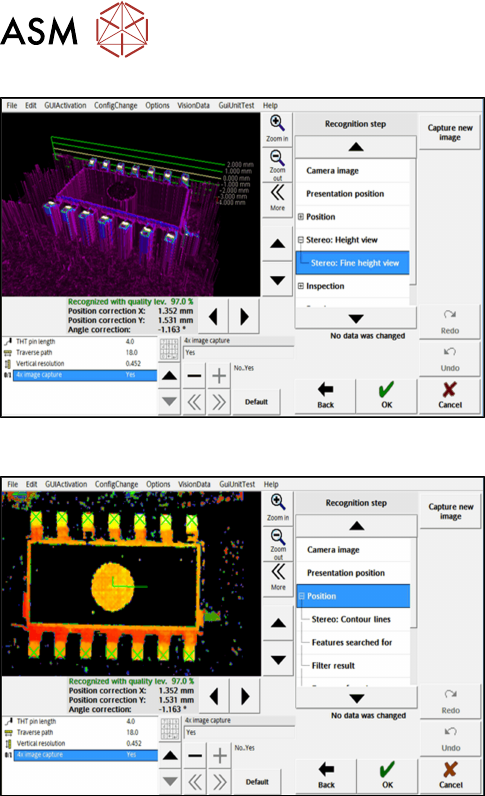
► Then activate the 4x image capture parameter
under Position.
4 Working with the OSC Features
4.2 New Features and Changes with R18-2
72 Bedienungsanleitung OSC Package User Guide OSC-Paket 11/2019
► If necessary, check the result of the
stereo measurement under Stereo: Fine Height
View.
Step 5: SIPLACE Vision
► Check the evaluation of the position in the recog-
nition steps Position and Inspection.
► If necessary, change the traverse path before
you confirm the result of the stereo measure-
ment.
Restrictions
●
Station software version 712.0 is required for the 4x image capture option in the stereo meas-
urement. This option is not supported in the compatible 711.2© mode.
4.2.4 Placement of Components with Centering Pins – PininPaste Height Check
When placing components with centering pins, it must be ensured that the centering pins fit into the
corresponding holes on the board. The same procedure is used for the verification as for the place-
ment of snap-in components, but with less placement force.
Restrictions
●
Placement of components with centering pins (Pin in Paste height check) is not supported on
the SIPLACE CA4 / CA4 V2 placement machines.
4 Working with the OSC Features
4.2 New Features and Changes with R18-2
Bedienungsanleitung OSC Package User Guide OSC-Paket 11/2019 73
4.2.4.1 Procedure
The following overview lists the single work steps that have to be performed in the specified order
to place components with centering pins (Pin in Paste height check).
Placement of components with centering pins (Pin in Paste height check)
Step Action SIPLACE program
1) Enabling OSC package SIPLACE Pro
2) Selecting the Standard placement process for the component
shape
SIPLACE Pro
3) Enabling Pin in Paste height check SIPLACE Pro
4) Setting Z-threshold (Default: 0.500 mm) SIPLACE Pro
5) If necessary, configuring the inspection station (Default:
Output section)
Station Software
6) Verifying and confirming all placement positions at the inspec-
tion station
Station Software
4.2.4.2 Application Example
Step 1: SIPLACE Pro
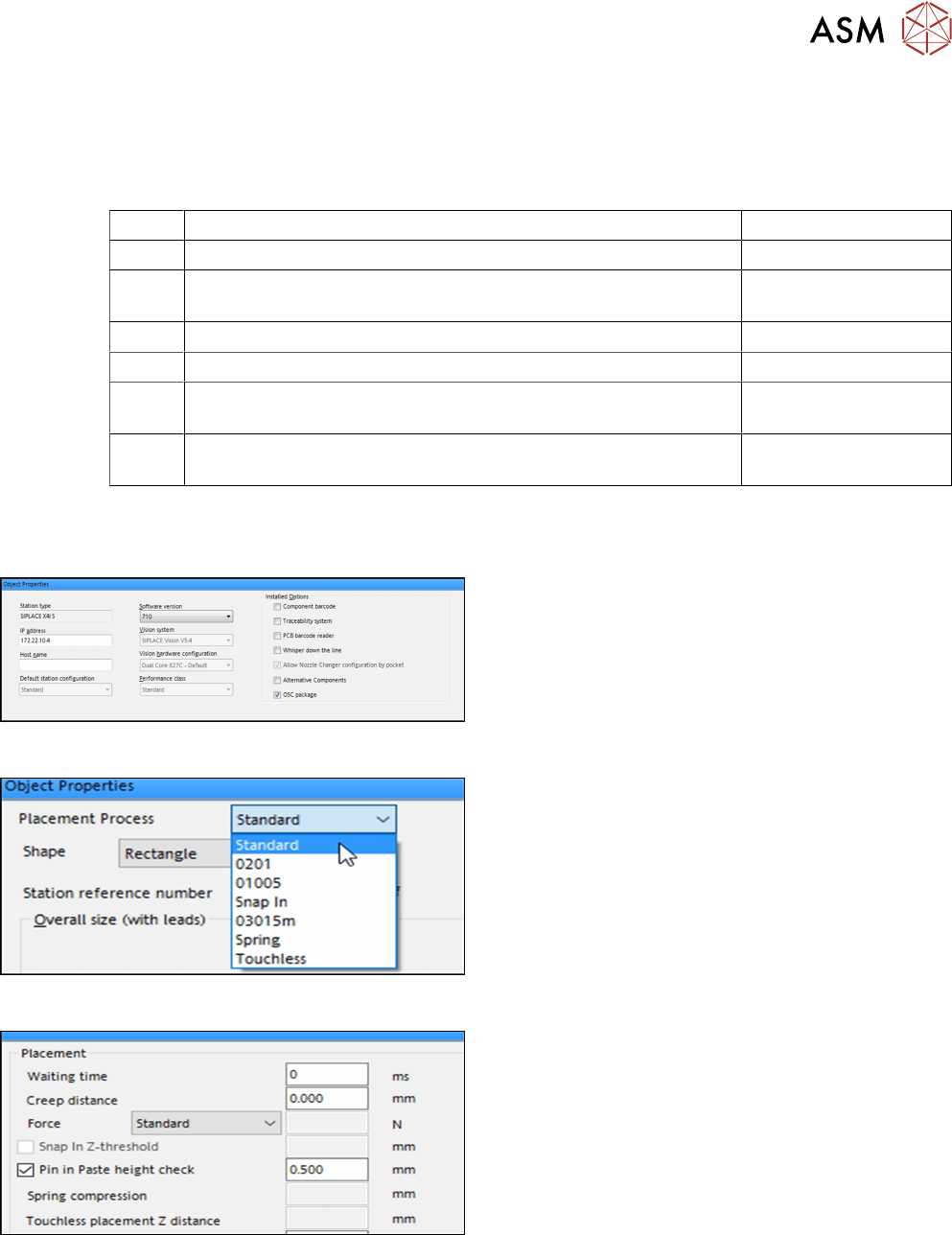
► In the Station Editor under Placement Station,
enable the OSC Package option under Installed
options.
Step 2: SIPLACE Pro
► In the Component Shape Editor, select the
Standard feature as placement process for the
component shape.
Step 3 and Step 4: SIPLACE Pro
► In the Handling tab, enable the Pin in Paste
height check option in the Placement group for
the component shape.
► Define a Z-threshold value in mm.
The threshold value must be > 0.
Default value: 0.500 mm
The first board has to be inspected and confirmed as described in Step 5 and Step 6 below. After
this, the machine uses the Z-threshold value to determine whether the component fits completely in
the subsequent boards or not.