00198374-04_UG_OSC_Package_R19-2_DE_EN.pdf - 第61页
4 Working with the OSC Features 4.1 Features Introduced with R16-2 Bedienungsanleitung OSC Package User Guide OSC-Paket 11/2019 61 Traverse path With camera type 33, the default setting for the traverse path = 18 mm. Wit…
4 Working with the OSC Features
4.1 Features Introduced with R16-2
60 Bedienungsanleitung OSC Package User Guide OSC-Paket 11/2019
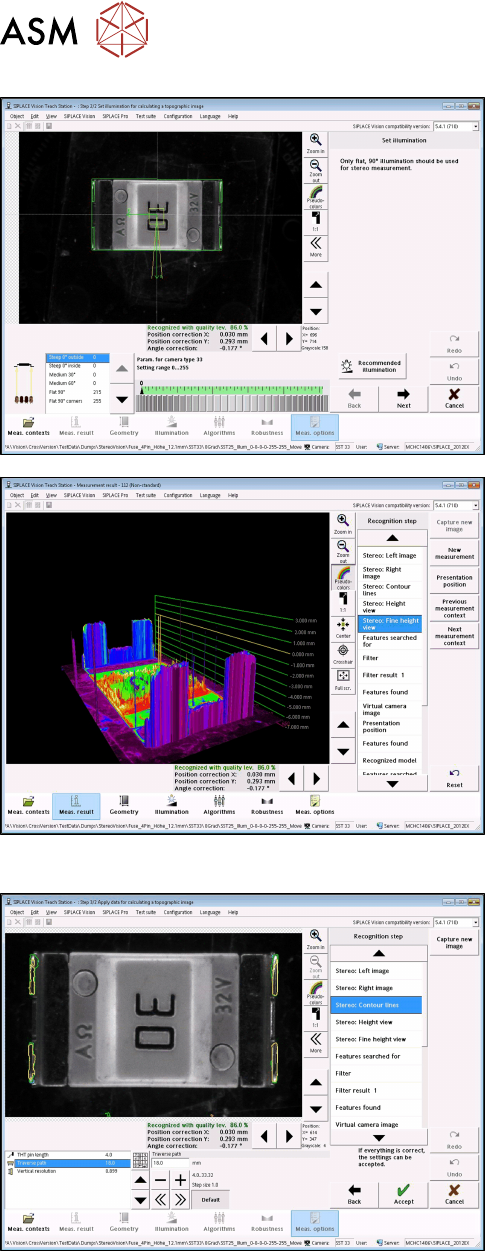
► With the Set illumination option you may check
the illumination setting.
Normally, the pre-set values should not be
changed!
► Under Stereo: Fine Height View you may check
the result of the stereo measurement.
Ensure that the THT pins are in the focal plane
(yellow height line).
This is the case, if component height (overall
height) and nozzle height have been defined cor-
rectly.
Step 5: SIPLACE Vision
► If necessary, change the traverse path to modify
the vertical resolution.
► Under Stereo: Contour lines the measured height
lines are displayed in the 2D images.
This allows you to verify that exactly the THT pin
tips have been detected at the focal plane.
4.1.2.3 Tips and Tricks
Minimum THT pin length
With camera type 33, the minimum length for THT pins is 0.36 mm. If the THT pins are a bit
shorter, you may try one of the following two actions. In both cases you must check that the THT
pin tips are still detected exactly.
► Set the nominal length to 3.6 mm in SIPLACE Pro and increase the tolerance.
or
► Enable the Suppress checking of threshold values option in SIPLACE Vision.
4 Working with the OSC Features
4.1 Features Introduced with R16-2
Bedienungsanleitung OSC Package User Guide OSC-Paket 11/2019 61
Traverse path
With camera type 33, the default setting for the traverse path = 18 mm.
With this setting, the vertical resolution is high and the left and right images are usually very similar.
However, due to background reflections around the THT pin tips etc., there may be noticeable "dis-
similarities" between the left and right stereo images. In this case, a shorter traverse path can be
selected (e.g. 9 mm). Then the lighting differences between the stereo images are not as large and
the THT pins are detected robustly.
However, the height resolution is then lower.
4.1.3 Customer-specific Pattern Features
Odd shape components do not always have a shape or other structures, such as leads, which can
be used for identifying the component center and its orientation.
Examples
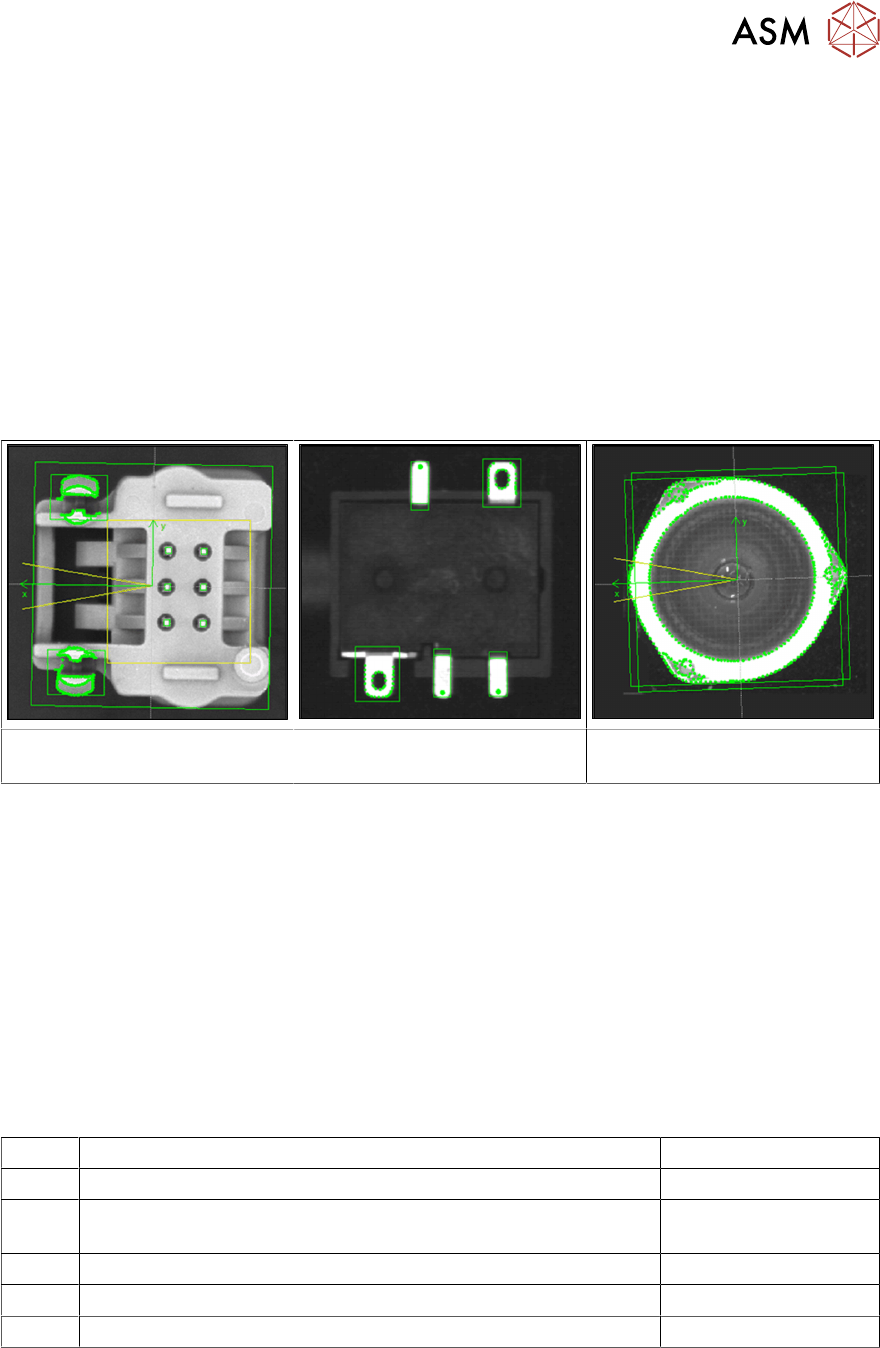
Component with board locks Specially shaped leads Component with curved shape,
e.g. lenses
The Pattern Feature lead group type allows the user to describe arbitrary abstract patterns on a
component. These patterns can only be created and changed in the SIPLACE Vision Editor during
teaching at the station. This type of lead group can be renamed or deleted but not created, edited
or copied in SIPLACE Pro.
The camera captures an image of the component and the user can now simply draw a frame
around single features or attributes and mark them for the Vision system. A special algorithm will
then extract a model out of the marked areas which can be used to later measure and align all
components of the same type. Structures that are not needed can be deleted easily.
4.1.3.1 Procedure
The following overview lists the single work steps that have to be performed in the specified order
to describe pattern features.
Describing a Pattern Feature
Step Action SIPLACE program
1) Enabling OSC package SIPLACE Pro
2) Selecting the pattern type and marking the area to be taught in
the image
SIPLACE Vision
3) Marking and deleting not needed points SIPLACE Vision
4) Aligning the component for the correct position SIPLACE Vision
5) Option: Renaming or deleting the pattern feature SIPLACE Pro
4 Working with the OSC Features
4.1 Features Introduced with R16-2
62 Bedienungsanleitung OSC Package User Guide OSC-Paket 11/2019
4.1.3.2 Application Example
Step 1: SIPLACE Pro
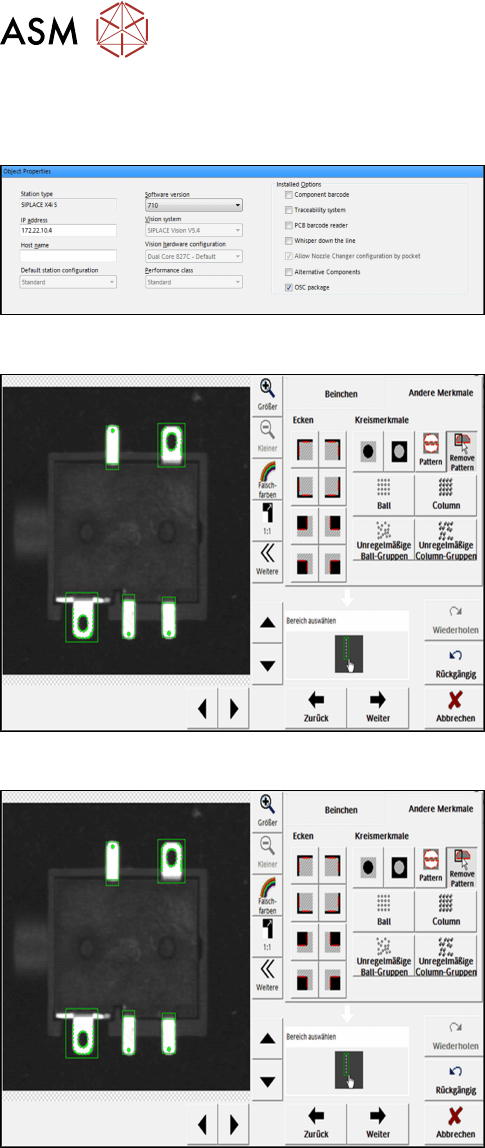
► In the Station Editor under Placement Station,
enable the OSC Package option under Installed
options.
Step 2: SIPLACE Vision
► In the Component Shape Wizard, select the Non-
standard or Connectors component shape type.
► Click on Other features – Pattern.
► Select the area to be taught in the image.
Step 3: SIPLACE Vision
► Click on Remove pattern.
► Zoom in the image extract and select unneces-
sary points in the image that are to be deleted.