00198374-04_UG_OSC_Package_R19-2_DE_EN.pdf - 第77页
4 Working with the OSC Features 4.2 New Features and Changes with R18-2 Bedienungsanleitung OSC Package User Guide OSC-Paket 11/2019 77 WARNING Description of the component height It is essential that the description of …
4 Working with the OSC Features
4.2 New Features and Changes with R18-2
76 Bedienungsanleitung OSC Package User Guide OSC-Paket 11/2019
4.2.5.1 Application Example
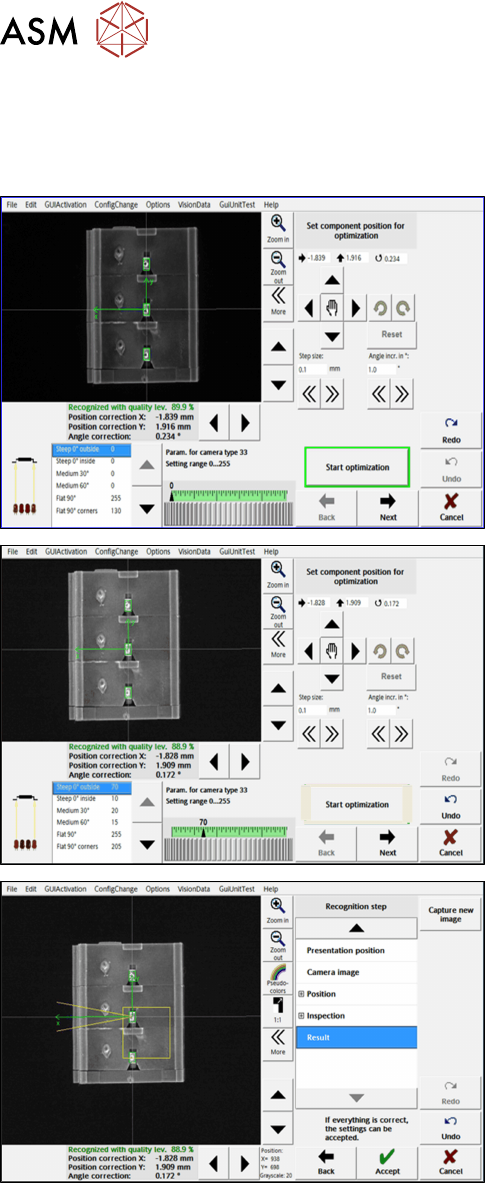
The preceding steps in SIPLACE Pro, station software and SIPLACE Vision are assumed.
Step 1: SIPLACE Vision
► Important: If the component position could not
be recognized automatically, you must first
manually adjust the position using the arrow and
rotation buttons on the top right.
► Click on the Start optimization button in the Set
component position for optimization dialog.
► In the next dialog, click on Next.
► In the next dialog, click on Accept to accept the
result.
During the optimization, the different illumination planes are simulated and images are displayed
continuously with the current best setting. At the end of the optimization, the measurement is per-
formed with the best illumination setting.
4.2.6 Placement of An Exceptionally High Component
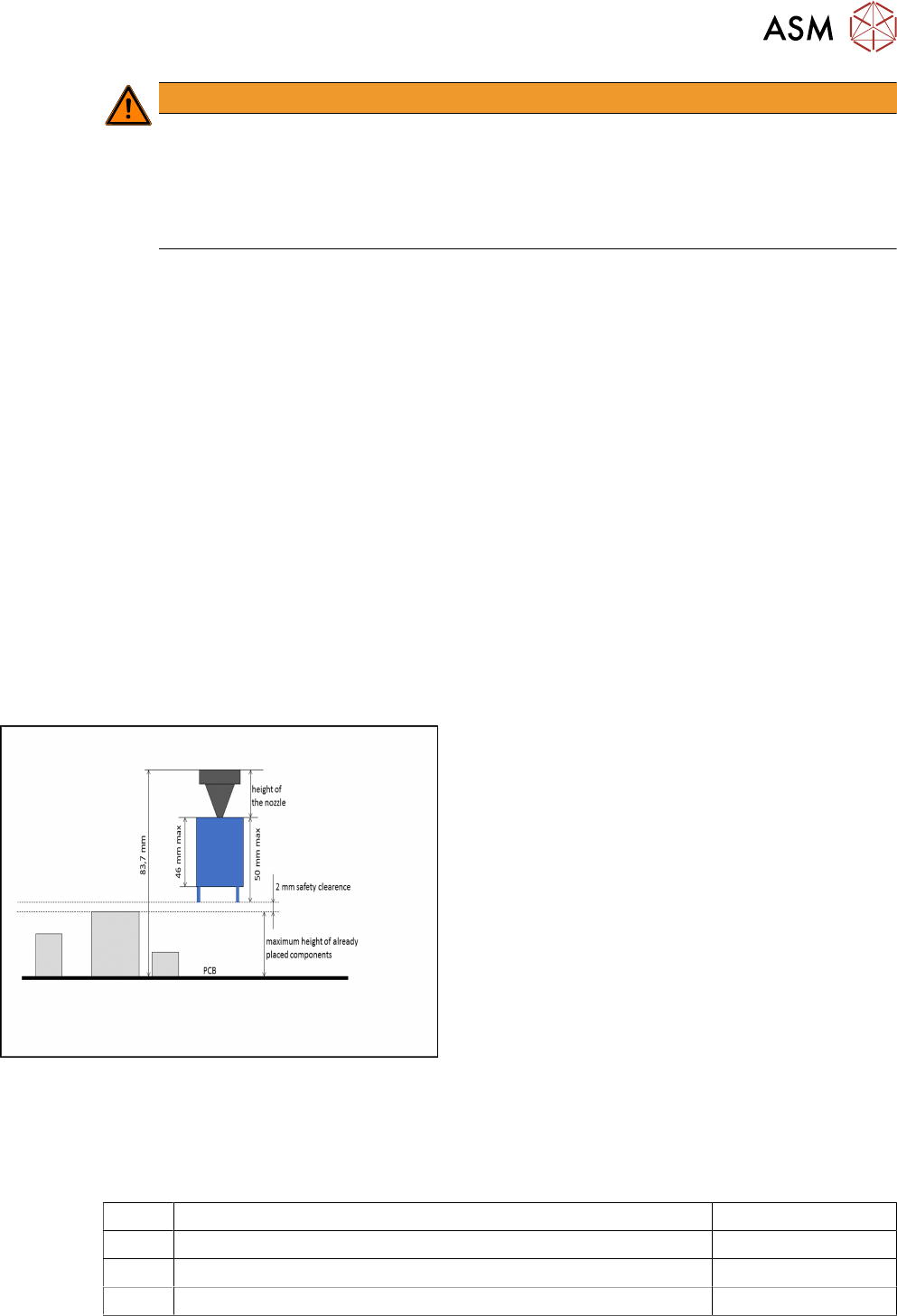
In a special use case, an exceptionally high component can be placed with automatic crash avoid-
ance provided by the software. In this case, the gantry and the placement head are moved around
this component. The component must be feeded by a third party feeder module.
Components are considered "exceptionally high" if they are higher than 40mm, not counting pro-
truding elements that disappear into the board after placement (e.g. centering pins).
4 Working with the OSC Features
4.2 New Features and Changes with R18-2
Bedienungsanleitung OSC Package User Guide OSC-Paket 11/2019 77
WARNING
Description of the component height
It is essential that the description of the component height in SIPLACE Pro is correct.
Otherwise, the hardware (machine, board camera etc.) could be damaged.
The described component height is used in the station software to decide whether the
placement head and the board camera are allowed to be moved over an already placed
component. If this is not possible without collision, they are moved around this component.
In SIPLACE Pro, a specially defined comment must be created and confirmed for the component
shape. In this case, no height check will be performed, and the component can be placed by a
Twin VHF in the last placement area of the line. The placement positions of this component are the
last ones to be placed.
Prerequisites
●
Placement machine SIPLACE SX V2
●
Single conveyor
●
Placement head Twin VHF, as the only placement head in the station or in combination with
either another Twin VHF or a CPP mounted in high position
●
One component of type SMT; height: max. 46 mm
or
One component of type THT (e.g. Connector or Inductance); height: max. 46 mm without pro-
truding elements which disappear into the board after placement (e.g. centering pins), 50 mm
with protruding elements
●
None of the previously placed components may be higher than the bottom of the exceptionally
high component when it is attached to the placement head after pickup. When using a nozzle
of 20 mm length for placing the exceptionally high component, the previous placed
components are allowed to be 22 mm high. When using a nozzle of 10 mm length, the previ-
ous placed components are allowed to be 32 mm high.
Exceptionally high component
4.2.6.1 Procedure
The following overview lists the single work steps that have to be performed in the specified order
to place an exceptionally high component.
Placing an exceptionally high component
Step Action SIPLACE program
1) Enabling OSC package SIPLACE Pro
2) Creating the comment for the component shape SIPLACE Pro
3) Confirming the comment SIPLACE Pro
4 Working with the OSC Features
4.2 New Features and Changes with R18-2
78 Bedienungsanleitung OSC Package User Guide OSC-Paket 11/2019
4.2.6.2 Application Example
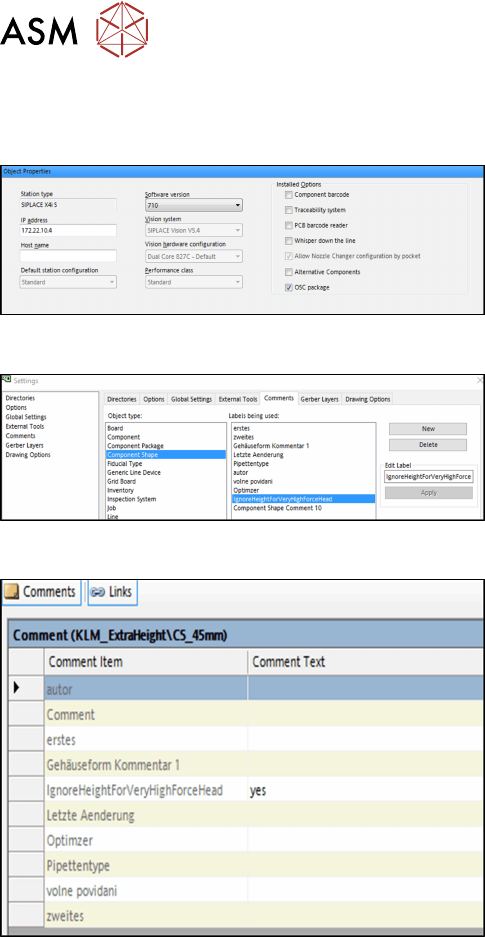
Step 1: SIPLACE Pro
► In the Station Editor under Placement Station,
enable the OSC Package option under Installed
options.
Step 2: SIPLACE Pro
► In the Settings in SIPLACE Pro Desk under
Comments, select the Component Shape object
type and the IgnoreHeightForVeryHighForce-
Head label.
► Click on New to create the comment.
Step 3: SIPLACE Pro
In the Component Shape Editor, you must confirm the
comment for the component shape.
► Under Comments, enter "yes" as comment text
for the IgnoreHeightForVeryHighForceHead com-
ment item.
No height check will be performed for the component. The optimizer ensures that the component is
placed in the last placement area of the line and that the placement positions of this component are
the last ones to be placed.
4.2.7 Increased Placement Force for TwinHead Placement Head
From R18-2, an increased placement force up to 30 N is supported for the TH placement head.
Prerequisites
●
At least one station in the line is equipped with a TH placement head.
●
On this station/these stations, station software version 712.0 must have been installed.
●
This station/these stations must have been configured for the OSC package (OSC license
assigned, OSC package enabled in the Station Editor in SIPLACE Pro).
●
At least one component is assigned to a component shape for which the placement process
requires a placement force from >15 N to 30 N. Placement process and placement force must
have been set in the Component Shape Editor in the Handling tab.
When a job containing such a component is optimized, the component will be assigned to a station
that meets the prerequisites mentioned.
Restrictions
●
The increased placement force is not supported on SIPLACE X-Series placement machines.