00196771-01_IM_SSW_705_03_DE_EN.pdf - 第28页
Installation Manual, Station Software Version 705.03 02/2011 Edition 28 of 58 5.3 Performing automatic BIOS up date/ settings on the machine computer and V ision computer The image files for the automatic BIOS update/BIO…
Installation Manual, Station Software Version 705.03 02/2011 Edition
5.2.3 Calibrating the touchscreen
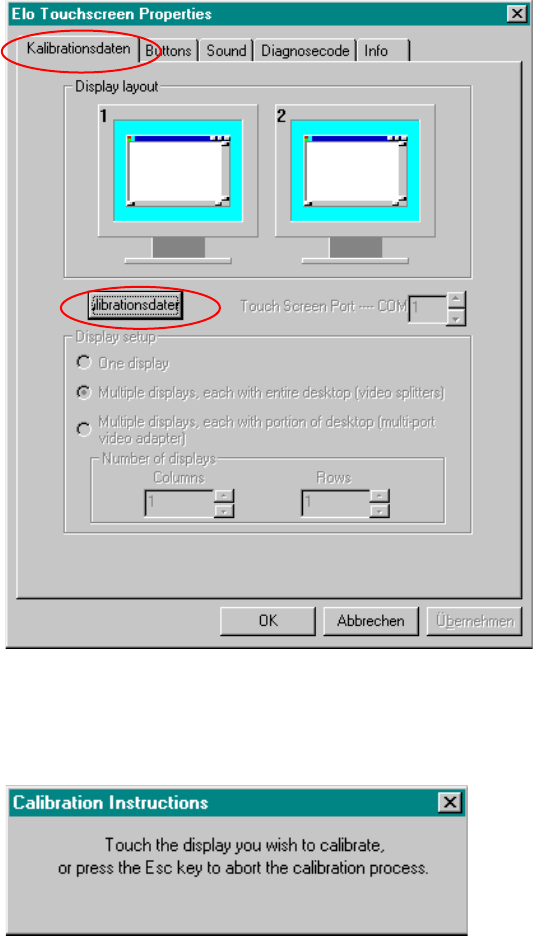
→ Select Start Æ Settings Æ Control Panel Æ Elo to go to EloTouchscreen Properties:
Fig. 5-2: Elo Touchscreen properties
→ Click the Kalibrationsdaten tab.
→ Then click the Kalibrationsdaten button. The following message then appears:
Fig. 5-3 Selection window for the screen to be calibrated
→ Touch the display you wish to calibrate.
A new screen is displayed on which you can perform a calibration.
rate.
A new screen is displayed on which you can perform a calibration.
→ Repeat this procedure for the second screen as well. → Repeat this procedure for the second screen as well.
→ Click the OK button to accept the data. → Click the OK button to accept the data.
27 of 58
Installation Manual, Station Software Version 705.03 02/2011 Edition
28 of 58
5.3 Performing automatic BIOS update/settings on the machine computer
and Vision computer
The image files for the automatic BIOS update/BIOS settings and the corresponding installation instruction
(readme file) are available on the V1.0 BIOS CD that can be ordered for download via the service
technician or SecuFEx.
Installation Manual, Station Software Version 705.03 02/2011 Edition
5.4 Installing the SIPLACE software (Station Software 705.03)
Note:
The installation requires approx. 80 minutes.
→ Switch on the SIPLACE placement machine.
→ Change to the service desktop.
→ Open Windows Task Manager.
→ Select "Logoff" in the “Users” tab.
→ Log in as Administrator.
→ Insert the installation CD in the drive. It is read in automatically.
Note:
If autostart has been disabled for the drive, you must start the installation manually from
the Windows Explorer.
→ Open the Explorer and start "setup.exe" under drive E by double clicking it.
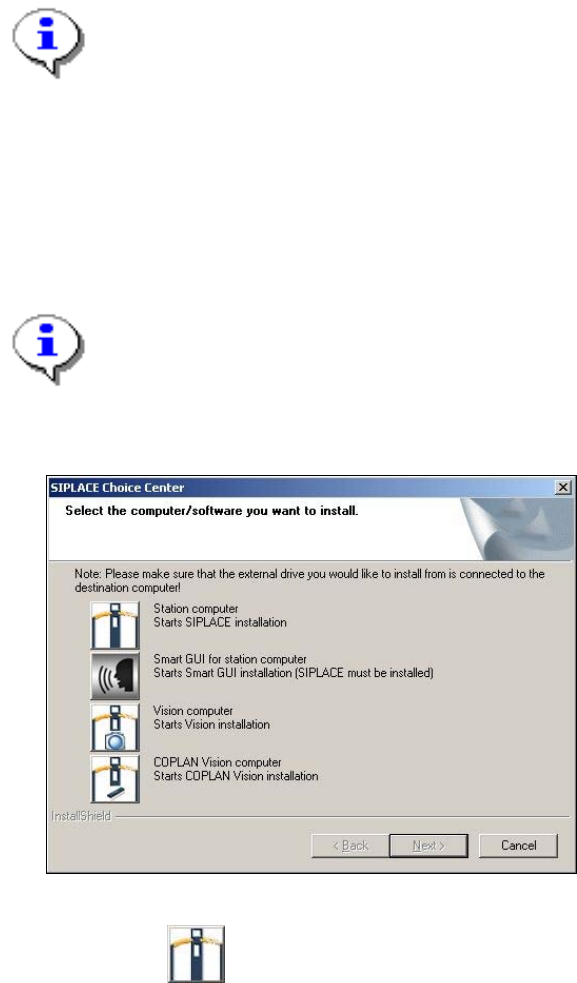
The "SIPLACE Choice Center" dialog box is opened.
Fig. 5-4: "SIPLACE Choice Center" dialog box
→ Click the "Station computer" button.
Installation of the station software continues with the selection of the language.
29 of 58