00196771-01_IM_SSW_705_03_DE_EN.pdf - 第38页
Installation Manual, Station Software Version 705.03 02/2011 Edition 6.1 W elcome screen Fig. 6-2: Welcome screen → Click the Next button. The necessary files are installed on the V ision computer. 6.2 Finalizing the ins…
Installation Manual, Station Software Version 705.03 02/2011 Edition
6 Installing the Vision computer software (with or
without Coplan)
Note:
In one-computer operation the Vision computer software is automatically installed during the
station software installation.
In two-computer operation the Vision computer software has to be installed explicitly.
The installation requires approx. 20 minutes.
→ Connect the USB keyboard to the Vision computer.
→ Connect the USB CD drive to the Vision computer.
→ Switch the video multiplexer from the machine computer to the Vision computer.
→ Log in to the Vision computer as Administrator.
→ Insert the installation CD in the drive. It is read in automatically.
Note:
If autostart has been disabled for the drive, you must start the installation manually from
the Windows Explorer.
→ Open the Explorer and start "setup.exe" under drive E by double clicking it.
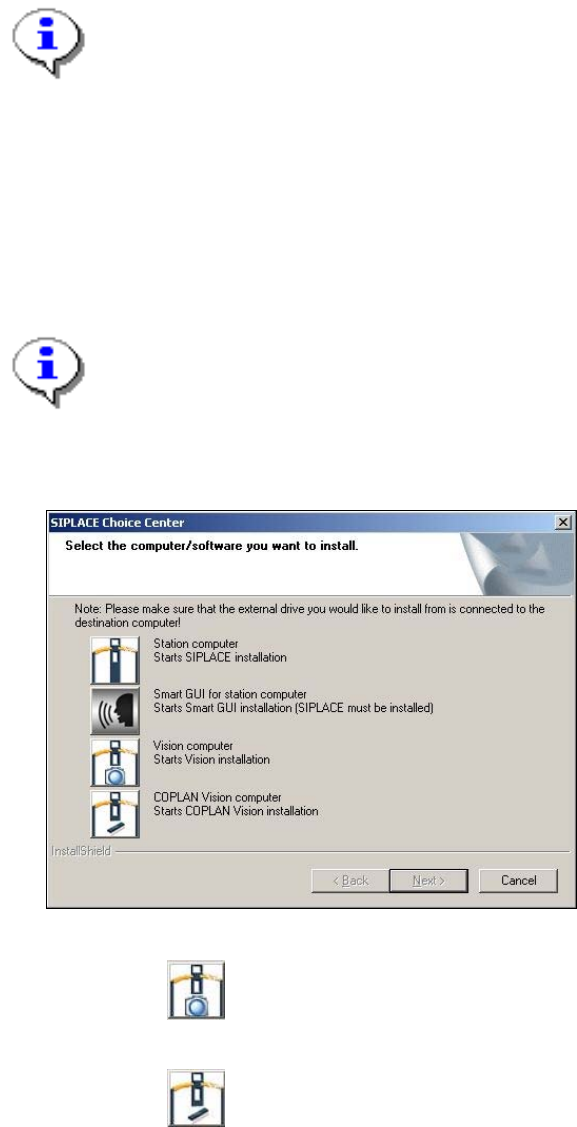
The "SIPLACE Choice Center" dialog box is opened.
Fig. 6-1 "SIPLACE Choice Center" dialog box
→ Click the "Vision computer" button to install the Vision computer software without Coplan.
Or
→ Click the
"COPLAN Vision computer" button to install the Vision computer software with
Coplan.
Installation of the Vision computer software continues with the welcome screen.
37 of 58
Installation Manual, Station Software Version 705.03 02/2011 Edition
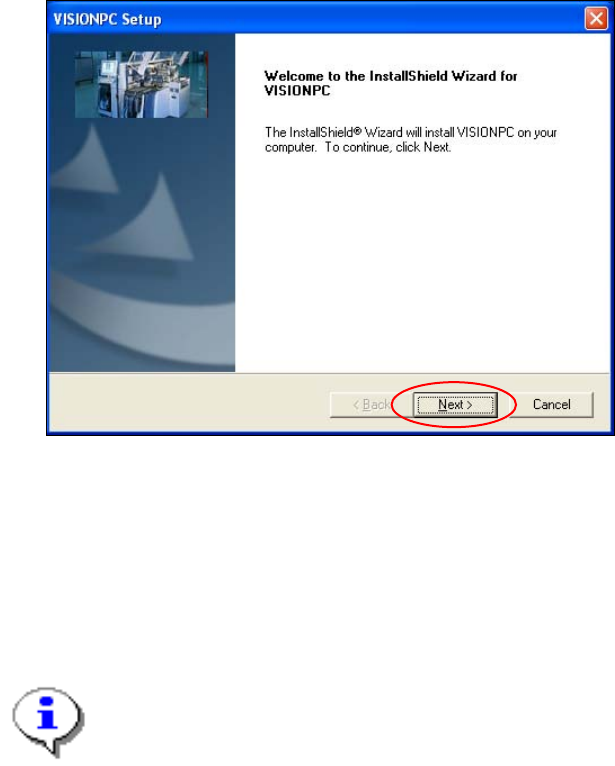
6.1 Welcome screen
Fig. 6-2: Welcome screen
→ Click the Next button.
The necessary files are installed on the Vision computer.
6.2 Finalizing the installation
Note:
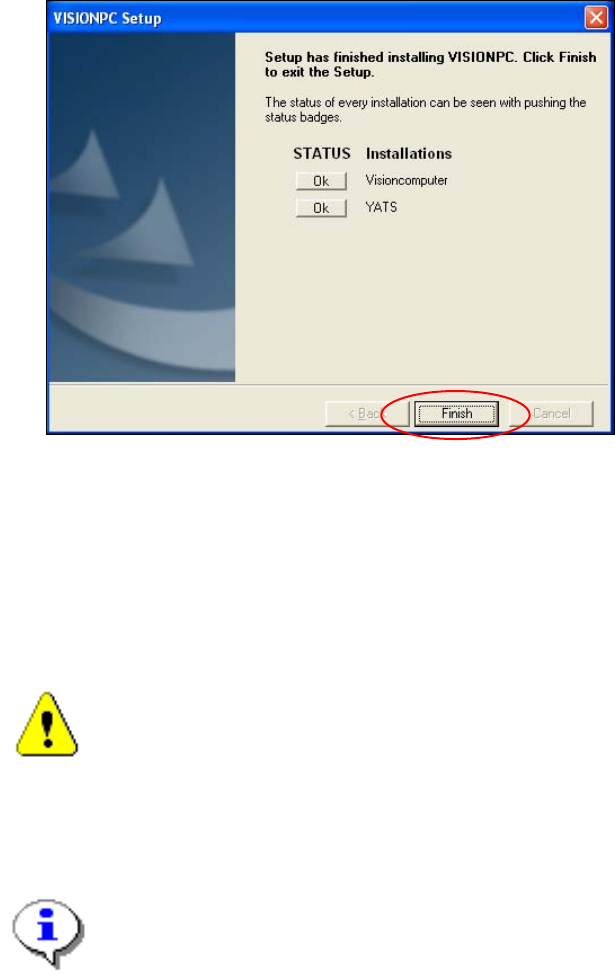
The status only lists the programs that have just been installed.
If errors occurred during installation, the status is indicated by the Error button being
displayed next to the program name instead of the Ok button.
→ If you wish to read the log of the installation of any program, click the Ok (or Error) button next to the
name of the program. The Notepad is started and displays the appropriate file.
38 of 58
Installation Manual, Station Software Version 705.03 02/2011 Edition
Fig. 6-3: Finalizing the installation
→ Click the Finish button.
→ Reconnect the USB keyboard to the machine computer.
→ Reconnect the USB CD drive to the machine computer.
→ Switch the video multiplexer from the Vision computer to the machine computer.
Caution:
→ Wait a few seconds after you have clicked the Finish button, before you switch off
the computer / the machine!
As some installation steps are not performed until the end of the installation by the
InstallShield, the installation might otherwise be incomplete, what may cause problems during
further installations.
Note:
To establish the connection between the SIPLACE Vision computer software and the
SIPLACE station software after installation has been completed, the Vision computer and
the machine computer must first be shut down and the machine must then be switched off
completely.
39 of 58