TR7600 SIII_Camera_Calibration_en_v_2_0_2.pdf - 第17页
Test Research, Inc. TR7600 SIII Ser ies User G uide – Cam era Calibr ation 11 Note 1: If the calibration result is not correct or t here is any ab normality happens during the insp ection, please check the position of th…
Test Research, Inc.
10 TR7600 SIII Series User Guide – Camera Calibration
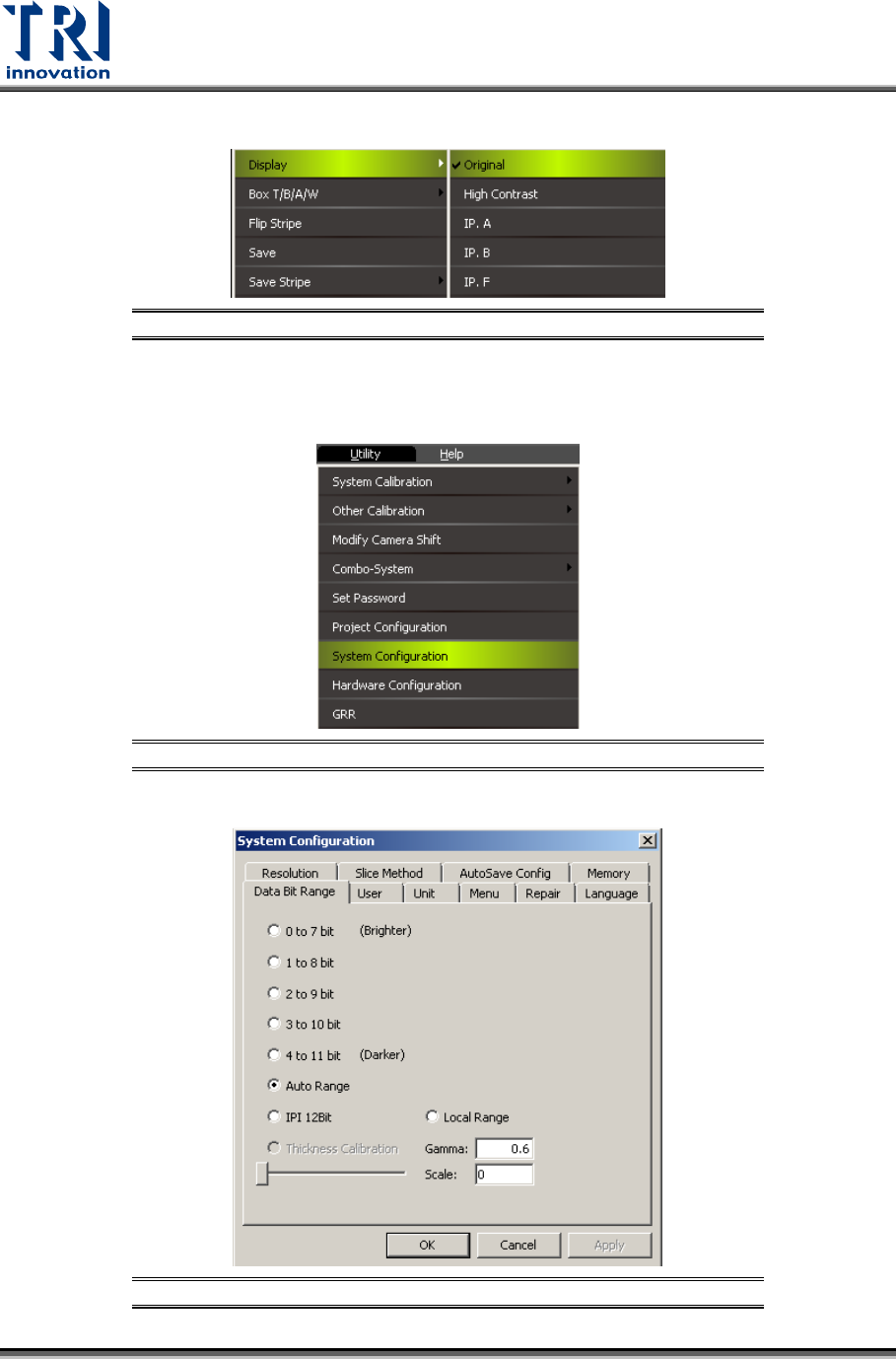
c) Right-click the mouse on the screen, and choose [DisplayOriginal].
Figure 9: Original
d) In the toolbar, click [UtilitySystem ConfigurationData Bit Range], and choose
[Auto Range].
Figure 10: Utility
Figure 11: Auto Range

Test Research, Inc.
TR7600 SIII Series User Guide – Camera Calibration 11
Note 1: If the calibration result is not correct or there is any abnormality happens
during the inspection, please check the position of the calibration board.
Note 2: Use the [Program]
[Scan Panel] function for [Center Alignment Calibration],
[Camera Shift Calibration], and [Height Calibration].
Note 3: Use the [Scan] buttons in the pop-out dialog boxes in [Resolution] and [High
Res. Image Offset].
Note 4: To get a better image, click on the main screen
Choose [Display]
[IP, I].
Test Research, Inc.
12 TR7600 SIII Series User Guide – Camera Calibration
2 3D
C
AMERA
C
ALIBRATION
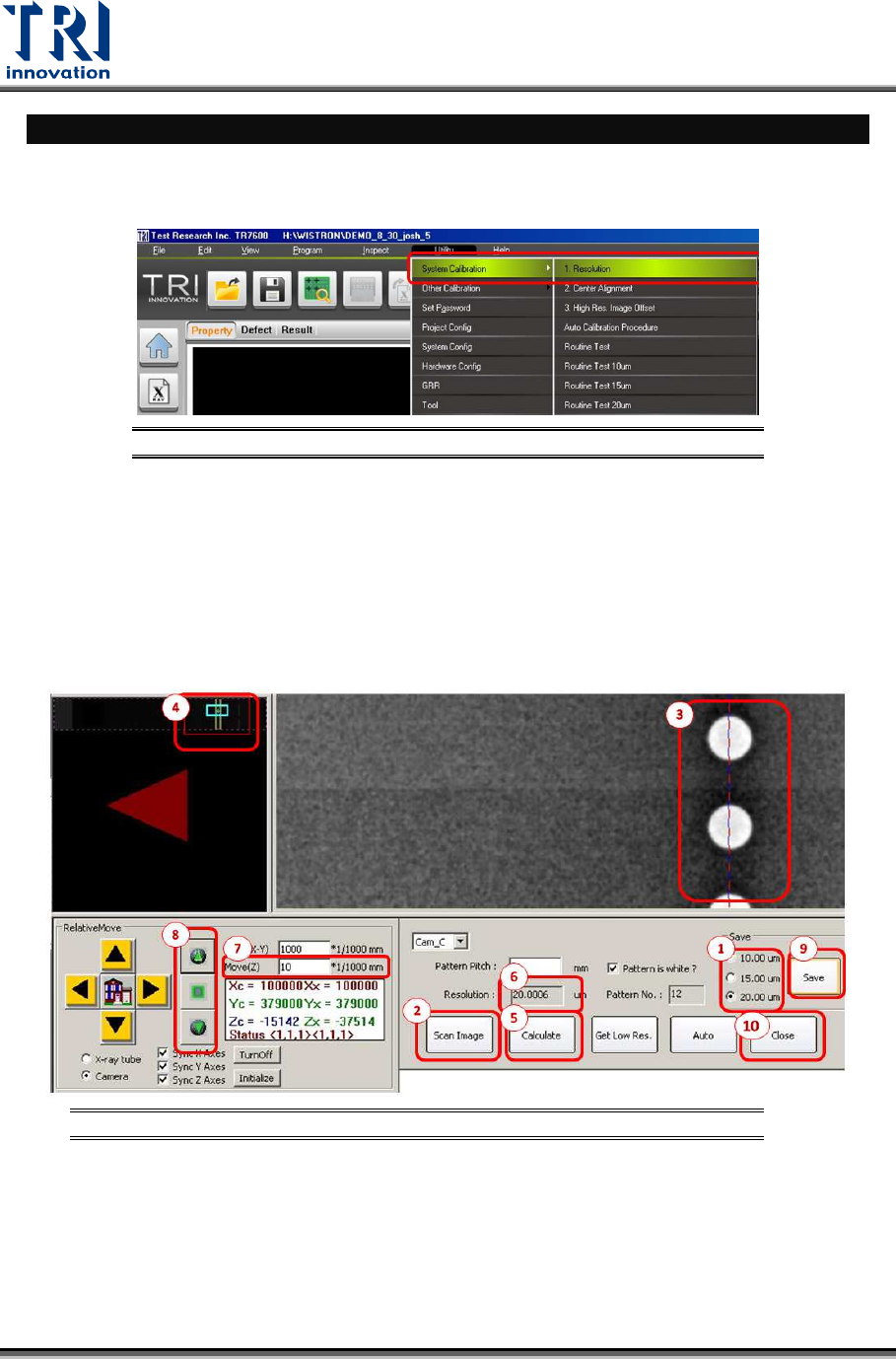
2.1 Resolution Calibration
Press [Utility] in the toolbarChoose [System Calibration] [Resolution]
Figure 12: Utility/System Calibration/Resolution
Calibrate 7 µm, 10 µm, 15 µm, or 20 µm one by one by following the procedure below
which uses 20 µm as an example.
1) Choose 20 µm to calibrate.
2) Click on [Scan Image].
3) The image below will appear. Use the “cross lines” to align a column of white holes in
the right hand side window.
Figure 13: Resolution Calibration Steps