TR7600 SIII_Camera_Calibration_en_v_2_0_2.pdf - 第67页
Test Research, Inc. TR7600 SIII Ser ies User G uide – Cam era Calibr ation 61 12) Click on [Mov e To]. T he spot of Laser Sensor0 will be m oved to the square hole causing the spot unable to be seen. 13) Go to the m achi…
Test Research, Inc.
60 TR7600 SIII Series User Guide – Camera Calibration
7) Click on [P1(XRay)].
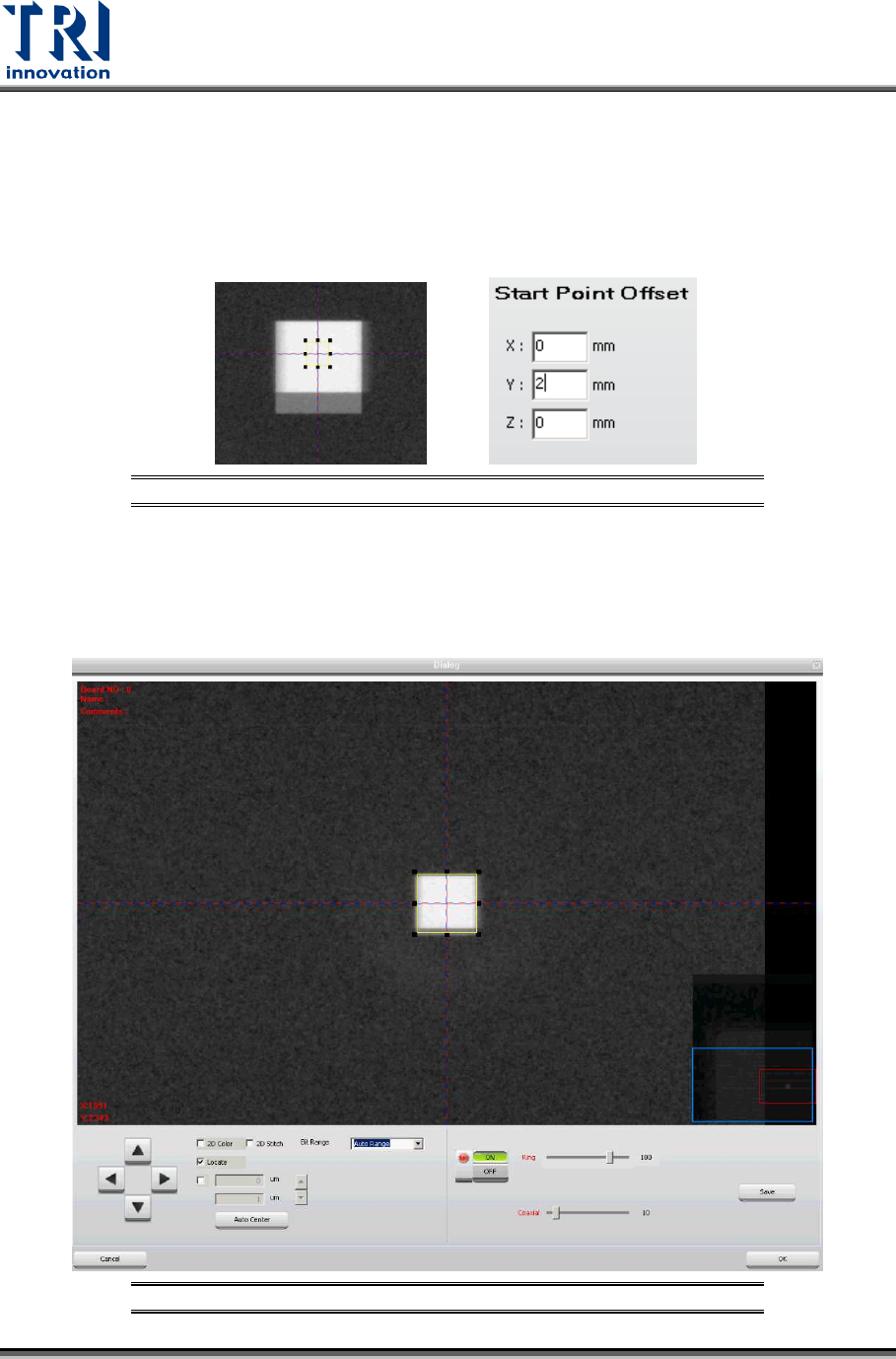
8) Try to find a square in the figure. If Center Alignment calibration result is not very
good, two squares could be observed in the figure.To improve the result
accuracy, click on [Set Scan Info(XRay)] again and input 2 or 3 mm in the Y
Offset field. By doing so, these squares should be moved to the stripe center.
Click [OK].
Figure 113: Try Different X and Y Offset
9) Click on [Scan(XRay)] to scan the board again.
10) Click on [P1(XRay)].
11) Try to find a square in the figure. If only one square is observed in the figure, the
result is perfect. Please enlarge the box to confine this square and click on [OK].
Figure 114: Enlarge the Box to Confine the Square
Test Research, Inc.
TR7600 SIII Series User Guide – Camera Calibration 61
12) Click on [Move To]. The spot of Laser Sensor0 will be moved to the square hole
causing the spot unable to be seen.
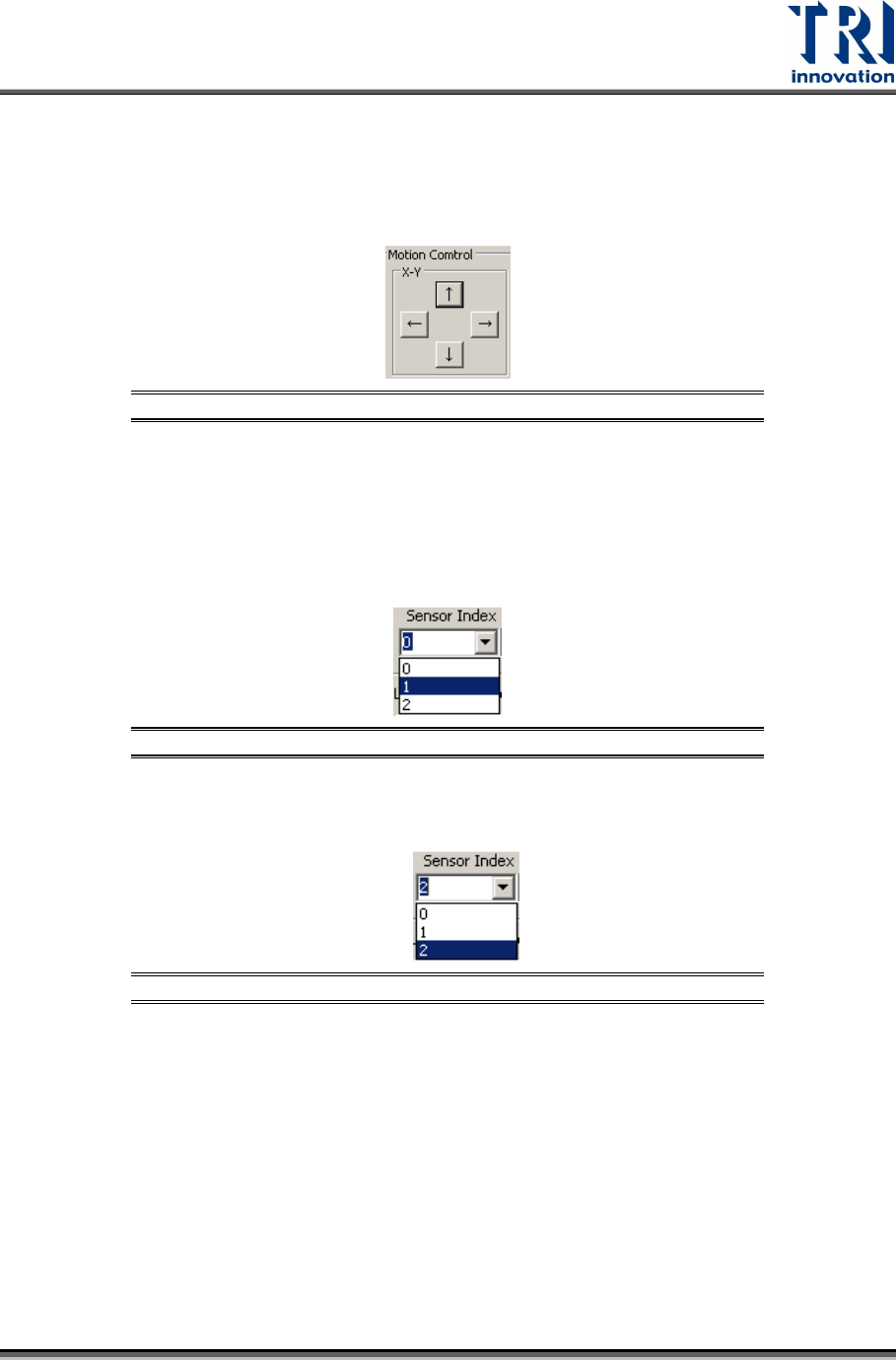
13) Go to the machine, if the spot of Laser Sensor0 does not move into the the
square hole, use the [
↑], [↓], [←], or [→] buttons to move the spot into the square
hole manually.
Figure 115: Move the Laser Spot into the Square Hole
14) Click on [Set Pos].
15) Click on [Go] and [Save] to save the data. It may take few minutes to save the
data. Meanwhile, Laser Sensors may move around to calculate the data needed
automatically.
16) Choose [1] in the [Sensor Index] field and repeat from step 4 to step 15 above.
Figure 116: Choose Laser Sensor 1
17) Choose [2] in the [Sensor Index] field and repeat from step 4 to step 15 above.
Figure 117: Choose Laser Sensor 2
Test Research, Inc.
62 TR7600 SIII Series User Guide – Camera Calibration
3.10 Zero Shift
In this calibration, put the calibration board into the machine manually and
clamp it. In this way, when the front door is opened and amplifiers are set
up, the calibration board can be held and the zero height of its top surface
can be fixed.
This step is used to set up the zero height for 3 amplifiers.
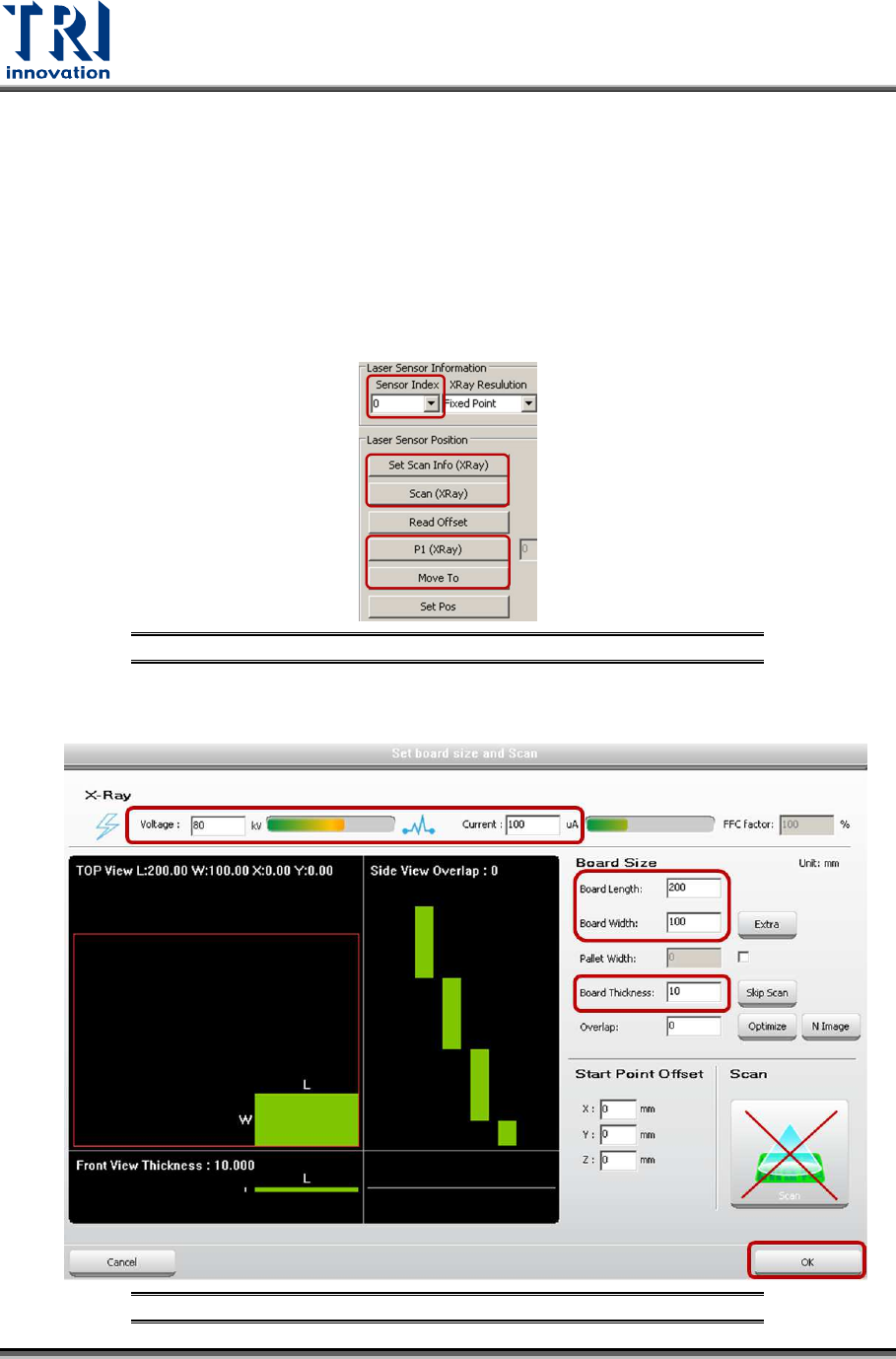
1) Click on [Laser Offset].
2) In order to set up Laser Sensor0, choose [0] in the [Sensor Index] field.
Figure 118: Laser Sensor
3) Click [Set Scan Info(XRay)]. Set up the scan parameters and click on [OK].
Figure 119: Set Up Scan Parameters