TR7600 SIII_Camera_Calibration_en_v_2_0_2.pdf - 第75页
Test Research, Inc. TR7600 SIII Ser ies User G uide – Cam era Calibr ation 69 9) Click on [Move To] and the spot of Laser Sensor0 will m ove to the ass igned position. 10) Click on [Laser Sensor]. 11) Click on [Live] to …
Test Research, Inc.
68 TR7600 SIII Series User Guide – Camera Calibration
5) Click on [Scan (XRay)] to scan the board and the main program will calculate the
data needed.
6) Click on [P1(XRay)].
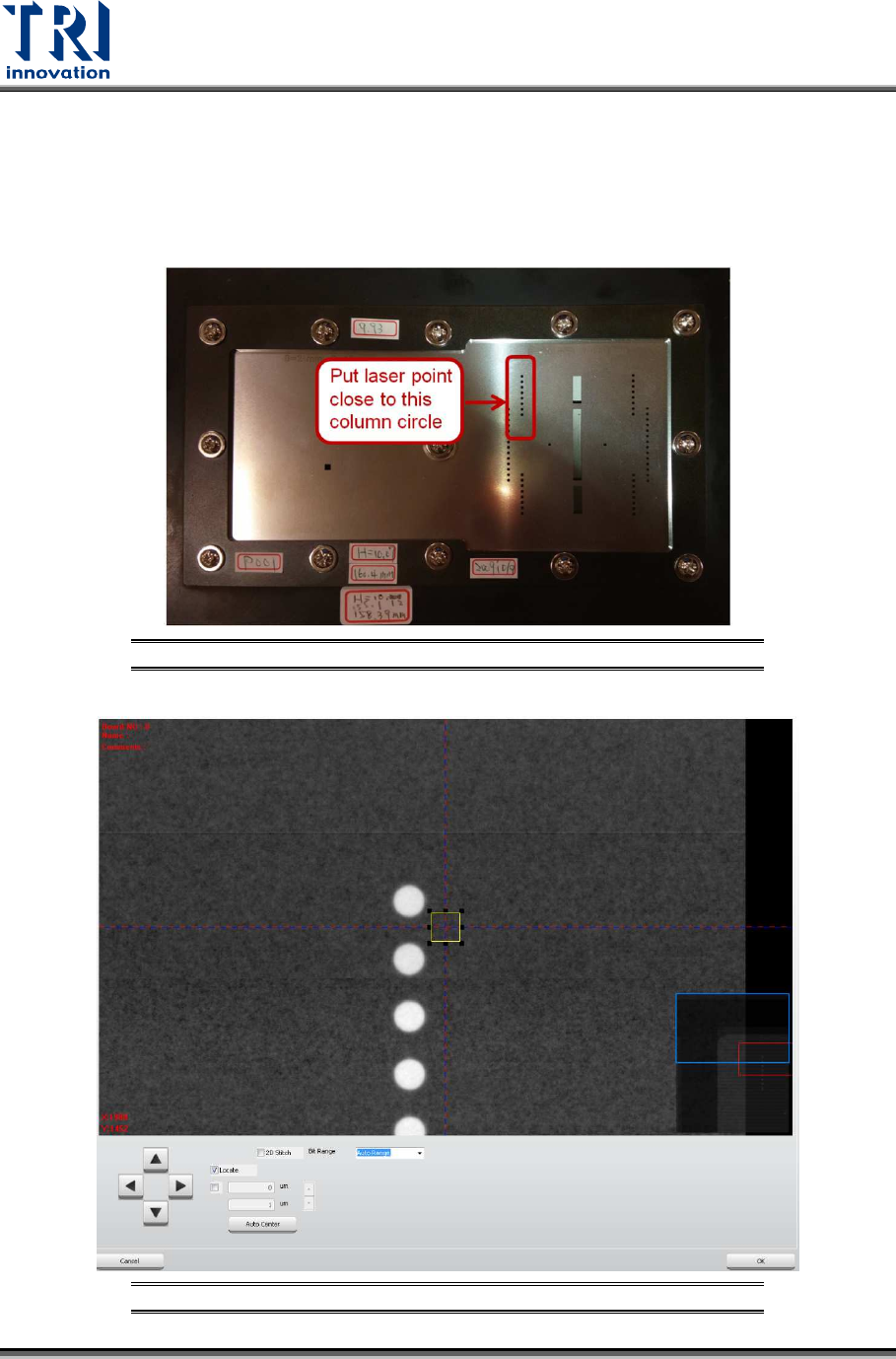
7) Move the box to one column circles closely, but still keep the box on the metal
surface, so amplifiers can record the metal surface as zero height.
8) Click on [OK] to save the box coordinates.
Figure 132: Use this Column Circles for Calibration
Figure 133: Move the Box Close to One Column Circles
Test Research, Inc.
TR7600 SIII Series User Guide – Camera Calibration 69
9) Click on [Move To] and the spot of Laser Sensor0 will move to the assigned
position.
10) Click on [Laser Sensor].
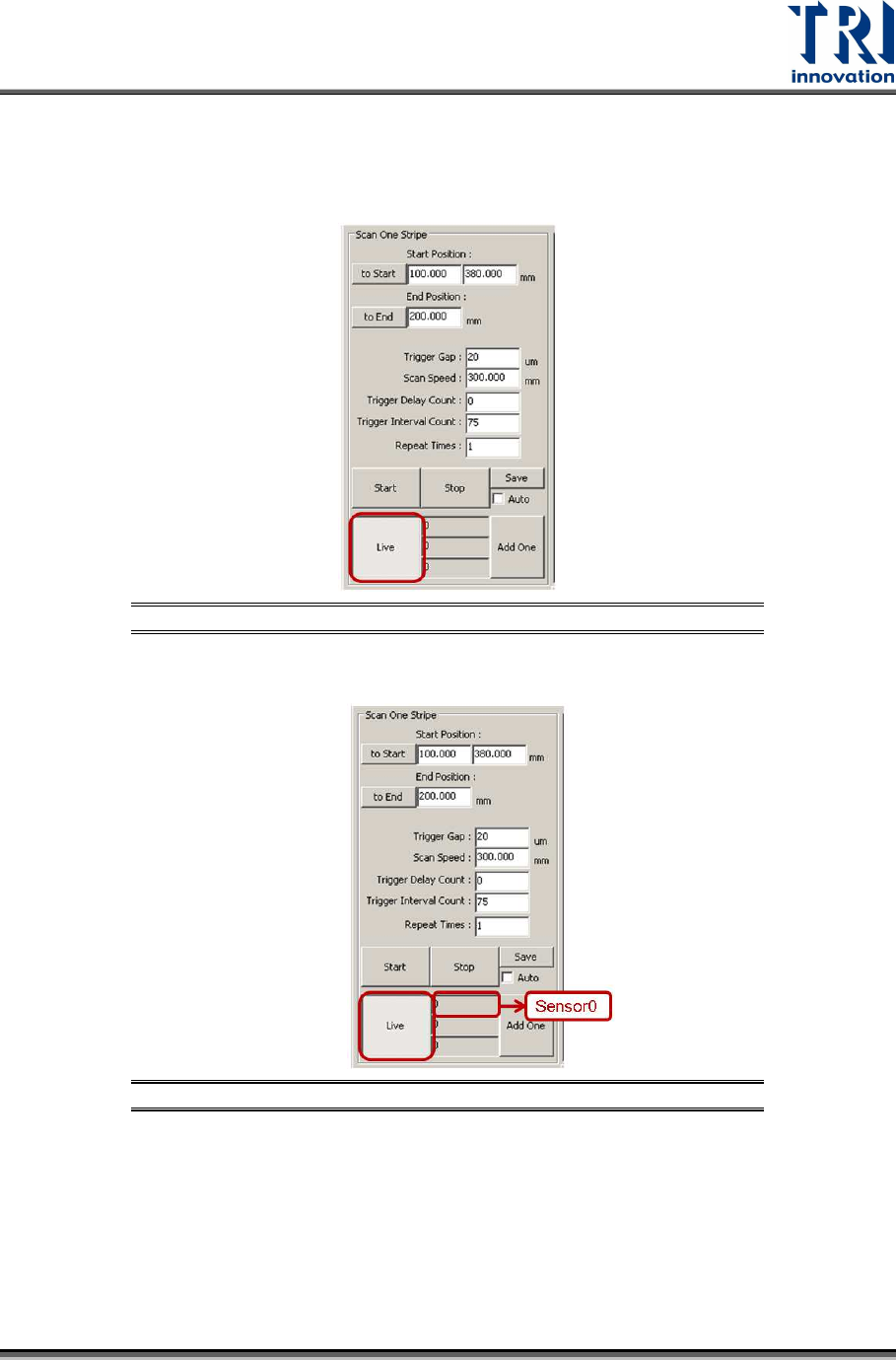
11) Click on [Live] to read the laser intensity value.
Figure 134: Live
12) When the laser intensity value is stable, click [Live] again.
Figure 135: Record the Value in the Laser Sensor0 Field
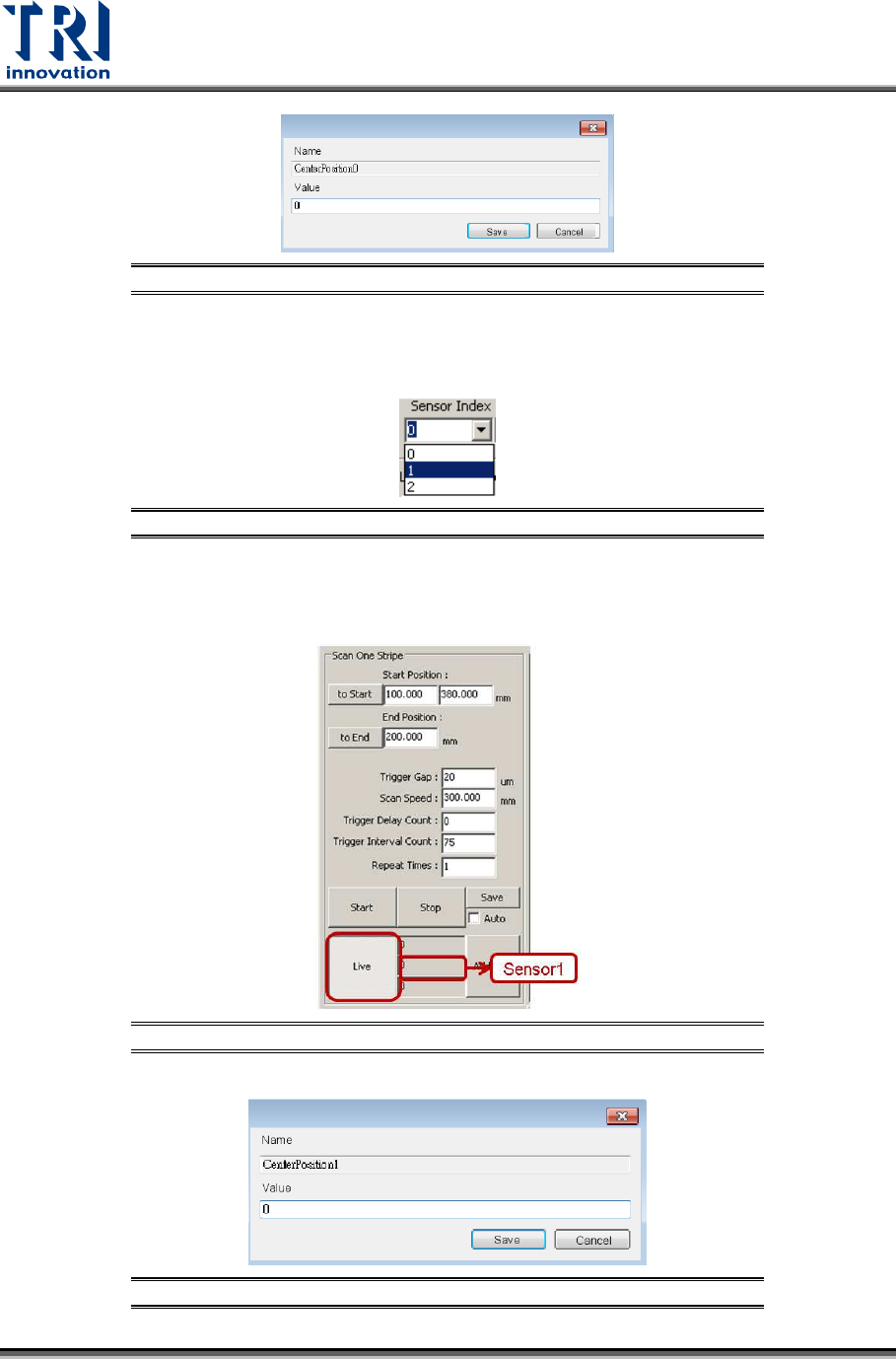
13) Double-click on Center Position0 registry.
14) Read the laser intensity value from the [Sensor0] field, fill it in Center Position0
registry and click [Save]. This value should be very close to 0.
Test Research, Inc.
70 TR7600 SIII Series User Guide – Camera Calibration
Figure 136: Fill in the Value in the Registry
15) Repeat the steps from step 2 to step 12 for Laser Sensor 1. In step 2, remember
to choose [1] in the [Sensor Index] drop down menu.
Figure 137: Choose Laser Sensor 1
16) Read the laser intensity value from the [Sensor1] field, fill it in Center Position1
registry and click [Save]. This value should be very close to 0.
Figure 138: Record the Value from the Laser Sensor1 Field
Figure 139: Fill in the Value in the Registry