00193697-01.pdf - 第20页
3 Graphical user int erface SIPLACE Softw are Guide SR.504.xx 3.2 Components of the user interface Issue 01/03 EN 20 If the PCB i s locat ed on th e input conveyor , the following dialo g box is opene d. 3 3 Fig. 3.2 - 3…
SIPLACE Software Guide SR.504.xx 3 Graphical user interface
Issue 01/03 EN 3.2 Components of the user interface
19
Abort processing PCB 3
3
Å Click the corresponding PCB icon .
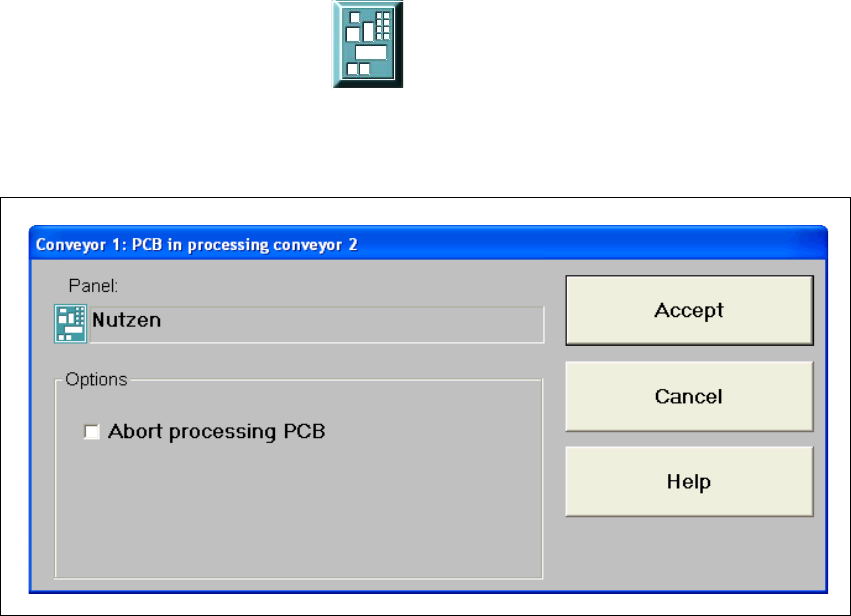
If the PCB is located on the processing conveyor, the following dialog box is opened.
3
Fig. 3.2 - 2 "Conveyor 1: PCB in processing conveyor 1" dialog
Å Click the checkbox "Abort processing PCB".
Å Click the Accept button.
Processing of the PCB is aborted.
The incompletely assembled PCB is transported to the output conveyor and the operator is re-
quested to remove it by hand.
3 Graphical user interface SIPLACE Software Guide SR.504.xx
3.2 Components of the user interface Issue 01/03 EN
20
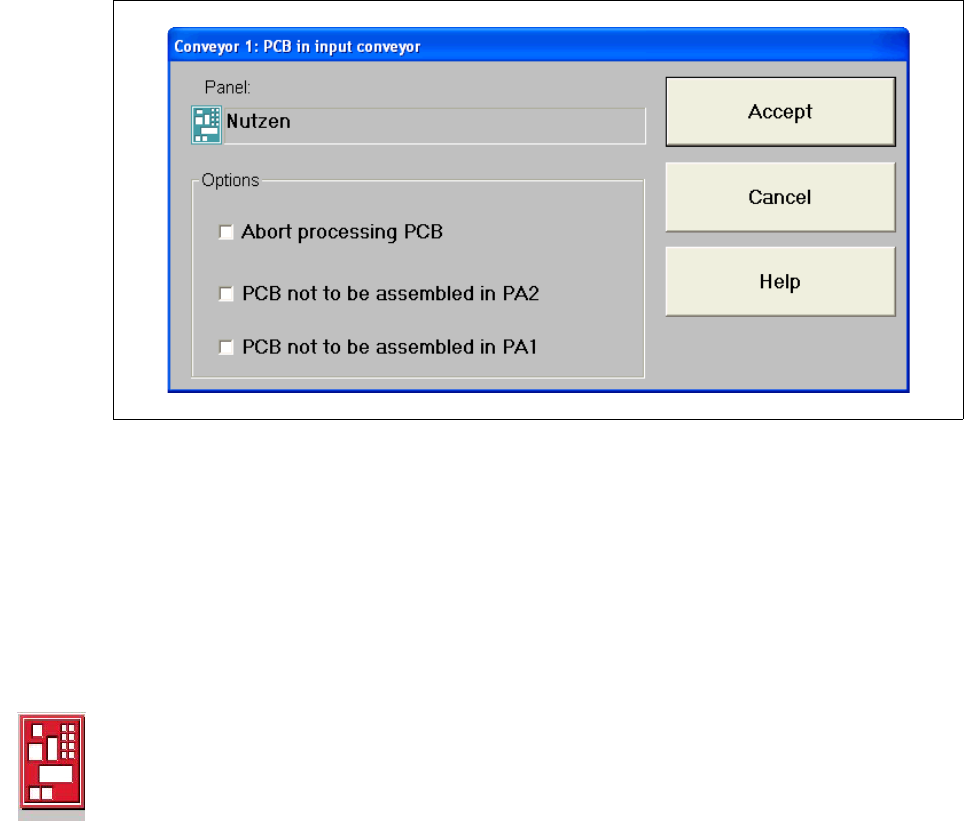
If the PCB is located on the input conveyor, the following dialog box is opened. 3
3
Fig. 3.2 - 3 "Conveyor 1: PCB in input conveyor" dialog
3
Å Click the checkbox "Abort processing PCB".
Å Click the Accept button.
Processing of the PCB is aborted.
The printed circuit board that has not been processed in this machine is transported onto the
output conveyor, and the operator is prompted to remove the board manually
Processing of PCB aborted 3
If processing of the PCB has been aborted by clicking the PCB icon (see example above), the
color of the PCB icon changes to red.
The icon is also displayed in red if a PCB is manually placed on processing conveyor 1 or 2. The
PCB is thus not recognized by the system and is transported to the output conveyor. 3
SIPLACE Software Guide SR.504.xx 3 Graphical user interface
Issue 01/03 EN 3.2 Components of the user interface
21
Meaning of Other Icons and Markings 3
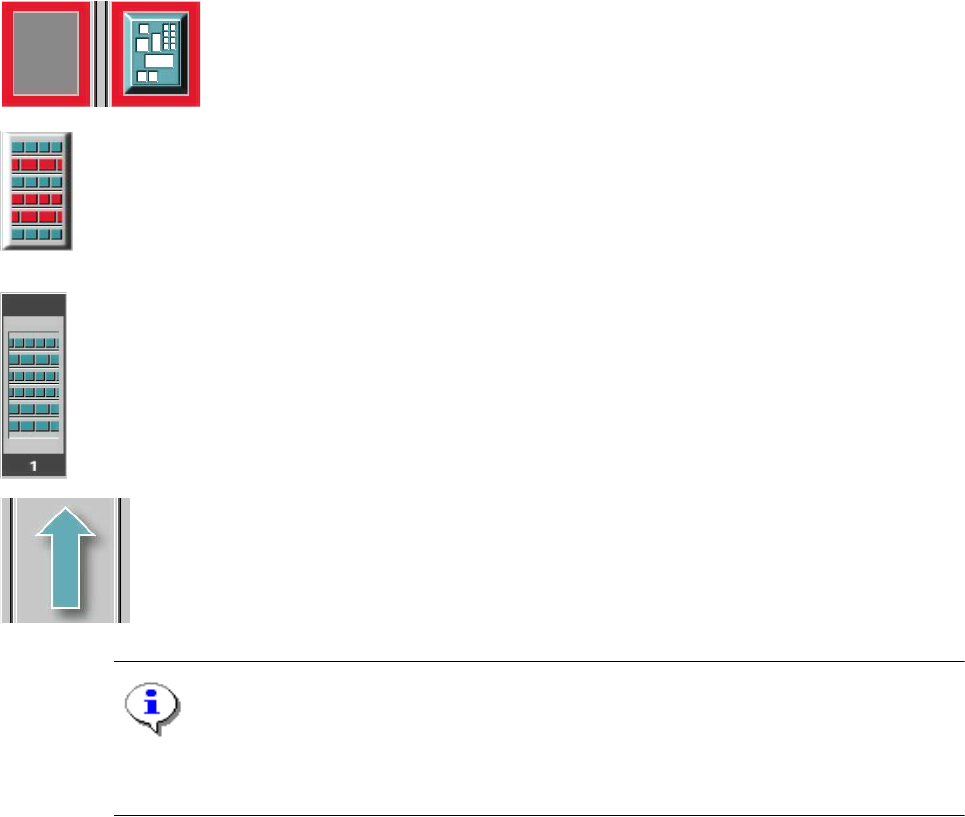
If a track error, machine error or conveyor error occurs, then the corresponding graphic is high-
lighted in red (see examples below). 3
Examples:If an error occurs in a processing area, then this is displayed with a red
border.
You can abort processing of the PCB which is located in this area by clicking the
PCB icon.
If a conveyor error occurs during transport, this is indicated by the presence of red
bars on the left and right.
If a track error occurs (e.g. missing components), then individual parts of the
graphic which correspond to the layout of the current feeder location are displayed
against a red background. In addition, the graphic is displayed with a contour.
If you click this graphic you can use the appropriate functions to
reactivate all the tracks for this location. 3
Machine error (Emergency stop) 3
3
3
Components missing at location 3
3
3
3
3
Feeder location full 3
3
3
Conveyor set to "Transport through" 3
NOTE
This means that the "Process PCB" function is deactivated in the machine options.
The PCBs are passed through the entire transport process without being processed. 3
3