00193697-01.pdf - 第45页
SIPLACE S oftware Guide SR.504.xx 3 Graphical user interface Issue 01/03 E N 3.3 User interface - views and menus 45 Å Cl ick t he Configu re compre ssed air deactivat ion... menu item. This dis plays the fo llowi ng win…
3 Graphical user interface SIPLACE Software Guide SR.504.xx
3.3 User interface - views and menus Issue 01/03 EN
44
3.3.2.4 "Settings" menu
The "Settings" menu is only available in the main view. The options in this menu can be used to
set whether a particular action must be confirmed again before it is executed. Or whether, when
a particular event occurs, a dialog box containing the relevant information is to be displayed and
then, similarly, confirmed by the user. 3
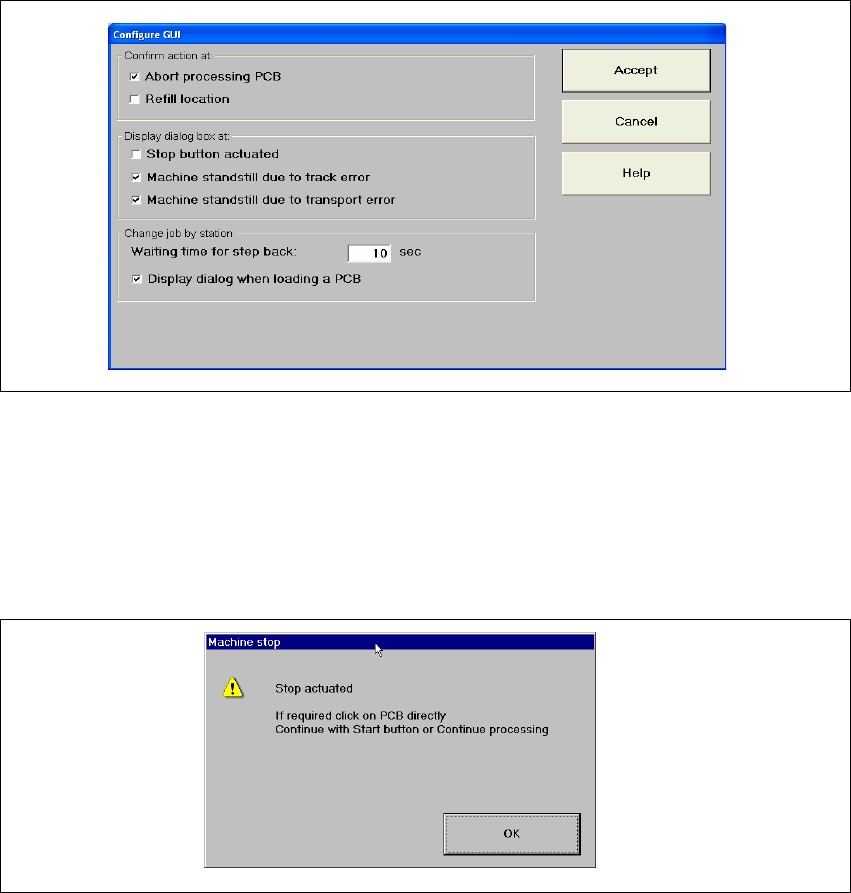
Å Click the Configure GUI... menu item.
This displays the following window.
3
Fig. 3.3 - 14 "Configure GUI" dialog box
Å Activate/deactivate the check box for the required options.
Å Click Accept to save the settings.
Example:If the stop button is activated and the "Stop button actuated" box is checked,
the following dialog box is displayed and must be confirmed. 3
3
Fig. 3.3 - 15 "Stop button actuated" check box
If the box is not checked, the dialog box does not appear. 3
SIPLACE Software Guide SR.504.xx 3 Graphical user interface
Issue 01/03 EN 3.3 User interface - views and menus
45
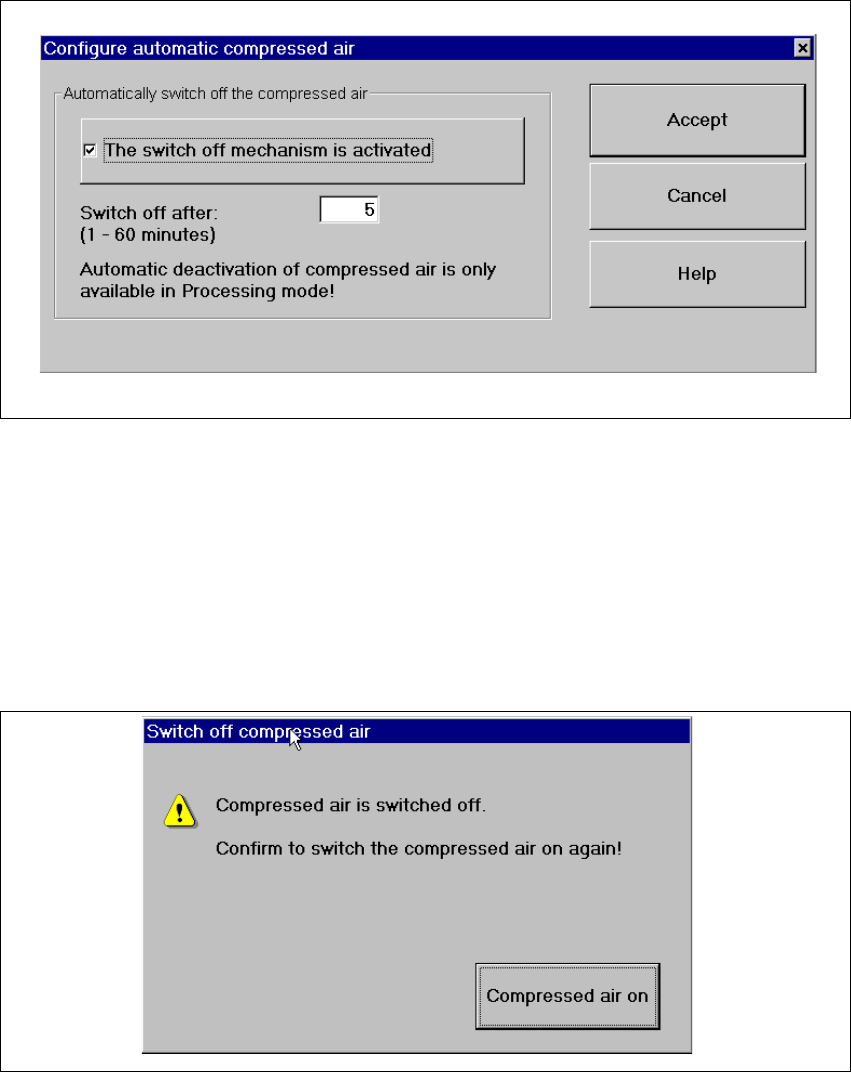
Å Click the Configure compressed air deactivation... menu item.
This displays the following window.
3
Fig. 3.3 - 16 "Configure compressed air deactivation" dialog box
Å Activate/deactivate the check box for the automatic deactivation.
Å Click Accept to save the settings.
3
Å Click the Switch off compressed air... menu item. (This function is only possible if the ma-
chine is in the "Processing suspended" status.)
This displays the following window.
3
Fig. 3.3 - 17 "Switch off compressed air" window
Å Activate the Compressed air on button.
Å The compressed air is reactivated.

3 Graphical user interface SIPLACE Software Guide SR.504.xx
3.3 User interface - views and menus Issue 01/03 EN
46
3.3.2.5 "Language" menu
It is possible to set the language versions for the user interface integrated into the station com-
puter software via the "Language" menu.
The user interface can be changed to a different language from any view.
You can choose between "German" and "English". 3
Å Click the menu item corresponding to the required language.
The user interface texts are displayed in the selected language.
Å It is possible to extend the range of languages available using a language CD to install addi-
tional languages.
3.3.2.6 "Help" menu
This menu gives you access to all the functions required to call the help system as well as general
information concerning the station computer or the software. 3
Contents Ctrl+F1 3
This calls the online Help system. 3
Help Alt+F1 3
This calls the Help system and displays information about the current view. 3
Use help 3
Information on how to use the Help system is displayed. 3
Info... 3
This displays information on the currently installed software version (SC version), the service
pack, the language CD and general information on the station computer. 3
NOTE
You can use the button (bottom right) to call the online Help system from within any view of
the user interface.
This calls the help system for the current view.
A detailed description of the functions in the Help menu can be found in Chapter 6. 3
Å Click the required menu item in the "Help" menu or press the corresponding key combination.
3