00193697-01.pdf - 第61页
SIPLACE S oftware Guide SR.504.xx 6 Online Help system Issue 01/03 E N 6.1 General 61 6 Online Help system 6.1 Gen eral The Help s ystem int egrated in the station comp uter software a llows you to call u p online Hel p …

5 Error information SIPLACE Software Guide SR.504.xx
5.3 Clear error Issue 01/03 EN
60
5.3 Clear error
Once an error has been eliminated, it can be cleared. This is not necessary in the case of errors
which cause a machine stoppage since they are automatically cleared when placement is re-
sumed. 5
Once cleared, the error message is no longer displayed in the status bar. However, it is still en-
tered in the error table for the corresponding error type (see example in Fig. 5.2 - 2). 5
5
Å After eliminating the current error, click the .button in the Main view.
The error message is deleted from the status bar and placement operation can be continued.
5
5
SIPLACE Software Guide SR.504.xx 6 Online Help system
Issue 01/03 EN 6.1 General
61
6 Online Help system
6.1 General
The Help system integrated in the station computer software allows you to call up online Help on
the functions, menus and icons available in the station computer’s user interface as well as to con-
sult general station computer information.
The corresponding sections of this chapter contain more detailed information on the various Help
system functions. 6
The online Help system can be called by selecting the Help entry from the Help menu or by click-
ing the button. 6
6.1.1 Functions of the "Help" menu
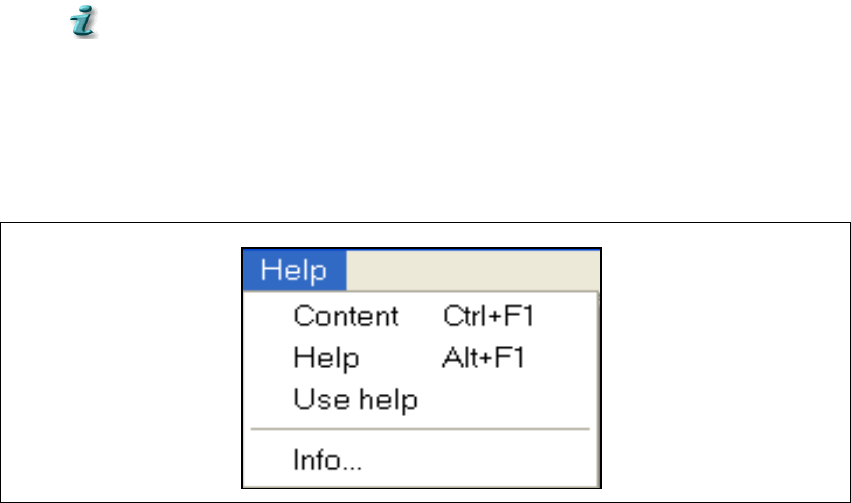
Å Click Help in the menu bar of the view which is currently active in the SC user interface. The
"Help" menu is opened.
Fig. 6.1 - 1 "Help" menu
This menu contains all the options which are necessary to call up help on the functions of the
station computer user interface, general help on using the Help system operation or information
on the station computer and the installed software. 6
6
6 Online Help system SIPLACE Software Guide SR.504.xx
6.1 General Issue 01/03 EN
62
6.1.1.1 Displaying the contents of the Help system
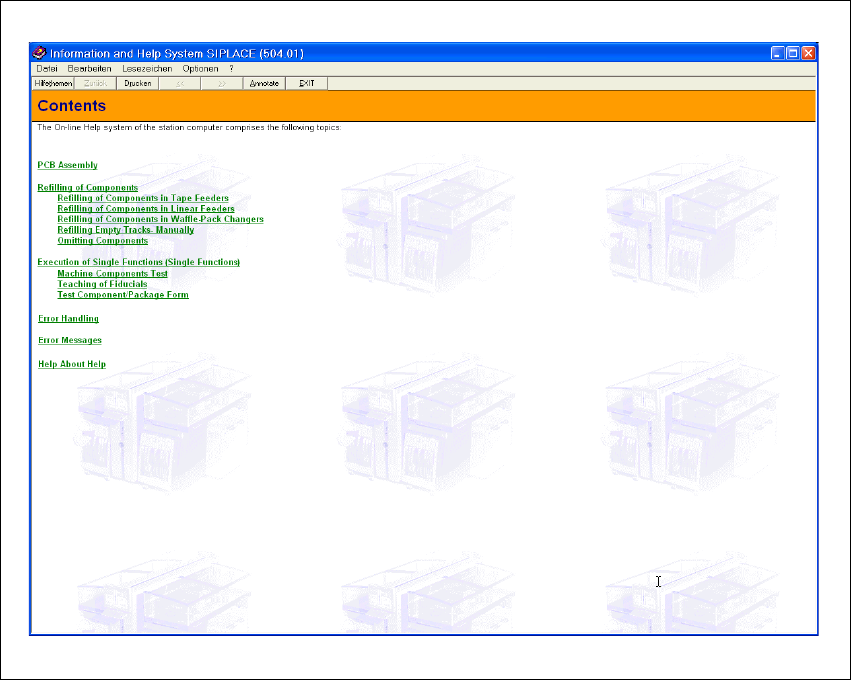
Å In the Help menu, click the Content item or press the key combination Ctrl + F1.
The main window of the station computer Help system is opened (see Fig. 6.1 - 2).
All the topic areas present in this Help system are listed in the window’s display area.
6
Fig. 6.1 - 2 Contents of the Help system
6
All topic area or topic entries are displayed in green and are underlined. When you click one
of these entries, the display area switches to the help information for the corresponding topic
or topic area (see Fig. 6.1 - 3). 6