00193697-01.pdf - 第25页
SIPLACE S oftware Guide SR.504.xx 3 Graphical user interface Issue 01/03 E N 3.3 User interface - views and menus 25 3 3 Processing PCB 3 Assemb ly of the P CBs is started o r co ntinued if prev iously interr upted. 3 Å …

3 Graphical user interface SIPLACE Software Guide SR.504.xx
3.3 User interface - views and menus Issue 01/03 EN
24
3.3 User interface - views and menus
3.3.1 Views
To perform a specific operation via the user interface, you may need to switch this to a different
view. You can do this by clicking the appropriate button on the toolbar (see section 3.2.2) or by
selecting the corresponding menu item from the "View" menu (see section 3.3.2.2). 3
3.3.2 Menus
3.3.2.1 "Mode" menu
The complete set of functions present in the "Mode" menu is only available in the main view.
In the views "Setup", "Errors" and "Feeders" and their sub-views, only the menu items "Stop pro-
cessing PCB" and "Processing PCB" are available. In the other views, the "Mode" menu is not
displayed. 3
NOTE
For a detailed description of the menu items "Stop processing PCB", "Processing PCB" and "Con-
tinue processing", refer to section 3.2.1 since these functions are usually activated via the corre-
sponding icons in the working area. 3

SIPLACE Software Guide SR.504.xx 3 Graphical user interface
Issue 01/03 EN 3.3 User interface - views and menus
25
3
3
Processing PCB 3
Assembly of the PCBs is started or continued if previously interrupted. 3
Å Click the Processing PCB menu item (or the corresponding icon).
3
Stop processing PCB 3
The current PCB assembly process is stopped. 3
Å Click the Stop processing PCB menu item (or the corresponding icon)
Abort processing 3
This function allows you to abort certain operating steps such as feeder position recognition or
nozzle changes in the event of a machine stoppage (due to fatal error, or if the Stop button being
pressed). 3
Å Click the Abort processing menu item.
The current operation is aborted when you confirm the action in the displayed dialog box.
Continue processing 3
The assembly process, which is interrupted, for example, as a result of an error, is continued once
the cause of the error has been eliminated. 3
Å Click the Continue processing menu item (or the corresponding icon).
3 Graphical user interface SIPLACE Software Guide SR.504.xx
3.3 User interface - views and menus Issue 01/03 EN
26
Start OIS (option) 3
This menu function starts the software for the "Operator Information System". The production data
acquisition system can be used to obtain information about the operating behavior of a complete
line or an individual station. 3
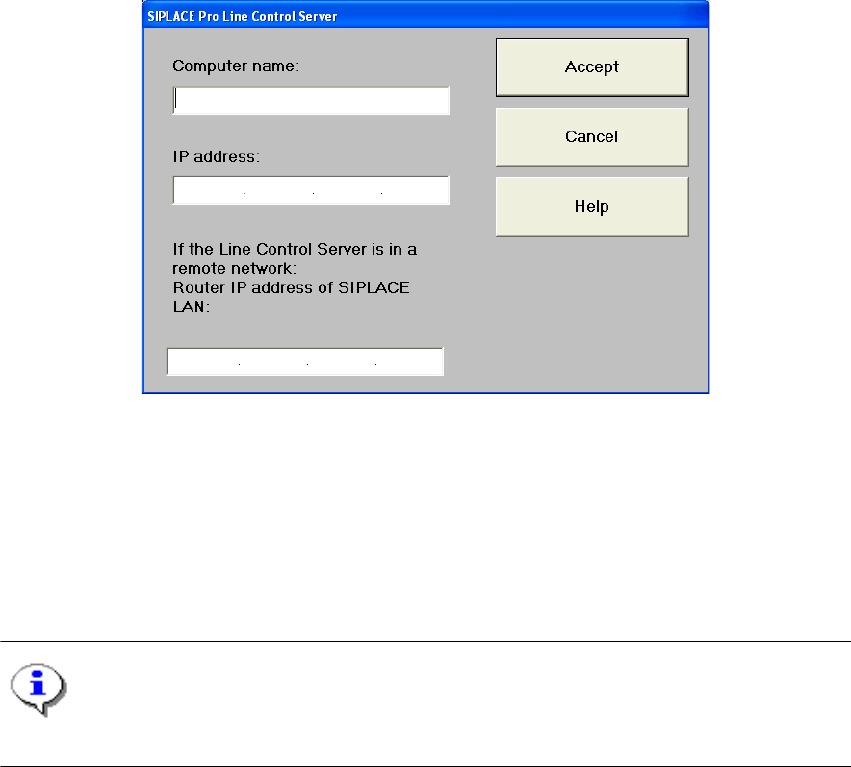
Configure SIPLACE Pro connection... 3
In this dialog box, you can specify which computer is permitted to provide the current station com-
puter with data: 3
3
Fig. 3.3 - 1 SIPLACE Pro Line Control Server
3
Switch to operating system... 3
You use this menu item to switch to the Windows operating system after entering your password.
From here, you can then subsequently return to the SIPLACE user interface. 3
NOTE
This menu option is not available at the "Operator" access level. 3
Å Click the Switch to operating system... menu item.
This shows the Windows user interface. The station computer software continues to run in the
background.
3