00193697-01.pdf - 第27页
SIPLACE S oftware Guide SR.504.xx 3 Graphical user interface Issue 01/03 E N 3.3 User interface - views and menus 27 Shut down computer... 3 All appl ications are clo sed withou t any files which may ha ve been proces se…
3 Graphical user interface SIPLACE Software Guide SR.504.xx
3.3 User interface - views and menus Issue 01/03 EN
26
Start OIS (option) 3
This menu function starts the software for the "Operator Information System". The production data
acquisition system can be used to obtain information about the operating behavior of a complete
line or an individual station. 3
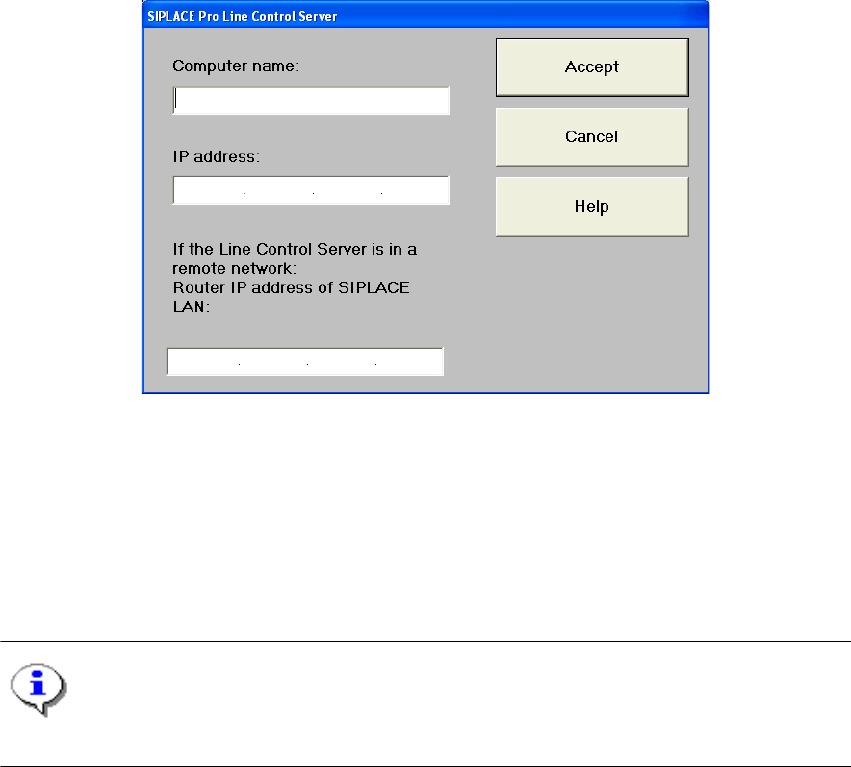
Configure SIPLACE Pro connection... 3
In this dialog box, you can specify which computer is permitted to provide the current station com-
puter with data: 3
3
Fig. 3.3 - 1 SIPLACE Pro Line Control Server
3
Switch to operating system... 3
You use this menu item to switch to the Windows operating system after entering your password.
From here, you can then subsequently return to the SIPLACE user interface. 3
NOTE
This menu option is not available at the "Operator" access level. 3
Å Click the Switch to operating system... menu item.
This shows the Windows user interface. The station computer software continues to run in the
background.
3
SIPLACE Software Guide SR.504.xx 3 Graphical user interface
Issue 01/03 EN 3.3 User interface - views and menus
27
Shut down computer... 3
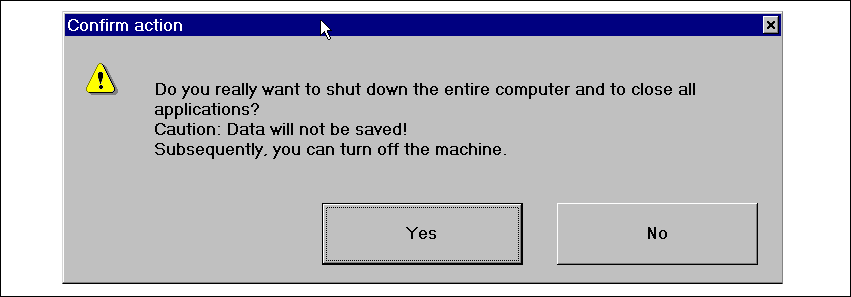
All applications are closed without any files which may have been processed being saved and the
station computer is shut down. 3
Å Click the Shut down computer... menu item.
The following dialog box will be opened.
3
Fig. 3.3 - 2 " Shut down computer" dialog box
Å Click Yes if you want to terminate your work.
The station computer is shut down.
Å Switch off the machine at the main switch.
3
3
3 Graphical user interface SIPLACE Software Guide SR.504.xx
3.3 User interface - views and menus Issue 01/03 EN
28
3.3.2.2 "View" menu"
The "View" menu contains the options for calling the placement functions, single functions and vi-
sion functions. It is also used to start the SITEST test program and call the view for running the
GEM functions. 3
Å Click the required menu option.
The screen display is switched to the corresponding view. From there you can carry out the
required functions.
NOTE
All the options in this menu can also be called by clicking the corresponding toolbar button (see
section 3.2.2) or by pressing the corresponding function key. If shortcuts have been defined, these
can also be used. 3
NOTE
The 3 menu options below belong to the group of placement functions. 3
Set-up F2 3
The setup for a feeder location is displayed in tabular form. It can be called separately for each of
the max. four locations. 3
Error F3 3
Errors are differentiated by type and each error type is presented in a separate table. You can call
separate tables for track errors, conveyor errors, machine errors, general errors and chained error
messages.
The last error to have occurred is always displayed at the top of the table. Identical errors are cu-
mulated in the error counter ("#E" column). 3
Feeders F4 3
Here you can use a variety of functions to display and fill empty tracks for vibratory stick feeders
or to display and modify inventory levels for trays or to move the MTC (Matrix Tray Changer) into
transport position. 3
3