DEK INFINITY USER MANUAL.pdf.pdf - 第149页
INFINITY 6(735()(5( 1&(6 35()(5(1& (6 Soft ware Ver sion 7 User Manual 2.23 The Done key updates the maintenance monitor data file, named service.dat, as follows: • The service c ycle co unter is se t to zero. •…
INFINITY
6(735()(5(1&(6
35()(5(1&(6
2.22 User Manual Software Version 7
The four adjustable parameters have the following ranges:
NOTE
The faster the baud rate the faster information transfer occurs.
SPC data is output when any of the following occur:
• SPC output cycle (as per Output Rate)
• Alignment Inspection Cycle
• 2D Inspection Cycle
Maint. Monitoring This preference, when enabled, provides an indication to the operator when a
preventive maintenance service is due. Options are:
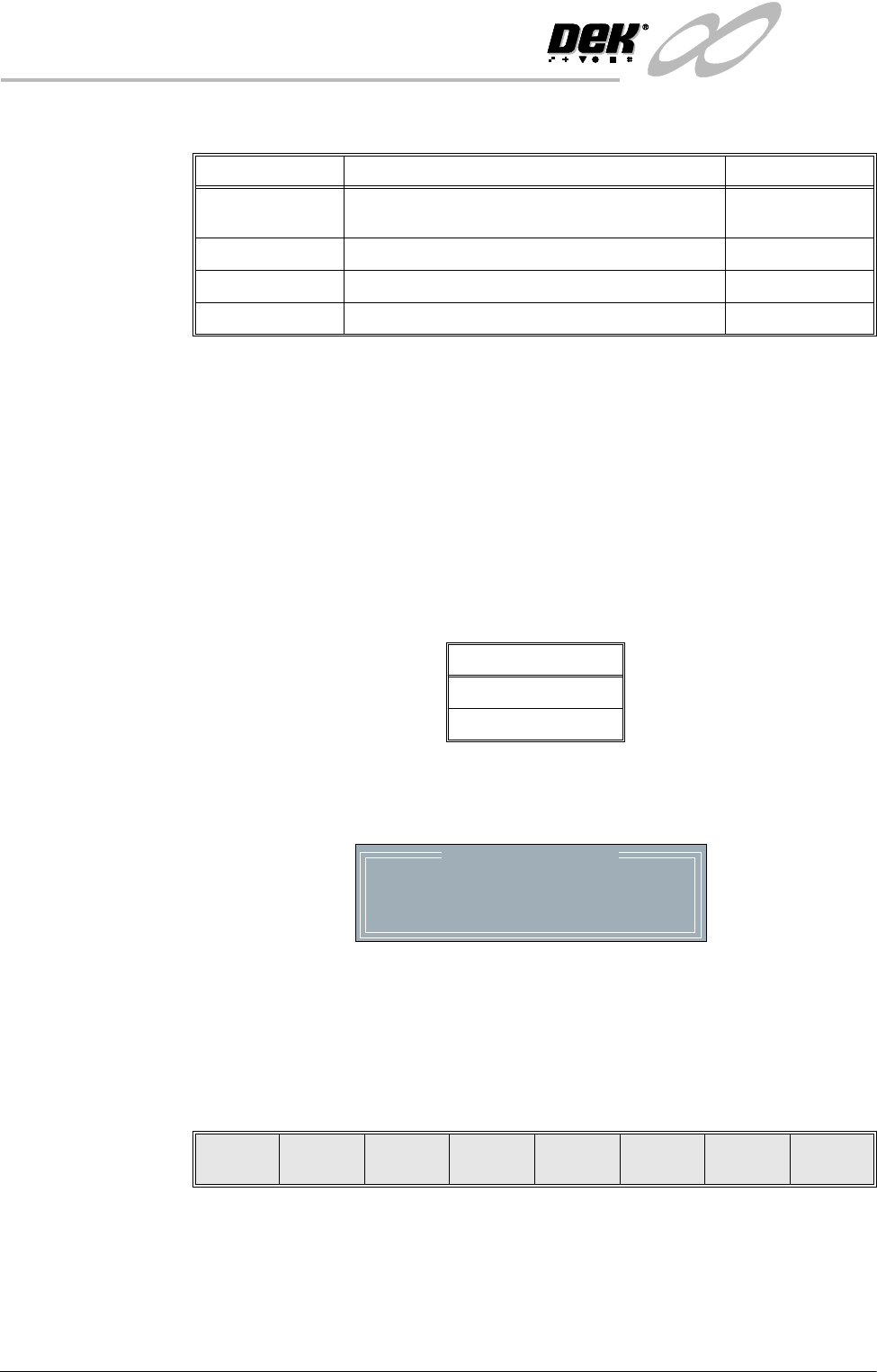
When enabled, if Run (F1) is pressed on the menu bar and a service is due, the
amber light on the tricolour beacon is illuminated. The following window is
displayed:
The message in the window varies dependent upon the type of service due. If a
period of one month or 45,000 cycles has elapsed, the message is as shown
above. If a period of six months or 260,000 cycles has elapsed, the message is
‘Six Monthly service is due’. If a period of one year or 520,000 cycles has
elapsed, the message is ‘Yearly service is due’.
The menu bar changes to the following:
Parameter Options Default
Baud Rate 110, 300, 600, 1200, 2400, 3600, 4800, 9600,
14400, 19200, 28800, 38400
9600
Word Length 5, 6, 7, 8 8
Parity ODD, EVEN, NONE, MARK, SPACE NONE
Stop Bits 1,2 1
Options
Enabled
Disabled
Maintenance Monitor
Monthly service is due
Done Defer

INFINITY
6(735()(5(1&(6
35()(5(1&(6
Software Version 7 User Manual 2.23
The Done key updates the maintenance monitor data file, named service.dat, as
follows:
• The service cycle counter is set to zero.
• The service number is incremented.
• The last service date is reset to the current date.
• The warning window is cleared, the amber beacon changes to green and the
printing run commences.
The Defer key does not update the maintenance monitor data file.
The warning window is cleared, the amber beacon changes to green and the
printing run commences. As the file has not been updated, the next time the Run
key is pressed the maintenance monitor window is displayed again. This routine
continues until the Done key is pressed.
If Maintenance Monitoring is disabled, left disabled for several service periods,
either calendar or cycle or both, and enabled again:
The next time Run is pressed, the maintenance monitor software determines how
many service periods have been exceeded. From this information it determines
if any higher order servicing has been missed during the disabled period. If a
higher order service would have become due during the disabled period, that
service message is displayed.
Machine Location This allows the operator to enter text to uniquely identify the machine. Output
is via GEM, Host and SPC.
Data File Locations Allows the user to create individual directories for product and data files. Once
created the individual directories become the current locations for all future
product and data files.
Before changing the product and data file locations, use the copy data function
in House Keeping, to copy any existing product and data files to floppy disk.
After changing the product and data file locations, use the copy data function in
House Keeping, to copy any existing product and data files from the floppy disk
to the new directories.
NOTE
When Load Data is selected from the setup menu only the files in the current
location are displayed.
The default location is:
D:\Program Files\DEK\MachineControl\Printer
Selecting the Incr. or Decr. key with data file locations highlighted opens the
following window:
File Locations
Product Directory
Data Directory
:
:
D:\Program Files\Dek\MachineControl\Printer
D:\Program Files\Dek\MachineControl\Printer
INFINITY
6(735()(5(1&(6
35()(5(1&(6
2.24 User Manual Software Version 7
The menu bar changes to the following:
NOTE
Restore default is only available while the highlighted directory is not already
at the default location.
Use the Next and Previous keys to move between the different directories.
Use the Exit key to close the File Locations window.
Use the Restore Default key to change the path, for files associated with the
highlighted directory, from the current location to the default location.
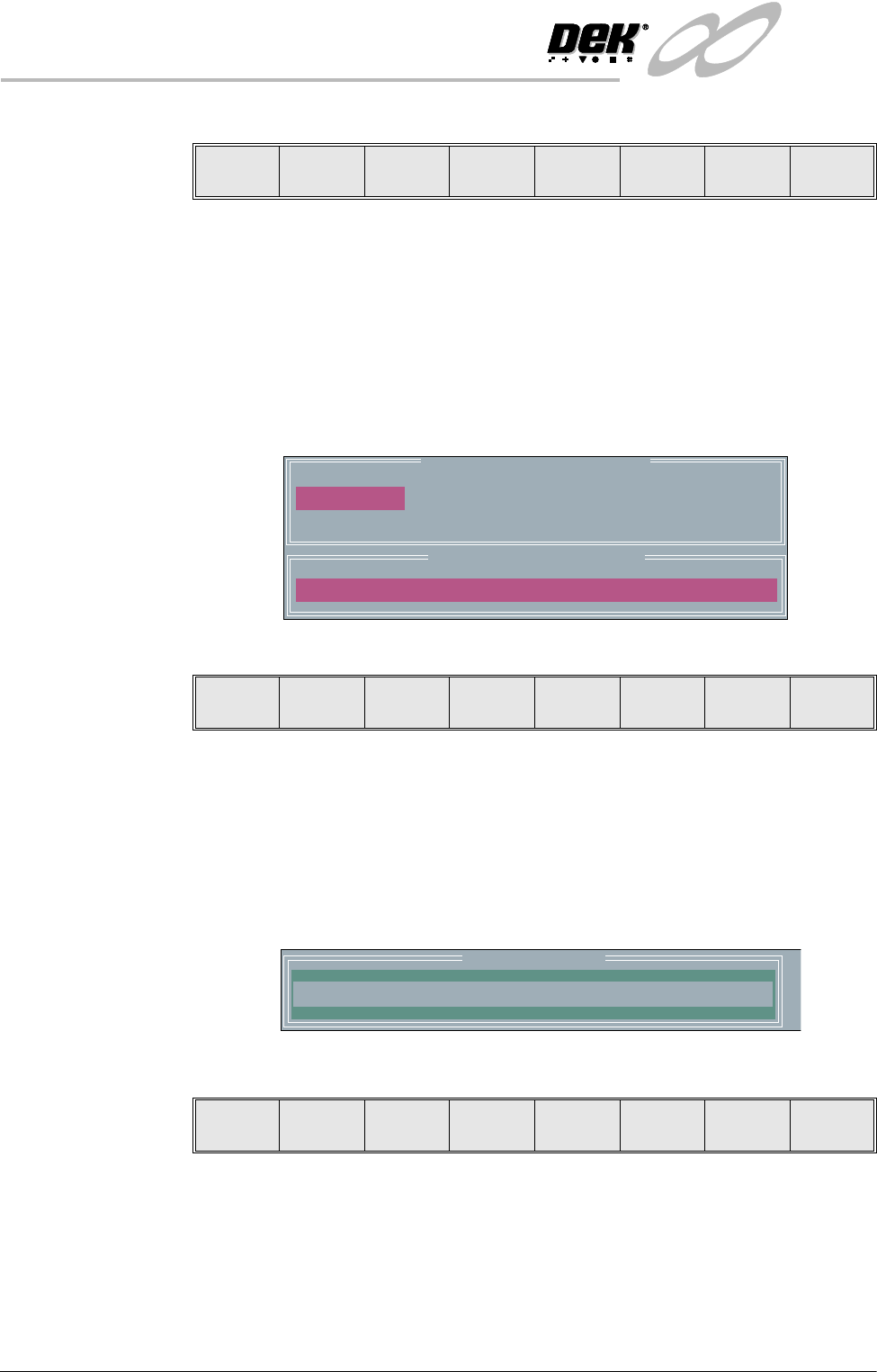
Selecting the Browse key opens the following window:
The menu bar changes to the following:
The message ‘Select a directory to become the current location for Process
Program files.’ is displayed in the message bar.
Use the Up and Down keys to scroll up and down the highlighted column.
Use the Left and Right keys to move between columns.
Use the Exit key to close the Directory Structure On Drive window.
Selecting the Create Dir key opens the following window:
The menu bar changes to the following:
Use the keyboard to type the name of the new directory.
Select the Proceed key, a new directory is created providing:
• The string entered constitutes a valid name for a directory.
• A file or directory of that name does not already exist.
• The current directory is accessible for writing.
Browse
Restore
Default
Next Previous Exit
Directory Structure On Drive
..
Current Directory Location
D:\Program Files\DEK\MachineControl\Printer
Select
Create
Dir
Left Right Up Down Exit
Create Directory
New Name:
Proceed Cancel