DEK INFINITY USER MANUAL.pdf.pdf - 第258页
INFINIT Y ',163(&7,21 ',163(&7,21 6(78 3 8.18 User Manual Software Versi on 7 Selecting End Run clears the warning window , the pr int cycle is aborted and control is returned to the ready page. NO…
INFINITY
',163(&7,21
',163(&7,216(783
Software Version 7 User Manual 8.17
16.Select Change Screen.
17.Select Exit.
18.Select Run.
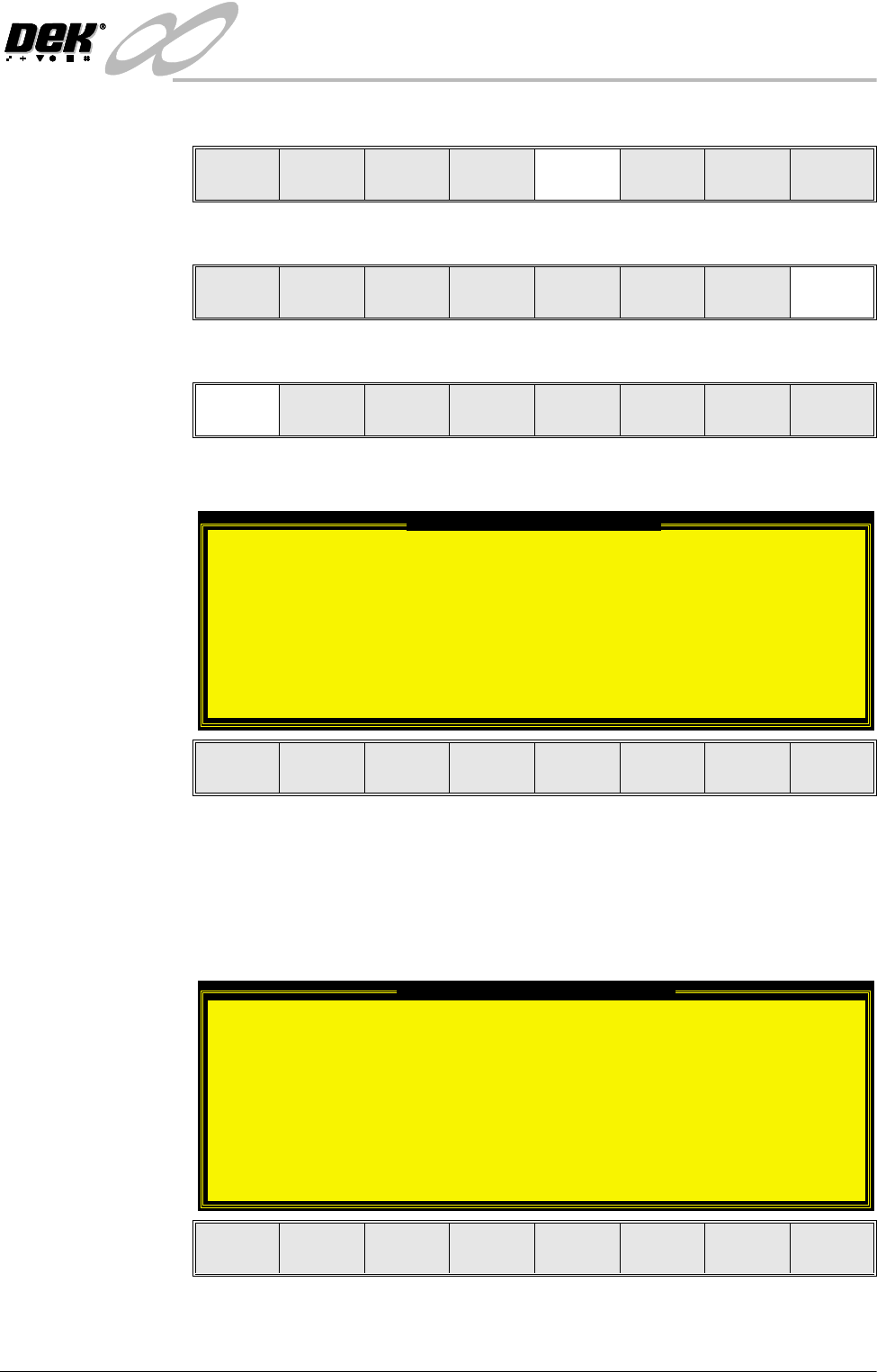
If the Camera Idle Position in Set Preferences is set to Behind Rail, the
following window and menu bar is displayed:
Selecting Continue Run clears the warning window and the print cycle
continues.
Selecting End Run clears the warning window, the print cycle is aborted and
control is returned to the ready page.
If the Unload Board Start in Set Preferences is set to Separation, the follow-
ing window and menu bar is displayed:
Selecting Continue Run clears the warning window and the print cycle
continues.
Mode
Load
Data
Edit
Data
Setup
Squeegee
Change
Screen
Change
Tooling
Change
Language
Exit
Mode
Load
Data
Edit
Data
Setup
Squeegee
Change
Screen
Change
Tooling
Change
Language
Exit
Run
Open
Cover
Paste
Load
Clean
Screen
Adjust Setup Monitor Maint.
Camera Behind Rail Warning
The CAMERA HOME POSITION is set to 'Behind
Rail'
Ensure that no tooling pins or other
obstructions are on the table behind the
rear rail, as these could cause damage to
the camera.
This option will only have an effect for
boards that are less than 250mm wide.
This option can be disabled from the set
preference page.
Continue
Run
End
Run
Unload Board Speedup Warning
The UNLOAD BOARD SPEEDUP option is set to
'Separation'
With this option enabled it should be noted
that there is only a minimal clearance
between the underside of the board and any
tooling being used, while the board is being
unloaded.
This option must not be used for boards that
are populated on the underside, as this
could damage the boards.
Continue
Run
End
Run
INFINIT
Y
',163(&7,21
',163(&7,216(783
8.18 User Manual Software Version 7
Selecting End Run clears the warning window, the print cycle is aborted and
control is returned to the ready page.
NOTE
If Camera Idle Position is set to Behind Rail and Unload Board Start is set
to Separation, the warning windows appear one after the other in the order
shown above.
Even with Unload Board Start set to Separation, with 2Di enabled it has no
affect, although the warning window and menu bar are still displayed.
19.If the stencil has not been changed the message ‘Screen has not been
changed for this product’ is displayed, select Use Screen to continue.
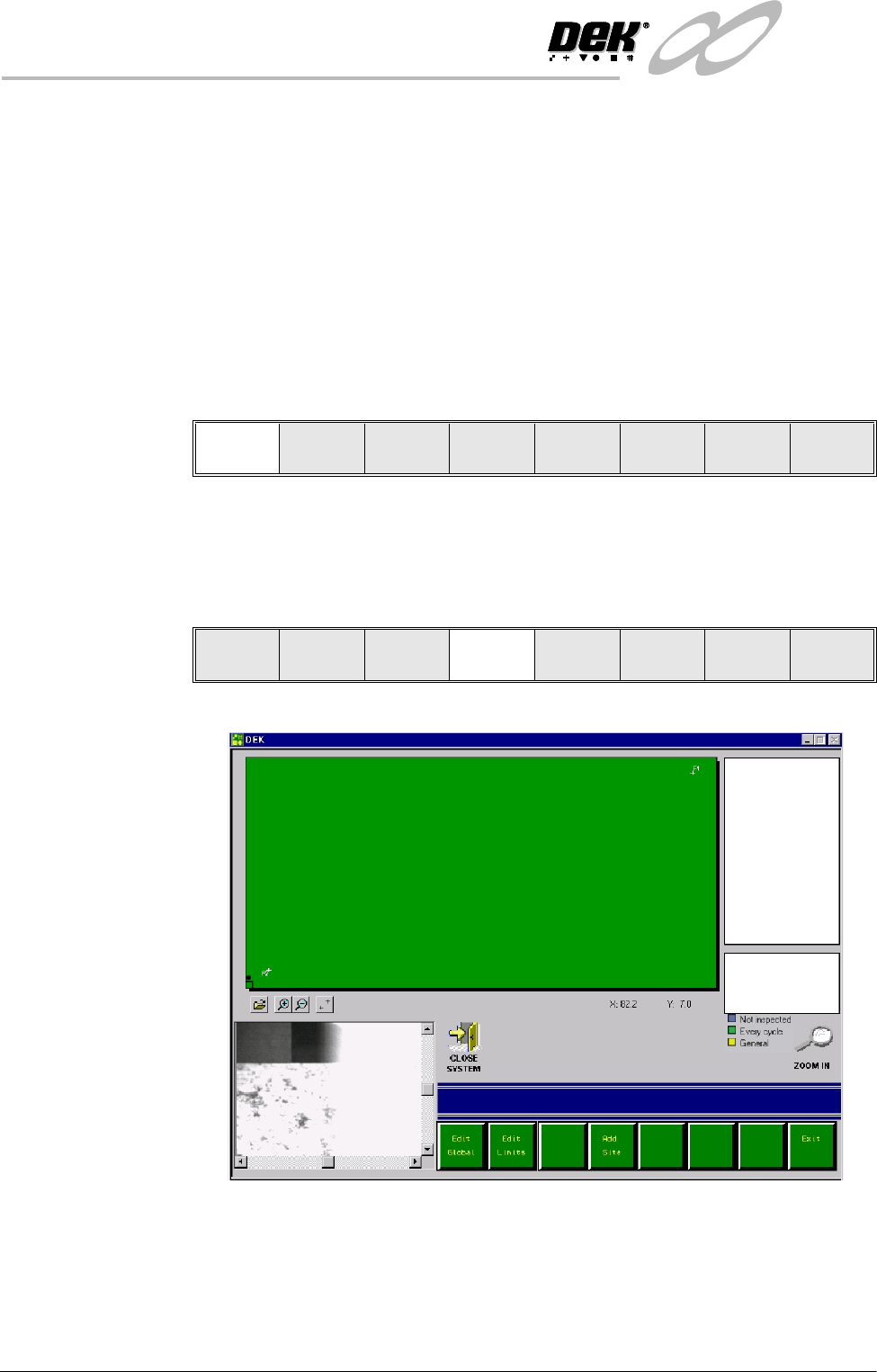
20.Select Auto Board.
21.Setup the board and stencil fiducials.
22.Select Inspect Setup. If this option is unavailable, check set prefs for 2D
Inspection enabled. The following message on the operator prompt bar is
displayed, ‘Click on the board representation to add a new site or select
an existing site to edit’.
The following 2Di GUI window (example) appears:
CAUTION
FIDUCIAL POSITION. If during the print cycle, the position of board
fiducials are changed, the position of previous inspection sites, (if any)
may be affected. Small changes are automatically compensated for,
however large changes, ie more than 3mm may require sites to be
relearnt.
Auto
Board
Manual
Board
Exit
Step
Open
Cover
Inspect
Setup
Single Exit
INFINITY
',163(&7,21
',163(&7,216(783
Software Version 7 User Manual 8.19
NOTE
If selecting a product file with site listings pre-loaded, a ‘Please Wait’
indicator bar may be displayed whilst all sites are being downloaded.
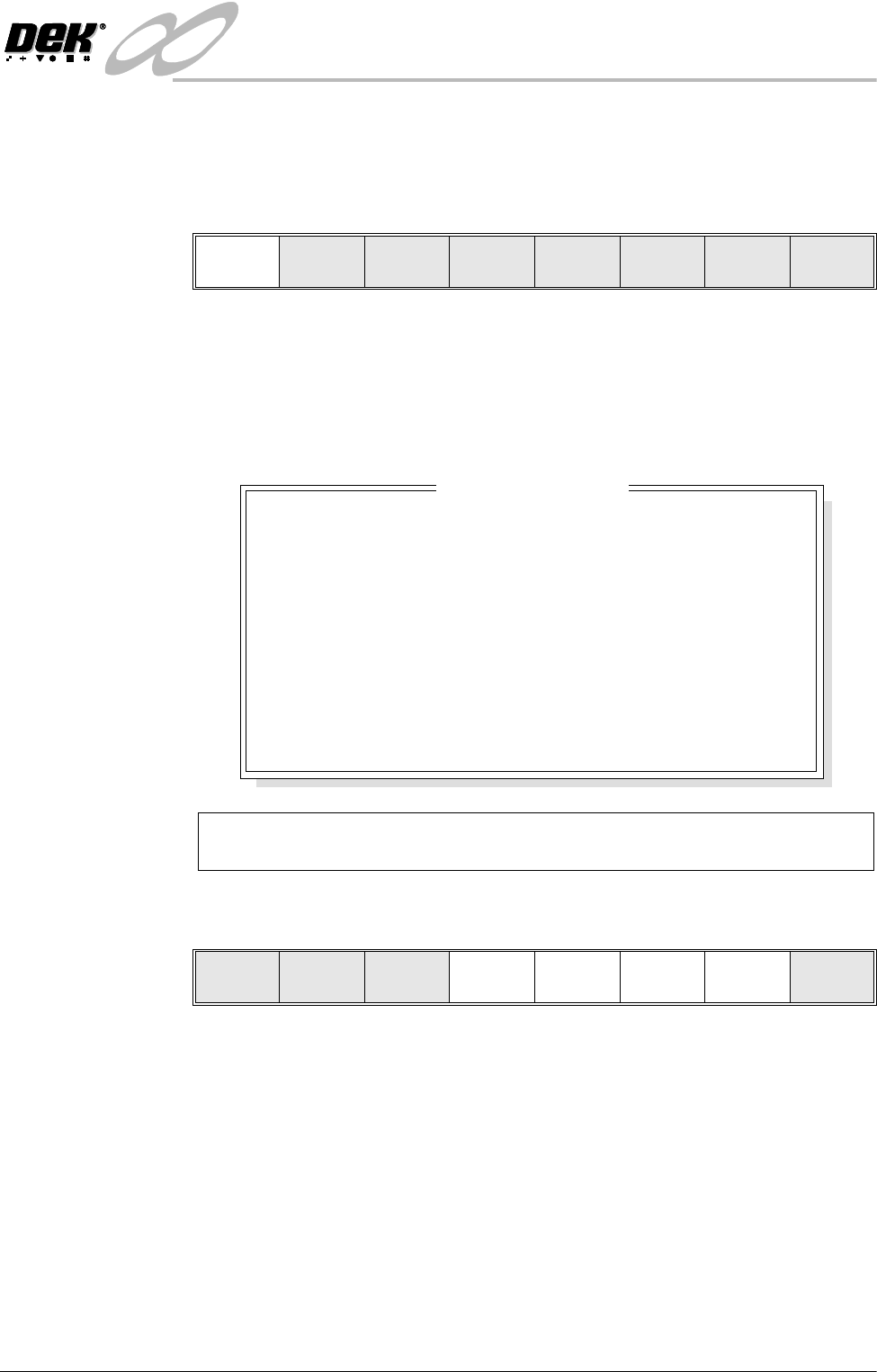
Edit Global 1. Select Edit Global.
NOTE
Delete Site is only available if at least one site exists already. Next Site and
Previous Site are only available if at least two sites exist already.
The following Edit Global Parameters window is displayed:
2. Enter the parameter values below using the Next, Previous, Incr. and Decr.
keys.
• Pre-images to Every
• Warning Limit to 20, this can be reduced later in ‘adjust inspect’
• Blockage Action to Manual Action, this can be changed later in ‘adjust
inspect’
• Smear Action to Manual Action, this can be changed later in ‘adjust
inspect’.
A definition of all 2Di parameters and their values is given at the end of this
chapter.
On completion of successful setup, parameters can be adjusted to suit the
product.
Edit
Global
Edit
Limits
Add
Site
Exit
ADVANCED
ADVANCED
EVERY
0
3
MANUALACTION
MODE 1
MANUALACTION
MODE 2
MANUAL
DISABLED
STENCIL 2DI TYPE
BOARD 2DI TYPE
PRE-IMAGE MODE
MIN SITES/CYCLE
WARNING LIMIT
BLOCKAGE ACTION
BLOCKAGE CLEAN
SMEAR ACTION
SMEAR CLEAN
LOW PASTE ACTION
INSPECTAFTER CLEAN
Edit Global Parameters
NOTE: Advanced Inspection Type option is not available on some machines.
Limit
Options
Next Previous Incr. Decr. Exit