OM-1754-001w_GS-F600.pdf - 第108页
OM-1754 3-10 1303-001 1.3 "Unit Adj." Submenu When the [Tray] button is pressed in "Unit Adj." submenu, the following window appears. [1] [2] [3] [4] [5] "Tray Unit Adjustment" FC10 [1] Sel …
OM-1754
3-9
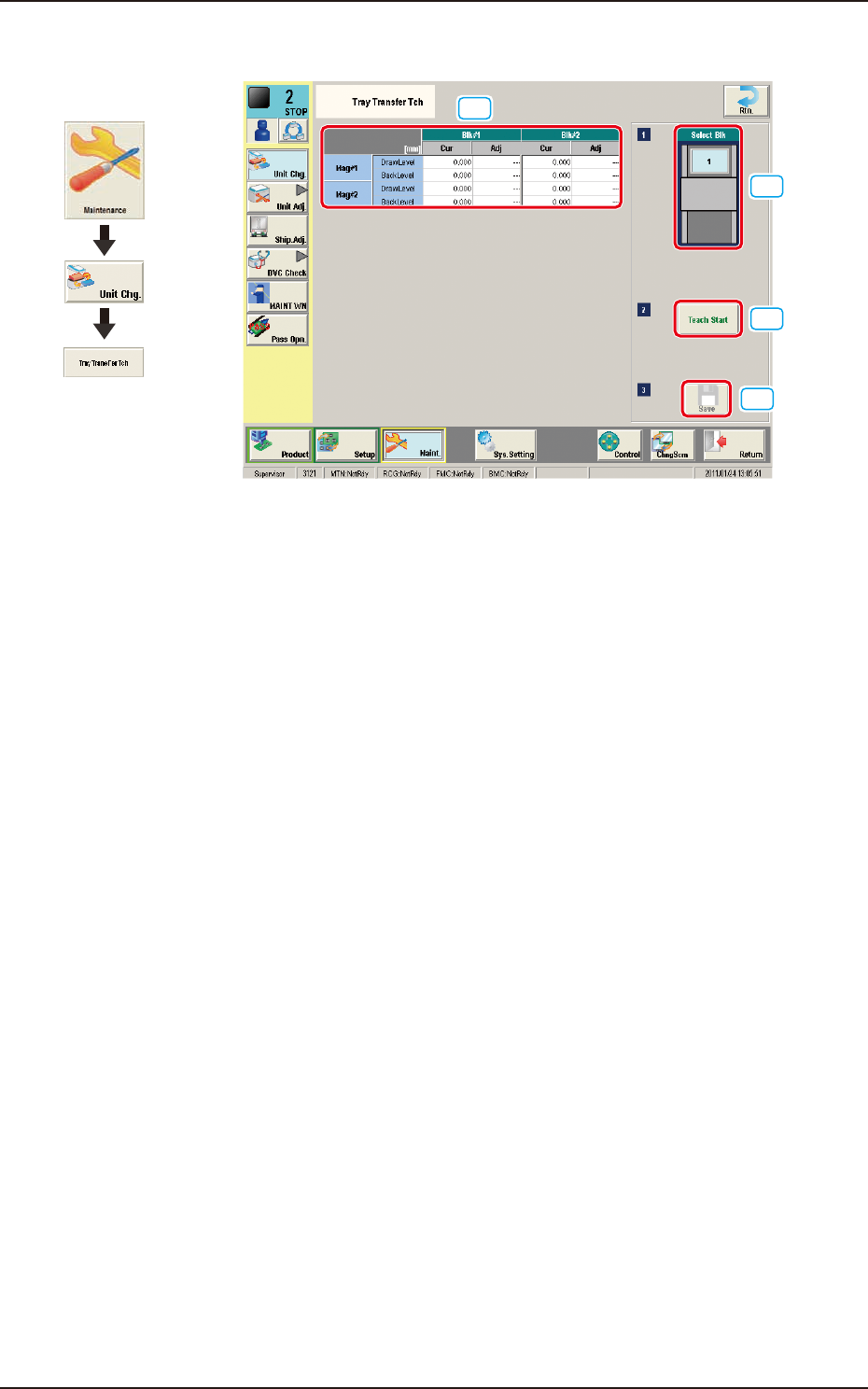
1.2.4 "Tray Transfer Tch" Window
[1]
[2]
[3]
[4]
"Tray Transfer Tch" window FC9
In the following cases, the tray transfer teaching should be performed.
•
The multi-layer tray is mounted on the main machine.
•
The main machine is stopped for a long time with the multi-layer tray mounted
on it.
[1] Teaching Results
The tray transfer teaching results for the block selected in [2] are displayed
in this table.
[2] [Select Blk] Button
Using this button, the block for which the teaching is to be performed, can be
selected.
[3] [Teach Start] Button
When this button is pressed, the tray transfer teaching for the block selected
in [2], is performed.
[4] [Save] Button
When this button is pressed, the teaching results are saved.
1303-001
Graphic
Development
1.2 "Unit Change" Window
OM-1754
3-101303-001
1.3 "Unit Adj." Submenu
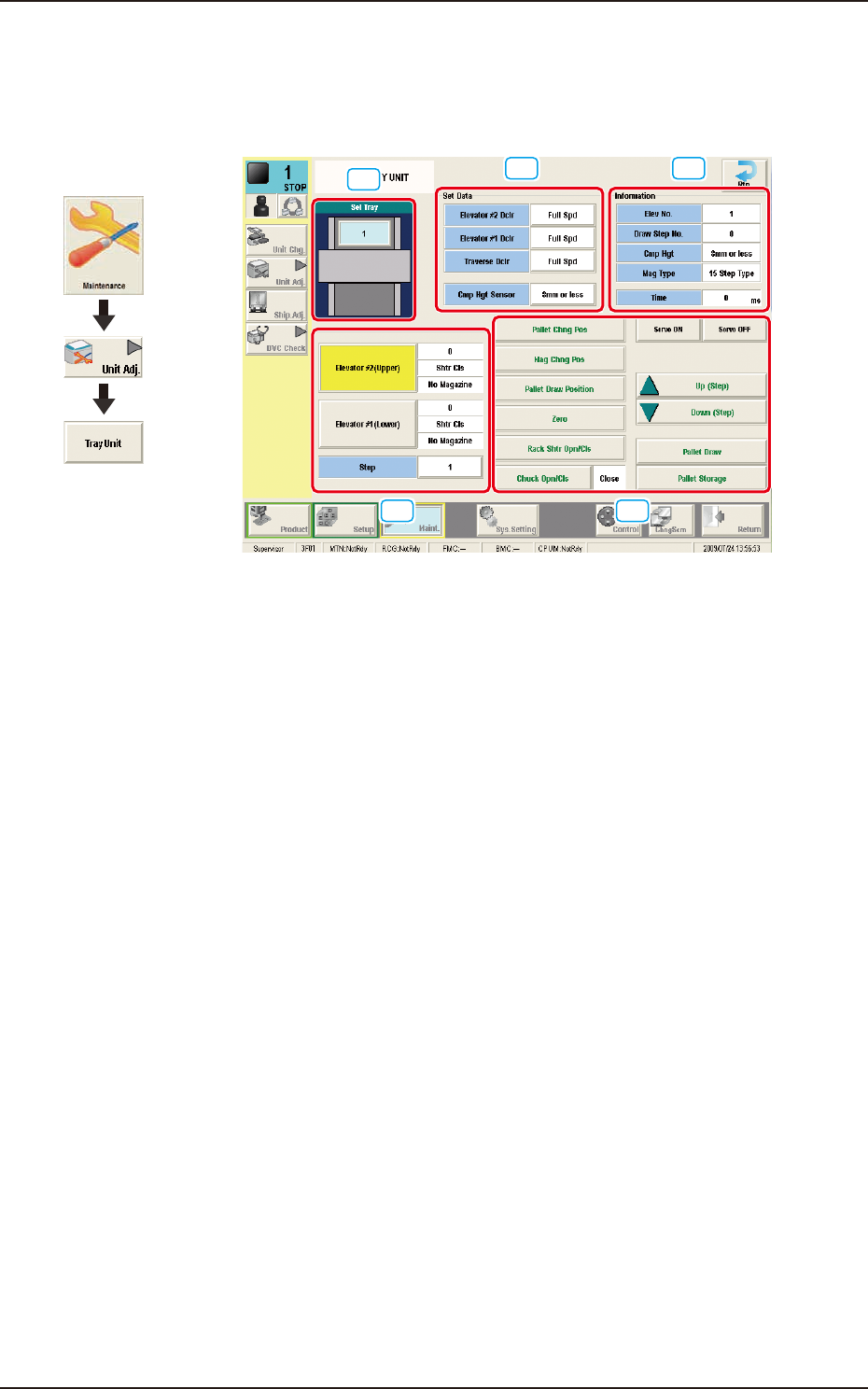
When the [Tray] button is pressed in "Unit Adj." submenu, the following window
appears.
[1]
[2] [3]
[4] [5]
"Tray Unit Adjustment" FC10
[1] Sel Tray
The installed multi-layer tray feeders are displayed, making it possible for
the operator to select one of the feeders.
[2] Set Data
Speed deceleration rates can be specied for each section of the multilayer
tray feeder.
Elevator #2 Dclr
: This is used to set the speed reduction rate of Elevator
#2.
Elevator #1 Dclr
: This is used to set the speed reduction rate of Elevator
#1.
Traverse Dclr
: This is used to set the speed reduction rate of the
Traverse.
Cmp Hgt Sensor
: This is used to set the level in which the height of the
Cmp Hgt Sensor.
Graphic
Development
1.3 "Unit Adj." Submenu

OM-1754
3-111303-001
[3] "Information" Group Box
Displayed is the data of the multi-layer tray feeder that was used for the
previous adjustment.
The following items are displayed.
Elev No.
Draw Step No.
Cmp Hgt
Mag Type
Time
Note
The data being edited will not be displayed as information.
[4] Operational Object Selection Buttons
Select the object for the operation.
When pressed, this button moves the specied step to the traverse draw out
position.
[5] Operation Selection Buttons
[Pallet Chng Pos] Button
: When pressed, this button moves the
elevator to the component supply position.
[Mag Chng Pos] Button
: When pressed, this button moves the
elevator to the magazine change position.
[Pallet Draw Position] Button
: When pressed, this button moves the
elevator to the traverse draw out position.
[Zero] Button
: When pressed, this button zeros the
elevator.
[Rack Shtr Opn/Cls] Button
: When pressed, this button opens or closes
the rack shutter.
[Chuck Opn/Cls] Button
: When pressed, this button opens or closes
the chuck.
[Servo ON] Button
: When pressed, this button turns on the
power to the servomotor.
[Servo OFF] Button
: When pressed, this button turns off the
power to the servomotor.
[Up (Step)] Button
: When pressed, this button moves the
elevator upward by 1 pitch of the pallet.
[Down (Step)] Button
: When pressed, this button moves the
elevator downward by 1 pitch of the
pallet.
[Pallet Draw] Button
: When pressed, this button activates the
traverse to draw out the pallet.
[Pallet Storage] Button
: When pressed, this button stores the pallet
drawn out on the traverse.
1.3 "Unit Adj." Submenu