Manual_BSA_II_英文操作说明书.pdf - 第15页
BSA II Operating Instructions 15 Operating Design 4.3 Displays in the Opera ting Display Symbol Designation Description [Counting] displa y Indicates that the “C ounting” application is select ed. [P ercen t weighing] di…
14 BSA II Operating Instructions
Operating Design
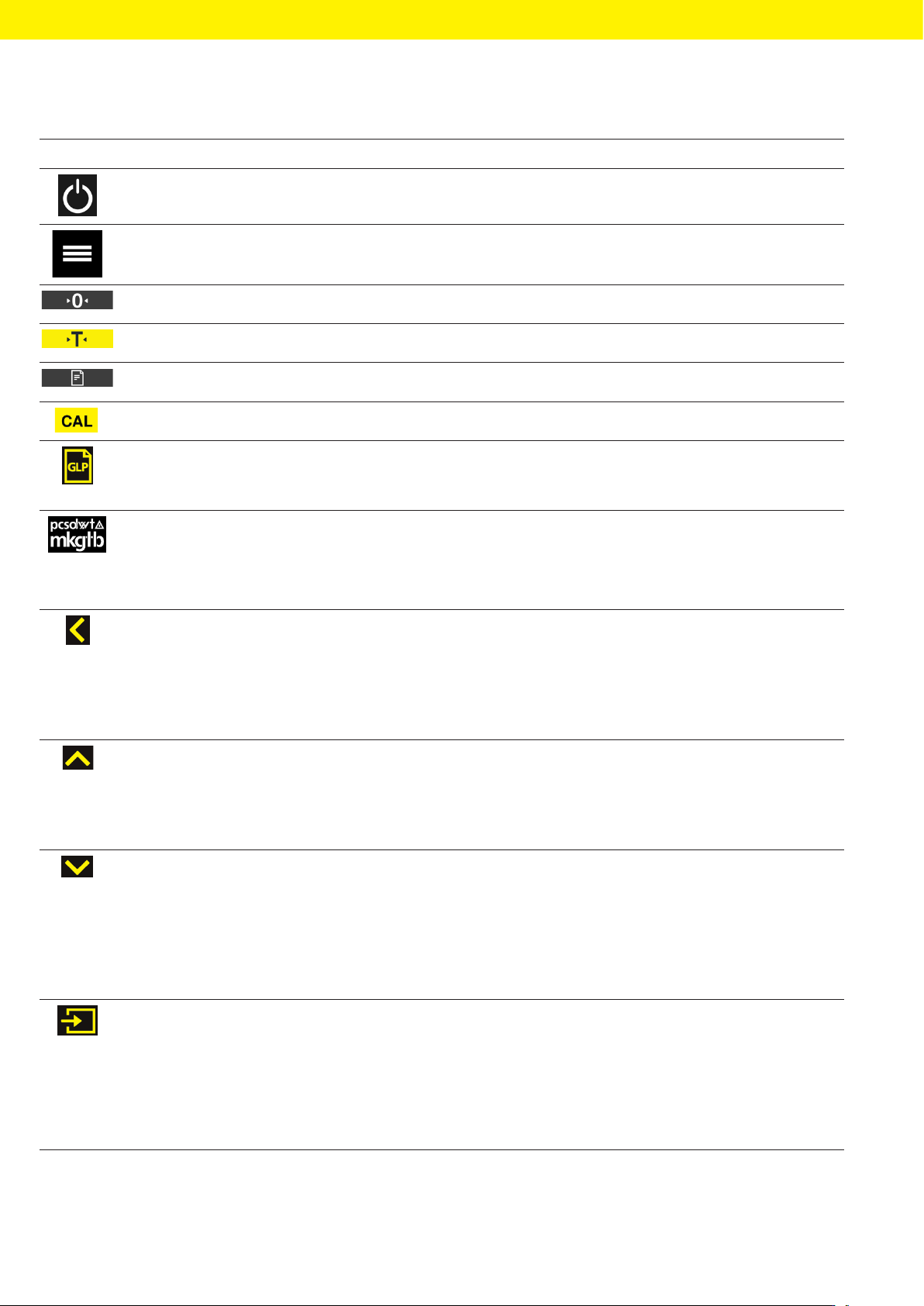
4.2.1 Buttons
Symbol Designation Description
[On/Off] button − When the button is pressed: Switches the operating display on.
− If the button is held down: Switches the operating display off.
[Menu] button − When the button is pressed: The settings menu opens.
− If the button is held down: It switches to version display.
[Zero] button Zeroes the device.
[Tare] button Starts taring.
[Print] button Exports the readouts to the integrated data interfaces.
[Adjust] button Starts the set calibration and adjustment function.
[GLP] button − Exits the GLP printout and starts printing the GLP footer.
− If the “Net total”, “Totalizing”, or “Statistics” application is active: Prints
and deletes the saved values and exits the application.
[Unit change] button If the “Unit change” function is active:
− If the button is held down: Accesses the “Unit change” function menu.
− When the button is pressed: Switches between the basic unit display
and up to 4 other units.
[Back] button − In the menu:
− When the button is pressed: Returns to the previous display.
− If the button is held down: Saves the menu settings.
− When entering digits: Selects the previous digit position.
− For an active application: Exits the application and deletes the set ref-
erence value.
[Up] button − In the menu: Scrolls through the menu levels or the available parame-
ters.
− When entering digits: Increases the displayed value.
− In the main display of an active application: Switches to the display of
the current weight value/parameter.
[Down] button − In the menu: Scrolls through the menu levels or the available parame-
ters.
− When entering digits: Decreases the displayed value.
− In the main display of an application that is not active: Opens the dis-
play to set the reference values.
− In the main display of an active application: Switches to the display of
the current weight value/parameter.
[Confirm] button − In the menu: Opens the displayed menu level or confirms the dis-
played parameter.
− When entering digits: Selects the next digit position.
− In the main display of an application that is not active: Starts the appli-
cation process and saves the set reference value.
− In the main display of an active application: Adopts the next compo-
nent or the next parameter.
BSA II Operating Instructions 15
Operating Design
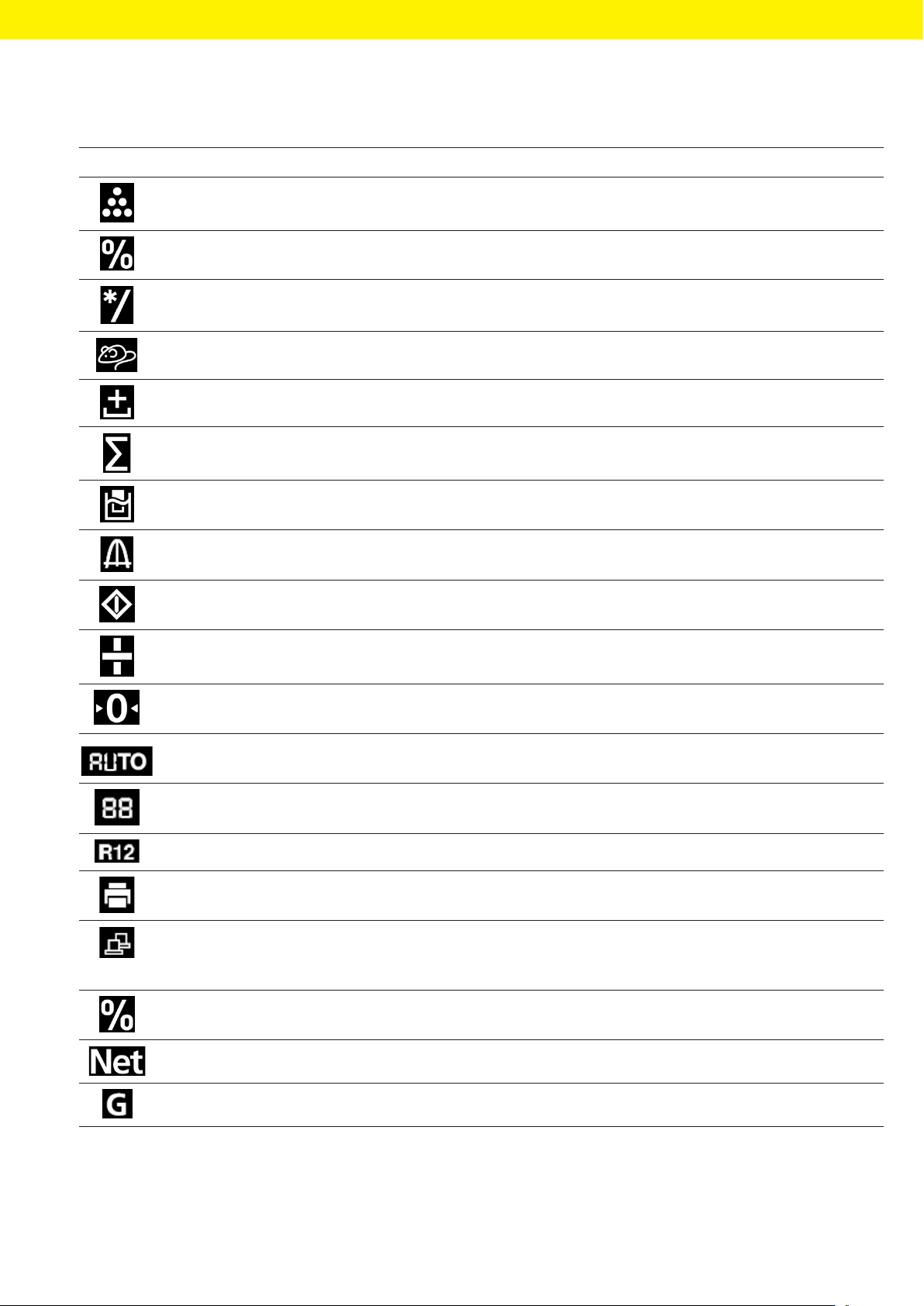
4.3 Displays in the Operating Display
Symbol Designation Description
[Counting] display Indicates that the “Counting” application is selected.
[Percent weighing] dis-
play
Indicates that the “Percent weighing” application is selected.
[Calculation] display Indicates that the “Calculation” application is selected.
[Animal weighing] display Indicates that the “Animal weighing” application is selected.
[Net total] display Indicates that the “Net total” application is selected.
[Totalizing] display Indicates that the “Totalizing” application is selected.
[Density determination]
display
Indicates that the “Density determination” application is selected.
[Statistics] display Indicates that the “Statistics“ application is selected.
[Busy] display Indicates that the device is processing a command.
[Sign] display Indicates whether the value being displayed is positive or negative.
[Zero] display For some conformity-assessed devices: Indicates that the device has
been zeroed.
[AUTO] display Indicates that the “Animal weighing” application starts automatically.
[Application help] display Indicates the number of components for “Totalizing“, “Net total“, and
“Statistics“.
[R12] display Indicates the active range for multi-range balances.
[Printer] display − Indicates that a printer has been detected at the USB port.
− Flashes if the data output is active.
[PC-Connect] display − Indicates that a PC or a second display has been detected at the USB
port.
− Flashes if the data connection is active.
[Percent] display Indicates that a percentage value is being displayed.
[Net] display Indicates that a net value is being displayed.
[Gross] display Indicates that a gross value is being displayed.
16 BSA II Operating Instructions
Operating Design
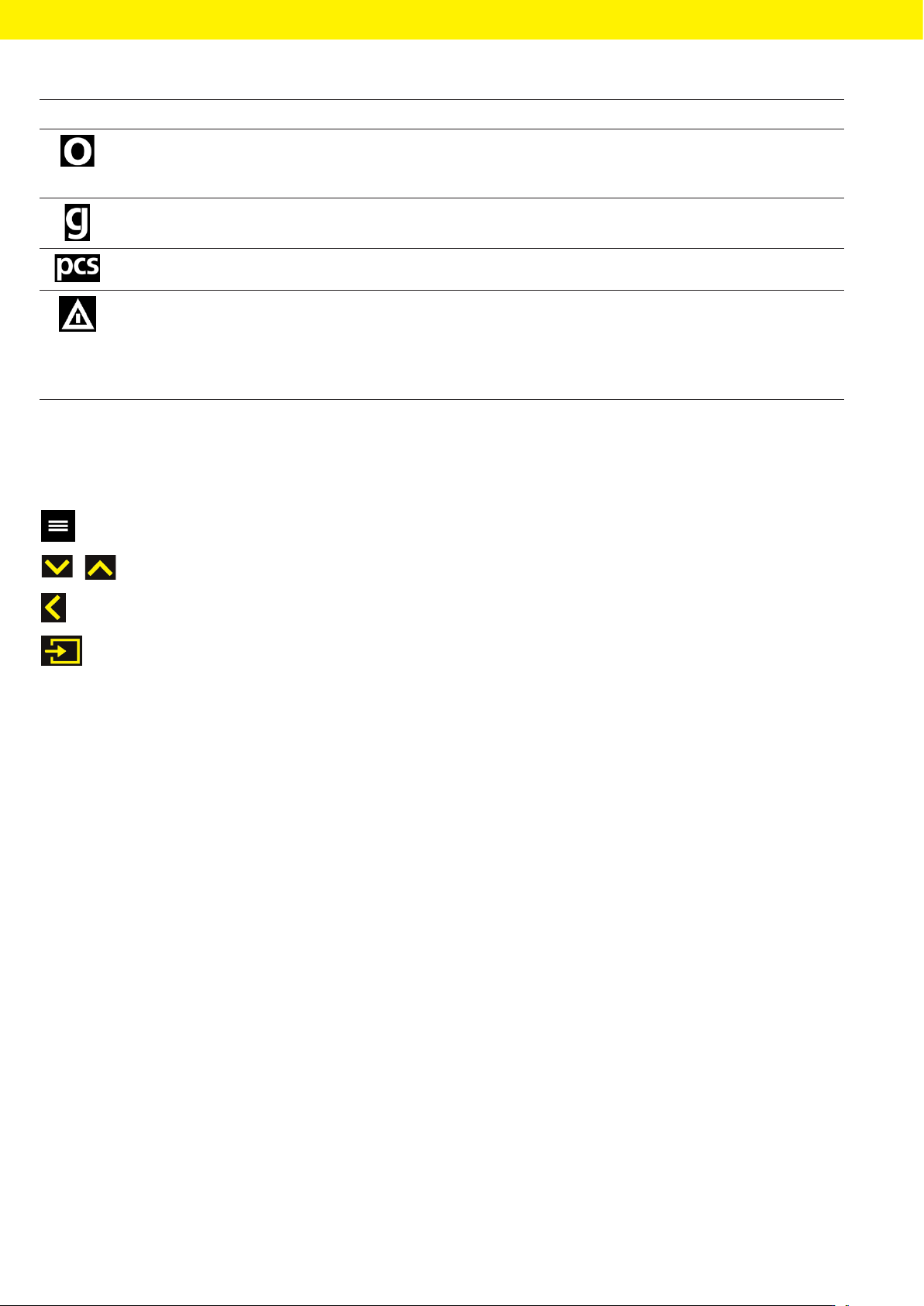
Symbol Designation Description
[Selection] display In the menu: Identifies the selected parameter.
If the “Calculation“ or “Density determination“ application is active: Indi-
cates that a calculated value is being displayed.
[Unit symbol] display Indicates the set weight unit, e.g., [g] for “grams”.
[Quantity] display Indicates that a quantity is being displayed.
[Invalid weight value] dis-
play
− Indicates that the display does not contain a weight value, but is in-
stead the calculated result of an application, e.g., for the “Totalizing”
application.
− For conformity-assessed devices: Indicates a fault. The cause of this
fault is displayed after pressing the [Unit change] key.
4.4 Navigating the Menus
t To call up the main menu: Press the [Menu] button.
t To display menu items or parameters of a level: Press the [Up] or [Down] button.
t To return to the next higher menu level or exit the menu: Press the [Back] button.
t To open a displayed menu level or a displayed parameter: Press the [Confirm] button.