00197382-02_IM_SetupCenter6.3_EN.pdf - 第17页
Installation 4.2.2 Datalogic Scanner’s Cradle BC-8030 (Narr owband) Har dware I nstallation Installation Manual SIPLACE Setup Center 6.3 17 Step 2 ► Click Next . Step 3 ► The Select Installation Folder dialog box prompts…
Installation
Hardware Installation 4.2.2 Datalogic Scanner’s Cradle BC-8030 (Narrowband)
16 Installation Manual SIPLACE Setup Center 6.3
► If the green LED of the scanner blinks, put the scanner into the cradle.
► The green LED is now switched off and the scanner is already registered on the cradle.
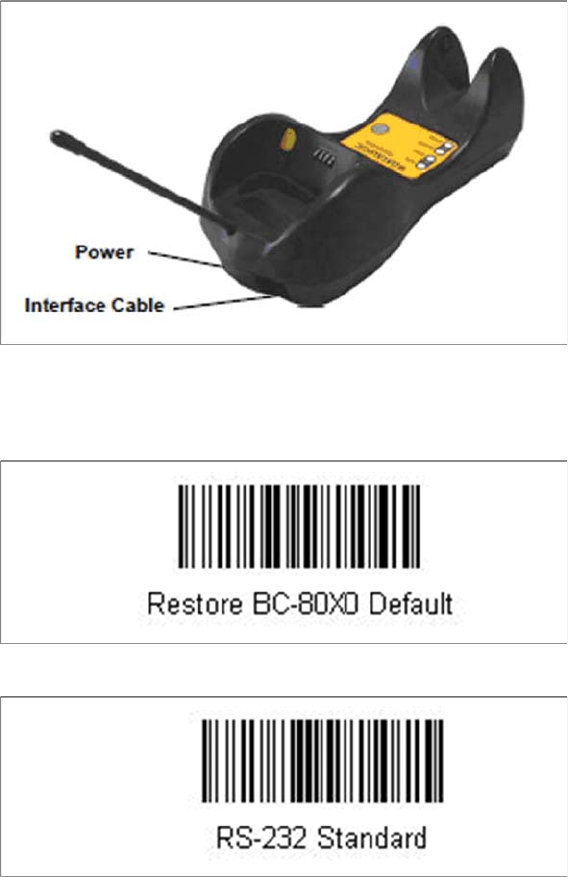
The interface of the cradle can be set up now with the following barcodes.
► Scan the barcode "Restore BC-80X0 Default" to restore the standard configuration of the cradle.
► Scan the barcode "RS-232 Standard" to set the interface to RS-232.
The cradle is now ready for use with Setup Center.
4.2.2.2
4.2.2.2 Connect cradle via USB
Connect cradle via USB
Installation of the USB-COM driver
Step 1
The installation packages for 32 bit and 64 bit operating systems are located in the “\3rdparty install
-
er\Datalogic\USB-COM Driver” directory of the Setup Center installation CD.
► Choose the appropriate installation package for your operating system.
Installation
4.2.2 Datalogic Scanner’s Cradle BC-8030 (Narrowband) Hardware Installation
Installation Manual SIPLACE Setup Center 6.3 17
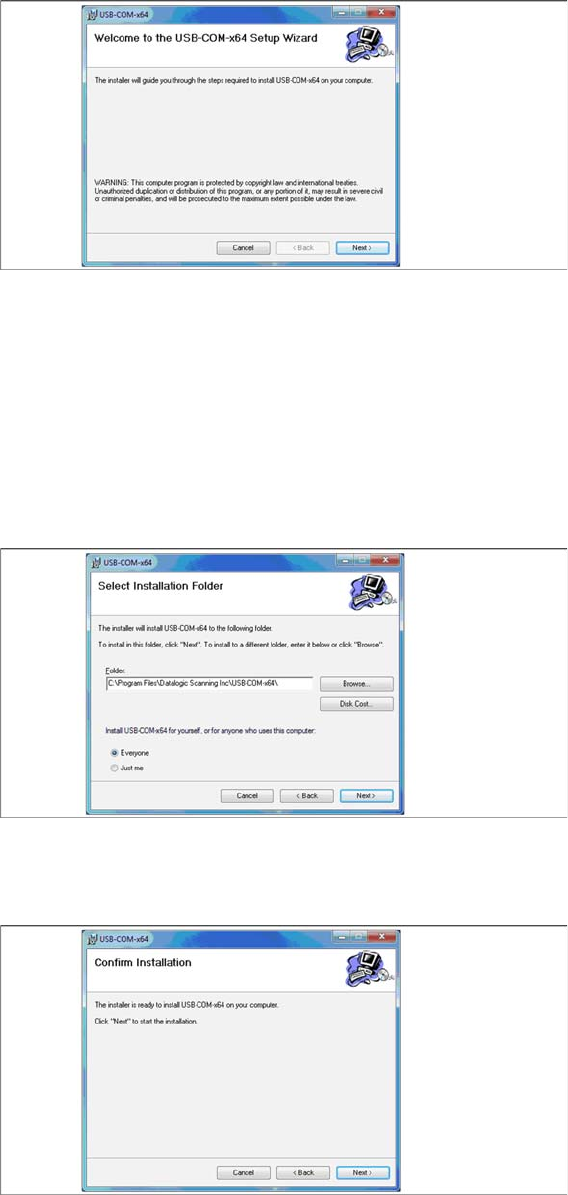
Step 2
► Click Next.
Step 3
► The Select Installation Folder dialog box prompts you to enter the name of the folder in which the
software should be installed. The system suggests a default destination folder for you.
► However, you can click the Browse button to open a dialog box in which you can enter or select the
path you want to use. If the folder you specify does not exist, it is created after having accepted a
confirmation dialog.
► Select the option Everyone.
► Click Next.
Step 4
► Click Next.
Installation
Hardware Installation 4.2.2 Datalogic Scanner’s Cradle BC-8030 (Narrowband)
18 Installation Manual SIPLACE Setup Center 6.3
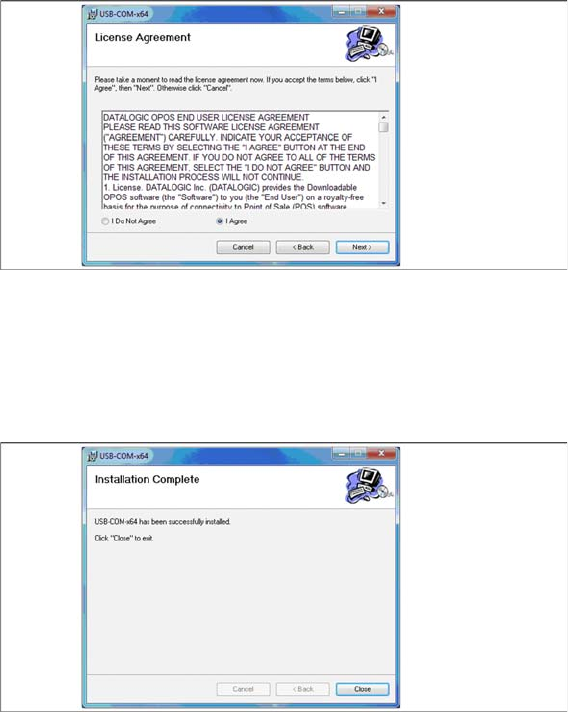
Step 5
► Read the license agreement relating to use of this software and select I Agree to accept the license
agreement.
► Click Next.
Step 6
► The installation of the driver software starts.
► The "Installation Complete" window appears if the installation has been completed successfully.
► Click Close.