00197382-02_IM_SetupCenter6.3_EN.pdf - 第88页
Installation Steps to Perform After Installa tion 4.4.5 Motorola / Symbol Scan ner Configuration 88 Installation Manual SIPLACE Setup Center 6.3 4.4.5.2 4 . 4 . 5 . 2 C o n f ig u r e S e t u p C e n t e r C lie n t Conf…
Installation
4.4.5 Motorola / Symbol Scanner Configuration Steps to Perform After Installation
Installation Manual SIPLACE Setup Center 6.3 87
4.4.5
4.4.5 Motorola / Symbol Scanner Configuration
Motorola / Symbol Scanner Configuration
4.4.5.1
4.4.5.1 Configurate Setup Center
Configurate Setup Center
The communication between Setup Center and scanner is achieved by network connection (socket).
Setup Center takes the role of the server and the scanner that one of the client.
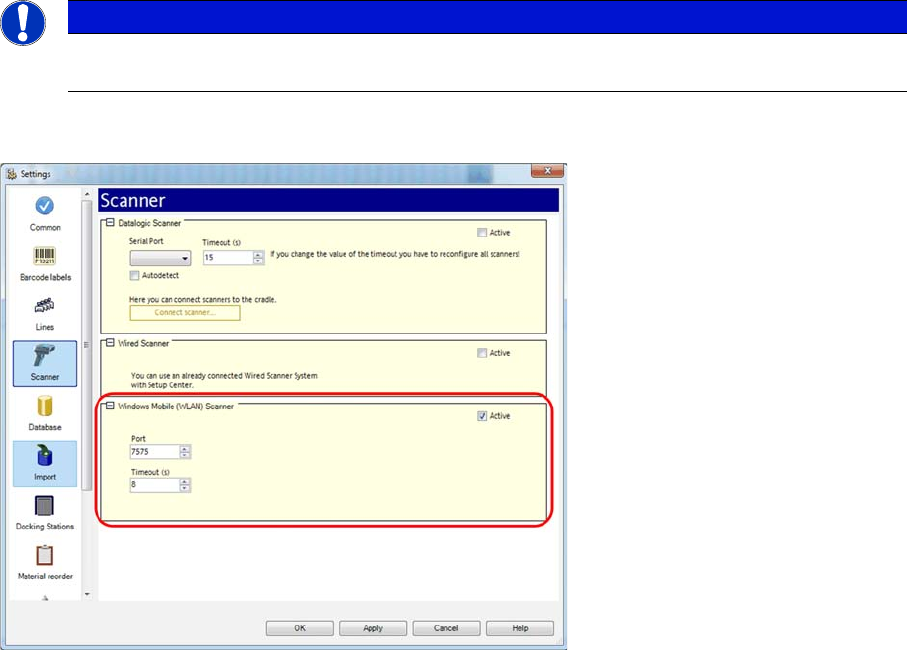
Start Setup Center and open the setting via Tools -> Settings. Within the group Scanner the following
entry is now visible:
Activate the interface by selecting "Active". Check the fire wall settings whether the port chosen by Setup
Center is enabled and correct it if necessary. To accept the settings close the configuration dialog with
"OK".
NOTICE
Please configurate the barcode scanner for the operation within WLAN network - as described
in document Installation Manual WLAN Infrastructure for SIPLACE (item no. 00197199-xx).
Installation
Steps to Perform After Installation 4.4.5 Motorola / Symbol Scanner Configuration
88 Installation Manual SIPLACE Setup Center 6.3
4.4.5.2
4.4.5.2 Configure Setup Center Client
Configure Setup Center Client
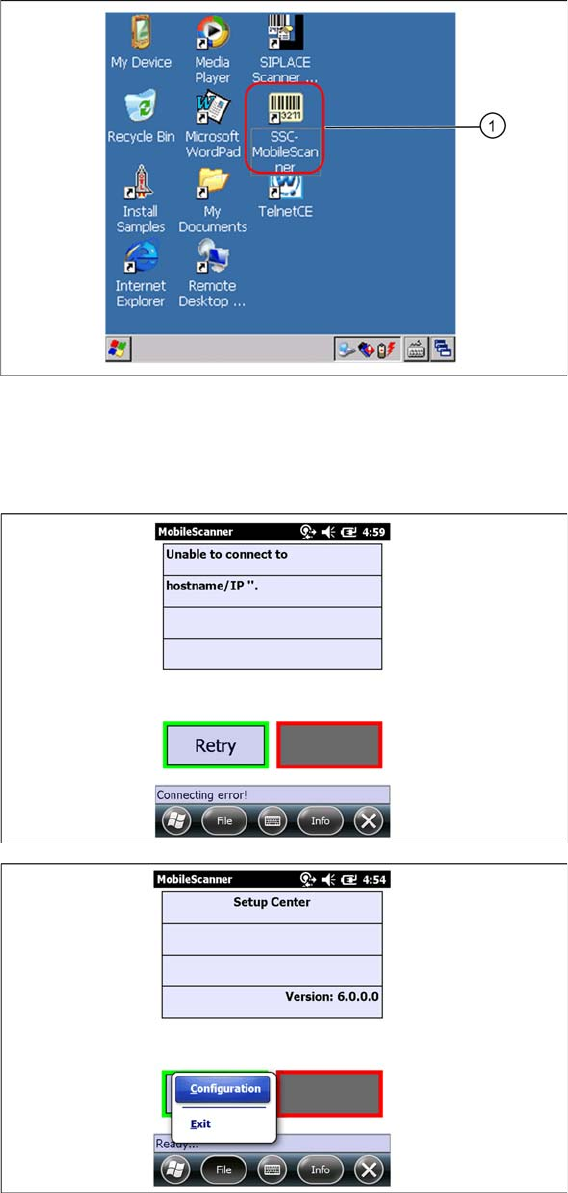
Starting MC 70/MC75
After the installation routine has restarted the scanner the Setup Center Client is started automatically
and the Mobile Scanner dialog appears.
MC 3090/MC 3190
For MC 3090/MC 31090 you must start the installation manually.
► Select SSC MobileScanner icon (1) to start installation.
⇨ The Mobile Scanner dialog appears.
Mobile Scanner dialog
Installation
4.4.5 Motorola / Symbol Scanner Configuration Steps to Perform After Installation
Installation Manual SIPLACE Setup Center 6.3 89
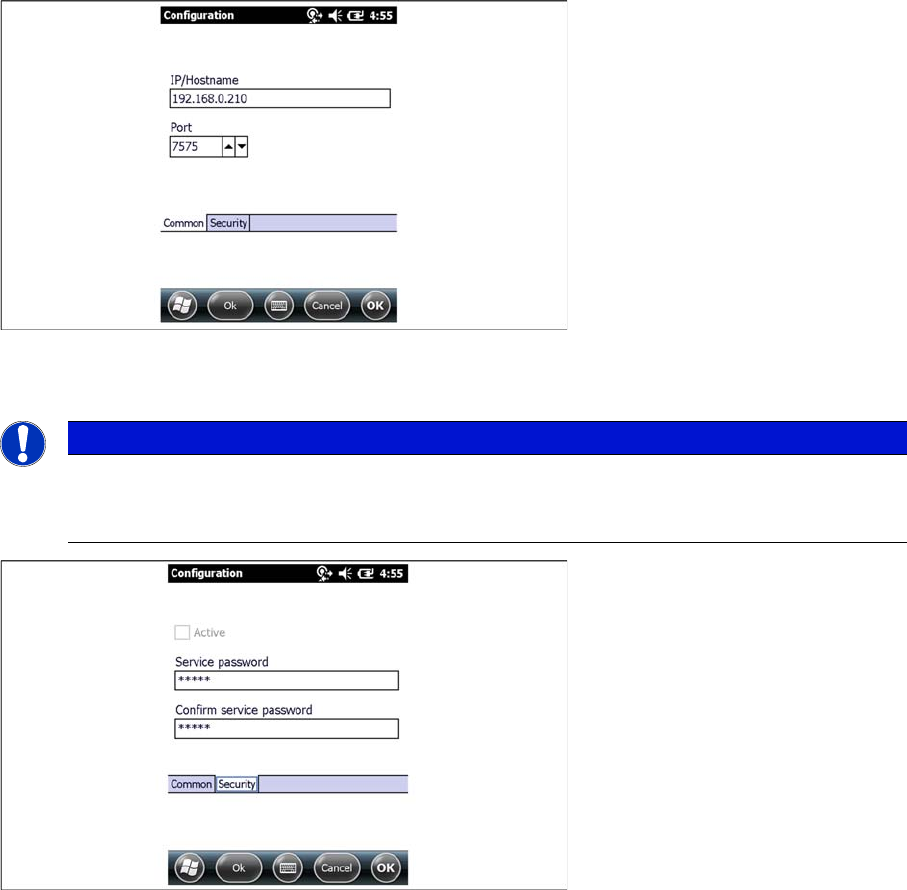
► Open the configuration dialog via File->Configuration
► Type the IP-address/name of the PC where Setup Center is installed.
► Enter the port for which the scanner interface is configurated (default:7575).
► Here you can set a password to prevent modification on the scanner configuration.
For the first editing of the configuration the password is empty. In this case safety is deactivated. You
can set a password now. By confirmation with "OK" all settings were saved.
NOTICE
Volume of the buzzer
The volume of the buzzer is adjusted via the side (left) located controls on the device. The buzz
-
er gives accustical feedback in operation mode of Setup Center.