00197382-02_IM_SetupCenter6.3_EN.pdf - 第67页
Installation 4.3.1 Setup Center Software Installation Installation Manual SIPLACE Setup Center 6.3 67 Step 5 ► The Start Copying Files dialog box gives you a chance t o check the information again, which yo u have enter …
Installation
Software Installation 4.3.1 Setup Center
66 Installation Manual SIPLACE Setup Center 6.3
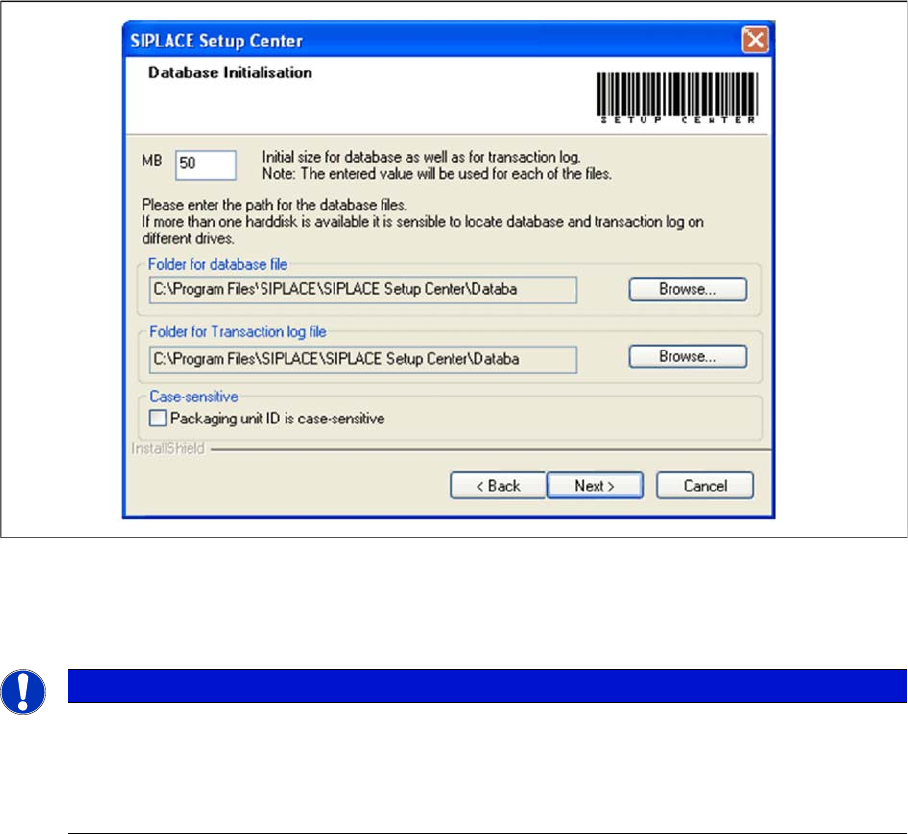
Step 4
► The figure you enter in the MB text box defines the initial size of the SIPLACE Setup Center database
files (default: 50) which are to be created during the installation.
► Confirm the default value or enter the size you want in the MB text box.
► Case-sensitive means that the upper and lower case for packaging unit identification (Packaging unit
ID) can be evaluated by Setup Center. Activate the checkbox Packaging unit ID is case-sensitive, if
it is necessary to distinguish between upper- case and lower-case in Packaging unit ID. This option
can only be changed during the installation.
NOTICE
The specified size is only an initial value. The database will grow automatically as required.
However, only intervention by the database administrator is capable of freeing up unused disk
space. In the database files edit field, enter the directory in which the SIPLACESetupCent
-
er.mdf file is to be created. In the transaction log file edit field, enter the name of the directory
in which the SIPLACESetupCenter.mlf database file is to be created.
Installation
4.3.1 Setup Center Software Installation
Installation Manual SIPLACE Setup Center 6.3 67
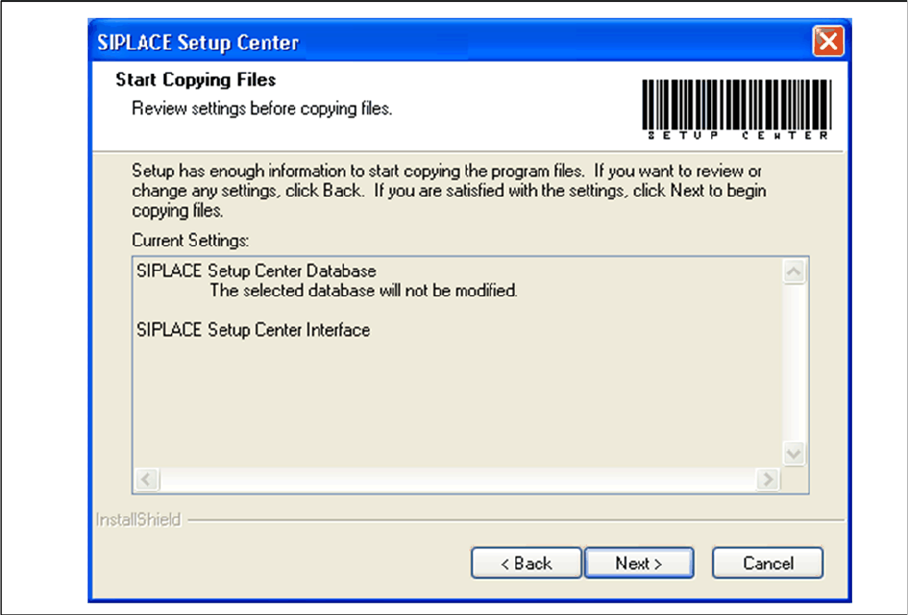
Step 5
► The Start Copying Files dialog box gives you a chance to check the information again, which you
have entered during the previous steps.
► Click Next.
⇨ The installation routine is now started.
Installation
Software Installation 4.3.1 Setup Center
68 Installation Manual SIPLACE Setup Center 6.3
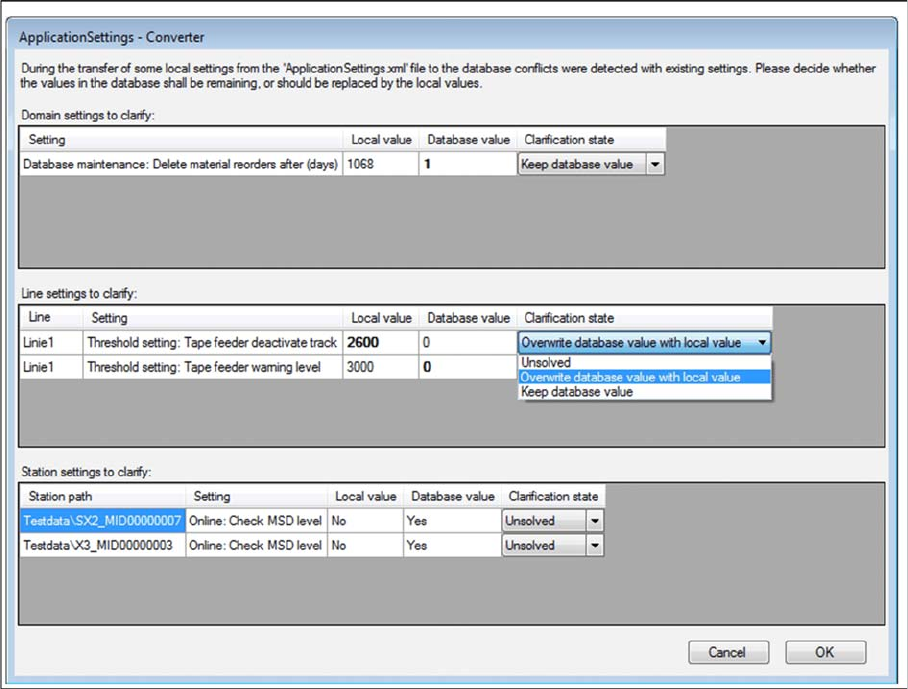
Step 6 (Only when conflicts occur)
During the installation,settings are converted, some of which have been transferred from the local Appli
-
cationSettings.xml file to the database. This can lead to conflicts with existing settings. If conflicts were
detected, the Application Settings - Converter dialog appears.
► Decide whether the values in the database shall remaining (Keep database value), or should be re
-
placed by the local values (Overwrite database value with local value).
► All settings must be solved to get the next step.