00197382-02_IM_SetupCenter6.3_EN.pdf - 第30页
Installation Hardware Installation 4.2.4 Motorola 1D/2D barcode scanner 30 Installation Manual SIPLACE Setup Center 6.3 The transfer of the components to the scan ner is beginning. ► After completion of the data t ransfe…
Installation
4.2.4 Motorola 1D/2D barcode scanner Hardware Installation
Installation Manual SIPLACE Setup Center 6.3 29
Step 2: AppCenter
Steps on Setup Center computer
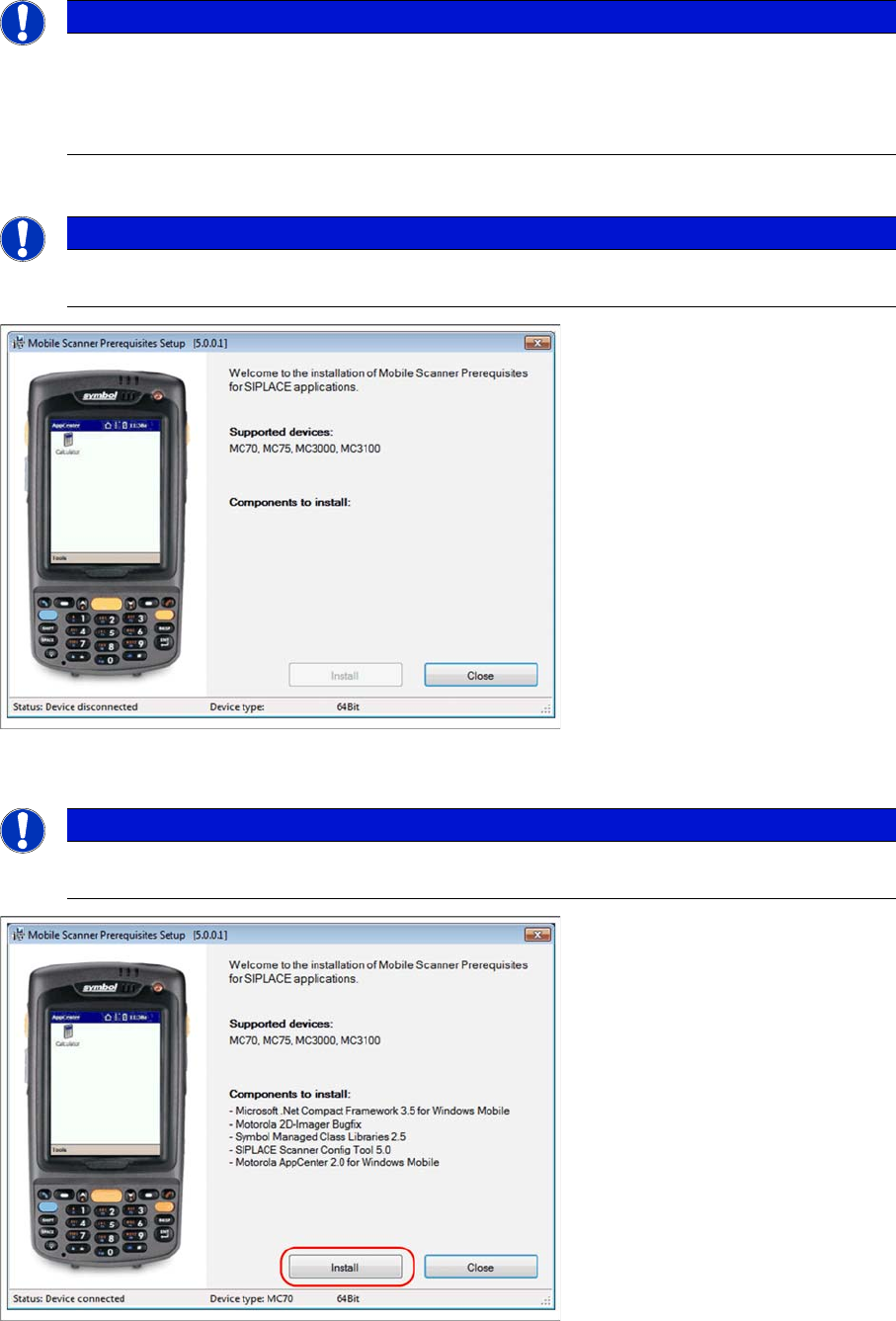
Place the scanner in its cradle if this has not already been done. The installation program automatically
detects the scanner type (Device type) and lists the necessary software packages for the installation.
► Click on Install to start the installation of the software packages.
► Please put the scanner into cradle, and press Install to start the installation of Symbol AppCenter.
NOTICE
In case of an upgrade installation exit the Symbol AppCenter before you start with the installa
-
tion procedure.
► Exit AppCenter with "Tools → Exit…".
► Enter the defined AppCenter password, to confirm exit (default value is "odyssey").
NOTICE
Once the ActiveSync is installed on the Setup Center computer rerun the “Mobile Scanner Pre
-
requisites Setup” from the support Media DVD. The following dialog appears.
NOTICE
The installation program checks if the firmware version of the scanner complies with the mini
-
mum requirement. If this is not the case, update your scanner firmware first.
Installation
Hardware Installation 4.2.4 Motorola 1D/2D barcode scanner
30 Installation Manual SIPLACE Setup Center 6.3
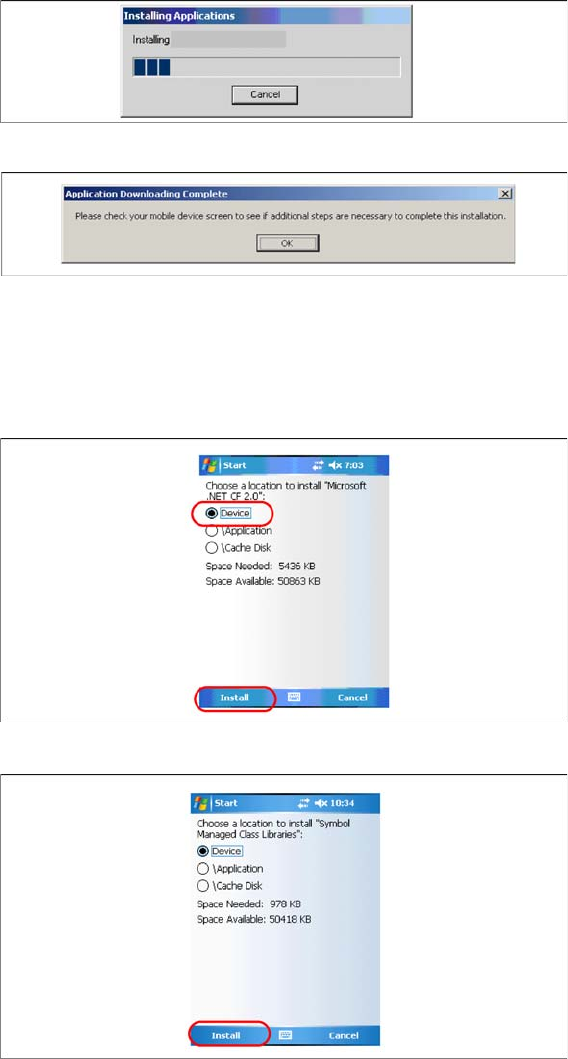
The transfer of the components to the scanner is beginning.
► After completion of the data transfer to the device click on OK to close the window.
Steps on Mobile Scanner Screen
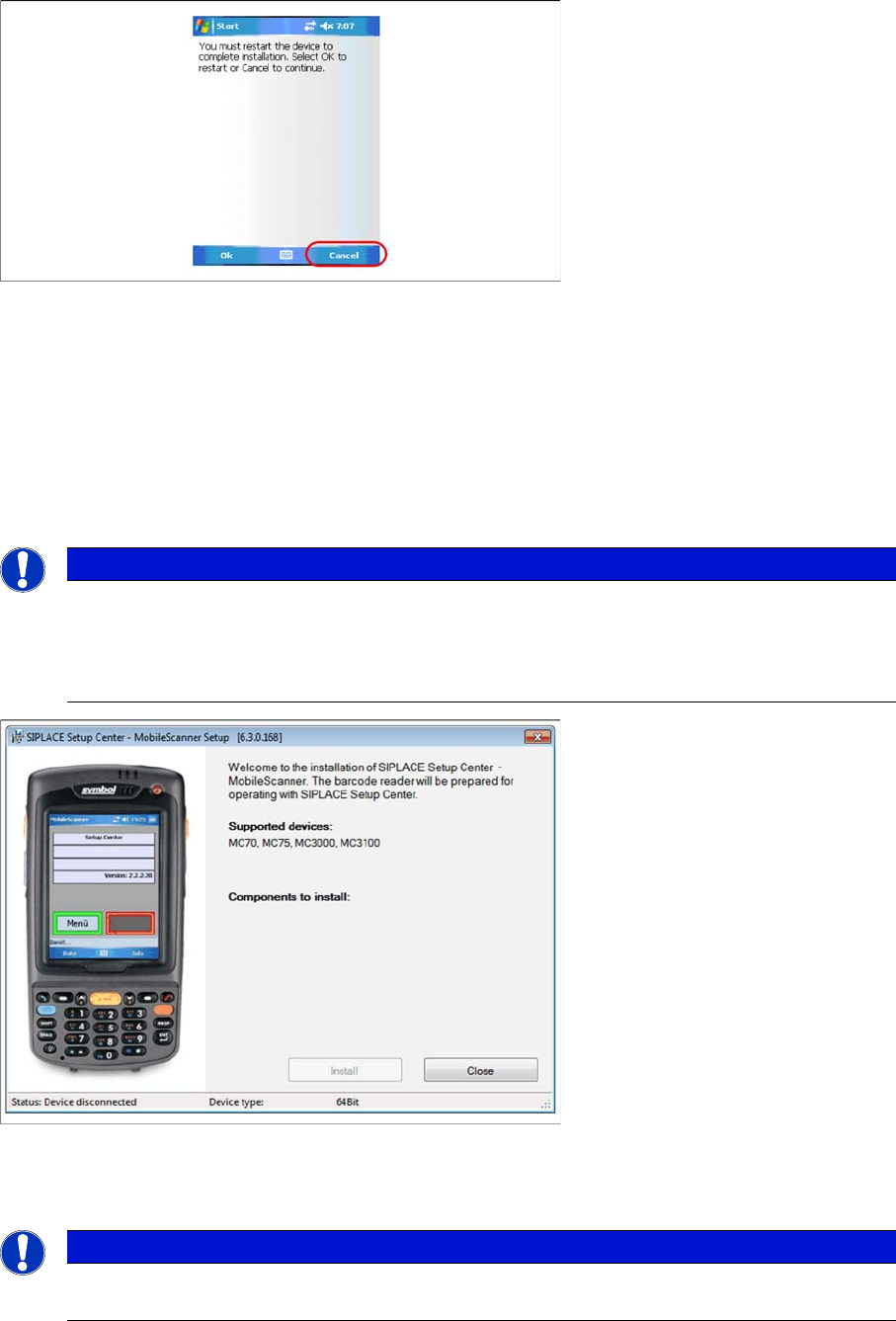
The following steps must be carried out on the scanner to complete the installation. If all components
were successfully transferred to the scanner the installation of the components will start automatically.
► Press Install to continue with Microsoft Compact Framework 2.0 installation.
► Press Install to continue with Symbol Managed Class Libraries installation.
Installation
4.2.4 Motorola 1D/2D barcode scanner Hardware Installation
Installation Manual SIPLACE Setup Center 6.3 31
► The installation of Symbol AppCenter has finished. Press Cancel to continue with Setup Center Mo
-
bileScanner installation.
See also
4.2.4.4 Setup Center Client Installation [ ➙ 31]
4.2.4.4
4.2.4.4 Setup Center Client Installation
Setup Center Client Installation
The installation for Setup Center – MobileScanner is located in the directory "\MobileScanner\" of the
CD. Execute the file "TransferToPDA.exe" to start the installation.
► Place the scanner in its cradle if this has not already been done. The installation program automat
-
ically detects the scanner type (Device type) and lists the necessary software packages for the in
-
stallation.
NOTICE
In case of an upgrade installation exit the Setup Center Client before you start with the instal
-
lation procedure.
► Exit Setup Center Client with "File → Exit".
► Confirm any upcoming message which refers to an upgrade installation with "Yes" or "OK".
NOTICE
The installation program checks if the firmware version of the scanner complies with the mini
-
mum requirement. If this is not the case, update your scanner firmware first.