00197382-02_IM_SetupCenter6.3_EN.pdf - 第25页
Installation 4.2.4 Motorola 1D/2D barcode scanner Hardware Installation Installation Manual SIPLACE Setup Center 6.3 25 4.2.4.2 4 . 2 . 4 . 2 C o n f ig u r a t e W L A N o n S c a n n e r Configurate WLAN on Scanner Ple…
Installation
Hardware Installation 4.2.4 Motorola 1D/2D barcode scanner
24 Installation Manual SIPLACE Setup Center 6.3
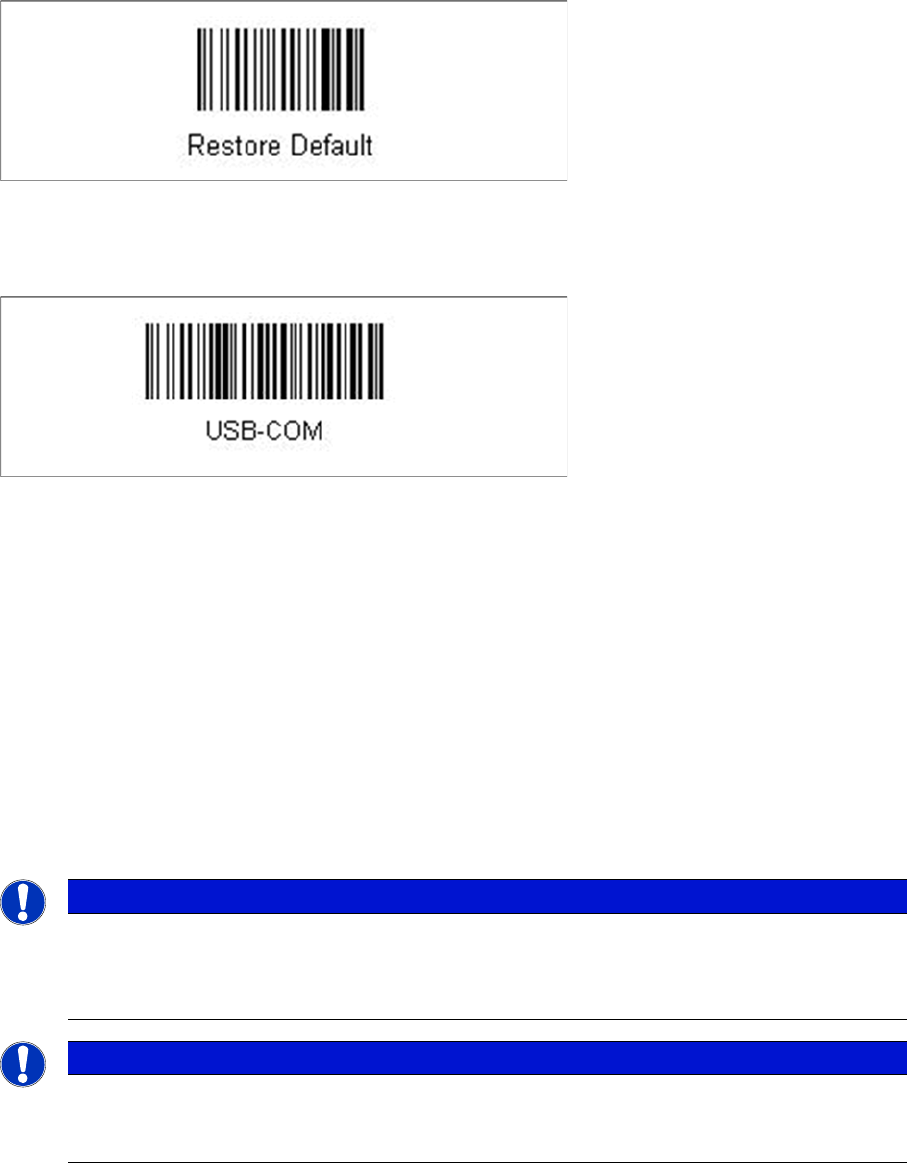
Steps to configure the cradle to the USB-COM interface
The device may be configured to a different interface ex factory, the following steps switch to USB-COM
port.
► Please scan the following barcodes in the order they are printed:
► Scan the “Link by Contact” – Barcode from the cradle and put the scanner into the cradle.
⇨ The scanner is now registered on the cradle.
► Scan the barcode "USB-COM" to set the interface to USB.
The cradle is now ready for use with Setup Center.
4.2.4
4.2.4 Motorola 1D/2D barcode scanner
Motorola 1D/2D barcode scanner
4.2.4.1
4.2.4.1 System Requirements
System Requirements
The following components are required for the operation of the scanner:
▪ WLAN-infrastructure (not included)
▪ Motorola scanner integrated in WLAN-infrastructure and accessible with "ping" windows-command.
▪ Required scanner firmware versions
– MC70: 05.43
– MC75: 02.37
– MC3090: 01.13
– MC3190: 03.26
NOTICE
The scanner might be delivered with a different firmware version. Please install the firmware
version listed above. It is located on the software DVD "SIPLACE Support Media DVD1” in the
section “SIPLACE Products” (See "4.2.4.3 Mobile Scanner Prerequisites Setup" [ ➙ 25]).
Please observe by all means the enclosed documentation.
NOTICE
Mobile scanner menus in Chinese
If you want the menus on the Motorola scanner to appear in Chinese, you first need to install a
localized (Simplified Chinese) operating system.
Installation
4.2.4 Motorola 1D/2D barcode scanner Hardware Installation
Installation Manual SIPLACE Setup Center 6.3 25
4.2.4.2
4.2.4.2 Configurate WLAN on Scanner
Configurate WLAN on Scanner
Please configure the barcode scanner for the operation within WLAN network - as described in docu
-
ment Installation Manual WLAN Infrastructure for SIPLACE (item no. 00195606-xx).
4.2.4.3
4.2.4.3 Mobile Scanner Prerequisites Setup
Mobile Scanner Prerequisites Setup
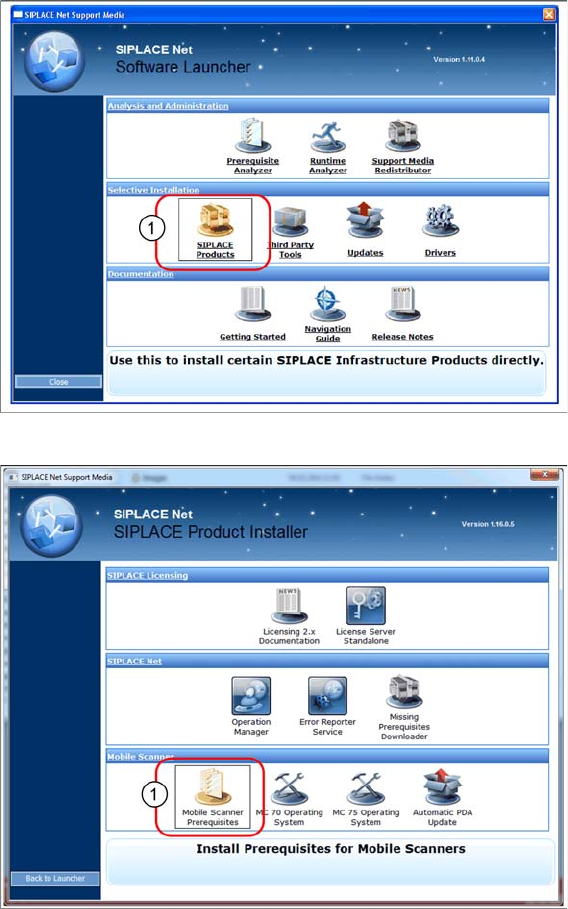
The installation for mobile scanner prerequisites setup is located on the DVD "SIPLACE Support Media
DVD1" in the Selective Installation section.
► Open SIPLACE Products (1).
► Execute the Mobile Scanner Prerequisites (1) setup.
Installation
Hardware Installation 4.2.4 Motorola 1D/2D barcode scanner
26 Installation Manual SIPLACE Setup Center 6.3
Step 1: ActiveSync / Mobile Device Center
The Mobile Scanner Prerequisites Setup checks if the necessary communication program (ActiveSync
or Mobile Device Center) is present. If this is not the case, the program can be installed.
Windows XP: ActiveSync
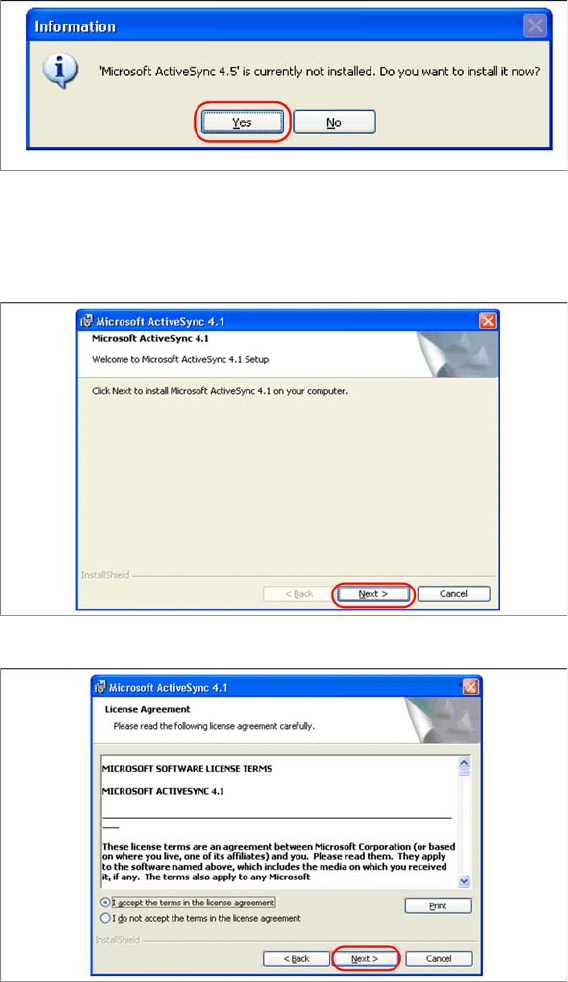
If ActiveSync is not installed on the system, the following message box appears.
► Select Yes to start the installation of Microsoft ActiveSync. Make sure that the scanner is not yet con
-
nected to the basic station.
Install ActiveSync
► Click on "Next" to proceed.
► Accept the licensing agreements and select "Next".