00197382-02_IM_SetupCenter6.3_EN.pdf - 第83页
Installation 4.4.4 Datalogic Scanner Connection Steps to Perform After Installation Installation Manual SIPLACE Setup Center 6.3 83 4.4.4.1 4 . 4 . 4 . 1 N a r r o w b a n d S c a n n e r Narrowband Scanner By first conf…
Installation
Steps to Perform After Installation 4.4.4 Datalogic Scanner Connection
82 Installation Manual SIPLACE Setup Center 6.3
4.4.4
4.4.4 Datalogic Scanner Connection
Datalogic Scanner Connection
New scanners and scanner base stations require the setup once before the first use.
This doesn’t necessarily need to happen after the Installation of SIPLACE Setup Center, but it is recom
-
mended. The Scanner configuration is independent from the software installation.
You can setup up one or more scanner by Setup Center. To configure scanner, ensure that the Datalogic
Cradle is connected with the Setup Center computer.
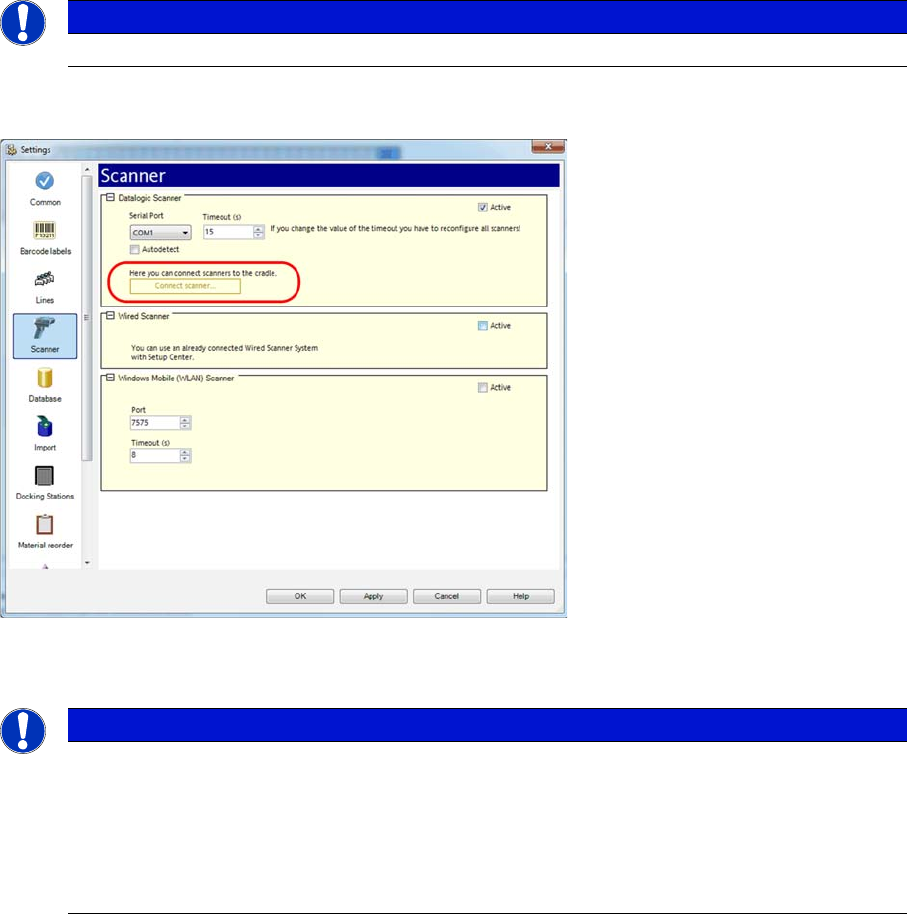
► Open the setting dialog for scanner in Setup Center configuration.
► Click “Connect scanner…” to begin.
NOTICE
The scanner powers off after a period of inactivity. Pulling the trigger will power the scanner on.
NOTICE
If the button is disabled, Setup Center was not able to detect a cradle on startup.
► In this case, ensure the connection to a serial port and restart Setup Center.
► Alternatively you can manually change the port, where the cradle is connected, by removing
the “Autodetect” checkbox.
After changing, click “Apply” to take over the new port.
Click “Connect Scanner…” to continue.
Installation
4.4.4 Datalogic Scanner Connection Steps to Perform After Installation
Installation Manual SIPLACE Setup Center 6.3 83
4.4.4.1
4.4.4.1 Narrowband Scanner
Narrowband Scanner
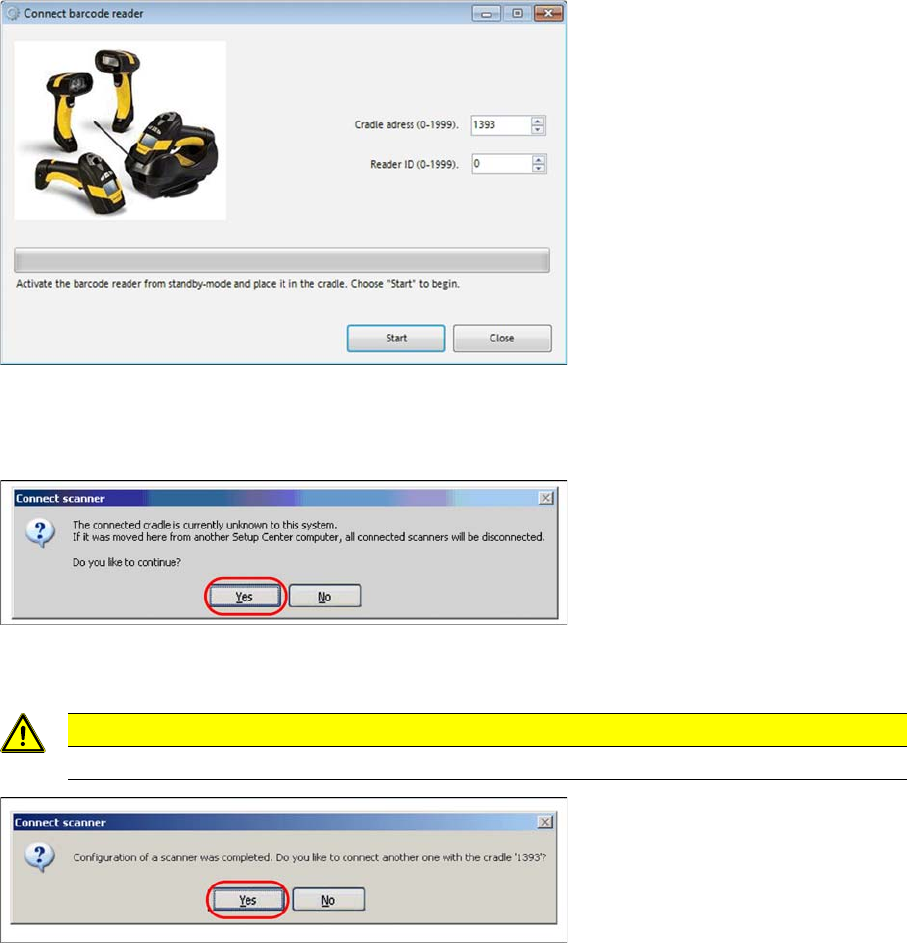
By first configuration of a scanner by this Setup Center, the cradle address is set by random.
► Click the barcode trigger-key on scanner one time to activate it from standby-mode.
► Put the scanner into the cradle and click “Start” to set up the scanner.
By first configuration the cradle is unknown for Setup Center.
► Validate the message with “Yes” to continue.
► Remove the scanner from cradle and press the “Enter”-key on scanner to check the connection to
Setup Center.
► Click “Yes” to connect another scanner with Setup Center.
CAUTION
Configure each scanner again, if you moved the cradle from another Setup Center computer.
Installation
Steps to Perform After Installation 4.4.4 Datalogic Scanner Connection
84 Installation Manual SIPLACE Setup Center 6.3
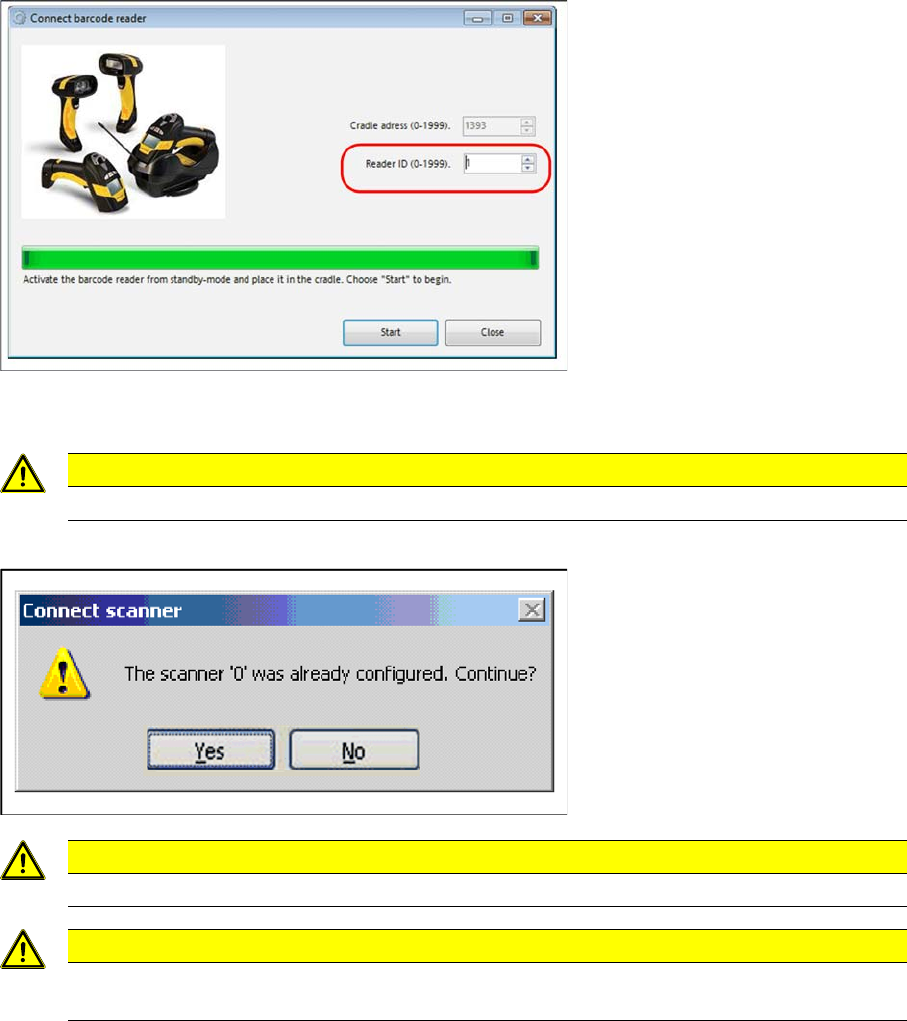
► The scanner-ID is now incremented to the next unused address. Activate the next Scanner from
standby, put it into cradle and click “Start”.
If you manually enter an already used address, Setup Center will warn you by following.
CAUTION
Do not scan or press keys at an already connected scanner, while configuring a new one.
CAUTION
Make sure that the cradle address and scanner-ID are unique in a factory.
CAUTION
It’s not recommended to move a cradle from one Setup Center Computer to another. In this
case, please configure each scanner again.