00197382-02_IM_SetupCenter6.3_EN.pdf - 第92页
Installation Steps to Perform After Installa tion 4.4.5 Motorola / Symbol Scan ner Configuration 92 Installation Manual SIPLACE Setup Center 6.3 Starting MC 3090/MC 3190 ► Select SIPLACE Scanner Config Tool icon (1) to c…
Installation
4.4.5 Motorola / Symbol Scanner Configuration Steps to Perform After Installation
Installation Manual SIPLACE Setup Center 6.3 91
4.4.5.4
4.4.5.4 SIPLACE Scanner Config Tool
SIPLACE Scanner Config Tool
Scanning problems with 1D barcodes
If the mobile scanner is unable to scan most of your 1D barcodes, use the following configuration utility,
to resolve the problems.
► Please exit all running applications on scanner and Symbol AppCenter to continue.
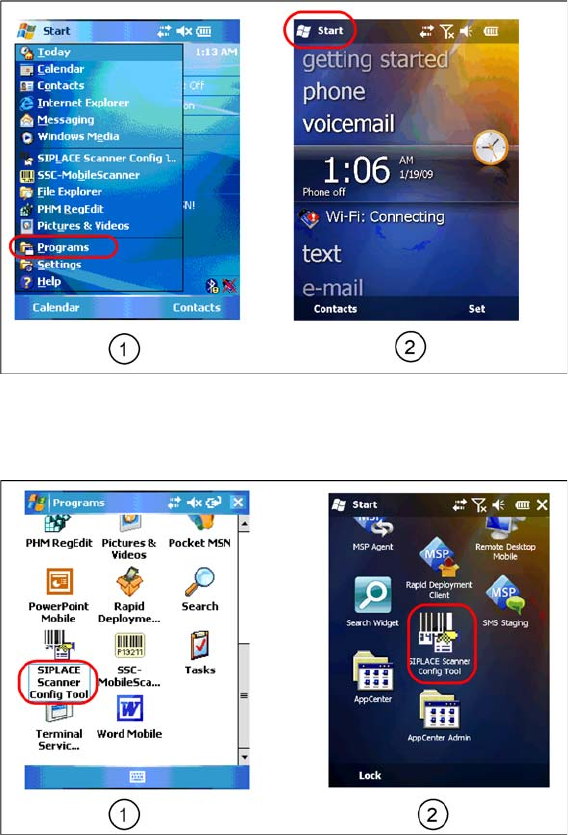
Starting MC 70/MC 75
► Select Start->Programs to show present applications on scanner (select icon (1) for MC 70 or Icon
(2) for MC 75).
⇨ The Start view appears.
► Select SIPLACE Scanner Config Tool to continue (select icon (1) for MC 70 or icon (2) for MC 75).
⇨ The SIPLACE Scanner Config Tool dialog appears.
Installation
Steps to Perform After Installation 4.4.5 Motorola / Symbol Scanner Configuration
92 Installation Manual SIPLACE Setup Center 6.3
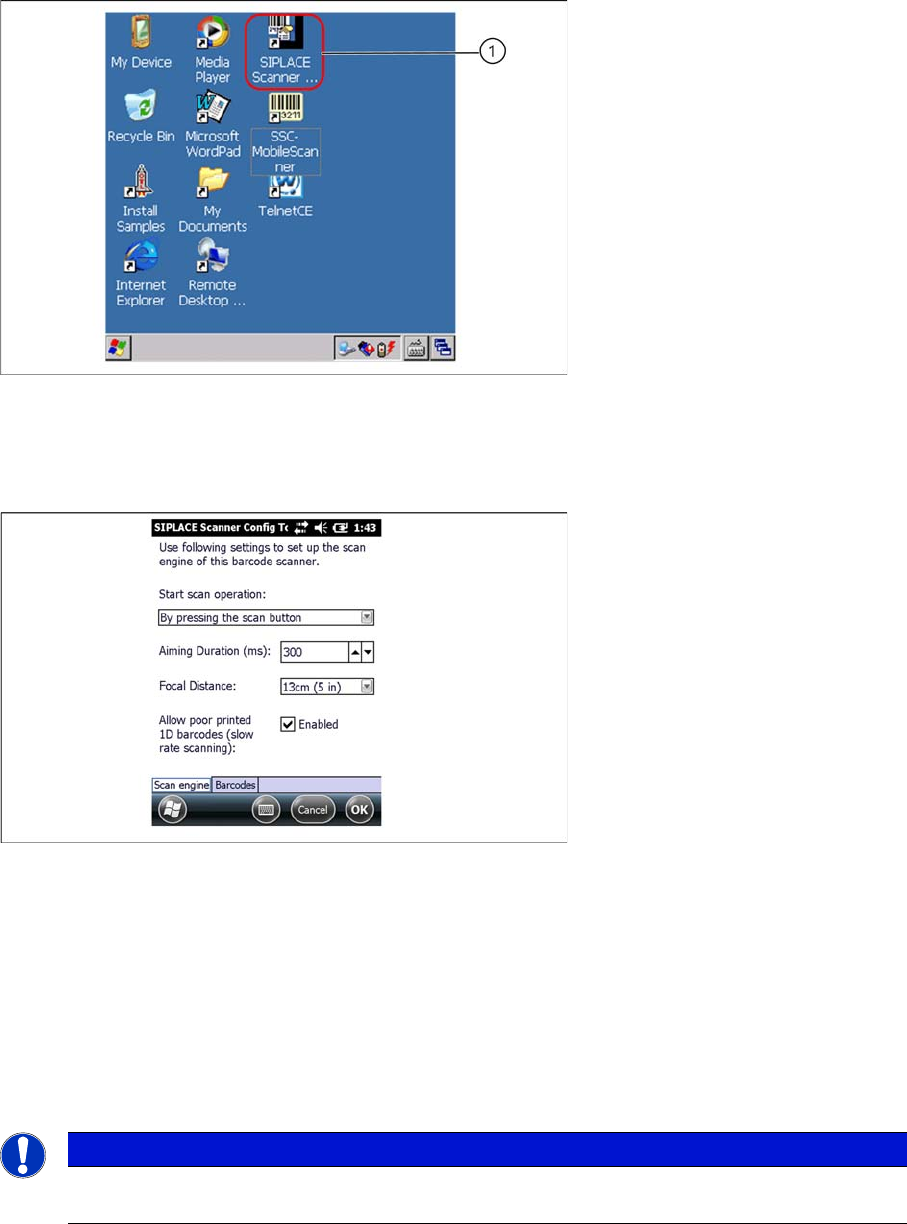
Starting MC 3090/MC 3190
► Select SIPLACE Scanner Config Tool icon (1) to continue.
⇨ The SIPLACE Scanner Config Tool dialog appears.
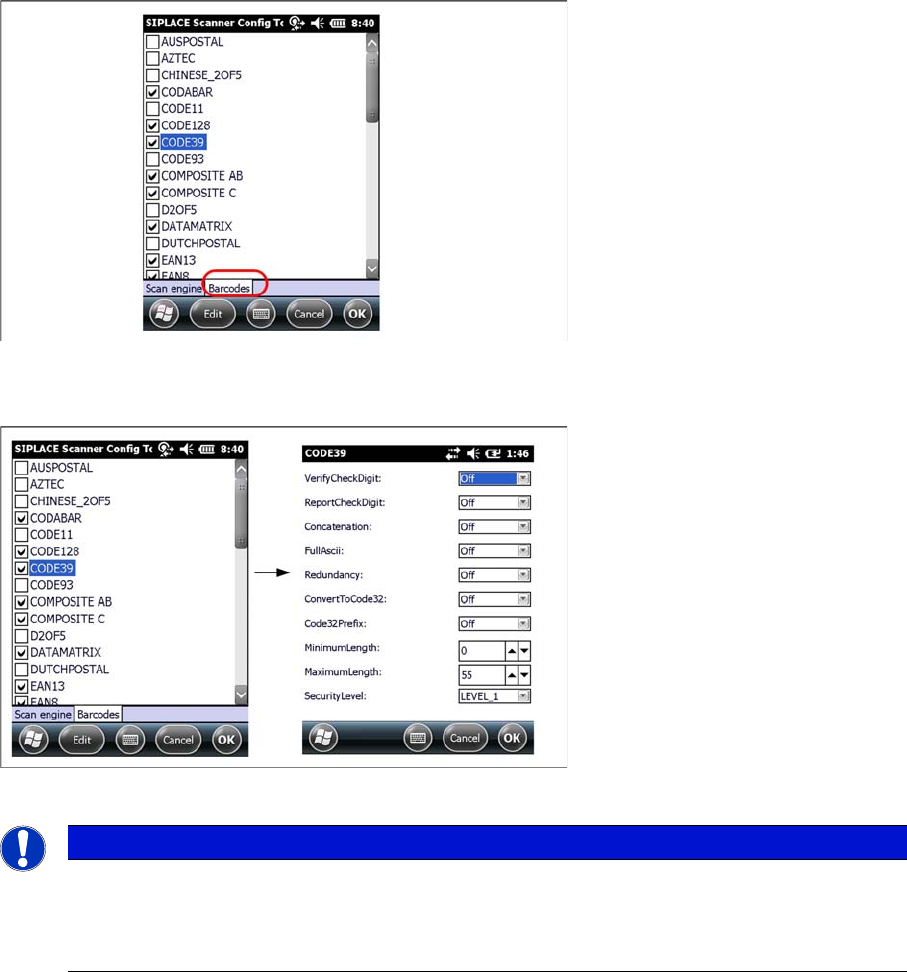
SIPLACE Scanner Config Tool
You can change the following scan parameters here:
▪ Start scan operation:
– By pressing the scan button
– By releasing the scan button (recommended)
▪ Aiming Duration (ms):
Sets the time, how long a user is able to target a barcode with target laser.
▪ Focus Position:
– Far: You have to focus a barcode in scan range of about 23 cm (9 inches).
– Near: You have to focus a barcode in scan range of about 13 cm (5 inches).
▪ Allow poor printed 1D barcodes (slow rate scanning):
Use this setting, if most of your barcodes cannot be read in case of light damage.
► Press Ok or Apply to save the settings.
NOTICE
This setting is depending on barcode size. If you have problems to read your 1D barcodes with
small size, change the setting to “Near”.
Installation
4.4.6 SIPLACE Setup Center Configuration Steps to Perform After Installation
Installation Manual SIPLACE Setup Center 6.3 93
Setting 1D or 2D barcodes for Mobile Scanners
► Select the Barcode tab
► Choose the allowed 1D or 2D barcodes for your mobile scanner here.
► Select the barcode and press Edit to open the additional barcode settings.
► Press Ok to save the settings.
4.4.6
4.4.6 SIPLACE Setup Center Configuration
SIPLACE Setup Center Configuration
Setup Center GUI requires to be configured before it can be used. The configuration can be found via
the main menu Extras → Settings. For detailed information, please refer to User Guide SIPLACE Setup
Center.
4.4.7
4.4.7 Settings on the SIPLACE Pro
Settings on the SIPLACE Pro
In order to use Setup Center you should make settings on the programming system SIPLACE Pro. For
detailed information, please refer to User Guide SIPLACE Setup Center.
4.4.8
4.4.8 Barcode Label Wizard
Barcode Label Wizard
The Barcode Label Wizard enables you to print out barcodes needed for the operation of the SIPLACE
Setup Center. For detailed information, please refer to User Guide SIPLACE Setup Center.
NOTICE
Context menu
Click and hold on a barcode to open the context menu:
All Off: Select none of the barcodes in the list
All On: Select all the barcodes in the list