00197382-02_IM_SetupCenter6.3_EN.pdf - 第36页
Installation Hardware Installation 4.2.5 Optional: Docking Station 36 Installation Manual SIPLACE Setup Center 6.3 Step 2 ► Actually there is no thing to select / de- select, all listed fea tures are mandatory. ► Click I…
Installation
4.2.5 Optional: Docking Station Hardware Installation
Installation Manual SIPLACE Setup Center 6.3 35
► Open the Setup Center Computer housing according to the manufacturer's instructions.
► Select a free PCI slot in your Setup Center Computer for installing the CAN card.
► Plug the CAN card into the selected PCI slot.
► Close the Setup Center Computer housing according to the manufacturer's instructions.
► The drivers for the CAN card are contained on the Setup Center software installation CD. These
need to be installed separately. For a detailed description, please see Section " Installing the CAN
Bus driver and API".
4.2.5.2
4.2.5.2 Installing the CAN Bus driver and API
Installing the CAN Bus driver and API
► Open the folder \3rdparty installer\Sontheim\CAN-Bus Driver\7.4.14.0 and select the application Set
-
up.exe on the Setup Center installation CD.
Step 1
► Select the language you want.
► Click OK.
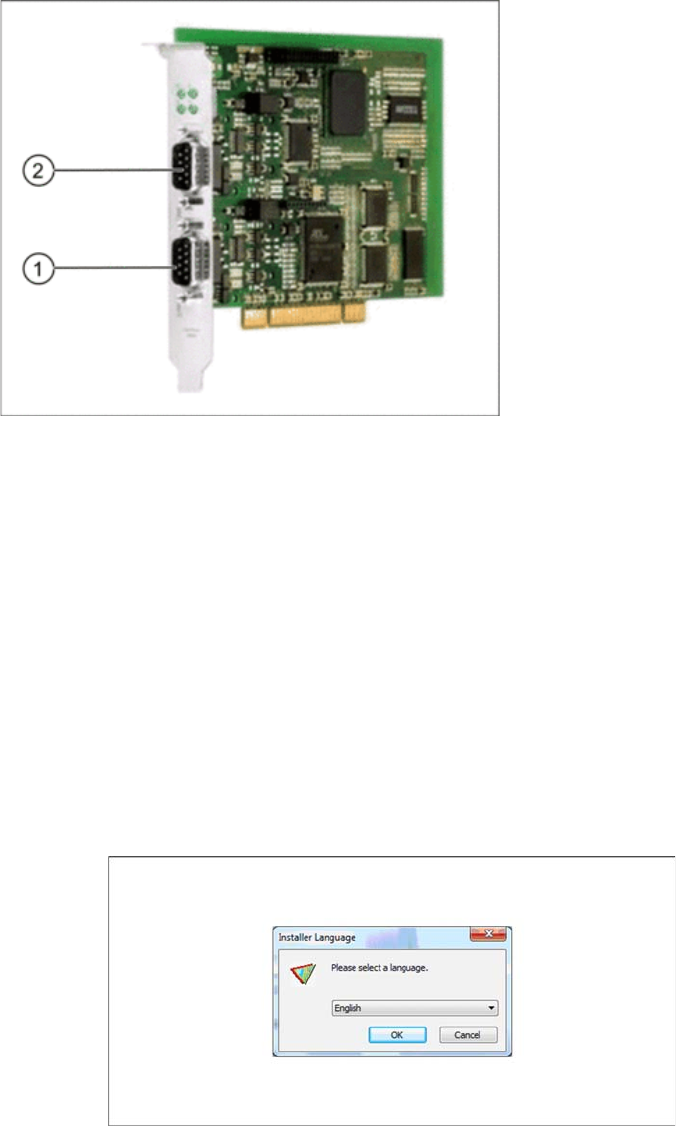
CAN Card - Power CAN PCI COM 168 V2
1. Bus 1
2. Bus 2
Installation
Hardware Installation 4.2.5 Optional: Docking Station
36 Installation Manual SIPLACE Setup Center 6.3
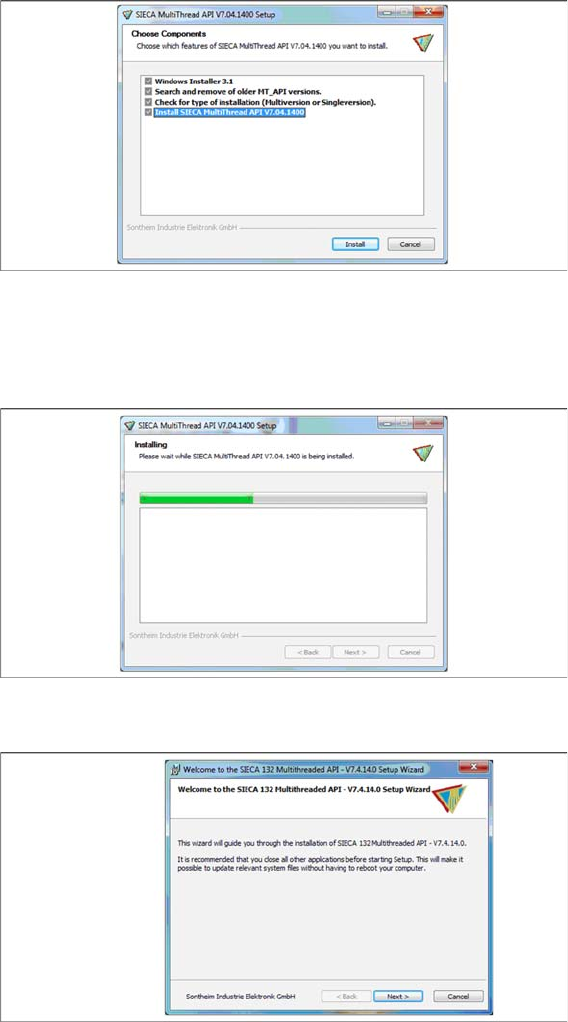
Step 2
► Actually there is nothing to select / de-select, all listed features are mandatory.
► Click Install.
Step 3
The installation package will be extracted.
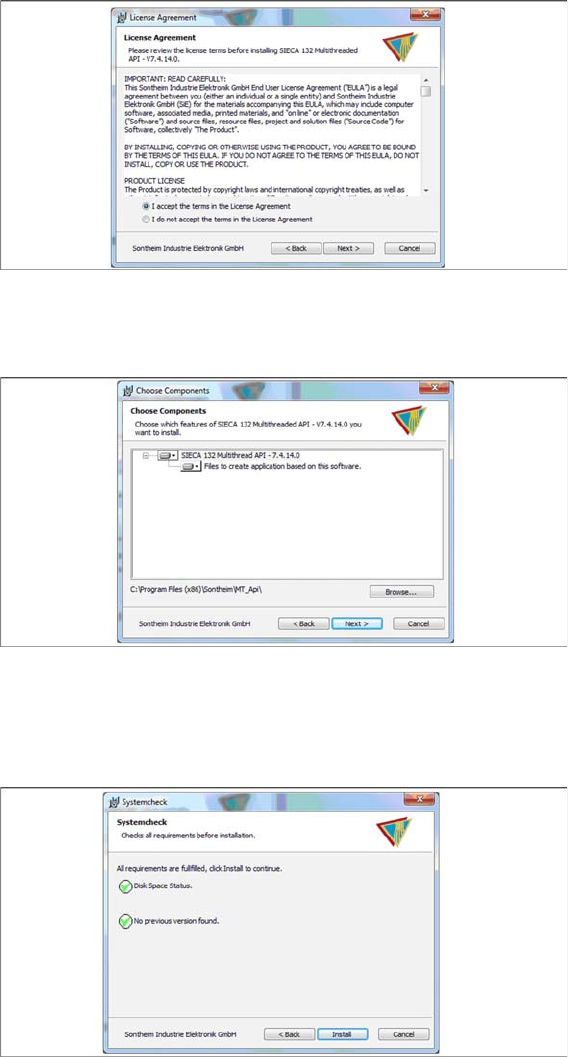
Step 4
► Click Next.
Installation
4.2.5 Optional: Docking Station Hardware Installation
Installation Manual SIPLACE Setup Center 6.3 37
Step 5
► Read the license agreement relating to use of this software and select I accept the terms in the Li
-
cense Agreement to accept the license agreement.
► Click Next.
Step 6
► Click Next.
Step 7
► The “Systemcheck” window displays the status of all checks they have carried out.
► Click Install.