00197382-02_IM_SetupCenter6.3_EN.pdf - 第20页
Installation Hardware Installation 4.2.2 Datalogic Scanner’s Cradle BC-8030 ( Narrowband) 20 Installation Manual SIPLACE Setup Center 6.3 ► Scan the barcode "Bind" n ow. ► If the green LED of the s canner blink…
Installation
4.2.2 Datalogic Scanner’s Cradle BC-8030 (Narrowband) Hardware Installation
Installation Manual SIPLACE Setup Center 6.3 19
Steps to configure the cradle to the USB-COM interface
The device may be configured to a different interface ex factory, the following steps switch to USB-COM
port.
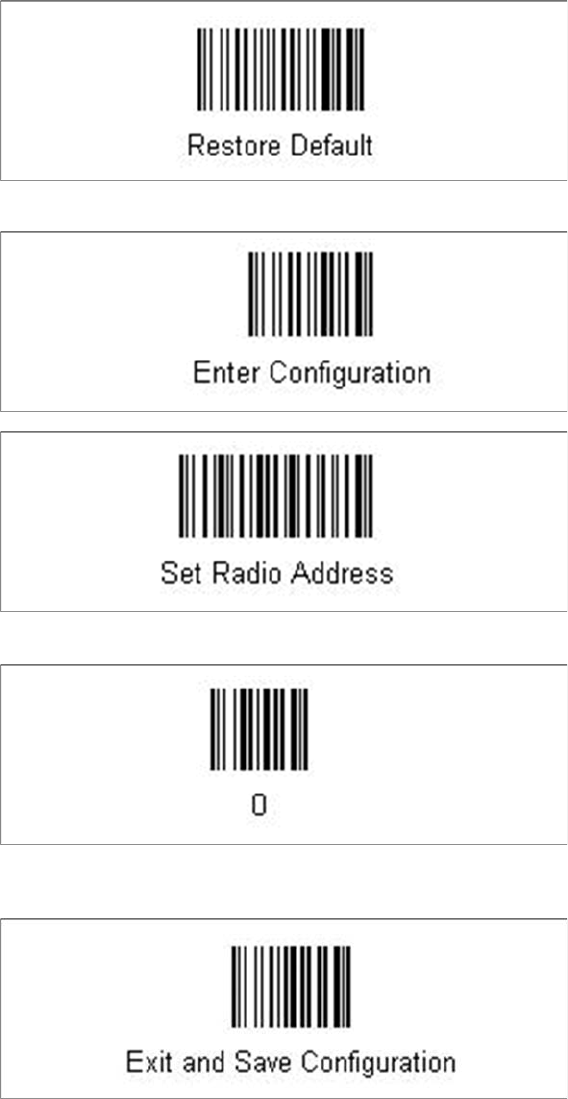
► Please scan the following barcodes in the order they are printed:
The standard configuration of the scanner is restored.
► Scan the barcode “0” four times.
The scanner must have an address (temporary "0000"), so that it can get connected to the cradle. This
address will be changed / set again later by Setup Center with the automatic configuration.
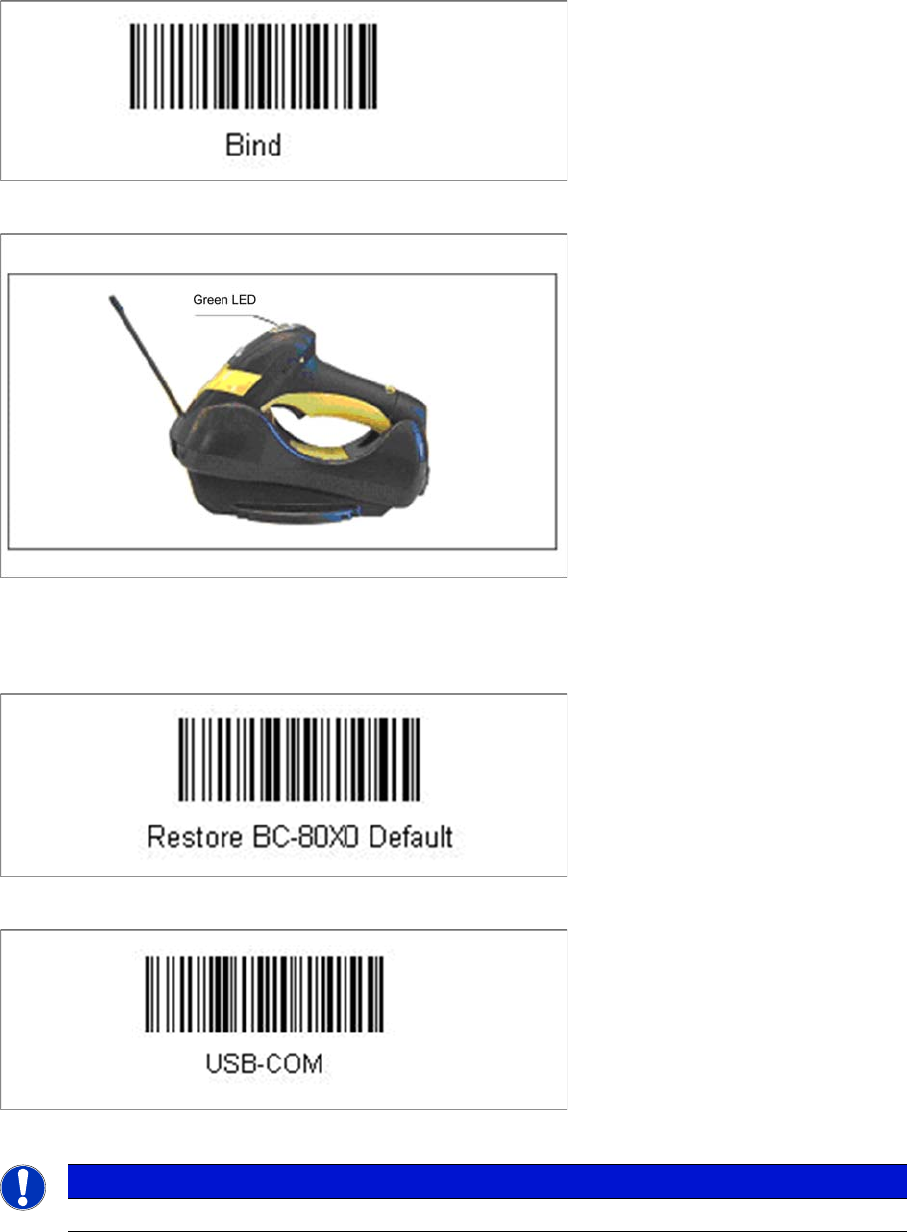
In order to configure the cradle a scanner needs to be bound to the cradle with the barcode "Bind".
Installation
Hardware Installation 4.2.2 Datalogic Scanner’s Cradle BC-8030 (Narrowband)
20 Installation Manual SIPLACE Setup Center 6.3
► Scan the barcode "Bind" now.
► If the green LED of the scanner blinks, put the scanner into the cradle.
► The green LED is now switched off and the scanner is already registered on the cradle.
The interface of the cradle can be set up now with the following barcodes.
► Scan the barcode "Restore BC-80X0 Default" to restore the standard configuration of the cradle.
► Scan the barcode "USB-COM" to set the interface to USB.
The cradle is now ready for use with Setup Center.
The communication over the USB-COM interface requires at least the firmware version 610001601 for
the scanner cradle.
NOTICE
USB-COM interface
Installation
4.2.3 Datalogic Scanner’s Cradle BC-8030-BT (Bluetooth) Hardware Installation
Installation Manual SIPLACE Setup Center 6.3 21
4.2.3
4.2.3 Datalogic Scanner’s Cradle BC-8030-BT (Bluetooth)
Datalogic Scanner’s Cradle BC-8030-BT (Bluetooth)
The Datalogic scanner’s cradle BC-8030-BT needs to be connected to the Setup Center PC. The cradle
incorporates a multi-standard interface, which can be connected via USB or RS-232 to a PC.
See also
4.3 Software Installation [ ➙ 44]
4.2.3.1
4.2.3.1 Connect cradle via RS-232
Connect cradle via RS-232
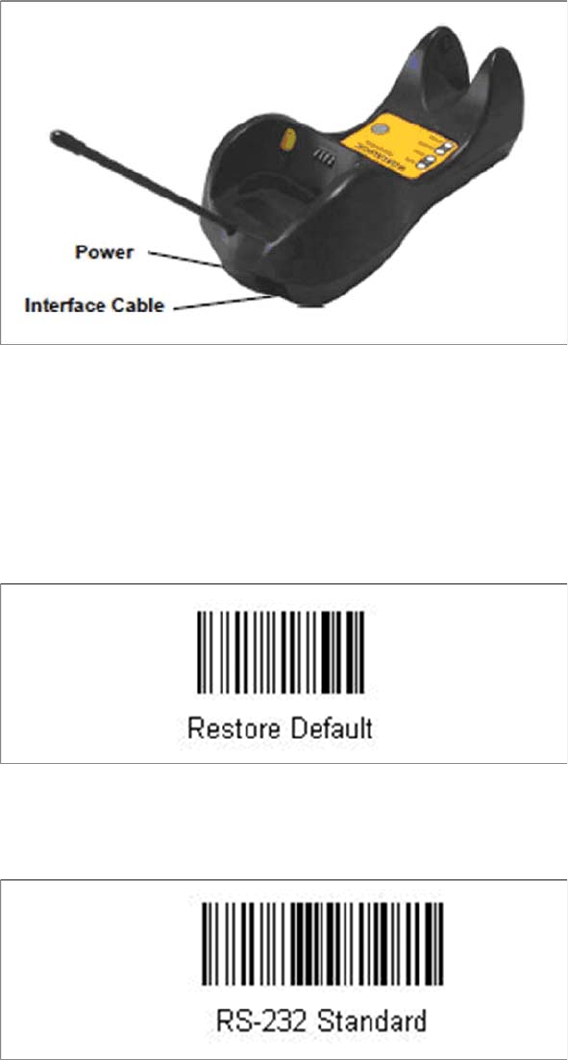
The device may be configured to a different interface ex factory, the following steps switch to RS-232
port.
► Please scan the following barcodes in the order they are printed:
► Scan the “Link by Contact” – Barcode from the cradle and put the scanner into the cradle.
⇨ The scanner is now registered on the cradle.
► Scan the barcode "RS-232 Standard" to set the interface to RS-232.
The cradle is now ready for use with Setup Center.