XP-142E Operator's Guide-TUT-XP142-1.1E.pdf.pdf - 第30页
Changing the Production Program Follow the procedure below to change the production program. Note: Refer to the host system operation manual for the procedure for transmitting production programs. Procedure 1. At the [Ma…

Saving the Production Information Log
A production information log can be stored at the machine. Because this
occurs on the machine, only the production information for that machine is
stored.
Procedure
1. At the [Main] screen, press the [Production] button.
2. Press the [Production Data] button. The user can then specify
the desired “log save” (new log registration start) timing.
Note: Events are always being registered in the log, and the log is saved to a
file at the following times:
1. Whenever the user presses the [Production Info Save] button.
2. When the machine is shut down.
3. When a recipe is selected (recipe change).
4. When the date is changed.
Chapter 3: Preparing for Production
TUT-XP142-1.1E
3-6 XP-142E Operator’s Guide

Changing the Production Program
Follow the procedure below to change the production program.
Note: Refer to the host system operation manual for the procedure for
transmitting production programs.
Procedure
1. At the [Main] screen, press [Production] then [Select Program]
to display the [Select Program] dialog box.
2. Click the [▼] button to select the location where the program
file is saved.
Hard disk: /sd0
Floppy disk: /fd0
A list of the available programs is displayed in a dialog box.
3. Select the desired program from the list, then press the
[Download] button to load that program. The name of the
loaded program displays on the title bar at the top of the
screen, indicating that this program is now active.
Note: If the nozzle arrangement in the program does not match the nozzles at
the machine, a warning message will be displayed. To produce with the
nozzles in the machine, press [YES]. Press [NO] and the [Nozzle
Editor] screen is displayed. Please refer to the XP-142E System
Reference manual for an explanation of the nozzle editor.
3.2 Production Programs
Chapter 3: Preparing for Production
TUT-XP142-1.1E
3-7XP-142E Operator’s Guide
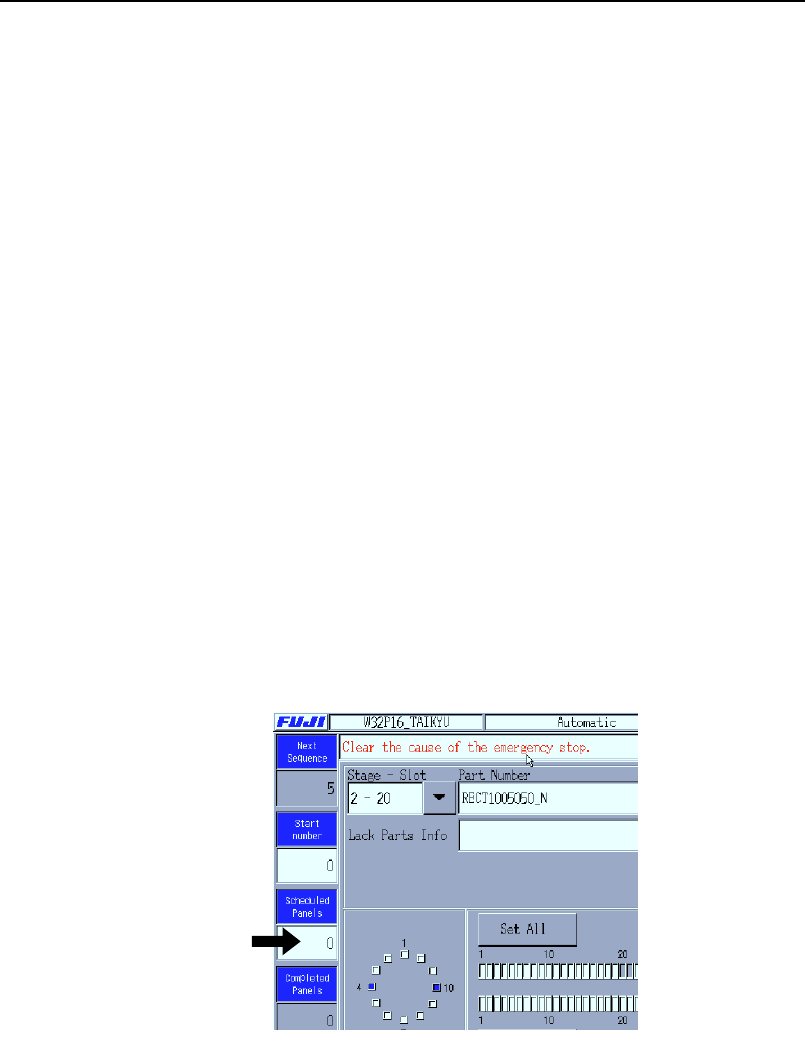
Setting the Scheduled Production Quantity
Specify the number of panels that are scheduled to be produced using the
production program currently selected for use.
Procedure (During production preparation)
1. At the [Main] screen, press [Maintenance A] then [Operation
Settings] to display the operation settings [Select Mode] page.
2. Press the [Scheduled Panels] input field at the right of the
screen to display a ten-key pad. Enter the production quantity
and press [CR].
3. Press [Close] to return to the [Main] screen.
Procedure (During automatic production)
1. Press the [Scheduled Panels] number field at the left of the
[Automatic] screen.
2.
Input the production quantity with the ten-key pad that is
displayed, and then press [CR].
Note: The [Scheduled Panels] quantity can be input from the [Auto] screen
when the quantity is [0] and the READY ON button is flashing.
Production quantity editing is enabled when the field is white.
XP1T3003E
Chapter 3: Preparing for Production
TUT-XP142-1.1E
3-8 XP-142E Operator’s Guide