00197624-02_IM_708.1_DE_EN.pdf - 第25页
Station Software 708.1 / Installation Manual Ausgabe 05/2015 E dition 25 5.4 Inst alling the SIPLACE S oftware (Station Software 70 8. 1) NOTICE T he SIPLACE Vision software is automat ically installed du ring the statio…
Station Software 708.1 / Installation Manual Ausgabe 05/2015 Edition
24
5.3.2 Calibrating the Touch Screen
The touch screen has to be installed by the software configurator during the operating system
installation. If the calibration does not start automatically after installation:
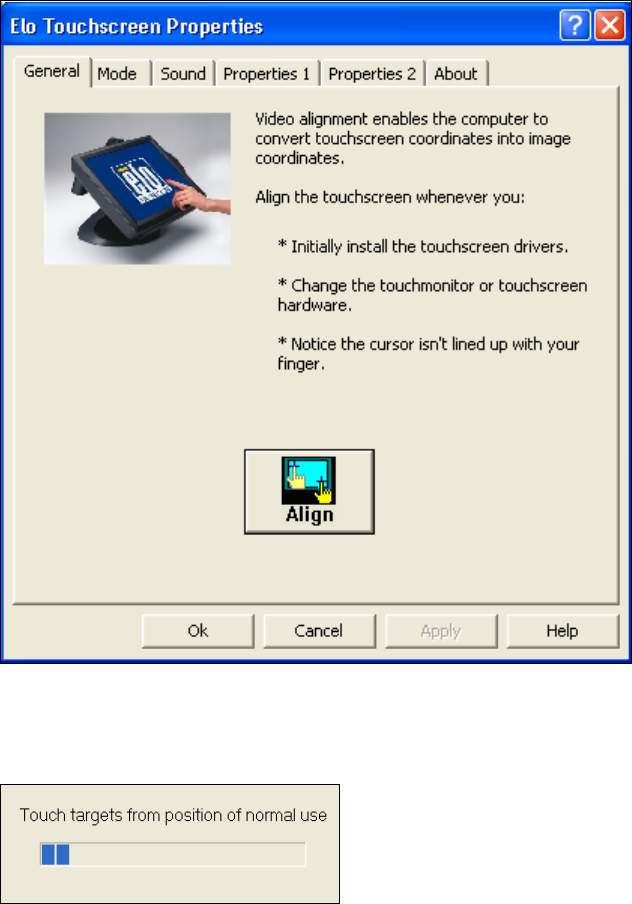
► Select Start – All Programs – Elo to go to EloTouchscreen Properties:
Figure 5-2: Elo Touchscreen properties
► Click the Align button.
The following message then appears:
Figure 5-3: Instruction for the screen to be calibrated
► Follow the instructions on the screen.
Station Software 708.1 / Installation Manual Ausgabe 05/2015 Edition
25
5.4 Installing the SIPLACE Software (Station Software 708.1)
NOTICE
The SIPLACE Vision software is automatically installed during the station software
installation.
NOTICE
The installation might take up to 80 minutes.
► Switch on the SIPLACE placement machine.
► Change to the service desktop.
► Open Windows Task Manager.
► Select Logoff in the Users tab.
► Log in under the ASM_Admin user account.
► Insert the installation DVD in the drive.
► Open the Explorer and start setup.exe under drive E: by double clicking it.
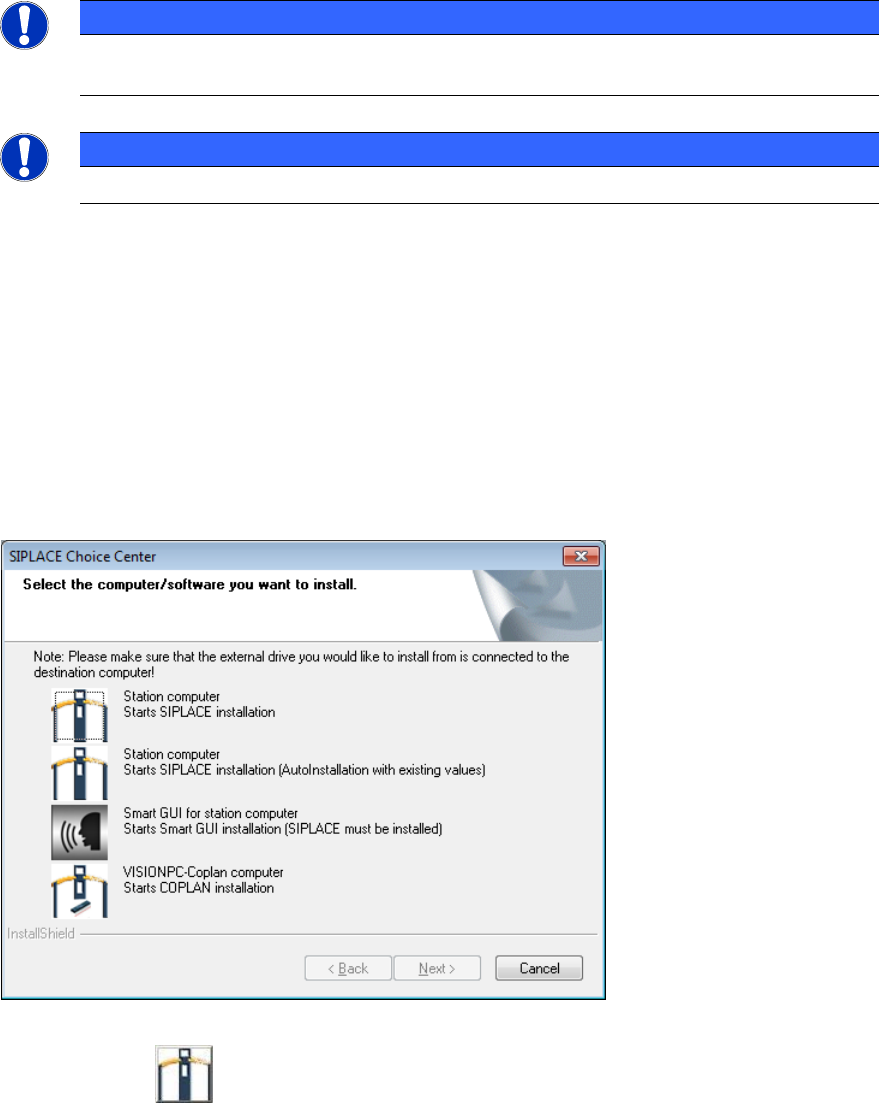
The SIPLACE Choice Center dialog box is opened.
Figure 5-4: "SIPLACE Choice Center" dialog box
► Click the first Station computer button.
Station Software 708.1 / Installation Manual Ausgabe 05/2015 Edition
26
Update or Upgrade Installation
It is possible to skip the input masks and use the already existing values when processing an
update or upgrade installation.
If SIPLACE Choice Center finds an existing installed SIPLACE station software version, the
automatic installation will use all settings from this previous installation.
► In this case, click the second Station computer button.
5.4.1 Dialogs under Windows Embedded Standard 7
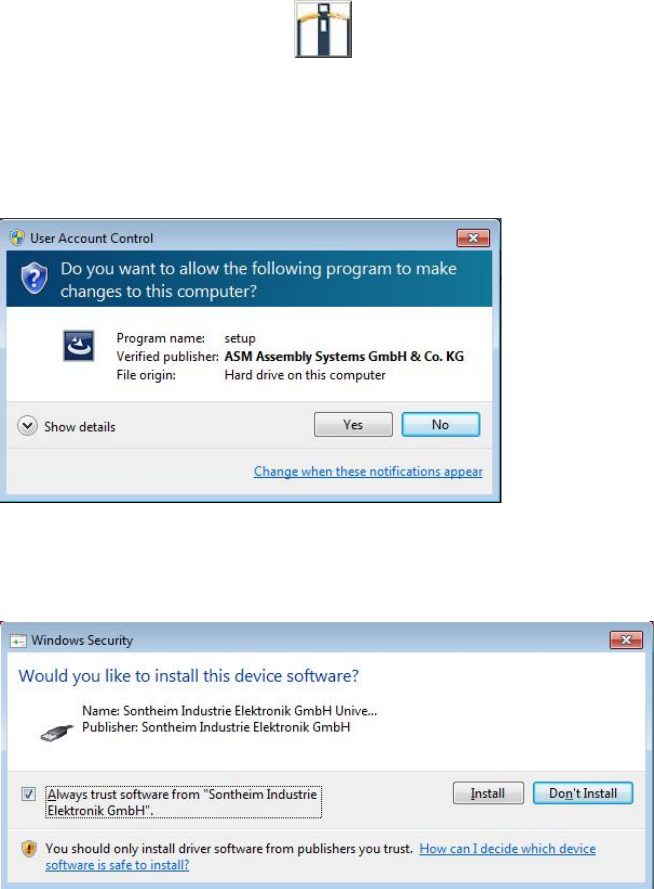
If User Account Control is enabled under Windows Embedded Standard 7, the following dialog
windows are additionally displayed.
Figure 5-5: User Account Control
► Click the Yes button to allow the SIPLACE Software installation.
If a Sontheim device is connected, the following dialog is displayed.
Figure 5-6: Installing driver software for Sontheim device, part 1
► Activate the Always trust software from "Sonheim Industrie Elektronik GmbH" field.
► Click the Install button to install the corresponding driver software.