00197624-02_IM_708.1_DE_EN.pdf - 第33页
Station Software 708.1 / Installation Manual Ausgabe 05/2015 E dition 33 5.5.1 Welcome S creen Figure 5-15: Welcome screen ► Click the Next button. The necessary f iles are installed. 5.5.2 Finalizing the I nstallation F…
Station Software 708.1 / Installation Manual Ausgabe 05/2015 Edition
32
5.5 Installing SIPLACE Smart GUI
The SIPLACE Smart GUI can optionally be installed after the station software has been installed. If
the station software has not been installed first, a corresponding error message is displayed.
► Download the SIPLACE Smart GUI installing program from the SIPLACE Software Download
Center.
► Start SmartGUI.exe by double clicking it.
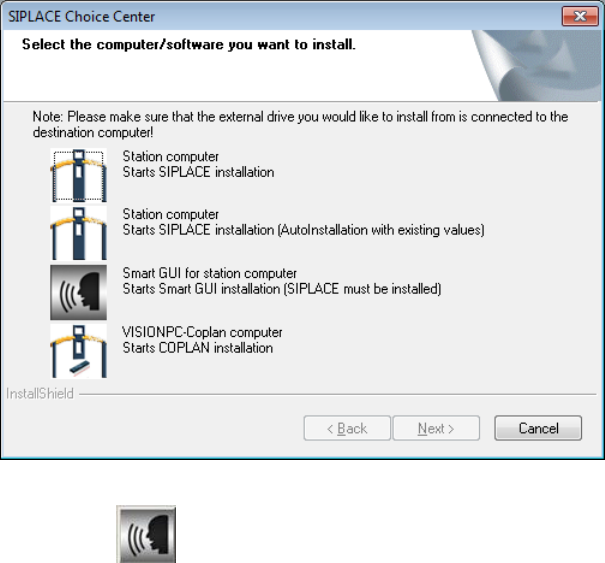
The SIPLACE Choice Center dialog box is opened.
Figure 5-14: "SIPLACE Choice Center" dialog box
► Click the Smart GUI for station computer button.
Installation of the SIPLACE Smart GUI continues with the welcome screen.
Station Software 708.1 / Installation Manual Ausgabe 05/2015 Edition
33
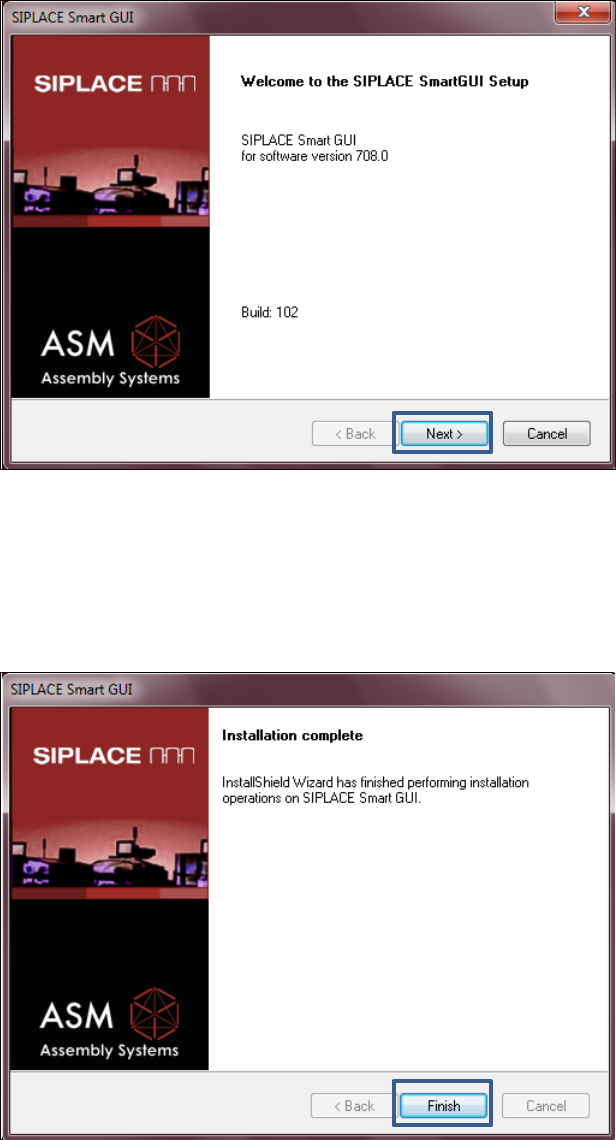
5.5.1 Welcome Screen
Figure 5-15: Welcome screen
► Click the Next button.
The necessary files are installed.
5.5.2 Finalizing the Installation
Figure 5-16: Finalizing the installation
► Click the Finish button.
Station Software 708.1 / Installation Manual Ausgabe 05/2015 Edition
34
6 Installing the Coplan Computer Software
CAUTION
The station software must not run on the station computer during installation of the
Coplan computer software!
NOTICE
The installation requires approx. 20 minutes.
► Follow the instructions in the Assembly Instructions for the 3D Coplanarity Module, item no.
[00197395-xx].
► Log on to the Coplan computer under the ASM_Admin user account.
► Insert the installation DVD in the drive.
► Open the Explorer and start setup.exe under drive E: by double-clicking it.
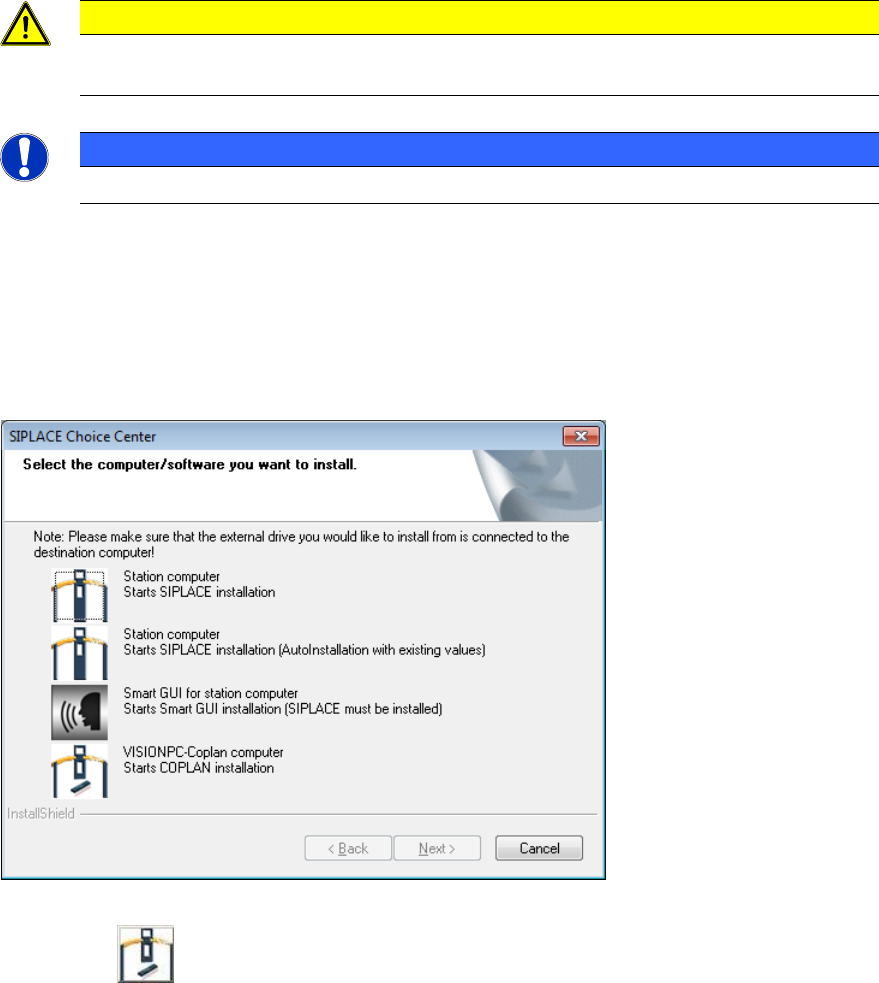
The SIPLACE Choice Center dialog box is opened.
Figure 6-1: "SIPLACE Choice Center" dialog box
► Click the VISIONPC Coplan computer button to install the Coplan computer software.
Installation of the Coplan computer software continues with the welcome screen.