00197624-02_IM_708.1_DE_EN.pdf - 第7页
Station Software 708.1 / Installation Manual Ausgabe 05/2015 E dition 7 2.3 Languages SIPLACE Station and SIPLAC E Vision GUI: The standard pac kage contains Ge rman, English and Simplified Chi nese versions. A s for Sim…
Station Software 708.1 / Installation Manual Ausgabe 05/2015 Edition
6
2 Scope of Delivery
2.1 Software Components
708.1 software
Standard package: [00140055-xx] Software SIPLACE Station 708.1 Basic
– Software DVD Station Software V708.1 and SIPLACE Vision V5.2.2
1)
– License/product certificate
– Software Installation Manual V708.1 D+E, item no.: [00197624-xx]
– Packaging
Languages: [00140056-xx] SIPLACE foreign language software SC 708.1
– Software DVD (language pack)
– License/product certificate
– Software Version Description for foreign languages V708.1 D+E, item no.: [00197625-xx]
– Packaging
(1)
The standard applications are contained on the DVD:
– Embedded software for conveyor
– Embedded software for axes
– Embedded software for component tables
– Embedded software for tape cutter
– Embedded software for heads
– Embedded software for vision modules
– Embedded software for I/O modules
– Embedded software for X-feeders and E-feeders
– Embedded software for digital pressure regulation valve
– Embedded software for MTC2
– Embedded software for WPC5/WPC6
– Embedded software for wafer feeders
2.2 Hardware Components
– Machine computer
– Coplan computer (3D Coplanarity Module option)

Station Software 708.1 / Installation Manual Ausgabe 05/2015 Edition
7
2.3 Languages
SIPLACE Station and SIPLACE Vision GUI:
The standard package contains German, English and Simplified Chinese versions. As for
Simplified Chinese a preliminary version is provided.
The final version of Simplified Chinese and other languages contained in the languages package
are optional and available under the item number [00140056-xx].
The following table indicates which languages are available for the station software and SIPLACE
Vision:
Language Station software / SIPLACE
Vision
French x
Italian x
Spanish (Mexico) x
Portuguese (Brazil) x
Czech
*)
x
Polish
*)
x
Hungarian x
Bulgarian
*)
x
Romanian
*)
x
Russian
*)
x
Chinese (simplified) x
Korean x
Japanese x
Vietnamese
*)
x
Table 2-1: Languages
*)
GUI only (online help English)
Station Software 708.1 / Installation Manual Ausgabe 05/2015 Edition
8
3 Upgrading to the 708.x Software Version
This chapter describes which steps you generally have to attend when upgrading to the current
station software version and which steps are additionally required when upgrading from different
software versions.
– When upgrading the station software, always check the eSW versions and download the
current versions if necessary.
– With the installation of the 708.x station software, statistic data (maintenance intervals) is
registered for the CPP and C&P20A placement heads and the SX main axis. In order to
achieve a defined initial state for the maintenance due, the correspondent maintenance
operations have to be performed on the subsystems after the software installation.
– An upgrade of the embedded software is necessary for the LDU-X. Generally, it is not possible
to perform a download of the embedded software via the station software for the LDU-X. The
LDU-X has to be upgraded to the 2.02 software version with the aid of an external PC.
– There is new embedded software for the feeders. As soon as a feeder with an elder eSW is set
up an update of the eSW is proposed. This can be cancelled but it is not possible to take out
the table as long as the update is pending. To get the table out without a download you have to
take out the feeders or disable the feeder download within the SW options.
– There is new embedded software for CPP and C&P20 placement heads. After an update from
a lower version they are recognized as modified heads and the head data has to be saved
manually once after the installation.
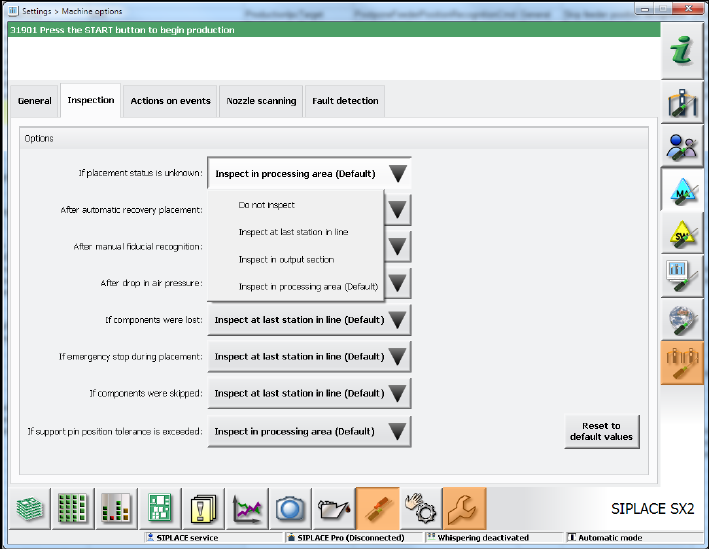
– When upgrading to the 708.x station software the inspection options will be reset to the
respective default values. If necessary, the inspection options have to be adjusted under
Settings – Machine options – Inspection.
Figure 3-1: Adjust inspection options