00197624-02_IM_708.1_DE_EN.pdf - 第36页
Station Software 708.1 / Installation Manual Ausgabe 05/2015 E dition 36 Figure 6-3: Finalizing the install ation ► Click the Finish button. ► Follow the instructi ons in the Assem bly Instruction s for the 3D Copl anari…
Station Software 708.1 / Installation Manual Ausgabe 05/2015 Edition
35
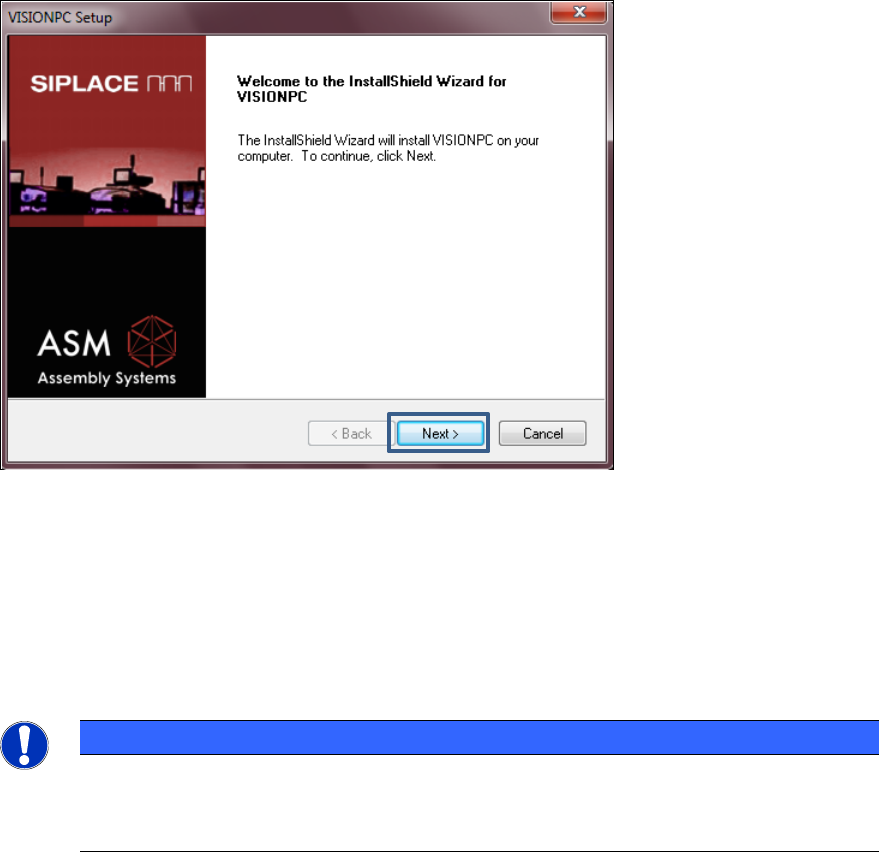
6.1 Welcome Screen
Figure 6-2: Welcome screen
► Click the Next button.
The necessary files are installed on the Coplan computer.
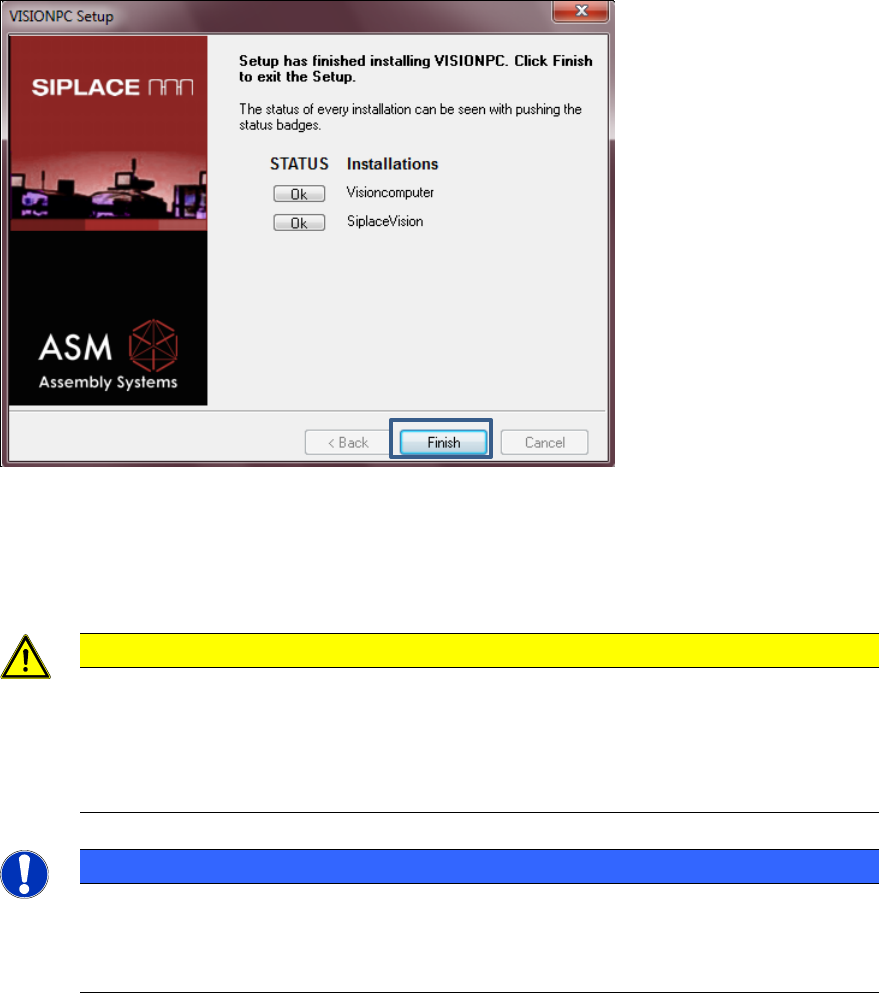
6.2 Finalizing the Installation
NOTICE
The status only lists the programs that have just been installed.
If errors occurred during installation, the status is indicated by the Error button being
displayed next to the program name instead of the Ok button.
► If you wish to read the log of the installation of any program, click the Ok (or Error) button next
to the name of the program. The Notepad is started and displays the appropriate file.
Station Software 708.1 / Installation Manual Ausgabe 05/2015 Edition
36
Figure 6-3: Finalizing the installation
► Click the Finish button.
► Follow the instructions in the Assembly Instructions for the 3D Coplanarity Module, item no.
[00197395-xx].
CAUTION
► Wait a few seconds after you have clicked the Finish button, before you shut down
and switch off the computer / the machine!
As some installation steps are not performed until the end of the installation by the
InstallShield, the installation might otherwise be incomplete, what may cause
problems during further installations.
NOTICE
To establish the connection between the SIPLACE Coplan computer software and the
SIPLACE station software after installation has been completed, the Coplan computer
and the machine computer must first be shut down and the machine must then be
switched off completely.
► To do this, open the Start menu and select All Programs – SIPLACE – Shutdown Vision_SR
(all).
► Switch the machine off when the computer systems have shut down.
► Switch the machine back on again. This then reboots the Coplan computer and the machine
computer.
Station Software 708.1 / Installation Manual Ausgabe 05/2015 Edition
37
7 First Booting after Installation
When a machine is booted for the first time after installation, the station software detects for the
most part independently which hardware components are used via the Auto-configuration feature.
Certain settings, such as CAN card type, table type, lamp indicators and pin magazines cannot be
detected automatically and will have to be selected manually.
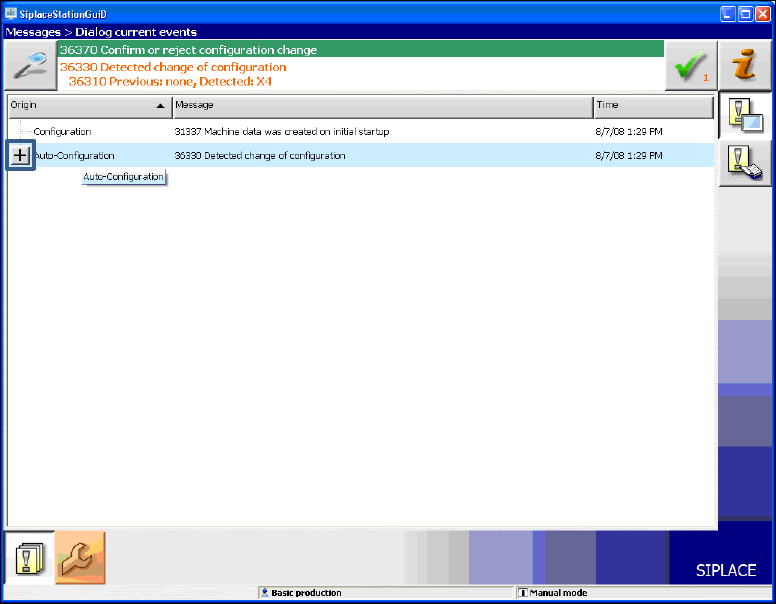
Generally, the operator will be prompted to confirm or reject any configuration changes.
Figure 7-1: Auto-configuration
► Click the + sign in front of the Auto-configuration text to open the message list of the
Auto-configuration function.
The used hardware components are displayed.