00197624-02_IM_708.1_DE_EN.pdf - 第32页
Station Software 708.1 / Installation Manual Ausgabe 05/2015 E dition 32 5.5 Installing SIP LACE Smart GUI The SIPLACE Smart GUI can optionally be installed af ter the station soft ware has been in stalled. If the statio…
Station Software 708.1 / Installation Manual Ausgabe 05/2015 Edition
31
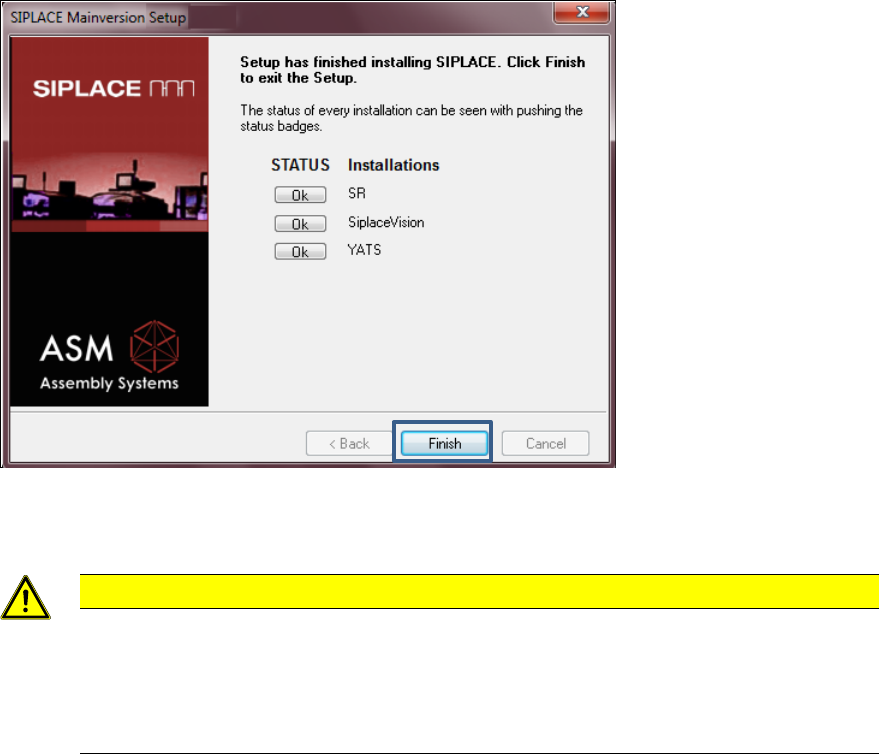
Figure 5-13: Finalizing the installation
► Click the Finish button.
CAUTION
► Wait a few seconds after you have clicked the Finish button, before you shut down
and switch off the computer / the machine!
As some installation steps are not performed until the end of the installation by the
InstallShield, the installation might otherwise be incomplete, what may cause
problems during further installations.
► Optionally, you can now install the SIPLACE Smart GUI.
Station Software 708.1 / Installation Manual Ausgabe 05/2015 Edition
32
5.5 Installing SIPLACE Smart GUI
The SIPLACE Smart GUI can optionally be installed after the station software has been installed. If
the station software has not been installed first, a corresponding error message is displayed.
► Download the SIPLACE Smart GUI installing program from the SIPLACE Software Download
Center.
► Start SmartGUI.exe by double clicking it.
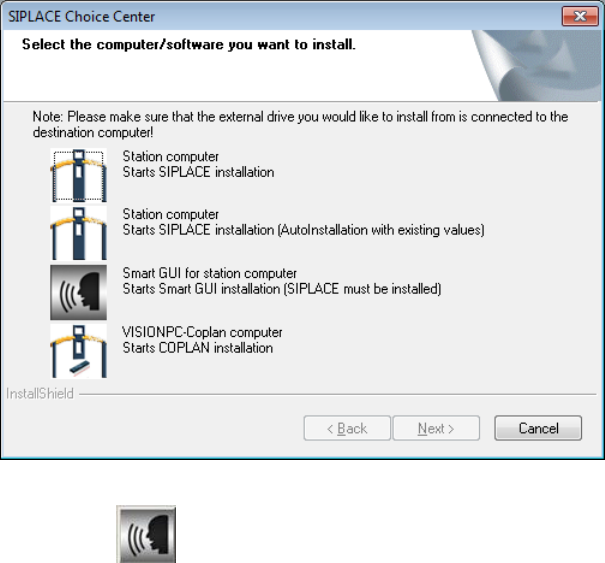
The SIPLACE Choice Center dialog box is opened.
Figure 5-14: "SIPLACE Choice Center" dialog box
► Click the Smart GUI for station computer button.
Installation of the SIPLACE Smart GUI continues with the welcome screen.
Station Software 708.1 / Installation Manual Ausgabe 05/2015 Edition
33
5.5.1 Welcome Screen
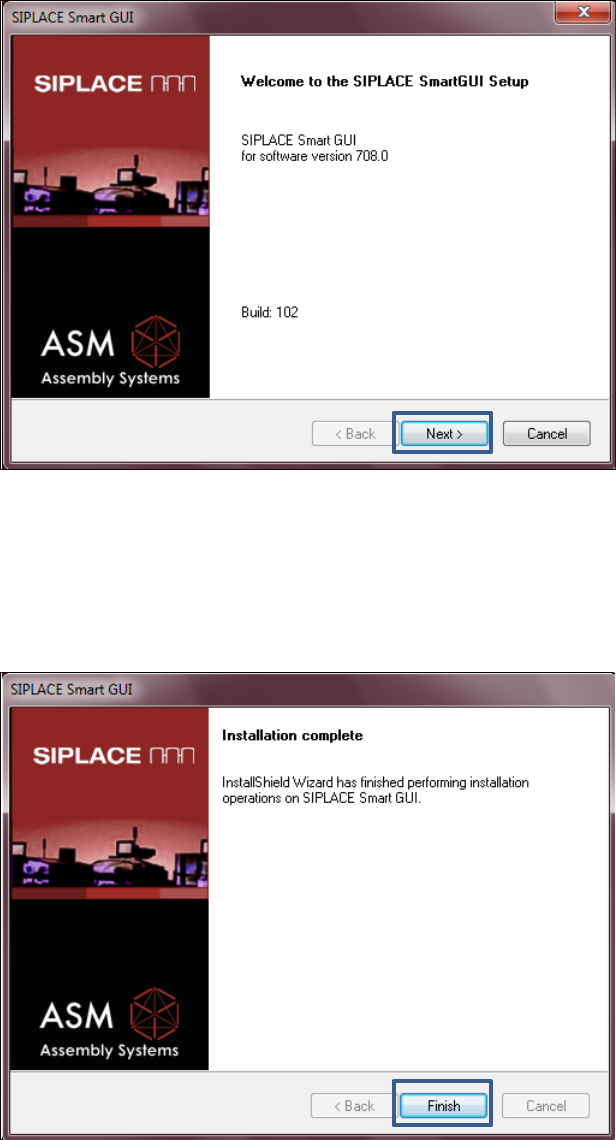
Figure 5-15: Welcome screen
► Click the Next button.
The necessary files are installed.
5.5.2 Finalizing the Installation
Figure 5-16: Finalizing the installation
► Click the Finish button.