00197624-02_IM_708.1_DE_EN.pdf - 第30页
Station Software 708.1 / Installation Manual Ausgabe 05/2015 E dition 30 Figure 5-12: Open applicati ons ► Close the applicatio ns or processes list ed here by using Windo ws Task Manager and then click the Retry button.…
Station Software 708.1 / Installation Manual Ausgabe 05/2015 Edition
29
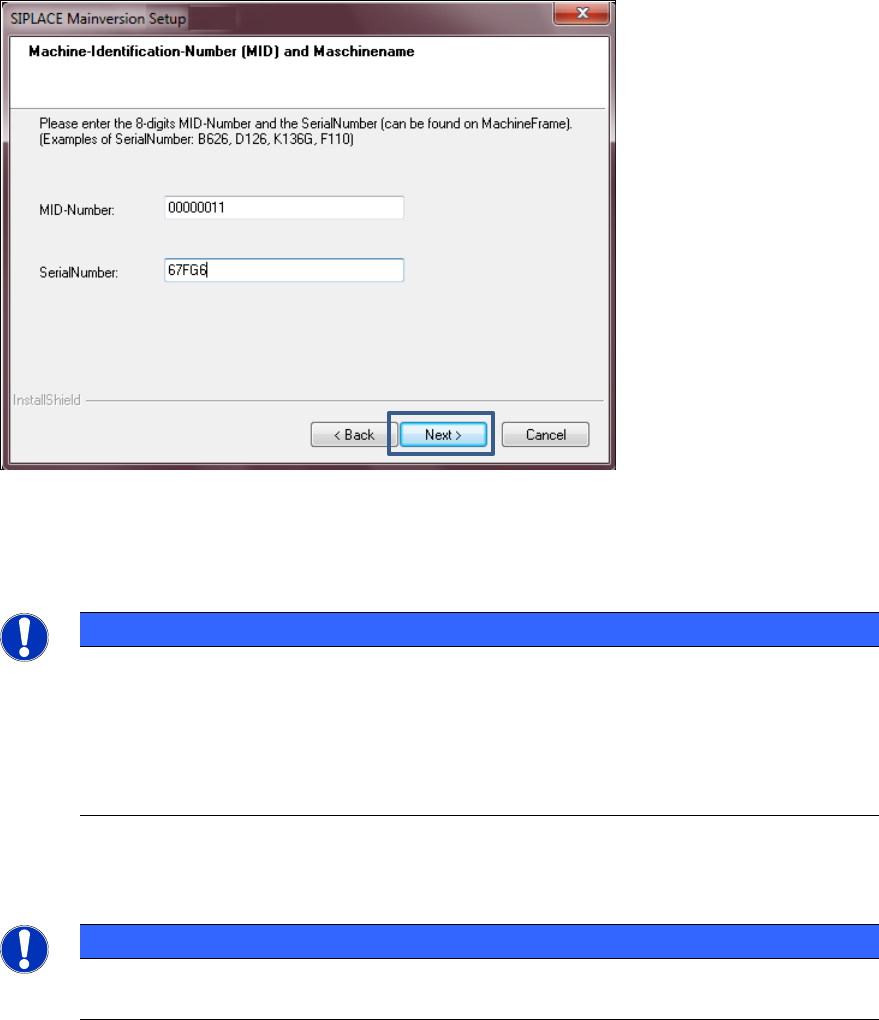
5.4.5 Entering the Machine Identification Number (MID) and serial number
Figure 5-11: Entering the Machine Identification Number (MID) and serial number
► Enter the 8-digit machine identification number in the text box beside MID-Number.
► Enter the serial number in the text box beside SerialNumber.
NOTICE
You will find the MID and the serial number on an adhesive label on the side of the
protective covers directly below the label for the number of the relevant location. The
number following the dash after the MID specifies the location and is not entered here
(e.g. 00000001-2 stands for location 2).
After upgrading (from 60x and 70x) the correct MID and serial number are already
inserted.
► Click the Next button.
NOTICE
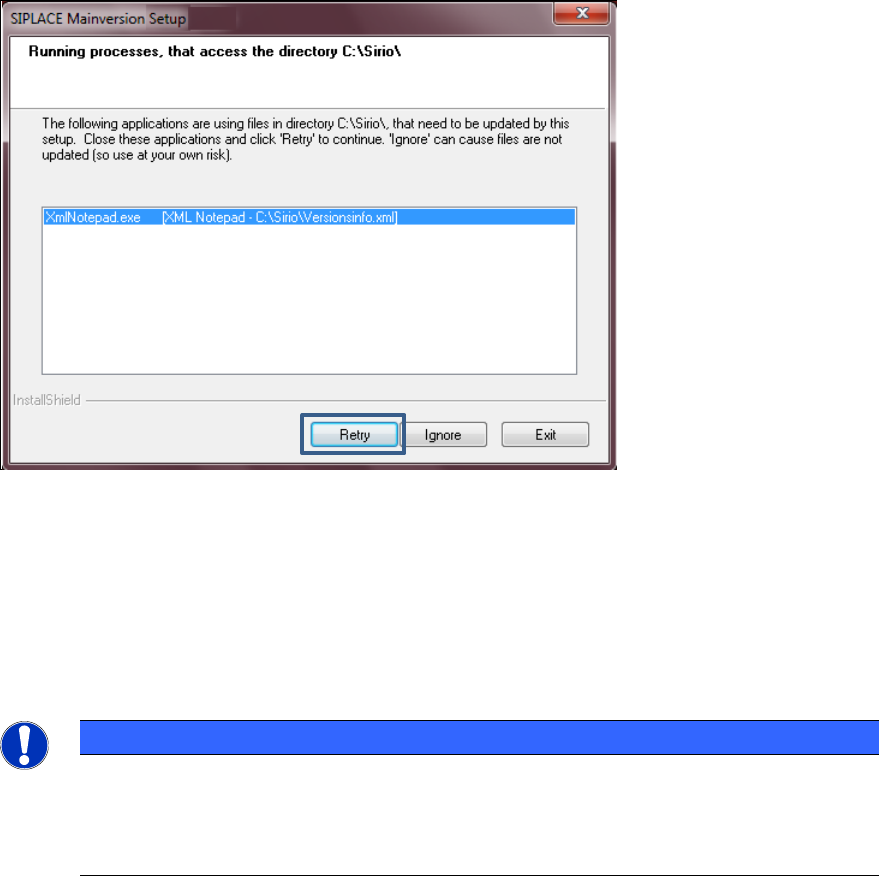
The following screen only appears if applications are open which use files which must be
updated during installation of SIPLACE.
Station Software 708.1 / Installation Manual Ausgabe 05/2015 Edition
30
Figure 5-12: Open applications
► Close the applications or processes listed here by using Windows Task Manager and then click
the Retry button.
The installation program now installs additional programs on the machine computer.
5.4.6 Finalizing the Installation
NOTICE
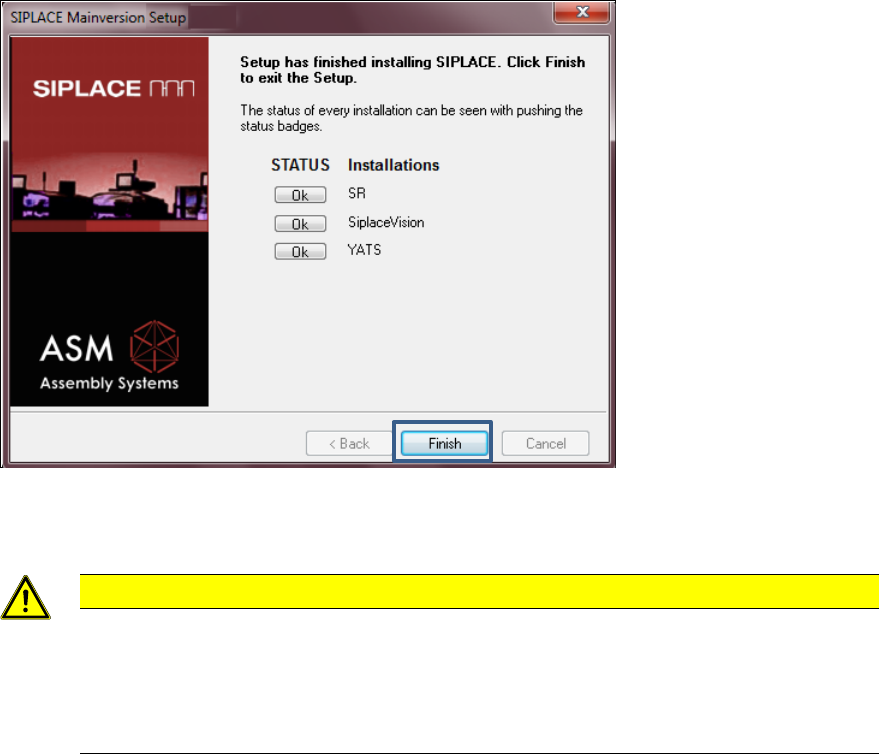
The status only lists the programs that have just been installed. If, for instance, the
current version of SIPLACE Vision was already installed, it is not listed here.
If errors occurred during installation, the status is indicated by the Error button being
displayed next to the program name instead of the Ok button.
► If you wish to read the log of the installation of any program, click the Ok (or Error) button next
to the name of the program. The Notepad is started and displays the appropriate file.
Station Software 708.1 / Installation Manual Ausgabe 05/2015 Edition
31
Figure 5-13: Finalizing the installation
► Click the Finish button.
CAUTION
► Wait a few seconds after you have clicked the Finish button, before you shut down
and switch off the computer / the machine!
As some installation steps are not performed until the end of the installation by the
InstallShield, the installation might otherwise be incomplete, what may cause
problems during further installations.
► Optionally, you can now install the SIPLACE Smart GUI.