Micron Technical Reference V9 Volume 4.pdf - 第34页
STINGER ADJUSTMENTS AND SETTINGS 38.10 Technical Reference Manual Chapter Issue 2, Aug 14 For non-automatic calibration options, the user must se t the idle height next. For automatic calibration options, the idle height…
STINGER
ADJUSTMENTS AND SETTINGS
Chapter Issue 2, Aug 14 Technical Reference Manual 38.9
11. Open the printhead cover.
12. Select Step Up or Step Down to move the nozzle into position just above
the board.
13. Place the 0.05mm feeler gauge on the board directly below the nozzle tip.
14. Select Stinger Jog Mode and set the mode to Fine (1 step = 0.05mm).
15. Continue jogging down until the feeler gauge has a small amount of resist-
ance to being pulled from under the nozzle tip. Do not jog down beyond this
point; any deflection of the board results in poor output and must be avoided.
The feeler gauge and the nozzle should not deflect the product down. Any
movement of the product away from the nozzle tip causes a discrepancy in
the laser reading.
16. Select Save Contact.
17. Select Back.
18. The camera axis moves the unit to the right hand edge of the board. This is
the Range Position where the unit performs a Range Check.
19. The nozzle moves down from contact height, either 1mm or 1.5mm depend-
ent upon which stinger option is fitted.
20. The nozzle moves up through contact height to 1mm or 1.5mm above
contact height. This completes the Range Check.
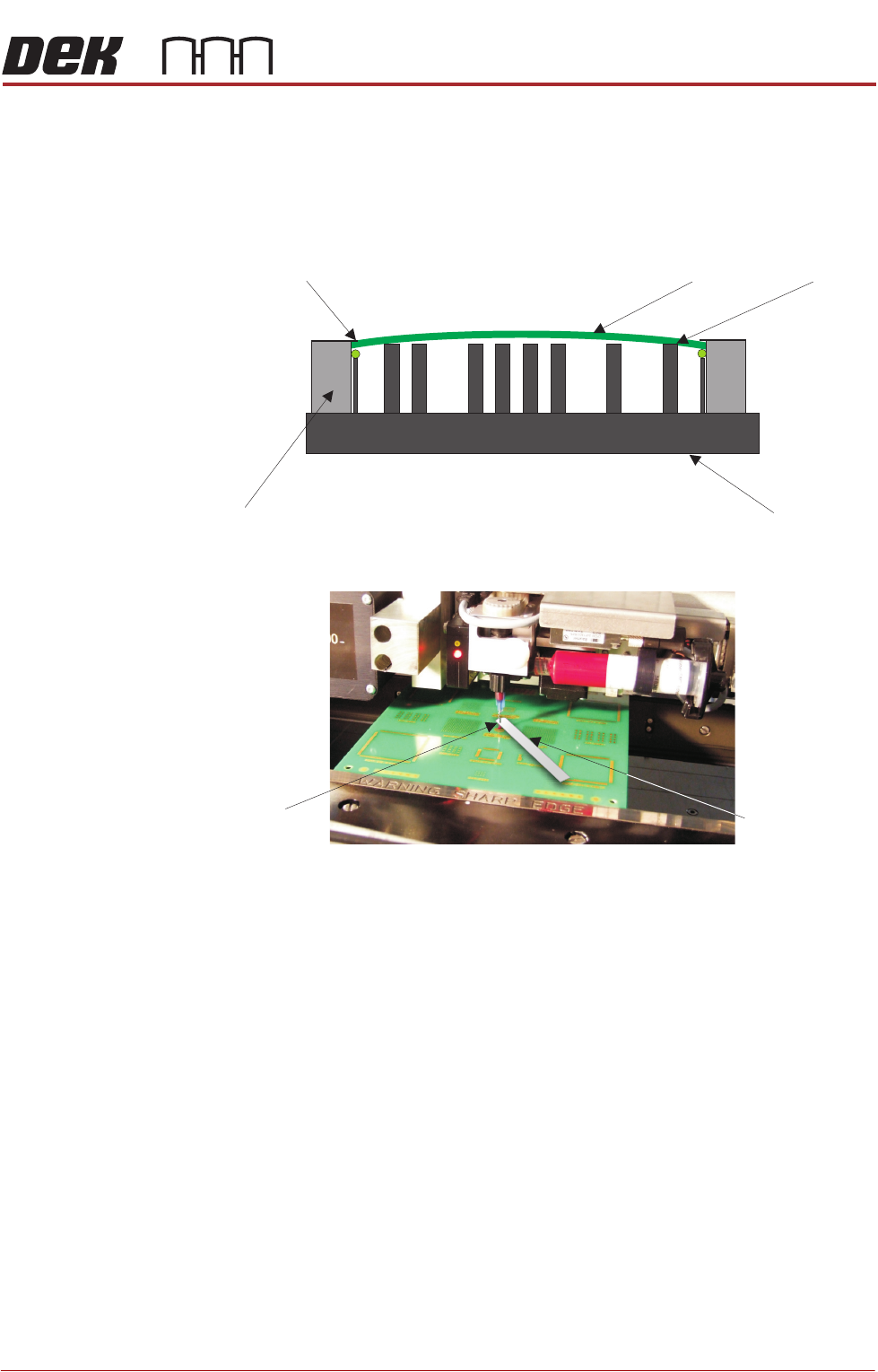
Board Clamps may cause boards to bow slightly in the centre.
This may cause the measurement to fall outside the 0.1mm
minimum Z Axis contact position.
The feeler gauge thickness is the equivalent of one step of
the Z Axis stepper motor. It is essential that when
setting this
contact point no board deflection occurs.
Rising Table
Board
Board Clamps
Rails
Too ling
NozzleTip
0.05mm Feeler
Gauge
STINGER
ADJUSTMENTS AND SETTINGS
38.10 Technical Reference Manual Chapter Issue 2, Aug 14
For non-automatic calibration options, the user must set the idle height next. For
automatic calibration options, the idle height parameter has been programmed
in Setup Product\Options\Stinger Dispenser and the unit can track this value
above contact height. Stinger can track the rises and falls on the product surface
within the range check limits.
Locating the
Correct Point for
Height Settings
Product is not always rectangular in shape and completely plane surfaced.
There are often features such as protruding edges and gaps in various places
across the product. Users must be aware of where to place the height setting
points. The unit performs two distinct checks in one action, they are:
• Contact Height
• Range Checking (manual mode only)
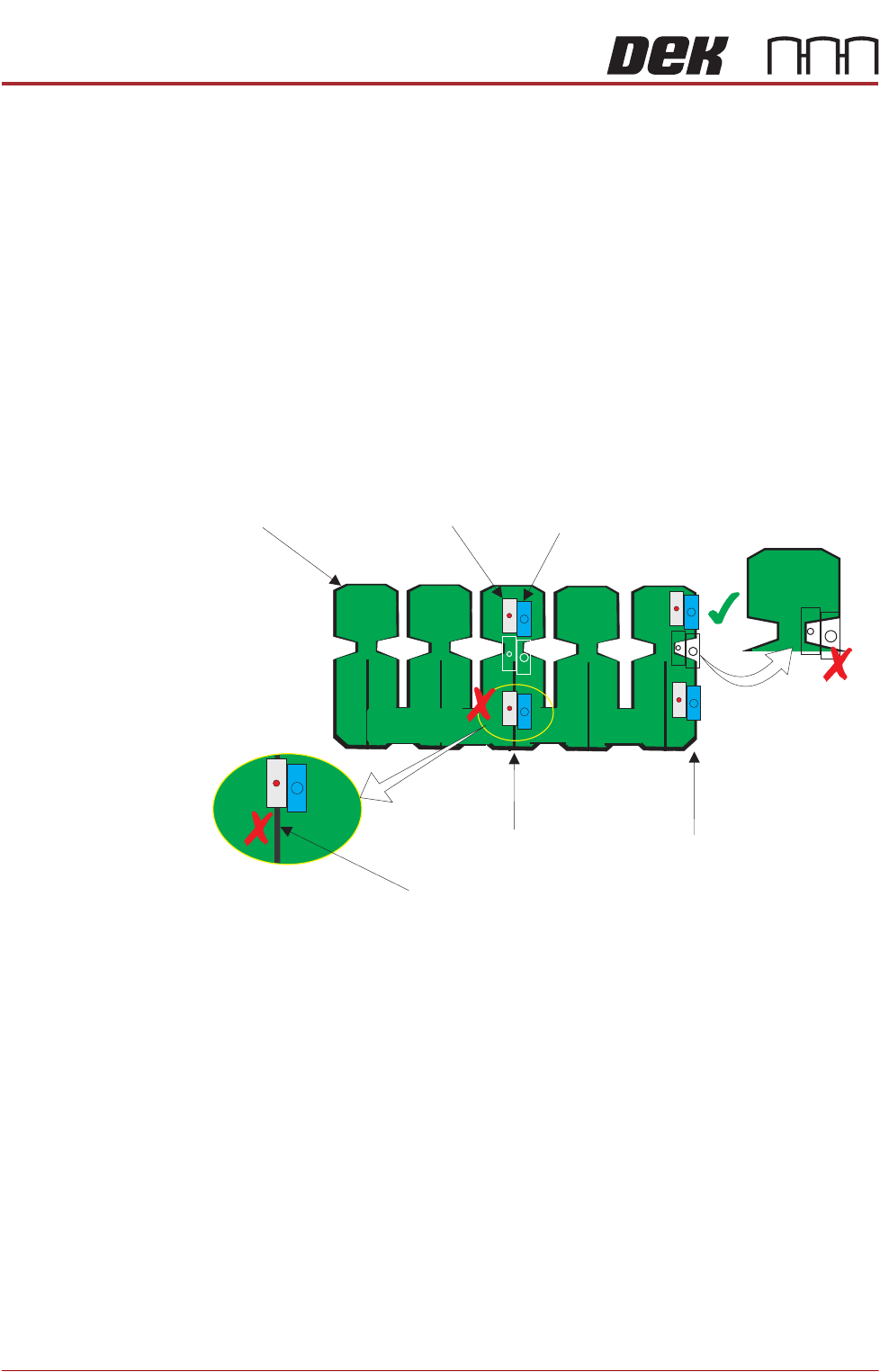
The unit defaults to the centre of the board for its height setting coordinates
(shown in white outline below). This may not be an appropriate location as the
product may have features that do not allow for both the nozzle, and the laser
beam to be accommodated simultaneously.
In the diagram, the unit is shown as two rectangles representing the laser (grey)
and the nozzle (blue). These representations are shown at three possible
locations: default (centre); upper and lower. At the centre, the unit can make a
good height check because both the laser, and the nozzle, are located where
the surface of the board is available for a reading and a deposit. However, when
the unit moves away from the height position to the range position, the board
edge is not straight, therefore the laser may not ‘see’ the upper surface of the
product. Similarly, a feature under the laser on the bottom location is centred
over a slot in the board where the laser beam passes through. The contact
height cannot be set. The user must choose a location similar to that of the top
track, where both the range and height checks can be carried out successfully.
Setting Idle Height
(Manual)
Idle height is the position to which the nozzle tip is set, between dispensing
actions. The dispenser moves to its dispense site, after dispensing it is moved
to the idle position; before moving on to the next dispense location. This height
must be set so that as the nozzle is moved between locations, it is able to clear
any surface irregularities or obstructions (pads/tracks/connectors etc.)
Laser
Nozzle
Incorrect
Location
Height Positions
Range Positions
Product
Incorrect
Location
Gap

STINGER
ADJUSTMENTS AND SETTINGS
Chapter Issue 2, Aug 14 Technical Reference Manual 38.11
NOTE
The following procedure is continued from the ‘Contact Height’ procedure.
21.
Select Stinger Jog Mode set the mode to Coarse (1 step = 0.5mm).
22. Select Step Up to move the nozzle into position above the surface of any
obstructions.
23. Select Save Idle.
24. Close the printhead cover.
25. Press the System button to restore system power.
26. Select Back.
If the contact height has been changed, the laser unit performs its calibration.
Calibrating
Stinger Heights
(Automatic)
This procedure relates to units that do have the automatic calibration option.
NOTE
If the product is changed, or if the equipment has been replaced, or it is being
set up for the first time, performing a manual height calibration first improves
system accuracy as the contact height is set up accurately.
1. Select Product Changeover.
2. Select Stinger Dispenser.
3. Select Auto Calibrate.
The camera axis is driven to the calibration location and the Z axis motor
automatically jogs down until the nozzle reaches the top surface of the product.
At this point, the correct contact height is set. Because the idle height is set in
a parameter Setup Product\Options\Stinger Dispenser, there is no need to
set the idle height as the difference (between contact height and the set value
for idle height), is maintained by the laser tracking the surface of the product
during printing.
NOTE
Range checks are only carried out after setting contact height in manual mode.