Micron Technical Reference V9 Volume 4.pdf - 第40页
STINGER REPLACEMENT PROCEDURES 38.16 Technical Reference Manual Chapter Issue 2, Aug 14 42. Select Dispense Sweep to run the calibrated test product. 43. Ensure that deposit placement accuracy and volume are acceptab le.…

STINGER
REPLACEMENT PROCEDURES
Chapter Issue 2, Aug 14 Technical Reference Manual 38.15
21. Select Load Board and load the calibrated test product as described in the
Calibration section of this manual.
22. Select Product Changeover.
23. Select UnLoad Screen.
24. Select Stinger Dispenser. An extended menu is shown.
25. Select Purge Process. The camera axis drives to the centre of the board.
There are two process types for purging - Standard Purge Process and
Enhanced Purge Process. The former purges air pockets from the dispense
head, alternatively, purging is used to empty a dispense head of material. The
enhanced process allows the purge to be carried out at a purge station. The
purge station also has a nozzle wipe facility.
The enhanced purge process is used when a complete system purge is
required, either at the start or at the end of a production batch. As this process
requires a large volume of material to be purged, a purge station is used to
collect it.
Purge station consumable monitoring is turned on in Maintenance\Machine
Setup\Options\Stinger Options\Stinger Consumable Monitoring.
When the pot is full an action panel is displayed reminding the user to replenish
the pot.
26. For calibrated test product purging, select Open Cover Commands. Open
the front printhead cover.
27. Selecting Start Purge starts the purge routine. Adhesive is delivered onto
the centre of the boards’ upper surface until the Stop Purge button is
selected.
28. Purging should be monitored to ensure that the adhesive delivery is flowing
without being spurious or spluttering. Any signs of inconsistency are likely
to be due to air pockets in the delivery mechanism. Provided the assembly
has been set up correctly this should be almost negligible.
29. Load the screen.
30. Close the printhead front cover.
31. Press the System button.
32. Select Back.
33. Select Open Cover Commands. Open the front printhead cover.
34. Load the screen into the machine, close the printhead cover and press the
System button.
35. Select Load Screen.
36. Select Maintenance\ Machine Setup\ Options.
37. Select Machine Setup.
38. Select Options.
39. Select Stinger Options.
40. Check the Stinger Calibrated Offset X and Stinger Calibrated Offset Y
calibrations as described in the calibration section of this chapter.
41. Navigate to the stinger dispenser options page of the interface.
STINGER
REPLACEMENT PROCEDURES
38.16 Technical Reference Manual Chapter Issue 2, Aug 14
42. Select Dispense Sweep to run the calibrated test product.
43. Ensure that deposit placement accuracy and volume are acceptable.
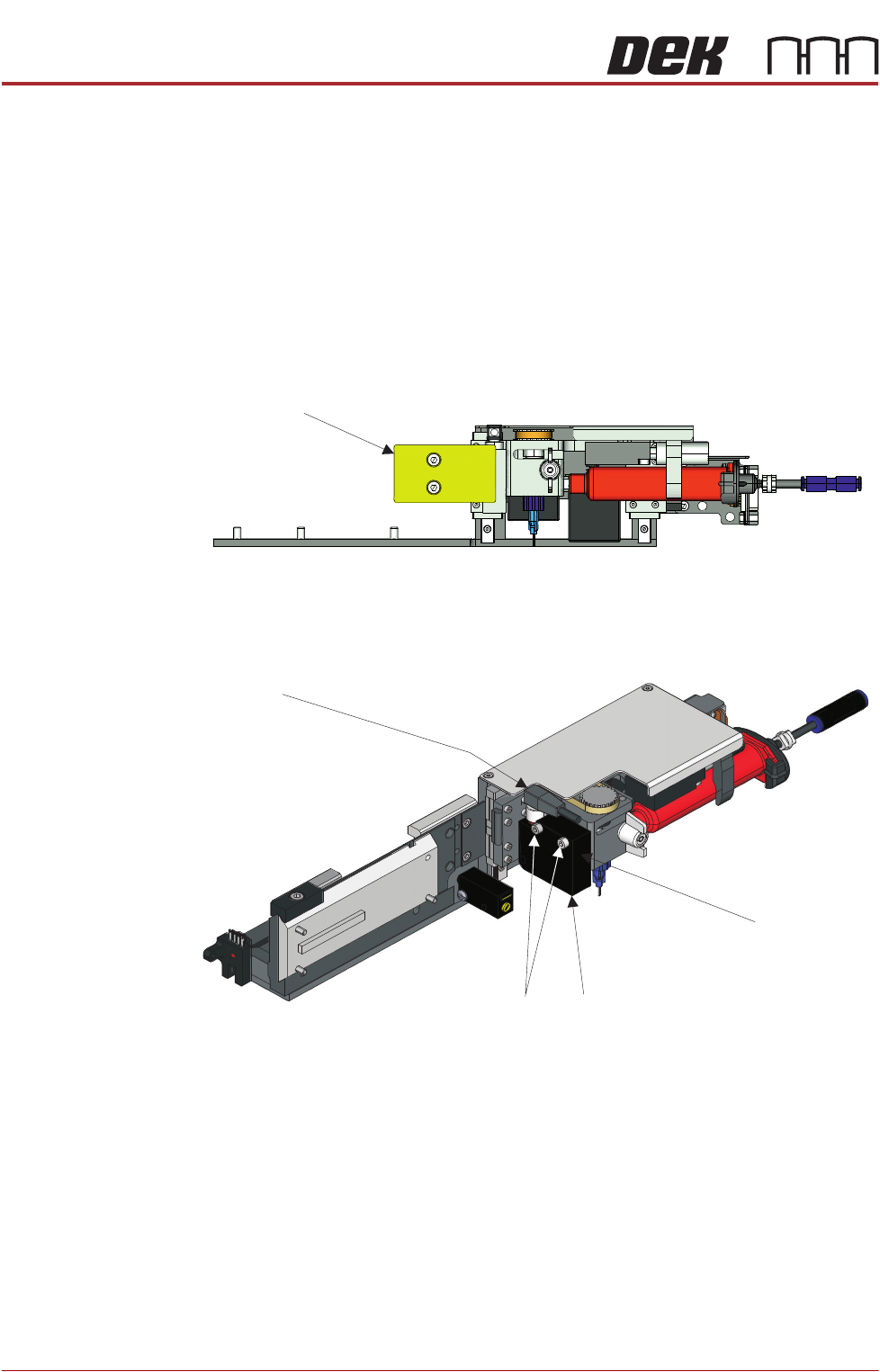
Laser Sensor
Replacement
1. Isolate the printer from the pneumatic supply and lockout the mains electri-
cal isolator.
2. Open the printhead front cover.
3. If fitted, remove the screen.
4. Pull the camera carriage to the front of the printer.
5. Slacken off and remove the two M4 x 50 socket head screws that hold the
magnet plate to the carriage.
6. Remove the magnet plate.
7. Remove the two M3 x 16 socket head screws that hold the laser unit to the
dispense body.
NOTE
The camera has been omitted for clarity.
8. Remove the laser sensor.
9. Unscrew the connector lock ring and remove the sensor from the connector.
10. Screw the connector lock ring into the replacement laser unit.
11. Align the assembly with the mounting holes and fix it using the two socket
head screws. The laser is in a fixed location and does not need positioning.
12. Refit the magnet plate.
13. Load the screen.
14. Close the printhead front cover.
15. Reconnect the printer to the pneumatic supply and unlock the mains elec-
Magnet Plate
Laser Sensor
Dispense Body
Connector
Socket Head Screws
STINGER
REPLACEMENT PROCEDURES
Chapter Issue 2, Aug 14 Technical Reference Manual 38.17
trical isolator.
16. Switch the mains isolator ON.
17. When requested, press the System button.
18. Run a calibrated test product (next section in this chapter) to calibrate
offsets.
Auger Drive Belt
Replacement
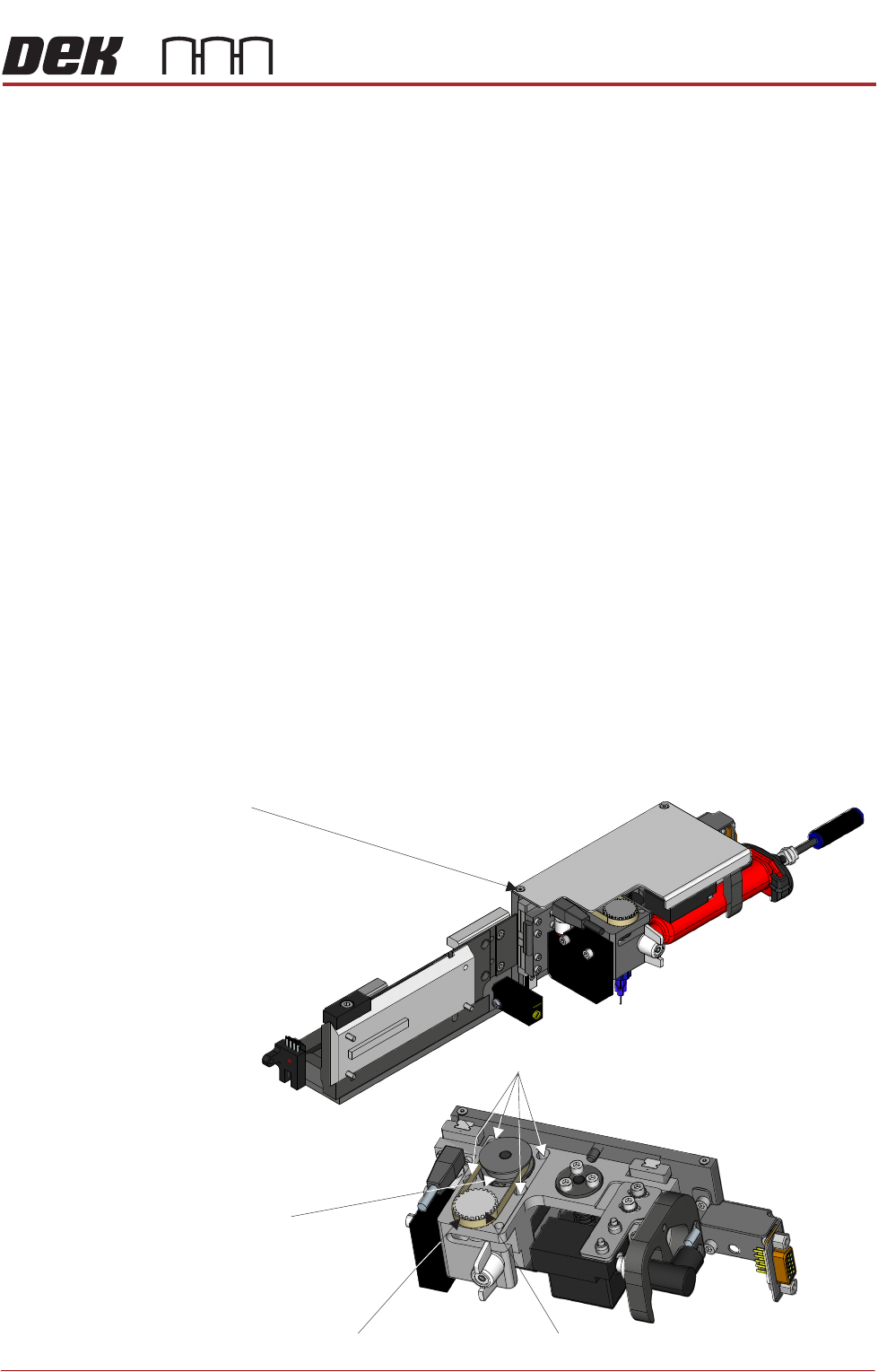
A pulley belt, located under the top cover of the unit, drives the auger.
1. Isolate the printer from the pneumatic supply and lockout the mains electri-
cal isolator.
2. Open the printhead front cover.
3. If fitted, remove the screen
4. Pull the camera carriage to the front of the printer.
5. Remove the two M2.5 x8 countersunk head screws, which secure the cover.
6. Remove the cover.
7. Slacken off the four M2.5 x 5 cap head screws of the drive pulley mounting.
8. Move the motor drive pulley to the front.
9. Lift the drive belt clear of the driven pulley.
10. Replace the drive belt; tension the belt by pushing the drive pulley to the
rear. Ensure that it sits in the teeth of the driven pulley and does not slip.
Make sure that the motor does not move when tightening the screws.
11. Tighten the four cap head screws.
12. Recheck the belt operation. Movement should be smooth with no resist-
ances.
Drive Belt
Cover
Cap Head Screws (4)
Drive Pulley
Driven Pulley