COU2000 PRO计数器英文说明书 Operaton Manual-en(1).pdf - 第34页
VERSION: .1.01 E 34 / 52 5.2 Barcode Copy 5.2.1 Over vi ew The b arcode du plicate o ption pr ovided by the COUP2000 Pr o series SMD counter is use d to duplicate the barcode on the origin al label of the material being …
VERSION: .1.01 E
33 / 52
Power Switch
Control power connection or disconnection status
Note: when connecting communication lines or power cords, be sure that the switch is on
the OFF location.
FEED Key
Feed paper to the next location
Press slightly once—Feed paper to the next location
In the continuous print status, slightly press the FEED key—Enter the pause
status
Slight press the FEED key in the pause status—Enter the normal print status
Ready Indicator
Display the power and error statuses OFF—The printer is off
Green—The printer is started
Flash—There is an error, and check against the following table:
The POWER and READY indicators flash
contemporaneity
The POWER and READY indicators flash
alternately
Possible problem
Solution
Possible problem
Solution
Label spacing
cannot be found
Check the label path
Check the label detector
The carbon ribbon is
used up
Reinstall carbon
ribbon
Paper is used up
Reload paper roll
The carbon ribbon is
blocked
Clean up the carbon
ribbon
The paper roll is
not loaded
Load the paper roll
The carbon ribbon
Detector goes wrong
Replace the carbon
Ribbon detector
VERSION: .1.01 E
34 / 52
5.2 Barcode Copy
5.2.1 Overview
The barcode duplicate option provided by the COUP2000 Pro series SMD counter is used to
duplicate the barcode on the original label of the material being counted onto the newly
printed label after counting, avoiding confusion。
The barcode copying function is only meaningful when a printer is installed on the
COUP2000 Pro series machine。
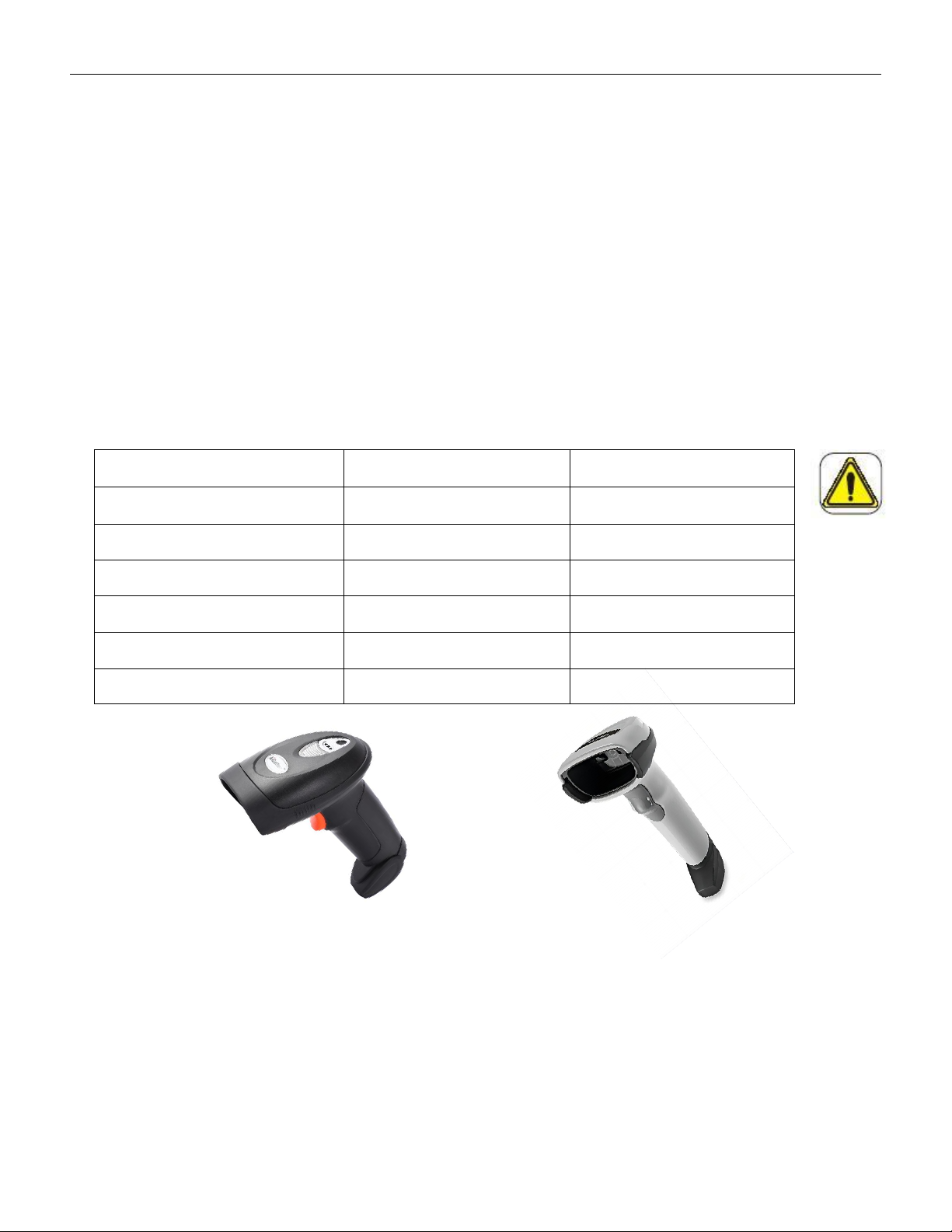
This barcode scanner is only used as an input for the part counter COUP2000 Pro series. The
communication method, character format, and barcode specifications have been debugged
and set, as shown in the table below:
Scanner model
SCAN:A-9295P
Zebra:DS2208
Light source
660nm
624nm
Scan distance
5-210mm
50-360mm
Scan width
210mm
150mm
Scan angle
±60°
±65°
Communication
USB
USB
Power supply
5V
5V
A-9295P DS2208
Please do not attempt to modify the settings of this barcode scanner. If you have any special
requirements, please contact us or our distributors
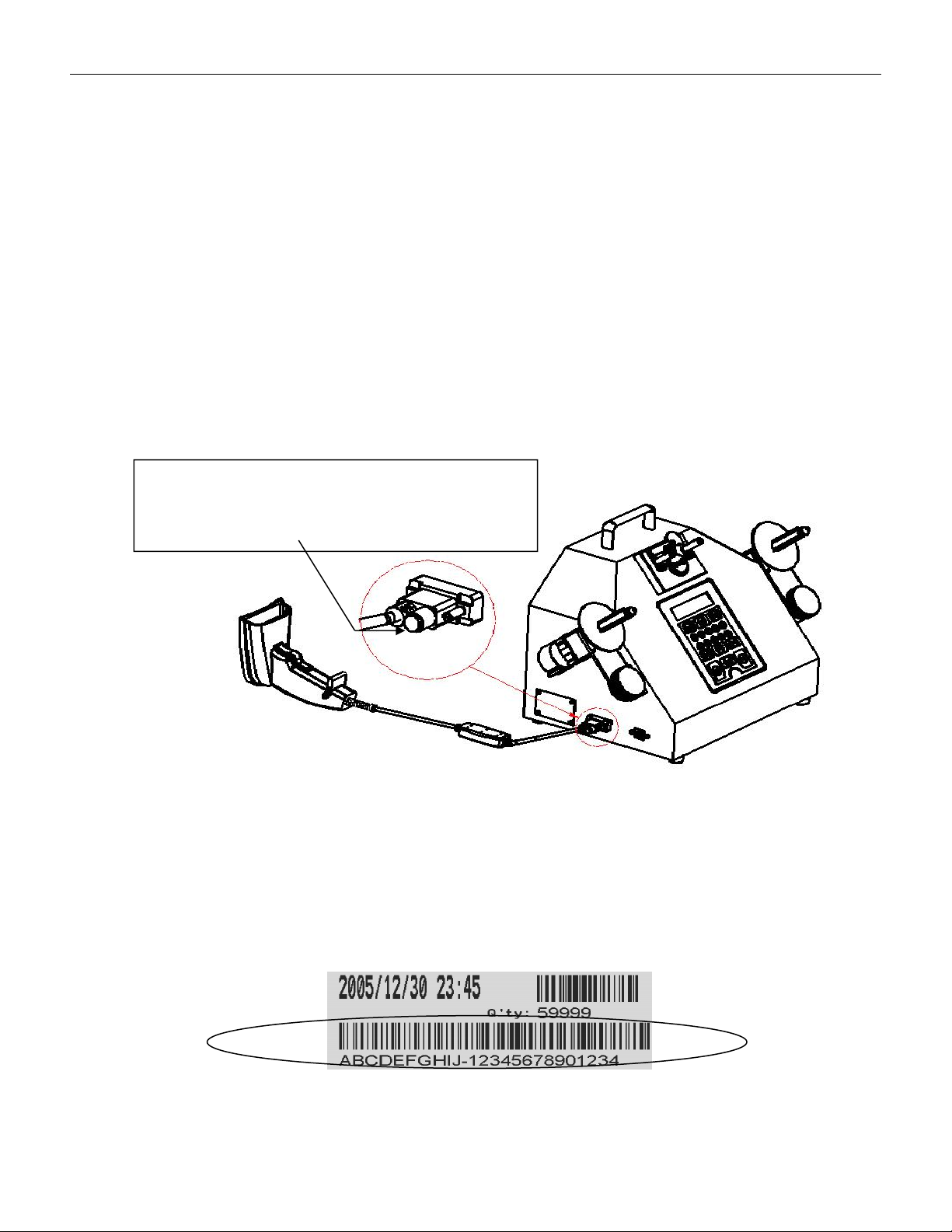
The barcode scanner SCAN: A-9295P/Zebra: DS2208 operates at 5V, and the counter
automatically supplies 5V voltage to the scanner without the need for external voltage; If
VERSION: .1.01 E
35 / 52
you purchased a scanner of the same model yourself, please block the 5V interface using
the method shown below; Applying 5V to the scanner connector will damage the machine.
If you need assistance, please contact us or our distributors。
5.2.2 Setup the scanner
5.2.2.1 Unpacking & Check
Please check the scanner for any damage caused by transportation before opening the box.
If there is any damage, please contact us or our distributors
5.2.2.2 Connect to the counter
5.2.2.2.1Keep the power switch of the printer and counter in the "off" position。
5.2.2.2.2 Connect the barcode scanner communication cable to the counter barcode reader
interface and tighten it with screws to prevent loosening. As shown in the following figure:
圖一
5.2.3 Barcode duplicate
The COUP2000 series, which has selected the label printing function option, can print labels.
If equipped with the barcode reader option, the barcode on the original part reel will be
scanned into the machine before printing. The printed label will contain information about
the time, quantity, and part specification barcode, as shown in the following icon:
Label with barcode fo P/N
The 5Vconnector needs to be blocked,
otherwise it will damage the machine
when applied with voltage