COU2000 PRO计数器英文说明书 Operaton Manual-en(1).pdf - 第36页
VERSION: .1.01 E 36 / 52 5.2.3.1Instructon of operatio n: 5.2.3.1.1 C onnect the printer and scanner to the SMD counter properly 5.2.3.1.2 Ru n the counter and counting 5.2.3.1.3 Pick up the scanner and align it vert ica…
VERSION: .1.01 E
35 / 52
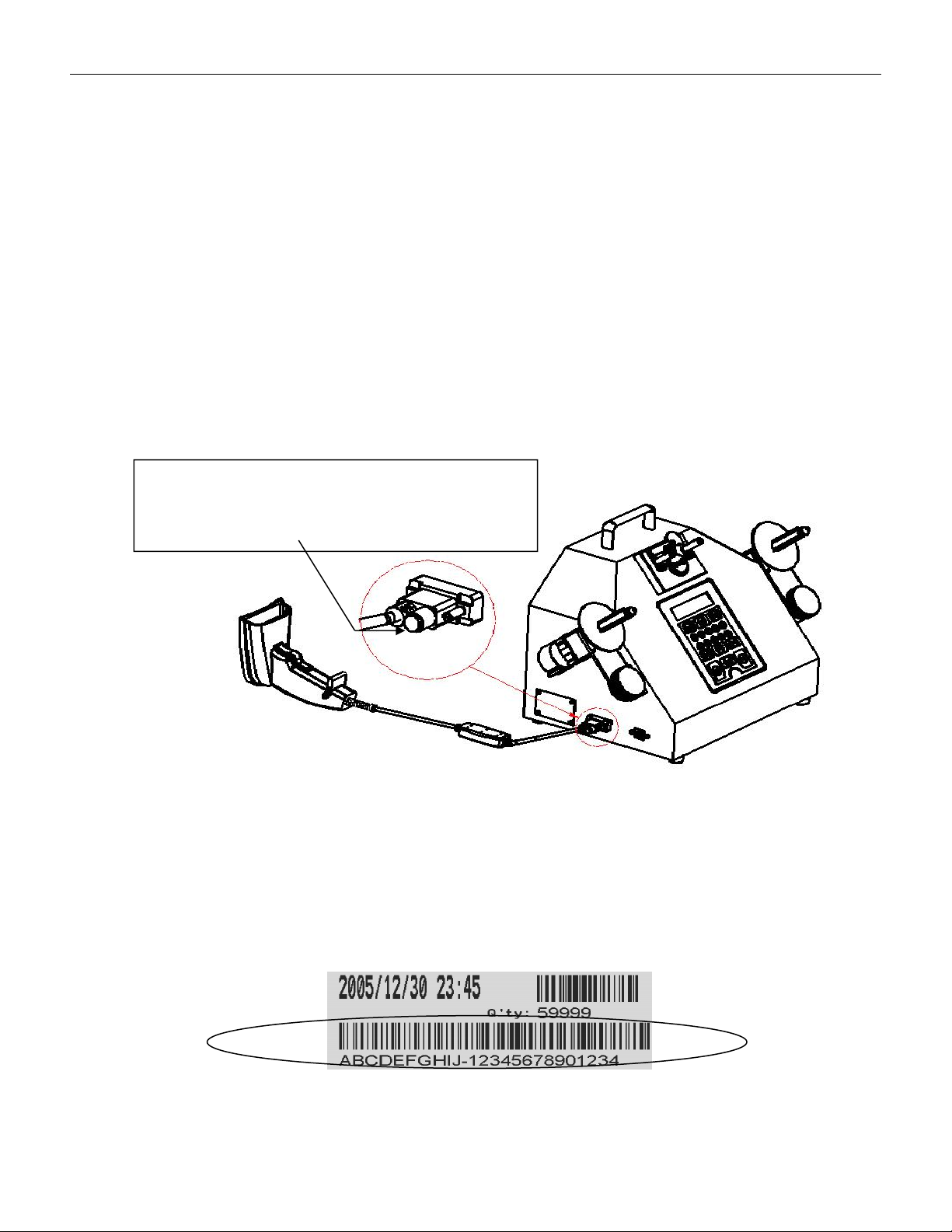
you purchased a scanner of the same model yourself, please block the 5V interface using
the method shown below; Applying 5V to the scanner connector will damage the machine.
If you need assistance, please contact us or our distributors。
5.2.2 Setup the scanner
5.2.2.1 Unpacking & Check
Please check the scanner for any damage caused by transportation before opening the box.
If there is any damage, please contact us or our distributors
5.2.2.2 Connect to the counter
5.2.2.2.1Keep the power switch of the printer and counter in the "off" position。
5.2.2.2.2 Connect the barcode scanner communication cable to the counter barcode reader
interface and tighten it with screws to prevent loosening. As shown in the following figure:
圖一
5.2.3 Barcode duplicate
The COUP2000 series, which has selected the label printing function option, can print labels.
If equipped with the barcode reader option, the barcode on the original part reel will be
scanned into the machine before printing. The printed label will contain information about
the time, quantity, and part specification barcode, as shown in the following icon:
Label with barcode fo P/N
The 5Vconnector needs to be blocked,
otherwise it will damage the machine
when applied with voltage

VERSION: .1.01 E
36 / 52
5.2.3.1Instructon of operation:
5.2.3.1.1 Connect the printer and scanner to the SMD counter properly
5.2.3.1.2 Run the counter and counting
5.2.3.1.3 Pick up the scanner and align it vertically with the barcode on the original label of
the material being pointed at. When the distance is 0-50mm, press the trigger of the
scanner to start scanning. At this time, a red light source will be emitted from the scanning
head of the scanner. After scanning the barcode correctly, the buzzer will make a "beep"
sound and store the data in the counter.
5.2.3.1.4 Pressing the PRINT key on the counter panel will print the information of the
quantity of materials and part specifications barcode as mentioned above in the printer。
Precautions:
When the counter is turned on, the buzzer of the scanner will make a "beep" sound, which is
a normal , indicating that it is connected to the counter properly。
If the trigger of the scanner is pressed and no red light source is emitted from the scanning
head, please confirm if the connector is loose or if the scanner is damaged。
If the trigger of the scanner is pressed for a long time to start scanning, and a red light
source is emitted from the scanning head of the scanner, but the buzzer does not make a
beep sound, please confirm whether the scanned barcode is damaged or the scanner is
damaged。
5.3 How to use the option functions
The COUP2000ADV Pro and COUP2000EX Pro series SMD counters are equipped with
label printing and barcode duplicate options. Customers only need to purchase the
corresponding hardware (printer or barcode reader) to implement label printing and
barcode duplicate options
VERSION: .1.01 E
37 / 52
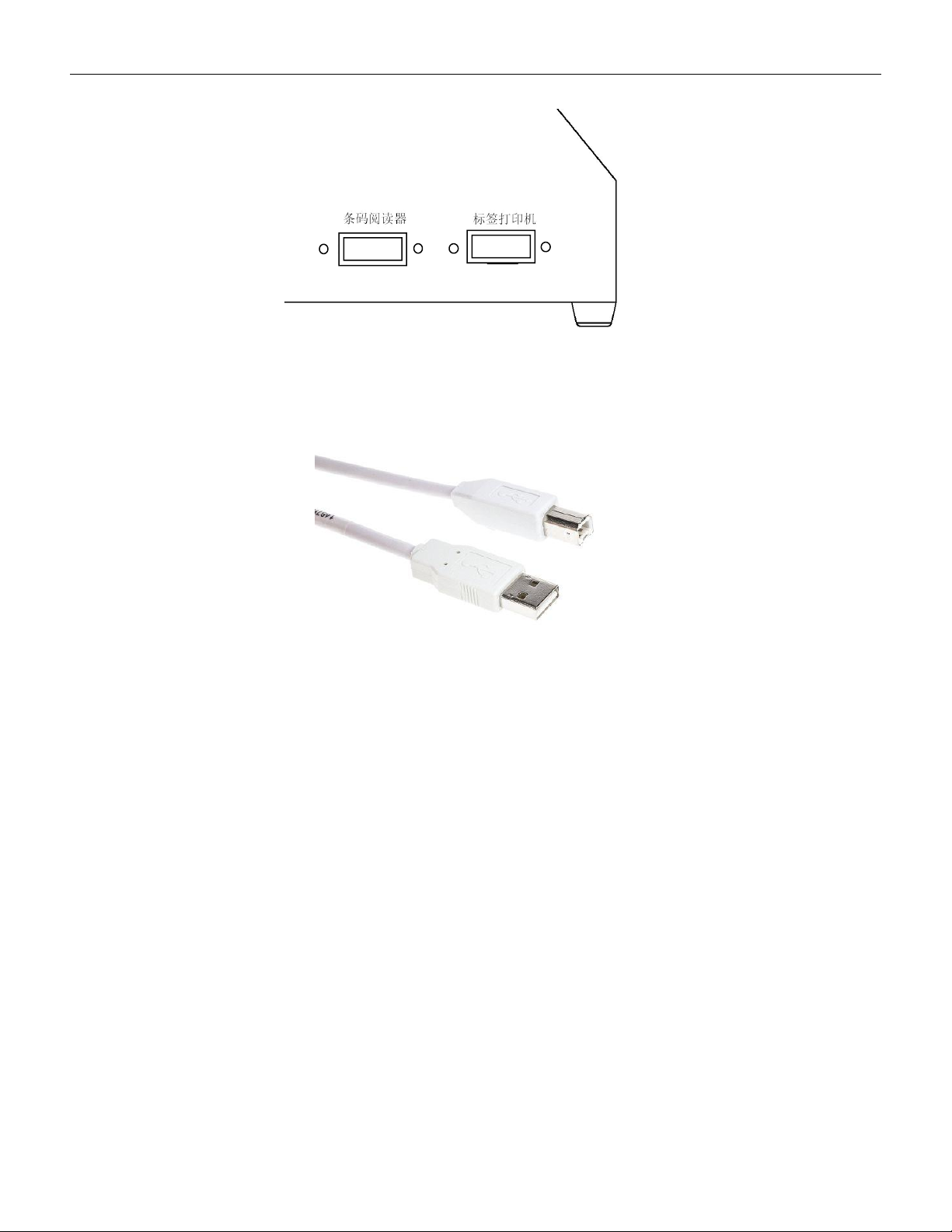
5.3.1 Please confirm that the counter you purchased is shown as below:
5.3.2 Please purchase a communication cable from us or our distributor to connect the
counter and printer,as below:
5.3.3 Label printing option function
If the label printing option function is needed, please purchase one ARGOX
OS-214Plus/Zbra - ZD888 printer and request the supplier to confirm that its programming
language is PPLB (if the programming language is PPLA, it cannot be used on this machine);
Follow the operation in section 4.1 to achieve the label printing option function。
5.3.4 Barcode duplicate function
If barcode duplicate function needed, please purchase a SCAN: A-9295P/Zebra: DS2208
barcode scanner and follow the steps in 5.2 to achieve the barcode duplicate function。
USB type B cable