DEK INFINITY USER MANUAL.pdf.pdf - 第274页
INFINIT Y ',163(&7,21 ',163(&7,21 6(78 3 8.34 User Manual Software Versi on 7 20. Se lect Exit . 21. Se lect Exit . 22. Se lect Step to remove the board from the machine. 23. Clean the board and st…
INFINITY
',163(&7,21
',163(&7,216(783
Software Version 7 User Manual 8.33
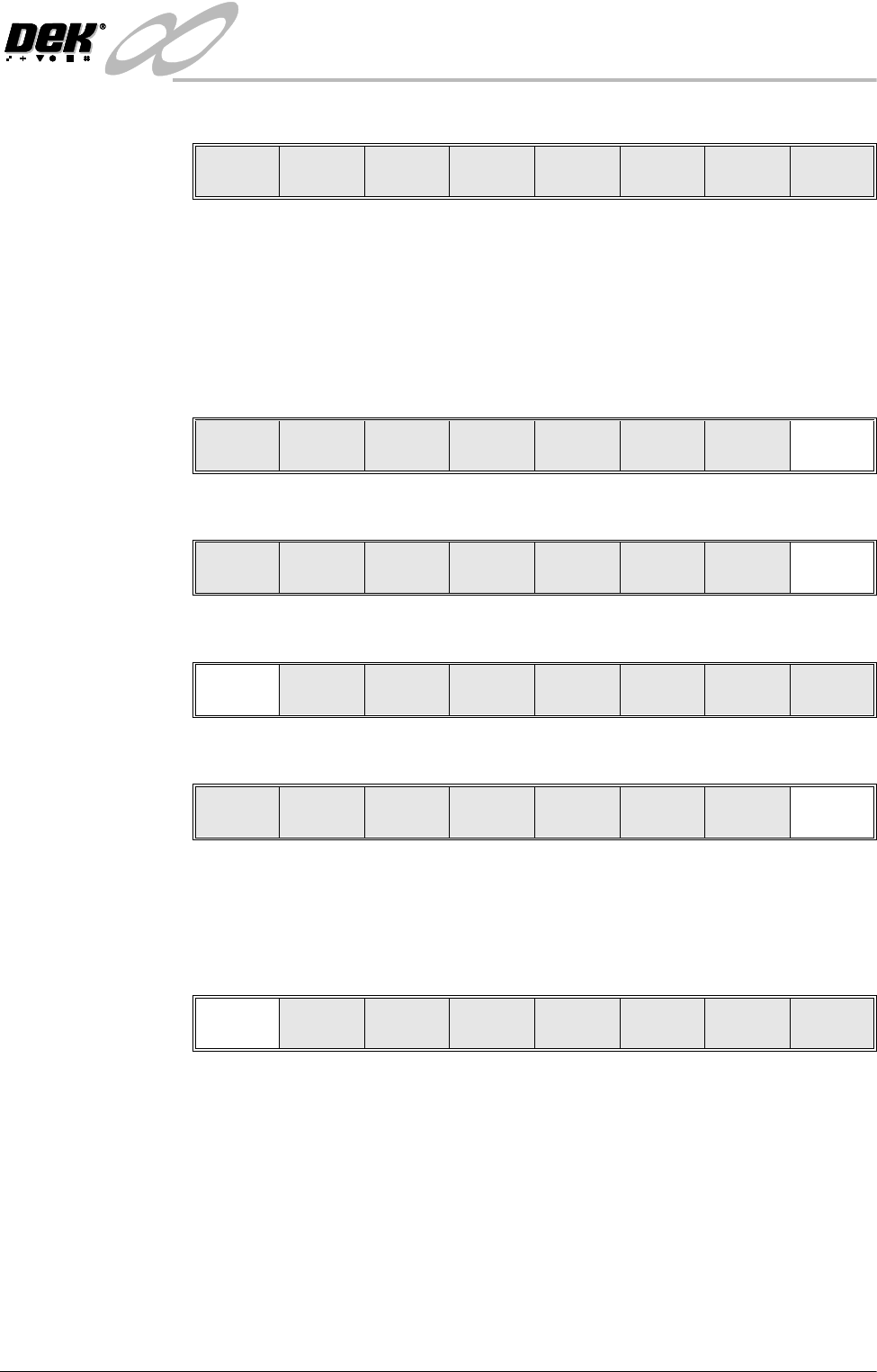
12.If lighting is changed the following menu bar is displayed:
Select the following button to adopt the changes to:
• ‘Apply to Full Set’ - to update only this device
• ‘Apply to All ’ - all learnt sites
• ‘Exit’ - just the current site
13.Select Exit.
14.Select Exit.
15.Select Step to step through inspection routine.
16.Select Exit to remove board from machine.
17.Place a clean board onto the machine rails and clean the stencil (Clean
Screen).
18.Repeat Steps 4 - 8.
19.Select Auto Scale.
Selecting auto scale automatically adjusts the paste scaling value for the
current site, to cause the value of paste present, on the pad currently selected
in the inspection result list, to be reported as 100%. The inspection results
window is updated accordingly. If the calculated value for paste scaling falls
outside the range of allowable values, an error window is displayed and the
paste scaling value is set to the limit nearest the calculated value. However,
if the currently selected paste present value is zero, no adjustment of the paste
scaling value takes place and an error window is displayed. A prompt is
displayed giving the new scaling factor value each time it is changed. The
auto scale button is only present if board inspection is being performed.
Apply to
Full Set
Apply to
All
Exit
Light
Setup
Next Previous Incr. Decr. Exit
Edit
Global
Edit
Limits
Delete
Site
Edit
Site
Inspect
Site
Exit
Step
Inspect
Setup
Single Exit
Edit
Global
Edit
Limits
Delete
Site
Edit
Site
Inspect
Site
Exit
Auto
Scale
Toggle
Paste
Next Previous
Save
Image
Exit

INFINIT
Y
',163(&7,21
',163(&7,216(783
8.34 User Manual Software Version 7
20.Select Exit.
21.Select Exit.
22.Select Step to remove the board from the machine.
23.Clean the board and stencil.
24.Carry out Section How to Add a Site and create all required sites, using the
same lighting parameters as before (see Auto Learn).
25.On completion carry out Section Inspect.
26.Set required 2D inspect rate and the Min site/cycle parameters in edit global.
27.This completes the 2Di setup. Commence print run in auto mode.
NOTE
During production use Adjust Inspect to fine tune the inspection process.
Auto
Scale
Toggle
Paste
Next Previous
Save
Image
Exit
Edit
Global
Edit
Limits
Delete
Site
Edit
Site
Inspect
Site
Exit
Step
Inspect
Setup
Single Exit
INFINITY
',163(&7,21
',163(&7,216(783
Software Version 7 User Manual 8.35
Adjustment During
Print Cycle
Most inspection parameters may be adjusted whilst a print cycle is in progress.
The parameters that may be adjusted are:
• Global Limits
• Limit Sets
• Site Parameters
NOTE
The site coordinate parameters are not available whilst a print cycle is in
progress.
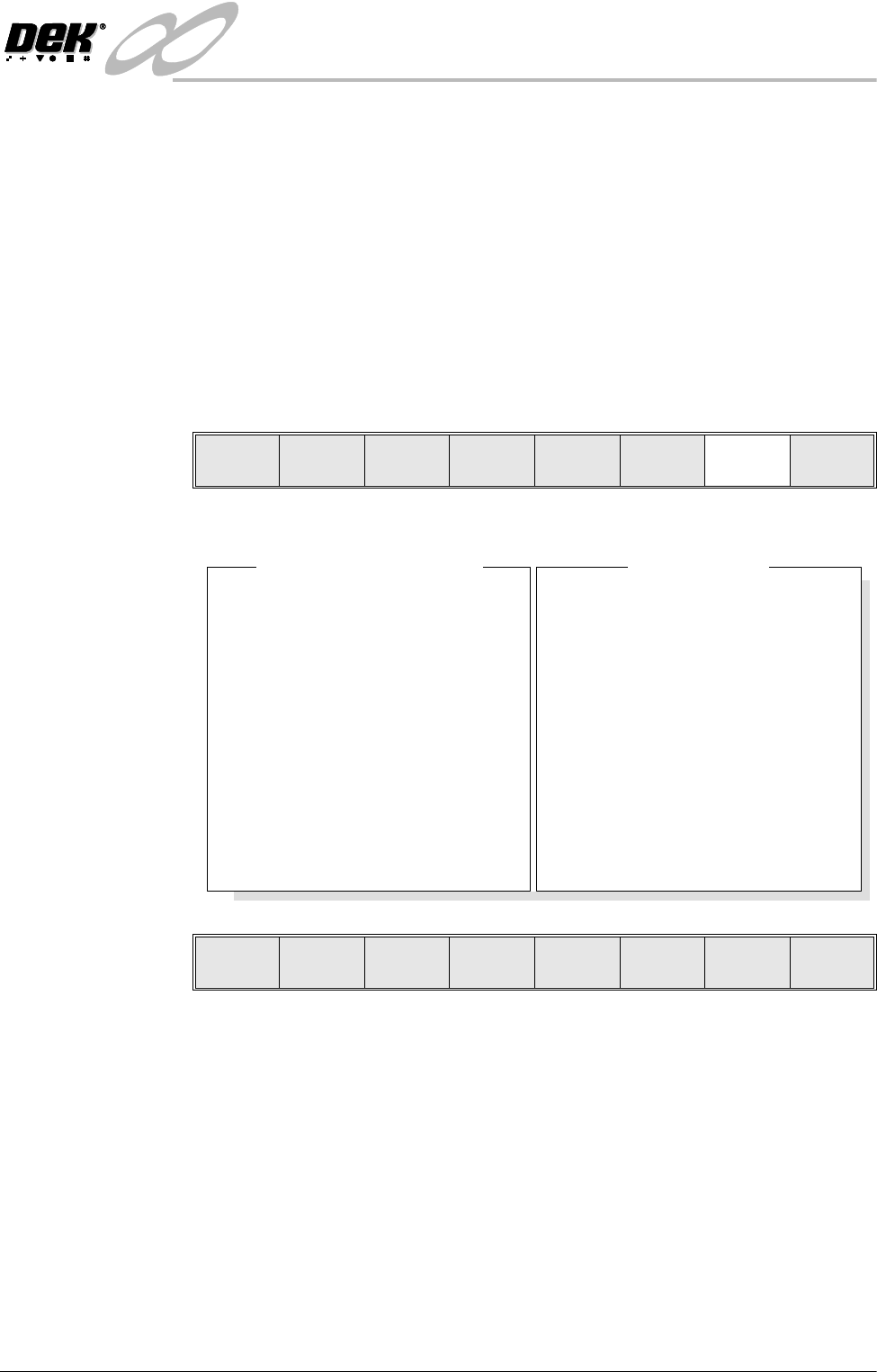
To access the parameter adjustment menu during a print cycle select Adjust
Inspect.
The following window is displayed:
The New Pre-images button is only available if Pre-image is set to 1.
NOTE
If an error occurs when adjusting inspection parameters during a print cycle,
the adjustment page closes.
Any changes made are saved.
End
Run
Stop
Cycle
Paste
Load
Clean
Screen
Adjust
Knead
Paste
Adjust
Inspect
SiteName
SitePriority
StencilInspectType
BoardInspectType
SiteAlignment
LimitSetID
PasteScaling
IC27-1
General
Advanced
Advanced
XandY
Fine
1.00
2DInspectRate
StencilInspectType
BoardInspectType
Pre-image
Min.Sites/Cycle
WarningLimit
BlockageAction
BlockageClean
SmearAction
SmearClean
LowPasteAction
InspectAfterClean
No.Sites
1
Advanced
Advanced
Every
10
3
Auto
Mode2
Manual
Mode1
Re-print
Enabled
30
GlobalInspectParameters
SiteParameters
Edit
Global
Edit
Limits
New Pre-
images
Edit
Site
Exit